Windows 11: Using the Windows File Explorer for Advanced File Management
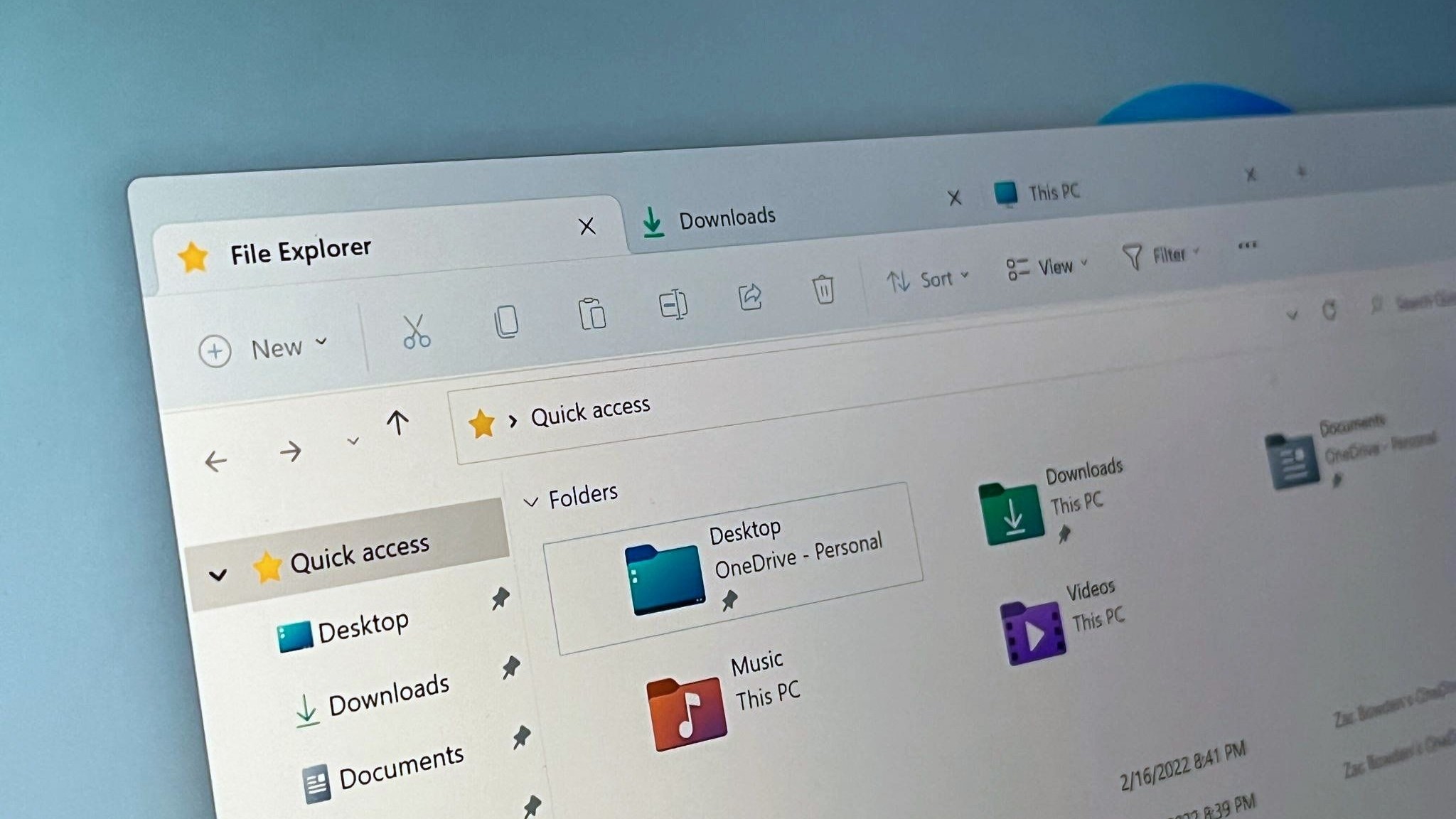
Unlock the Power of Windows 11: Master File Explorer for Ultimate Organization.
Hey there, fellow Windows aficionados! Ever feel like your digital life is a bit… chaotic? Like a sock drawer overflowing with mismatched pairs and that one rogue Christmas ornament you swear you’ll put away… eventually? We’ve all been there. Juggling documents, photos, videos, and a million other files can quickly turn into a digital jungle. And let's be honest, whoactuallyenjoys spending hours searching for that one specific file you needright now?
Imagine this:You're racing against a deadline, frantically searching for that crucial presentation you poured your heart and soul into. The clock is ticking, your stress levels are skyrocketing, and all you can find are vacation photos from 2018. Sound familiar? Or maybe you’re trying to declutter your hard drive, only to be paralyzed by the sheer volume of files and folders staring back at you. You end up scrolling aimlessly, deleting a few duplicates, and then giving up entirely, promising yourself you’ll tackle it “next weekend.” (Spoiler alert: next weekend never comes.)
The truth is, the Windows File Explorer, that seemingly simple window to your digital world, is actually a powerhouse of features just waiting to be unleashed. Most of us only scratch the surface, using it for basic tasks like opening files and creating folders. But beneath its unassuming exterior lies a wealth of advanced tools and techniques that can transform you from a digital packrat into a master of organization.
Think of it like this: you wouldn’t buy a high-performance sports car and only drive it to the grocery store, would you? (Okay, maybe you would, but that’s beside the point!) Similarly, you shouldn’t let the File Explorer’s potential go to waste. It's time to move beyond the basics and discover how to truly harness its power.
So, are you ready to ditch the digital clutter, conquer your file chaos, and finally become the organized guru you always knew you could be? Stick with us, friends, as we dive deep into the world of Windows 11 File Explorer and unlock its hidden secrets. We're about to embark on a journey that will revolutionize the way you manage your files and folders, making you more productive, efficient, and, dare we say, even a little bit happier. Intrigued? Then let’s get started!
Mastering Windows 11 File Explorer: Your Guide to Advanced File Management
The Windows 11 File Explorer isn't just a tool; it's your gateway to digital mastery. Understanding its advanced features can drastically improve your workflow, organization, and overall computing experience. Let’s dive into how you can leverage its full potential.
Unlocking the Power of the Ribbon Interface
The Ribbon, that bar across the top of the File Explorer, is more than just a decorative element. It's a command center offering quick access to frequently used functions.
• Customize the Quick Access Toolbar: We all have those commands we use constantly. Pin them to the Quick Access Toolbar for instant availability, bypassing the need to navigate through menus. Think of it as your personalized shortcut haven. For example, if you frequently zip files, adding the "Zip" command to the Quick Access Toolbar will save you precious clicks.
• Explore the 'View' Tab Options: Don't settle for the default view. The 'View' tab offers a plethora of options for displaying your files and folders.
- Change Layout: Experiment with different layouts like 'Details,' 'List,' 'Large icons,' or 'Tiles' to find the one that suits your needs. If you're visually oriented, 'Large icons' might be perfect for browsing photos. If you prioritize information density, 'Details' view with customizable columns is the way to go.
- Group By and Sort By: These features are your secret weapons against digital chaos. Group files by type, date modified, size, or any other attribute to quickly locate what you're looking for. Sort them alphabetically, by date, or size to bring order to the chaos. Imagine needing to find the most recent document you worked on – simply sort by 'Date modified' and boom, there it is!
- Show/Hide Elements: Declutter the interface by hiding elements you don't need. Hide the preview pane if you rarely use it, or show file extensions to avoid confusion.
Advanced Search Techniques
The search bar in File Explorer is more powerful than you might think. Learn how to use advanced search operators to pinpoint exactly what you're looking for.
• Use Boolean Operators: Combine keywords with 'AND,' 'OR,' and 'NOT' to refine your searches. For example, searching for "report AND sales NOT Q3" will find all files containing "report" and "sales" but excluding those mentioning Q3.• Search by File Type: Specify the file type using the 'type:' operator. For instance, 'type:pdf' will only display PDF files. This is incredibly useful when you're drowning in a sea of different file formats.
• Search by Date Modified: Use the 'datemodified:' operator to find files modified within a specific timeframe. For example, 'datemodified:last week' will show files you've worked on in the past week.
• Use Wildcards: Employ '' (asterisk) to represent multiple characters and '?' (question mark) to represent a single character. Searching for 'image. jpg' will find all JPEG files starting with 'image.'
Mastering File and Folder Management
Beyond the basics of creating and deleting, File Explorer offers a range of advanced file and folder management tools.
• Utilize Libraries:Libraries are virtual collections that gather files from different locations into a single view. Create libraries for your documents, music, pictures, and videos to streamline access. You can include folders from different drives or even network locations within a single library.
• Create Symbolic Links: Symbolic links (symlinks) are like shortcuts on steroids. They allow you to create a link to a file or folder that behaves as if it were the actual file or folder, even though it's located elsewhere. This is incredibly useful for organizing large projects or sharing files between different applications without duplicating them.
• Use Folder Options for Customized Behavior: Dive into the Folder Options dialog box (accessible through the 'View' tab, then 'Options') to customize how File Explorer behaves.
- Change Default Open Behavior: Choose whether folders open in the same window or a new window.
- Customize Privacy Settings: Clear your File Explorer history and control which folders are indexed for faster searching.
- Restore Default Settings: If you've messed things up, don't panic! The 'Restore Defaults' button will bring everything back to normal.
• Compressing and Extracting Files: Windows 11 has built-in zip capabilities, but you can also use third-party tools.
- Built-in ZIP Support: Right-click on files or folders and select "Compress to ZIP file" to create a compressed archive. To extract, simply right-click on the ZIP file and select "Extract All."
- Third-party tools: Applications like 7-Zip and Win RAR offer more advanced compression options and support for a wider range of archive formats.
Leveraging One Drive Integration
One Drive is seamlessly integrated into File Explorer, providing easy access to your cloud storage.
• Syncing Files and Folders: Automatically sync files and folders between your computer and One Drive. This ensures that your data is always backed up and accessible from anywhere.
• Sharing Files and Folders: Easily share files and folders with others directly from File Explorer. You can create shareable links with different permission levels (view only, edit access, etc.).
• Version History: One Drive keeps track of previous versions of your files, allowing you to revert to an earlier version if needed. This is a lifesaver if you accidentally overwrite a file or make unwanted changes.
Customizing File Explorer for Maximum Efficiency
Personalize File Explorer to match your workflow and preferences.
• Pin Frequent Folders to Quick Access: Keep your most frequently accessed folders just a click away by pinning them to the Quick Access section in the navigation pane.
• Customize the Navigation Pane: Choose which folders and drives are displayed in the navigation pane. You can also rearrange the order of the items to suit your preferences.
• Use Tags for Enhanced Organization: Add tags to your files to categorize them beyond the traditional folder structure. This allows you to easily find related files even if they're stored in different locations. For example, you could tag all files related to a specific project, regardless of which folder they're in.
Automating Tasks with File Explorer
Did you know you can automate tasks within File Explorer?
• Batch Renaming: Select multiple files and press F2 to rename them in bulk. You can use sequential numbering or replace specific text in the filenames. This is a huge time-saver when you need to rename a large number of files with similar names.
• Scripting with Power Shell: For advanced users, Power Shell can be used to automate complex file management tasks. You can create scripts to rename files, move them to different locations, create backups, and much more. This requires some knowledge of Power Shell scripting, but the possibilities are endless.
By mastering these advanced techniques, you'll transform the Windows 11 File Explorer from a basic utility into a powerful tool for managing your digital world. No more lost files, no more endless searching, just smooth, efficient file management.
Real-World Examples: Putting Knowledge into Action
Let's see how these techniques can be applied in practical scenarios.
• The Photographer's Workflow: A photographer can use the 'Group By' feature to organize photos by date taken or camera model. They can then use the 'Tags' feature to add keywords like 'portrait,' 'landscape,' or 'event' to further categorize their images. Batch renaming can be used to quickly rename photos after a shoot, and One Drive integration ensures that their work is always backed up and accessible from any device.
• The Student's Research Project: A student working on a research project can use Libraries to gather all their research materials from different sources into a single location. They can use advanced search operators to quickly find specific information within their documents, and One Drive integration allows them to collaborate with classmates on shared files.
• The Small Business Owner's File Management: A small business owner can use Libraries to organize their business documents, such as invoices, contracts, and financial statements. They can use symbolic links to share files between different departments without duplicating them, and One Drive integration ensures that their data is always backed up and protected.
Frequently Asked Questions
Let’s address some common questions you might have about using Windows 11 File Explorer.
• Question: How do I make File Explorer open to 'This PC' instead of 'Quick Access'?
- Answer: Open File Explorer, click the three dots (...) in the command bar, select 'Options,' and in the 'General' tab, change 'Open File Explorer to' to 'This PC.'
• Question: Can I customize the columns displayed in the 'Details' view?
- Answer: Absolutely! In 'Details' view, right-click on the column headers, select 'More...,' and choose the columns you want to display. You can add columns like 'Date Created,' 'Dimensions,' or 'Bit Rate.'
• Question: How do I disable the preview pane in File Explorer?
- Answer: In the 'View' tab, click 'Preview pane' to toggle it on or off. Disabling it can improve performance, especially when browsing folders with many large files.
• Question: What's the difference between 'Cut' and 'Copy' when moving files?
- Answer: 'Cut' removes the file from its original location and places it in the clipboard, ready to be pasted elsewhere. 'Copy' creates a duplicate of the file in the new location, leaving the original intact.
Congratulations, you've made it to the end! You're now equipped with the knowledge to transform your Windows 11 File Explorer experience from basic to brilliant. We've covered everything from mastering the Ribbon interface and advanced search techniques to leveraging One Drive integration and customizing File Explorer for maximum efficiency.
So, what's your next step? Take the plunge! Open your File Explorer right now and start experimenting with these techniques. Pin those frequently used folders to Quick Access, try out some advanced search operators, or create a Library to organize your most important documents. The more you practice, the more comfortable and confident you'll become in your file management abilities.
Don't let digital clutter hold you back any longer. Embrace the power of the Windows 11 File Explorer and unlock your true organizational potential. Go forth and conquer your files! Who knows? Maybe you'll even find that missing Christmas ornament after all. Are you ready to become the master of your digital domain?

Post a Comment for "Windows 11: Using the Windows File Explorer for Advanced File Management"
Post a Comment