Windows 11: Using the Windows File Explorer for Advanced File Management
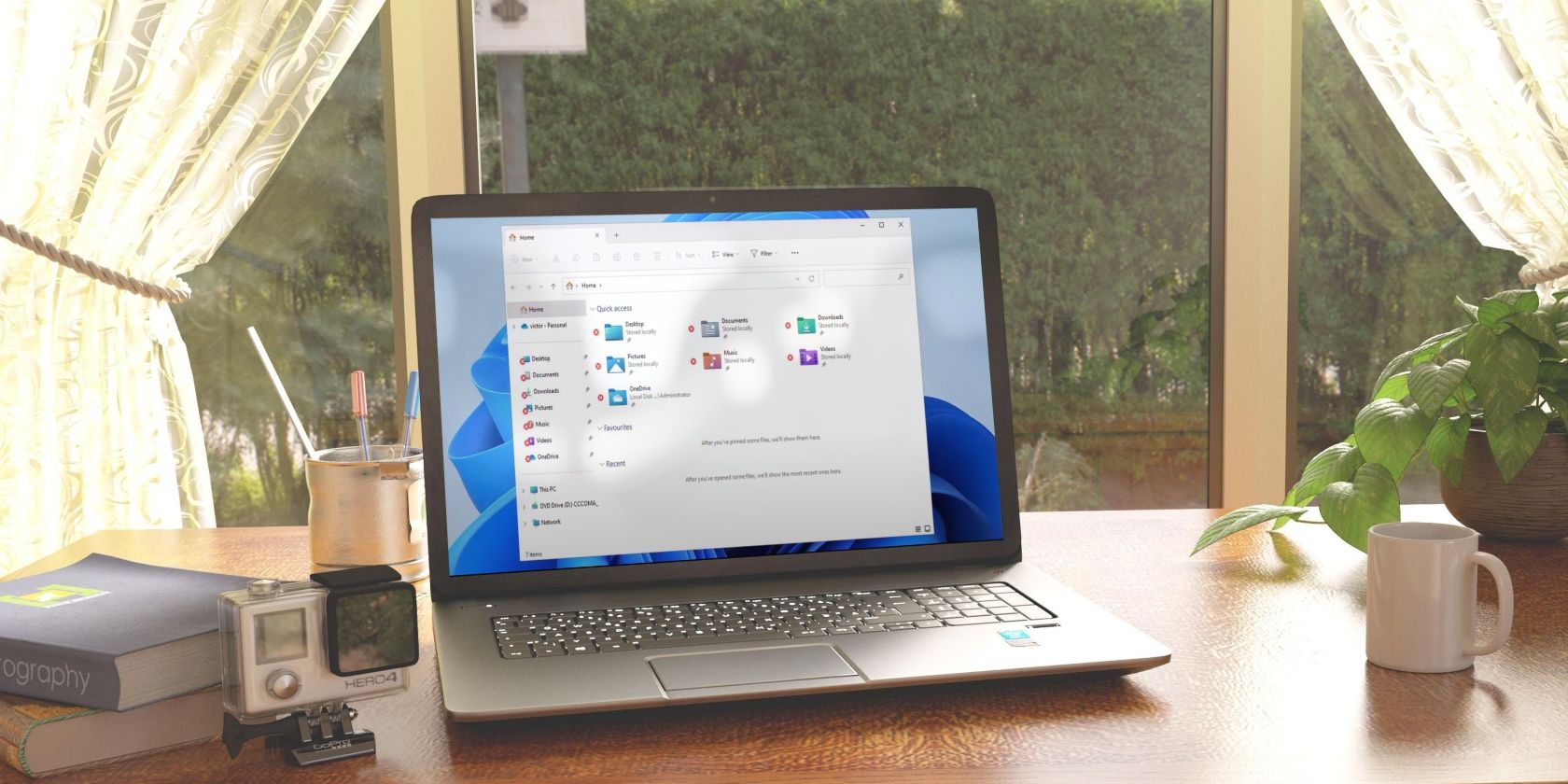
Unlock the Power: Mastering File Management with Windows 11 File Explorer.
Hey there, tech enthusiasts! Ever feel like your digital life is a tangled mess of files and folders? You're not alone! We've all been there, staring blankly at a screen full of documents named "Document1," "Document2," and, if you're feeling adventurous, Document3.It's like a digital archaeological dig, trying to unearth that one specific file you need. Windows File Explorer, the unsung hero of your operating system, is the key to bringing order to this chaos.
Think of File Explorer as your personal digital librarian. It's the tool that lets you navigate your computer's storage, organize your files, and perform all sorts of nifty tricks to keep things running smoothly. But let's be honest, most of us only scratch the surface of what File Explorer can actually do. We click, we drag, we drop – the bare minimum to get by. We rarely delve into the depths of its capabilities. Like having a sports car and only using it to drive to the grocery store. You're missing out on the fun, the speed, and the sheer power at your fingertips!
And that's where we come in. We're not just going to tell you the basics you already know. Oh no. We're diving deep, exploring the advanced features of Windows 11 File Explorer, and showing you how to wield it like a true digital ninja. We're talking about boosting your productivity, saving you time, and making your computer experience, well, just plain better.
Imagine being able to instantly find any file, no matter how deeply buried. Picture effortlessly managing large quantities of data, with the agility of a seasoned professional. Envision a world where file management isn't a chore, but a streamlined process that empowers you to focus on what truly matters. Is this a fantasy? Nope! It's the reality you can achieve with a little know-how and a deeper understanding of Windows 11 File Explorer.
So, are you ready to unlock the full potential of your digital workspace? Are you prepared to transform from a casual clicker to a file management maestro? Buckle up, because we're about to embark on a journey into the heart of Windows 11 File Explorer. Prepare to be amazed, enlightened, and maybe just a little bit excited about file management. (Yes, we said excited. It's possible, we promise!)
Let's dive in and discover how to truly master the art of file management with Windows 11 File Explorer!
Unlocking Advanced File Management in Windows 11 File Explorer
Windows 11 File Explorer is more than just a tool to open files; it's a powerhouse for managing your digital world. Let's explore how to leverage its advanced features to boost your productivity and keep your files organized. We'll cover everything from customizing the interface to using powerful search techniques and automating tasks.
Mastering the Interface
First impressions matter, even with file explorers! Customizing the interface can significantly improve your workflow. The Windows 11 File Explorer offers a more modern, streamlined interface compared to its predecessors, but there's still plenty you can tweak to make it your own.
• Customizing the Quick Access Toolbar:
The Quick Access Toolbar (QAT) sits at the top of the File Explorer window and gives you immediate access to frequently used commands. Adding commands like "Copy Path," "New Folder," or even specific folder locations can save you valuable time.
• To customize: Click the down arrow at the end of the QAT and select the commands you want to add. You can also right-click any command in the Ribbon and choose "Add to Quick Access Toolbar."
• Utilizing the Ribbon Effectively:
The Ribbon, that band of options at the top, might seem overwhelming at first, but it’s packed with features. Learn to navigate it quickly by understanding its tabs (File, Home, Share, View) and the commands within each.
• Pro Tip: Double-click any tab to minimize the Ribbon if you prefer a cleaner look. Double-click again to bring it back.
• Optimizing the Navigation Pane:
The Navigation Pane on the left side of File Explorer provides quick access to your drives, folders, and network locations. Customize it to show only the folders you need, decluttering the view.
• Right-click in the Navigation Pane to show or hide elements like "This PC," "Quick Access," or Network.
Advanced Search Techniques
Finding files quickly is crucial. Windows 11 File Explorer has a robust search function that goes far beyond simply typing a filename.
• Leveraging Search Operators:
Search operators are your secret weapon for precise file hunting. Use keywords like "datecreated," "datemodified," "size," and "type" to narrow down your search.
• Example: To find all .docx files modified in the last week, use "type:docx datemodified:last week."
• Using Wildcards:
Wildcards are characters that represent unknown parts of a filename. The asterisk () represents any number of characters, while the question mark (?) represents a single character.
• Example:"report. docx" will find "report1.docx," "report_final.docx," and any other .docx file starting with report.
• Saving Searches for Later:
If you frequently perform the same search, save it for future use. This feature creates a virtual folder that automatically updates with the latest results.
• To save a search: After performing the search, click the "Search" tab in the Ribbon and select "Save search."
Mastering File Operations
Moving, copying, and renaming files are everyday tasks, but there are ways to do them more efficiently.
• Using Keyboard Shortcuts:
Keyboard shortcuts are a productivity booster. Learn the essential ones like Ctrl+C (copy), Ctrl+X (cut), Ctrl+V (paste), Ctrl+Z (undo), and Ctrl+Y (redo).
• For example, to quickly copy a file, select it, press Ctrl+C, navigate to the destination folder, and press Ctrl+V.
• Batch Renaming Files:
Renaming multiple files at once can be a lifesaver when dealing with large batches of photos or documents.
• Select all the files you want to rename, right-click the first file, choose "Rename," type the new name, and press Enter. Windows will automatically number the files sequentially.
• Creating Symbolic Links:
Symbolic links (symlinks) are like shortcuts on steroids. They allow you to create a pointer to a file or folder in another location, making it appear as if it exists in both places. This is useful for organizing files without actually moving them.
• To create a symlink: Open Command Prompt as an administrator, navigate to the desired location, and use the command "mklink /D Link Name Target Path" (for directories) or "mklink Link Name Target Path" (for files).
Taking Control of File Explorer Options
File Explorer Options allow you to fine-tune how File Explorer behaves. Access them by clicking the "View" tab in the Ribbon and then selecting Options.
• Changing Folder View Settings:
Customize how files and folders are displayed (e.g., Details, List, Tiles, Icons). You can also set default view settings for all folders of a specific type.
• In the "View" tab of Folder Options, adjust settings like "Always show icons, never thumbnails" or "Show hidden files and folders."
• Configuring Privacy Settings:
File Explorer tracks recently used files and folders. If you value your privacy, you can disable this feature and clear your history.
• In the "General" tab of Folder Options, uncheck "Show recently used files in Quick access" and "Show frequently used folders in Quick access." Click "Clear" to clear your history.
• Adjusting Search Settings:
Control how File Explorer searches for files. You can specify whether to include system files, compressed files, and even the contents of files.
• In the "Search" tab of Folder Options, adjust settings like "Include system directories" and "Always search file names and contents."
Automating File Management Tasks
Power Shell is a command-line scripting language that can automate many file management tasks. It might seem intimidating, but even basic Power Shell commands can save you time and effort.
• Using Power Shell for Bulk Operations:
Power Shell can perform operations on multiple files at once, such as renaming, copying, or deleting.
• Example: To rename all .txt files in a folder to .log, open Power Shell in that folder and use the command "Get-Child Item.txt | Rename-Item -New Name {$_.Name -replace ".txt", ".log"}"
• Creating Scripts for Recurring Tasks:
For tasks you perform frequently, create a Power Shell script. This script can be saved and run with a single click.
• Example: Create a script to automatically back up your documents folder to an external drive every day. Save the script as a .ps1 file and schedule it to run using Task Scheduler.
• Integrating Power Shell with File Explorer:
Add Power Shell commands directly to the File Explorer context menu (right-click menu) for quick access.
• This involves modifying the Windows Registry, so proceed with caution. You can find detailed tutorials online on how to add custom commands to the context menu.
Cloud Integration and File Sharing
Windows 11 File Explorer seamlessly integrates with One Drive and other cloud storage services, making it easy to access and share files from anywhere.
• Managing One Drive Files:
Access your One Drive files directly from File Explorer. You can choose which folders to sync to your computer, freeing up space on your hard drive.
• Right-click a One Drive folder and select "Free up space" to remove the local copy while keeping the file in the cloud.
• Sharing Files Directly from File Explorer:
Quickly share files with others using One Drive's sharing features.
• Right-click a file and select "Share" to generate a sharing link or send an email invitation.
• Integrating Other Cloud Services:
Many other cloud storage services, such as Dropbox and Google Drive, offer File Explorer integration. Install their desktop apps to access your cloud files directly from File Explorer.
By mastering these advanced techniques, you can transform Windows 11 File Explorer from a simple file browser into a powerful tool for managing your digital life. Experiment with these features and discover how they can streamline your workflow and boost your productivity.
Frequently Asked Questions
Let's address some common questions about using Windows 11 File Explorer for advanced file management.
• Question: How can I make File Explorer open to "This PC" instead of "Quick Access" by default?
Answer: Open File Explorer Options (View > Options). In the "General" tab, change "Open File Explorer to" from "Quick Access" to "This PC."
• Question: Is there a way to recover a file that I accidentally deleted?
Answer: First, check the Recycle Bin. If the file is there, right-click it and select Restore.If the file is not in the Recycle Bin, you can try using file recovery software, such as Recuva or Ease US Data Recovery Wizard.
• Question: How can I password-protect a folder in Windows 11?
Answer: Windows 11 doesn't have a built-in feature to password-protect folders directly in File Explorer. However, you can use third-party encryption software, such as Vera Crypt, to encrypt the folder and require a password to access it. Alternatively, you can use the built-in Bit Locker encryption for entire drives.
• Question: What is the best way to organize my files and folders for optimal efficiency?
Answer: There's no one-size-fits-all answer, but a good starting point is to create a logical folder structure based on project, date, or file type. Use descriptive filenames, avoid excessive nesting, and regularly clean up and archive old files. Consider using tags or metadata to further categorize your files. Consistency is key!
That concludes our journey into the depths of Windows 11 File Explorer. Hopefully, you've discovered some new tricks and techniques to help you manage your files more efficiently.
We've covered a lot of ground today, from customizing the File Explorer interface to mastering advanced search techniques, automating tasks with Power Shell, and integrating with cloud storage services. The key takeaway is that Windows 11 File Explorer is a powerful tool that can be tailored to your specific needs and preferences.
Now that you're armed with this knowledge, it's time to put it into practice! Start by implementing one or two of the techniques we discussed and gradually incorporate more as you become comfortable. The more you experiment and explore, the more efficient and productive you'll become.
Here's your call to action: Take 15 minutes today to customize your Quick Access Toolbar and try out a few of the advanced search operators. You might be surprised at how much time you save!
Remember, mastering file management is a journey, not a destination. Keep learning, keep exploring, and keep refining your workflow. You've got this! Now go forth and conquer your digital chaos! Are you ready to become a File Explorer master?

Post a Comment for "Windows 11: Using the Windows File Explorer for Advanced File Management"
Post a Comment