Windows 11: Using the Windows Command Prompt for Automation
Unlock the Power of Windows 11: Automate Like a Pro with Command Prompt
Hey friends! Ever feel like you're stuck in a digital Groundhog Day, repeating the same tasks on your Windows 11 machine over and over again? Copying files, renaming batches of images, or maybe even just launching your favorite apps in a specific order? We've all been there. It's like being a robot stuck in a loop, and frankly, life's too short to spend it doing things a machine could easily handle for you. Think about all the time you could save, all the extra coffee you could drink (responsibly, of course!), or all the new skills you could learn if you could just... automate it.
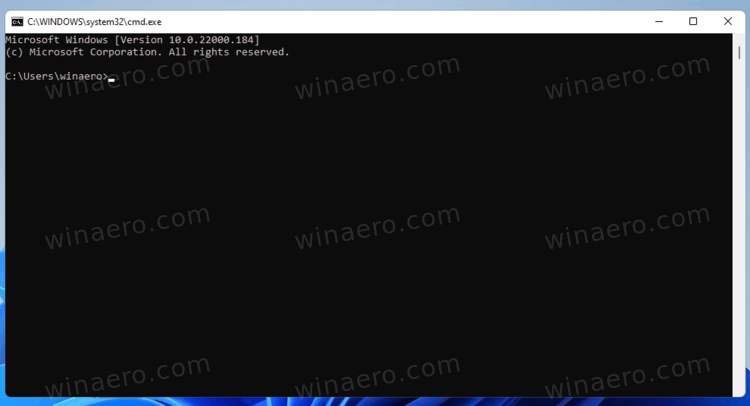
Now, I know what some of you might be thinking: "Automation? That sounds complicated! I'm no coder!" And that's perfectly fine! The beautiful thing is that you don't need to be a programming guru to harness the power of automation in Windows 11. We're going to dive into the often-overlooked, yet incredibly powerful, Windows Command Prompt. Yes, that black window with the blinking cursor might seem intimidating at first, like some relic from the dawn of computing. But trust me, beneath its seemingly austere exterior lies a treasure trove of tools and techniques that can transform your workflow and free up your precious time.
Think of the Command Prompt as your personal digital assistant, ready to carry out your commands with unwavering precision. It's like having a super-efficient, slightly robotic, but ultimately helpful friend who's always there to handle those tedious tasks you dread. We're not talking about replacing your job with AI (not yet, anyway!), but about empowering you to be more productive and efficient in your daily digital life.
But the Command Prompt is more than just a task runner; it's a gateway to understanding how your operating system truly works. By learning to use its commands and scripting capabilities, you'll gain a deeper appreciation for the inner workings of Windows 11 and develop a level of control you never thought possible. It's like learning the secret language of your computer, unlocking hidden potential and becoming a true digital wizard.
Now, before you start picturing yourself writing complex scripts that rival Hollywood hacking scenes, let's be realistic. We're going to start with the basics, learn the fundamentals, and gradually build our way up to more advanced techniques. We'll explore simple commands, batch scripting, and even look at how to schedule tasks to run automatically. The journey might seem daunting at first, but I promise you, the rewards are well worth the effort.
So, are you ready to break free from the monotony of repetitive tasks and unlock the automation potential hidden within your Windows 11 machine? Are you ready to transform your digital life and become a master of your operating system? Let's dive in and discover the magic of the Command Prompt! But before we do, what if I told you there was a way to make the Command Prompt even MORE powerful, by combining it with other tools you already have? Intrigued? Keep reading!
Diving Deep into Windows 11 Command Prompt Automation
Okay, friends, let’s get our hands dirty! We're going to unpack the Command Prompt in Windows 11 and learn how to bend it to our will. Forget the scary hacker movies – we're talking about real-world, practical automation that will make your life easier and more efficient. Think of it as learning a new superpower, one keystroke at a time.
Understanding the Basics
First things first: what exactly IS the Command Prompt? Simply put, it's a command-line interpreter. It’s a text-based interface that allows you to interact with your computer by typing commands. It's been around for decades, and while it might seem old-fashioned compared to graphical user interfaces (GUIs), it's still incredibly powerful for automation and system administration.
- Opening the Command Prompt: There are several ways to open the Command Prompt in Windows 11. You can search for "cmd" in the Start menu, or you can press the Windows key + R, type "cmd," and press Enter. You can also right-click the Start button and select "Terminal," which can host the Command Prompt as one of its shell options.
- Basic Commands: Let's start with some fundamental commands:
dir: Lists the files and directories in the current directory. Think of it as a digital table of contents.cd: Changes the current directory. For example,cd Documentswill move you into your Documents folder.mkdir: Creates a new directory.mkdir New Folderwill create a folder called New Folder.copy: Copies files from one location to another.copy file.txt destination\will copy "file.txt" to the "destination" folder.del: Deletes files. Use with caution!del file.txtwill delete "file.txt."ren: Renames files or directories.ren oldname.txt newname.txtwill rename "oldname.txt" to "newname.txt."
- Piping and Redirection: This is where things start to get interesting. Piping (
|) allows you to send the output of one command as input to another. Redirection (>and<) allows you to redirect the output of a command to a file or take input from a file.- Example:
dir | find "txt"– This command lists all files and directories and then filters the output to show only those containing txt. - Example:
dir > filelist.txt– This command lists all files and directories and saves the output to a file called "filelist.txt."
- Example:
Batch Scripting: Your Automation Arsenal
Batch scripting is the key to automating complex tasks in the Command Prompt. A batch script is simply a text file containing a series of commands that are executed sequentially. It's like writing a little program that automates a specific set of actions.
- Creating a Batch Script: Create a new text file, write your commands inside it, and save it with a ".bat" extension. For example, "my_script.bat."
- Essential Batch Script Commands:
@echo off: This command disables the echoing of commands to the console, making the output cleaner. Add this at the beginning of your script.pause: This command pauses the script execution and waits for the user to press a key. Useful for debugging or displaying information.echo: This command displays a message on the console.echo Hello, world!will print "Hello, world!"if: This command allows you to create conditional logic. For example:if exist "file.txt" (echo File exists) else (echo File does not exist)for: This command allows you to iterate over a set of items. For example:for %%i in (.txt) do (echo Processing file:%%i)This script will loop through all ".txt" files in the current directory and print their names.
:labelandgoto: These commands allow you to create loops and jump to specific sections of your script.
- Real-World Examples:
- Batch Renaming Files: Imagine you have a folder full of images named "image1.jpg," "image2.jpg," etc., and you want to rename them to "photo_001.jpg," "photo_002.jpg," etc. You could write a batch script to automate this process.
- Creating Backups: You can create a batch script to automatically back up your important files to a different location.
- Launching Multiple Applications: You can create a batch script to launch several applications in a specific order. This can be useful if you have a specific workflow that requires multiple programs to be running simultaneously.
Advanced Techniques and Tips
Ready to level up your Command Prompt game? Here are some advanced techniques and tips that will help you become a true automation master.
- Using Variables: Variables allow you to store and manipulate data within your batch scripts. You can define variables using the
setcommand. For example,set MY_VARIABLE=My Value. You can then access the variable using%MY_VARIABLE%. - Working with Dates and Times: The Command Prompt has built-in commands for working with dates and times. You can use the
dateandtimecommands to retrieve the current date and time, and you can use the%date%and%time%variables to access these values in your scripts. - Scheduling Tasks with Task Scheduler: The Task Scheduler is a powerful tool that allows you to schedule tasks to run automatically at specific times or intervals. You can use it to run your batch scripts automatically, without any manual intervention. This is incredibly useful for tasks like backups, system maintenance, or sending reports.
- To access Task Scheduler, search for "Task Scheduler" in the Start menu.
- Create a new basic task, give it a name and description, and specify when you want it to run.
- Choose "Start a program" as the action and browse to your batch script.
- Power Shell Integration: While we're focusing on the Command Prompt, it's worth mentioning Power Shell. Power Shell is a more advanced scripting language that offers even greater automation capabilities. You can even call Power Shell scripts from within your Command Prompt batch scripts, and vice versa. This allows you to combine the strengths of both tools.
- Error Handling: When writing batch scripts, it's important to consider error handling. You can use the
if errorlevelcommand to check the exit code of a command and take appropriate action. This can help prevent your scripts from failing unexpectedly. - Online Resources and Communities: There are tons of online resources and communities dedicated to Command Prompt and batch scripting. Websites like Stack Overflow, Reddit, and various online forums are great places to find answers to your questions, share your scripts, and learn from other users. Don't be afraid to ask for help!
Unlocking Efficiency: Real-World Automation Examples
Let's bring these concepts to life with some practical examples of how you can use the Command Prompt and batch scripting to automate your daily tasks. Remember, the goal is to save time and effort, so choose tasks that you find repetitive or tedious.
- Automated File Backups:
- Create a batch script that copies your important files to a backup location.
- Use the
xcopycommand for more advanced copying options, such as mirroring directory structures and excluding specific files. - Schedule the script to run automatically using Task Scheduler, so your backups are always up-to-date.
- Bulk File Renaming:
- Write a batch script that renames multiple files based on specific criteria, such as adding a prefix or suffix, replacing characters, or changing the file extension.
- Use the
forcommand to loop through all the files in a directory. - Use the
rencommand to rename each file. - Consider using regular expressions for more complex renaming patterns.
- System Information Gathering:
- Create a batch script that gathers system information, such as the operating system version, CPU information, memory details, and disk space usage.
- Use commands like
systeminfo,wmic, anddiskpartto retrieve the information. - Output the information to a text file or display it on the console.
- This can be useful for troubleshooting or inventory management.
- Network Monitoring:
- Write a batch script that monitors network connectivity by pinging a specific server or website.
- Use the
pingcommand to test network connectivity. - Use the
ifcommand to check the ping results and take appropriate action, such as logging the results to a file or sending an email notification. - Schedule the script to run periodically to monitor network performance.
- Application Launch Automation:
- Create a batch script that launches multiple applications in a specific order.
- Use the
startcommand to launch each application. - Add delays between launching applications using the
timeoutcommand. - This can be useful for automating complex workflows that require multiple programs to be running simultaneously.
Best Practices for Command Prompt Automation
To ensure your automation efforts are successful and maintainable, follow these best practices:
- Write Clear and Concise Code: Use meaningful variable names, add comments to explain your code, and keep your scripts as short and simple as possible.
- Test Your Scripts Thoroughly: Before deploying your scripts to a production environment, test them thoroughly in a test environment to ensure they work as expected and don't cause any unexpected issues.
- Implement Error Handling: Add error handling to your scripts to catch errors and prevent them from failing unexpectedly.
- Use Version Control: Use a version control system, such as Git, to track changes to your scripts and make it easy to revert to previous versions if necessary.
- Document Your Scripts: Document your scripts to explain what they do, how they work, and how to use them.
- Keep Your Scripts Secure: Be careful when handling sensitive information, such as passwords or API keys, in your scripts. Avoid storing sensitive information in plain text and consider using encryption or other security measures.
Command Prompt Automation: Addressing Your Burning Questions
Let's tackle some of the common questions that might be swirling around in your head about Command Prompt automation.
- Q: Is Command Prompt automation still relevant in the age of graphical interfaces and advanced scripting languages?
- A: Absolutely! While GUIs are great for user-friendly interaction, and languages like Python offer powerful scripting capabilities, the Command Prompt provides a lightweight and efficient way to automate many common tasks. It's readily available on every Windows system, requires no additional software, and can be surprisingly effective for simple to medium-complexity automation. Plus, learning Command Prompt fundamentals provides a solid foundation for understanding more advanced scripting concepts.
- Q: How does Command Prompt automation compare to using Power Shell?
- A: Power Shell is a more powerful and flexible scripting language than the Command Prompt's batch scripting. It offers a wider range of commands, more advanced data manipulation capabilities, and better integration with the Windows operating system. However, it also has a steeper learning curve. Command Prompt automation is simpler and easier to learn for basic tasks, while Power Shell is better suited for more complex and advanced automation scenarios. In many cases, you can even combine the two, calling Power Shell scripts from within your Command Prompt batch scripts to leverage the strengths of both tools.
- Q: What are the limitations of Command Prompt automation?
- A: The Command Prompt has some limitations compared to more advanced scripting languages. It lacks built-in support for complex data structures, error handling, and graphical user interfaces. It can also be more difficult to debug and maintain large and complex batch scripts. For tasks that require these features, Power Shell or other scripting languages might be a better choice.
- Q: Where can I find more resources to learn about Command Prompt automation?
- A: There are numerous online resources available to help you learn about Command Prompt automation. Websites like Microsoft's documentation, Stack Overflow, and various online forums offer tutorials, examples, and answers to common questions. You can also find books and online courses that cover Command Prompt scripting in detail. Experimenting and practicing are key to mastering Command Prompt automation. Don't be afraid to try new things, break things, and learn from your mistakes!
Congratulations, friends! You've made it to the end of our deep dive into Windows 11 Command Prompt automation. We've covered everything from the basics of Command Prompt commands to advanced batch scripting techniques, and we've explored real-world examples and best practices. Now it's time to put your newfound knowledge into action!
The power of automation is at your fingertips. Start by identifying those repetitive tasks that drain your time and energy. Then, use the Command Prompt and batch scripting to create solutions that automate those tasks, freeing you up to focus on more important and enjoyable activities. Remember, even small improvements can have a significant impact on your productivity and overall well-being.
Your call to action is simple: choose one task that you want to automate and write a batch script to do it. Share your script with friends, ask for feedback, and continue to refine your skills. The more you practice, the more proficient you'll become, and the more you'll appreciate the power of Command Prompt automation.
Don't let the fear of the unknown hold you back. Embrace the challenge, experiment with different commands and techniques, and unleash your inner automation wizard. The possibilities are endless, and the rewards are well worth the effort. So, go forth and automate! Who knows what amazing things you'll accomplish with your newfound time and efficiency? Ready to take control of your digital destiny?

Post a Comment for "Windows 11: Using the Windows Command Prompt for Automation"
Post a Comment