Windows 11: Using the Windows Command Prompt for Automation
Step One:
Unlock Windows 11's hidden power: Automate tasks with the Command Prompt!
Step Two:
Hey there, tech-savvy friends! Ever feel like you're stuck in a digital Groundhog Day, endlessly repeating the same tasks on your Windows 11 machine? Copying files from one folder to another? Renaming a bunch of photos? Checking your IP address for themillionthtime? We’ve all been there. It's like being cursed to click the same buttons until the end of time. And let's be honest, in a world of self-driving cars and robot vacuum cleaners, shouldn'tyourcomputer be able to handle some of this grunt work for you?
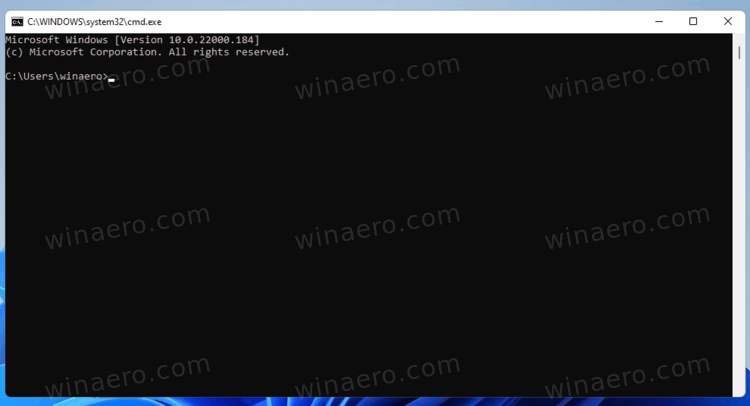
The problem is, most people think the Windows Command Prompt is some arcane relic from the MS-DOSera, a scary black box filled with cryptic commands that only seasoned programmers can understand. They picture a hacker furiously typing away, trying to break into the Pentagon. The truth is, the Command Prompt, also known ascmd.exe, is a powerful tool that can be used for a whole lot more than just pinging Google.
Think of it like this: your Windows 11 operating system speaks a few different languages. You probably communicate with it using the mouse and the graphical user interface (GUI) – clicking icons, dragging windows, and generally pointing and clicking your way through the day. But beneath that pretty exterior lies a command-line interpreter, a way to talk to your computer directly using text commands. And when you learn to speakitslanguage, you unlock a whole new level of control and efficiency.
We're not talking about becoming a master coder overnight. The beauty of using the Command Prompt for automation is that you can start small. Simple commands can automate surprisingly complex tasks, saving you time and effort. You can chain commands together to create scripts that run automatically, like magic, handling repetitive processes while you focus on more important things.
Imagine being able to create a script that automatically backs up your important files every night, or one that cleans up your cluttered desktop with a single click. Think of the possibilities! You could even schedule tasks to run while you're asleep, so you wake up to a perfectly organized and optimized system.
This isn't just for hardcore computer enthusiasts, either. Whether you're a student, a professional, or just someone who wants to get more out of their Windows 11 PC, learning a few basic Command Prompt techniques can significantly boost your productivity. It's like discovering a secret shortcut to getting things done, a way to bend your computer toyourwill.
So, if you're tired of being a slave to your mouse and keyboard, and you're ready to unlock the hidden potential of your Windows 11 machine, stick around. We're about to dive into the wonderful world of Command Prompt automation. Prepare to say goodbye to tedious tasks and hello to a more efficient, and dare we say,fun, way of working. Ready to learn how to make your computer workforyou instead of the other way around? Let's get started!
Step Three:
Unveiling the Power: Windows 11 Command Prompt Automation
Okay, friends, let's get practical. We're diving into the core of Windows 11 Command Prompt automation. But first, why bother? Simply put, it's about efficiency. Time is valuable, and the Command Prompt can help you reclaim some of yours. Many tasks we perform daily on our computers are repetitive and time-consuming. Automating them frees up your time and mental energy for more creative and important endeavors.
Here's a breakdown of some essential areas: Basic Commands:Your Automation Building Blocks
Before we build a skyscraper, we need bricks. In the Command Prompt world, those bricks are basic commands. Commands like `dir` (to list files and directories), `copy` (to copy files), `move` (to move files), `ren` (to rename files), and `del` (to delete files) are your bread and butter. Thesefundamentalcommands are used in almost every script.
For example, imagine you want to quickly list all the files in your Downloads folder. Instead of opening File Explorer and navigating there, you can simply open the Command Prompt, type `cd Downloads` (to change directory to the Downloads folder), and then `dir`. Boom! Instant file listing. It might not seem like much on its own, but mastering these commands sets the stage for more complex automation.
Let's try another one. Say you have a file named "Document.txt" and want to rename it to "Important_Document.txt." Just type `ren Document.txt Important_Document.txt` in the Command Prompt. Done. Fast, simple, andefficient.
Batch Files: Your Automation Recipes
Think of batch files as recipes for your computer. They're simple text files containing a series of Command Prompt commands that are executed sequentially. The file extension is `.bat` or `.cmd`. Creating one is super easy. Open Notepad (or any text editor), type in your commands, and save the file with a `.bat` extension.
For instance, let's say you want to create a backup of your important documents folder. You can create a batch file called `backup.bat` with the following commands:
```batch
@echo off
echo Backing up documents...
xcopy "C:\Users\Your Name\Documents" "D:\Backup\Documents" /s /e /y
echo Backup complete!
pause
```
In this script: `@echo off` prevents the commands from being displayed on the screen.
`echo` displays a message to the user.
`xcopy` is a powerful command for copying files and directories, with options like `/s` (copy subdirectories), `/e` (copy empty directories), and `/y` (suppress prompts to confirm overwriting files).
`pause` keeps the Command Prompt window open so you can see the results.
Double-clicking this `backup.bat` file will automatically back up your documents folder to the specified backup location. Imagine the time you’ll save by automating that! Replace Your Namewith your actual user name, of course.
Variables: Adding Flexibility to Your Scripts
Variables allow you to make your scripts more dynamic and adaptable. They're like placeholders that can store information, such as file names, dates, or user input.
To set a variable, use the `set` command. For example, `set filename=My File.txt` assigns the value "My File.txt" to the variable `filename`. To access the value of a variable, enclose it in percent signs, like this: `%filename%`.
Let's modify our backup script to use a variable for the backup location:
```batch
@echo off
set backup_location=D:\Backup\Documents
echo Backing up documents to %backup_location%...
xcopy "C:\Users\Your Name\Documents" "%backup_location%" /s /e /y
echo Backup complete!
pause
```
Now you can easily change the backup location by modifying the `backup_location` variable at the beginning of the script. This makes your script more reusable and flexible.
Conditional Statements: Making Decisions in Your Scripts
Sometimes, you need your scripts to make decisions based on certain conditions. That's where conditional statements like `if` and `else` come in.
For example, you might want to check if a file exists before attempting to copy it. Here's how you can do it:
```batch
@echo off
if exist "C:\Users\Your Name\Documents\Important File.txt" (
echo File exists, copying...
copy "C:\Users\Your Name\Documents\Important File.txt" "D:\Backup\Important File.txt"
) else (
echo File does not exist!
)
pause
```
This script checks if the file "Important File.txt" exists. If it does, it copies the file to the backup location. Otherwise, it displays a message indicating that the file doesn't exist.
Looping: Repeating Tasks Efficiently
Looping allows you to repeat a set of commands multiple times. This is incredibly useful for processing multiple files or performing tasks iteratively.
The `for` command is your friend here. For example, let's say you want to rename a batch of image files by adding a prefix to each filename. Here's how you can do it:
```batch
@echo off
for %%a in (.jpg) do (
ren "%%a" "PREFIX_%%a"
)
pause
```
In this script:`for %%a in (.jpg)` iterates through all files with the `.jpg` extension in the current directory.
`ren "%%a" "PREFIX_%%a"` renames each file by adding the prefix "PREFIX_" to the original filename.
This simple script can save you a ton of time if you have hundreds of images to rename.
Scheduling Tasks:Automating Your Automation
The final step is to automate the execution of your scripts. Windows Task Scheduler allows you to schedule tasks to run automatically at specific times or intervals.
To access Task Scheduler, search for it in the Start Menu. Create a new basic task, specify the trigger (e.g., daily, weekly, or when the computer starts), and then select the action to start a program. Browse to your batch file and select it.
Now, your script will run automatically according to the schedule you've defined. You can set it to back up your files every night, clean up your temporary files every week, or perform any other automated task you can imagine.
These are just a few examples of what you can achieve with Windows 11 Command Prompt automation. The possibilities are endless. As you become more comfortable with these basic concepts, you can start exploring more advanced techniques and create increasingly sophisticated scripts. Don't be afraid to experiment and try new things. The best way to learn is by doing!
Step Four:
Alright,friends, that's a wrap on our journey into Windows 11 Command Prompt automation! We've explored the basics, from understanding the core commands to creating batch files, using variables and conditional statements, implementing loops, and scheduling tasks. We've seen how this powerful tool, often overlooked, can truly transform how you interact with your computer, saving you time and effort in the long run.
The key takeaway here is that you don't need to be a coding guru to harness the power of the Command Prompt. Starting with simple scripts and gradually building your skills is the way to go. Experiment, explore, and don't be afraid to make mistakes. Learning from those mistakes is part of the process!
Now, it's time to put what you've learned into practice. Your mission, should you choose to accept it, is to create at least one simple automation script that solves a real problem you face in your daily computer usage. Whether it's backing up files, renaming photos, or cleaning up your desktop, the goal is to experience the satisfaction of automating a task and reclaiming some of your precious time. So,go forthand automate! Open that Command Prompt, fire up your favorite text editor, and start building something amazing.
We encourage you to take action now and explore the possibilities of Command Prompt automation. Share your scripts and experiences with others, and continue to learn and grow your skills. The journey to becoming a Command Prompt master is a continuous one, and we're excited to see what you'll accomplish.
Ultimately, mastering the Command Prompt is about empowering yourself and taking control of your digital world. So, keep exploring, keep experimenting, and remember that even the most complex tasks can be simplified and automated with a little bit of Command Prompt magic.
Stay curious, stay creative, andnever stop exploringthe hidden depths of your Windows 11 machine. Now, aren't you excited to start automating your life?

Post a Comment for "Windows 11: Using the Windows Command Prompt for Automation"
Post a Comment