Windows 11: Using the Windows File Explorer for Advanced File Management
Windows 11 File Explorer: Unleashing Advanced File Management Secrets
Windows 11 File Explorer is more than just clicking around – it's your command center for digital domination.
Hey friends! Let's talk about something we all useconstantlybut probably don't think aboutnearlyenough: Windows File Explorer. Yeah, that window that pops up when you're trying to find thatoneelusive file buried somewhere deep within your hard drive. We've all been there, right? Frantically clicking through folders, desperately hoping to stumble upon that important document or cherished family photo.
And while most of us use File Explorer for basic tasks like opening files and creating folders, it's actually asurprisinglypowerful tool packed with features that can seriously boost your productivity and organization. Think of it as the Swiss Army knife of file management – you just need to know how to use all those cool little gadgets tucked away inside.
Are you tired of the same old file management routine? Do you dream of a world where finding thatcrucialdocument doesn't involve a frantic, last-minute scavenger hunt? Well, my friend, you've come to the right place! Because today, we're diving deep into theadvancedfeatures of Windows 11 File Explorer, uncovering the secrets that will transform you from a casual clicker into a file managementninja.
We're talking about mastering everything from advanced search techniques and custom views to powerful organization tricks and time-saving shortcuts. We'll even explore some hidden features you probably didn't even know existed. Get ready to say goodbye to file chaos and hello to a world of streamlined efficiency.
Think about it: how much time do you waste every week justsearchingfor files? Minutes here, minutes there... it all adds up! What if you could reclaim that time and use it for somethingactuallyenjoyable, like, I don’t know, finally finishing that Netflix series everyone's been talking about?
The truth is, most people only scratch the surface of what File Explorer can do. They stick to the basic functions they learned years ago and never bother to explore the more advanced capabilities. It's like driving a Ferrari in first gear – you're missing out on all thefun!
But don't worry, we're here to fix that. We're going to unlock the full potential of File Explorer and show you how to manage your files like apro. And the best part? It's easier than you think!
So, are you ready to level up your file management skills and become a master of Windows 11 File Explorer? Keep reading, because we're about to embark on a journey that will transform the way you work with files forever! We'll start with the basics, then delve into the really good stuff. Trust me, you won't want to miss this. Ready to transform your file management life? Let’s dive in!
Mastering the Basics of Windows 11 File Explorer
Before we unleash the advanced features, let’s ensure a solid foundation.Understandingthe basic elements of File Explorer iscrucial.
Navigating the Interface
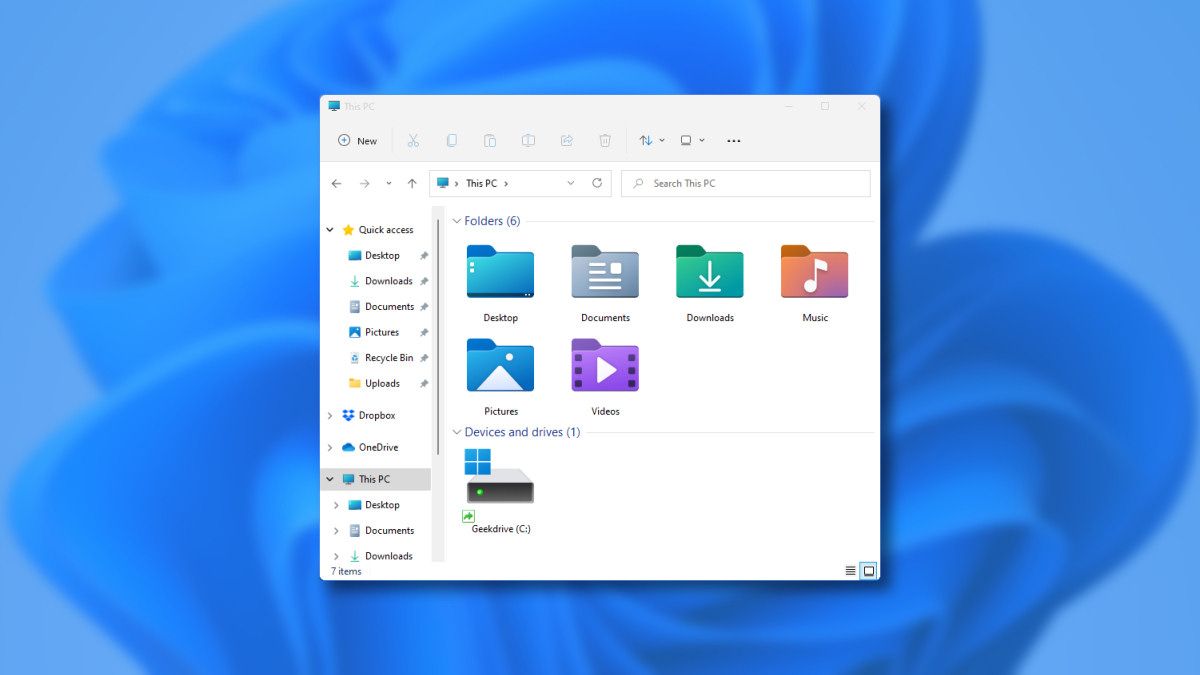
Familiarizing yourself with the layout is key. The ribbon at the top provides access to common commands, while the navigation pane on the left offers quick access to drives, folders, andimportantlocations like "This PC," "Downloads," and Documents.The address bar shows the current location, allowing you to quickly jump to other folders. Spend some time clicking around and getting comfortable with the different sections. Knowing where everything is located will save you time in the long run. It’s like knowing the layout of your kitchen – it makes cooking so mucheasier!
File and Folder Operations
Creating, copying, moving, and deleting files and folders are fundamental operations. Right-clicking on a file or folder provides a context menu with various options. Keyboard shortcutsare your friend here:`Ctrl+C` (copy), `Ctrl+X` (cut), `Ctrl+V` (paste), `Ctrl+Z` (undo), `Delete` (delete), and `Shift+Delete` (permanently delete). Mastering these shortcuts can significantly speed up your workflow. Think of them as yoursecret weaponin the file management arsenal. Drag-and-drop also works for moving and copying files – hold down the `Ctrl` key while dragging to copy instead of move.
Changing Views
File Explorer offers several view options to customize how you see your files and folders. Click the "View" tab on the ribbon to choose from options like "Large icons," "Small icons," "List," "Details," "Tiles," and Content.Each view has its own advantages, depending on the type of files you're working with. "Details" view isparticularly usefulbecause it allows you to sort files by name, date modified, size, and other attributes. Experiment with different views to find the one that works best for you. Consider using "Details" view for documents, "Large icons" for images, and "List" for a quick overview of a large number of files.
Unleashing Advanced Search Techniques
The search function in File Explorer isincredibly powerful. Masteringit will save you countless hours of searching for lost files.
Basic Search
The search box in the upper-right corner is your starting point. Simply type in a keyword or filename, and File Explorer will search the current folder and its subfolders. However, this is just the tip of the iceberg. For moreprecisesearches, you need to use advanced operators. Don't underestimate the basics, though. Start with a simple search before resorting to more complex techniques. You might be surprised at how often it works!
Advanced Operators
Advanced operators allow you to refine your search and find exactly what you're looking for. Here are someessentialoperators: `size:` (e.g., `size:large` to find large files) `date:` (e.g., `date:today` to find files modified today) `type:` (e.g., `type:docx` to find Word documents) `name:` (e.g., `name:report` to find files with "report" in the name) `ext:` (e.g., `ext:jpg` to find JPEG images) `"` (quotation marks) to search for an exact phrase (e.g., `"annual sales report"`)
Combine these operators to createhighly specificsearches. For example, `type:pdf date:last week size:large` will find all large PDF files modified last week.
Indexing Options
Windows indexes your files to speed up search results. However, not all locations are indexed by default. To ensure that File Explorer can quickly find your files, make sure the relevant folders are included in the indexing options. Go to "Indexing Options" in the Control Panel and add or remove folders as needed. Proper indexingcan drastically improve search performance, especially for large drives. Regularly check your indexing options to ensure they are up-to-date.
Customizing File Explorer for Maximum Efficiency
Make File Exploreryour ownby customizing its settings and appearance.
Folder Options
The "Folder Options" dialog box allows you to customize various aspects of File Explorer's behavior. You can access it by clicking the "View" tab on the ribbon and then clicking Options.Here are someusefulsettings: Browsing Options: Choose whether to open each folder in the same window or a new window. View Options: Customize how folders are displayed, including showing hidden files and folders, displaying file extensions, and using check boxes to select items. Search Options:Configure how File Explorer searches for files, including whether to include system directories and compressed files in the search.
Experiment with these settings to find the configuration that best suits your needs.Customizing Folder Options is like tailoring a suit – it makes File Explorer fit you perfectly.
Quick Access
Quick Access is a convenient way to access yourfrequently usedfolders and files. By default, it shows recent files and frequently used folders. You can pin folders to Quick Access by right-clicking on them and selecting "Pin to Quick Access." This isespecially usefulfor folders that are buried deep within your hard drive. Think of Quick Access as your personal file managementdashboard. Keep it organized and clutter-free for maximum efficiency.
Ribbon Customization
While you can't completely redesign the ribbon, youcancustomize the Quick Access Toolbar (QAT) to include frequently used commands. The QAT is located in the upper-left corner of the File Explorer window. Right-click on any command in the ribbon and select "Add to Quick Access Toolbar" to add it to the QAT. This is agreat wayto create shortcuts to your most commonly used functions.
Mastering File Organization Techniques
Keeping your files organized isessentialfor productivity.
Naming Conventions
Using consistent naming conventions makes iteasierto find and manage your files. Establish a system for naming your files and stick to it. Use descriptive names that clearly indicate the content of the file. Avoid using spaces in filenames – use underscores or hyphens instead. For example, instead of "Annual Sales Report 2023," use "Annual_Sales_Report_2023" or "Annual-Sales-Report-2023." Consistent naming conventions will save you time and frustration in the long run.Good naming practicesare the foundation of a well-organized file system.
Folder Structure
Creating a logical folder structure iscrucialfor managing a large number of files. Organize your files into folders based on project, topic, or date. Use a hierarchical structure, with main folders containing subfolders. For example, you might have a "Documents" folder with subfolders for "Work," "Personal," and School.Within the "Work" folder, you might have subfolders for each project you're working on. A well-designed folder structure makes iteasyto navigate your files and find what you're looking for.
Color Coding and Tagging
While File Explorer doesn't offer built-in color coding or tagging features, you can use third-party tools to add these capabilities. Color coding can help you visually organize your files and folders, while tagging allows you to add metadata to your files, making them easier to search and filter. There are manyfree and paidtools available that offer these features.
Hidden Gems and Advanced Tricks
Discover somelesser-knownfeatures of File Explorer that can further enhance your file management skills.
God Mode
God Mode is ahiddenfolder that provides access to virtually every setting and control panel item in Windows. To create a God Mode folder, create a new folder and rename it to:
`God Mode.{ED7BA470-8E54-465E-825C-99712043E01C}`
The folder icon will change, and when you open the folder, you'll see a comprehensive list of settings. God Modeis apowerful toolfor advanced users who want to have complete control over their system.
Libraries
Libraries arevirtual foldersthat allow you to aggregate files from multiple locations into a single view. By default, Windows includes libraries for "Documents," "Music," "Pictures," and Videos.You can create your own libraries to organize files from different drives and folders. Libraries don't actually move your files – they simply provide a convenient way to access them from a central location.Librariescan beespecially usefulfor organizing files that are stored on multiple drives.
Command Prompt Integration
You can open a Command Prompt window in the current folder by typing `cmd` in the address bar and pressing Enter. This is aquick wayto access the command line without having to navigate to the folder using the `cd` command.
Troubleshooting Common File Explorer Issues
Even with the best file management skills, you may encounter occasional problems with File Explorer.
File Explorer Not Responding
If File Explorer becomes unresponsive, try restarting it. Press `Ctrl+Shift+Esc` to open the Task Manager, find "Windows Explorer" in the list of processes, and click Restart.This will often resolve the issue. If the problem persists, try restarting your computer.
Slow Performance
Slow performance can be caused by a number of factors, including a fragmented hard drive, a full hard drive, or a virus infection. Run a disk defragmentation tool to optimize your hard drive. Delete any unnecessary files to free up space. Run a virus scan to check for malware.
Missing Files
If you can't find a file, make sure you're searching the correct location and using the correct search terms. Check the Recycle Bin to see if the file was accidentally deleted. Use a file recovery tool to attempt to recover deleted files.
We've covered atonof ground, haven't we? From basic navigation to advanced search techniques and customization options, you now have the knowledge to become atrue File Explorer master.
Remember, the key to effective file management isconsistency. Develop good habits, stick to your naming conventions, and regularly organize your files. The more you practice, the easier it will become. And the more time you'll save in the long run.
So, what are you waiting for? Go forth and conquer your files! Experiment with the different features we've discussed, find what works best for you, and create a file management system thattrulyempowers you.
Now that you’re armed with the knowledge to conquer your digital domain, take the next step! Try implementingone new techniquefrom this article this week. What are you waiting for? Your organized digital life awaits! Let us know how these tips have helped you!

Post a Comment for "Windows 11: Using the Windows File Explorer for Advanced File Management"
Post a Comment