Windows 11: Using the Windows Command Prompt for Advanced Users
Windows 11 Command Prompt: Unleash Your Inner Power User.
Ah, the Windows Command Prompt. That black screen with the blinking cursor. For some, it evokes feelings of dread, like staring into the abyss of computer code. For others, it's a gateway toultimatepower, a secret weapon hidden within Windows 11. Let's be honest, most of us just click around with our mice and call it a day. But what if I told you that mastering the Command Prompt can save you time, automate tasks, and make you feel like a true tech wizard? Ever spent ages renaming hundreds of files, one excruciating click at a time? Or struggled to diagnose a weird network problem that's driving you insane? The Command Prompt can help with all of that and more. Think of it as your digital Swiss Army knife. It might look intimidating, but under the hood, it's surprisingly versatile, especially when you need to bypass the usual graphical interface and get straight to the heart of your system. Even if you're a seasoned Windows veteran, there's always something new to discover. So, buckle up, friends, because we're about to dive deep into the world of the Windows 11 Command Prompt and unlock its hidden potential! Ready to ditch the mouse clicks and embrace the command line? Let's get started!
Diving Deep: Windows 11 Command Prompt for Advanced Users
The Windows 11 Command Prompt – it's more than just a relic of the past. It's a powerful tool that, when wielded correctly, can significantly boost your productivity and troubleshooting capabilities. Think of it like this: the graphical user interface (GUI) is like driving an automatic car. Easy to use, but you're limited in what you can do. The Command Prompt, on the other hand, is like driving a manual. It requires a bit more skill, but you havemuchmore control over the machine. This control is especially useful for advanced users who need to perform complex tasks or diagnose system issues that aren't easily addressed through the GUI. The Command Prompt allows direct interaction with the operating system, bypassing many of the limitations imposed by the standard interface. This means you can automate repetitive tasks, manage files more efficiently, and troubleshoot problems with a level of precision that's simply not possible with a mouse and keyboard alone. It’s about understandinghow Windows works at a fundamental level and using that knowledge to your advantage. So, put on your thinking cap, and let's explore how to become a Command Prompt master!
Setting the Stage: Accessing and Customizing Your Command Prompt
Launching the Command Prompt
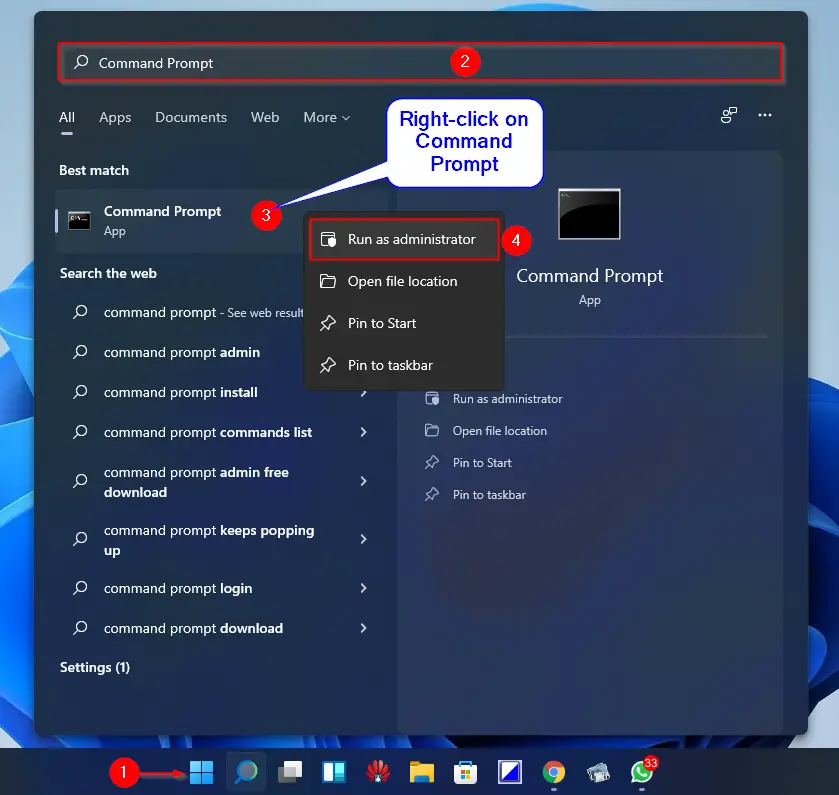
First things first, let's get that Command Prompt window open. There are several ways to do this in Windows 11. The simplest is to type "cmd" in the Windows search bar (the magnifying glass icon on your taskbar) and hit Enter. Alternatively, you can right-click the Start button and select "Terminal" which often defaults to Power Shell, another powerful command-line tool. If you want the classic Command Prompt within the Terminal, click the dropdown arrow at the top and choose "Command Prompt". Another way, is to press the Windows key + R to open the Run dialog box, type "cmd," and press Enter. Choose whichever method you find most convenient. The important thing is to have that black window staring back at you, ready for your commands. Familiarizing yourself with the different launching methods ensures you can quickly access the Command Prompt whenever the need arises. Now that you have it open, let’s move on to making it your own.
Customizing the Command Prompt Appearance
That default black-and-white color scheme might be a bit…dull. Fortunately, you can customize the Command Prompt's appearance to make it more visually appealing and easier to read. Right-click on the title bar of the Command Prompt window and select Properties.A window will pop up with several tabs. Under the "Font" tab, you can change the font type, size, and color. Experiment with different fonts and sizes until you find one that's comfortable for your eyes. The "Colors" tab lets you change the background and text colors. Consider using a darker background with lighter text for better readability. You can even set different colors for the text, background, popup text, and popup background. The "Layout" tab allows you to adjust the window size and position. Customizing the Command Prompt isn't just about aesthetics; it's about making it a tool that you enjoy using, which can,surprisingly, encourage you to use it more often!
Understanding the Command Prompt Structure
Before we start throwing commands around, it's helpful to understand the basic structure of the Command Prompt. The most important thing to know is the concept of thecurrent directory. Think of it as the folder that the Command Prompt is currently "looking at." When you type a command, it will typically operate on files and folders within the current directory unless you specify a different path. The current directory is displayed in the Command Prompt window as part of the prompt. For example, if you see "C:\Users\Your Name>", it means the current directory is your user folder on the C: drive. The drive letter (C:, D:, etc.) indicates the disk drive, and the backslashes (\) separate the different folders in the path. Understanding this path structure is crucial for navigating the file system using the Command Prompt and for specifying the correct locations for your commands. Now you're ready to navigate the file system with precision.
Essential Commands for Windows 11
Navigating the File System: `cd`, `dir`, and `tree`
One of the most fundamental skills for any Command Prompt user is navigating the file system. The `cd` (change directory) command is your primary tool for moving between folders. To change to a subdirectory (a folder within the current folder), simply type `cd` followed by the name of the subdirectory. For example, if you're in your user folder and want to go to the "Documents" folder, type `cd Documents` and press Enter. To go back to the parent directory (the folder above the current folder), type `cd ..` and press Enter. The `dir` (directory) command lists the files and subdirectories within the current directory. Typing `dir` and pressing Enter will display a list of all the files and folders in the current location. For a more visual representation of the directory structure, you can use the `tree` command. Typing `tree` and pressing Enter will display a hierarchical tree-like structure of the current directory and its subdirectories. These three commands – `cd`, `dir`, and `tree` – are the bread and butter of Command Prompt navigation, allowing you to quickly move around your file system and locate the files you need.
Managing Files: `copy`, `move`, `rename`, and `del`
The Command Prompt can also be used to manage files directly. The `copy` command copies files from one location to another. The syntax is `copy [source] [destination]`. For example, to copy a file named "myfile.txt" from the current directory to a folder named "Backup," you would type `copy myfile.txt Backup`. The `move` command moves files from one location to another, similar to dragging and dropping in File Explorer. The syntax is `move [source] [destination]`. For example, to move "myfile.txt" to the "Backup" folder, you would type `move myfile.txt Backup`. The `rename` command renames files. The syntax is `rename [oldname] [newname]`. For example, to rename "myfile.txt" to "newfile.txt," you would type `rename myfile.txt newfile.txt`. The `del` command deletes files.Be careful with this one!The syntax is `del [filename]`. For example, to delete "myfile.txt," you would type `del myfile.txt`. Remember that deleted files are not sent to the Recycle Bin when deleted via the Command Prompt, so they are permanently gone unless you have a backup. Mastering these file management commands can save you atonof time, especially when dealing with multiple files.
Network Troubleshooting: `ping`, `ipconfig`, and `tracert`
The Command Prompt is an invaluable tool for network troubleshooting. The `ping` command tests the connectivity to a specific IP address or domain name. The syntax is `ping [address]`. For example, to ping Google's website, you would type `ping google.com`. This will send packets of data to Google's server and measure the time it takes for them to return, giving you an indication of the network latency. The `ipconfig` command displays the current network configuration of your computer. Typing `ipconfig` and pressing Enter will show you your IP address, subnet mask, and default gateway. The `ipconfig /all` command provides even more detailed information, including your DNS servers and MAC address. The `tracert` (trace route) command traces the route that packets take to reach a specific destination. The syntax is `tracert [address]`. For example, to trace the route to Google's website, you would type `tracert google.com`. This will show you each hop (router) that the packets pass through on their way to the destination, helping you identify potential bottlenecks or points of failure in the network. These network troubleshooting commands are essential for diagnosing network problems and ensuring that your computer can communicate effectively with the internet and other devices on your network.
Advanced Techniques for Command Prompt Ninjas
Batch Scripting: Automating Repetitive Tasks
Batch scripting is where the Command Promptreallyshines. A batch script is a text file containing a series of commands that are executed sequentially. This allows you to automate repetitive tasks and save yourself ahugeamount of time and effort. To create a batch script, simply open a text editor like Notepad, type in your commands, and save the file with a `.bat` extension. For example, you could create a batch script that copies all the `.txt` files from one folder to another, then renames them with a specific prefix. Batch scripts can also include variables, loops, and conditional statements, allowing you to create complex and powerful automation routines. For instance, a batch script can check if a file exists, and then copy it to a backup directory only if it has been modified since the last backup. Learning batch scripting takes time and effort, but the payoff in terms of productivity iswellworth it. It’s like having your own personal robot assistant that can handle all the boring and repetitive tasks for you.
Working with Environment Variables
Environment variables are dynamic values that can affect the way running processes behave on a computer. They contain information such as the path to executable files, temporary directories, and user settings. You can view and modify environment variables using the `set` command. Typing `set` and pressing Enter will display a list of all the current environment variables. To set a new environment variable, use the syntax `set [variable]=[value]`. For example, to set a variable named "MY_VARIABLE" to the value "Hello World," you would type `set MY_VARIABLE=Hello World`. To remove an environment variable, use the syntax `set [variable]=`. For example, to remove the "MY_VARIABLE" variable, you would type `set MY_VARIABLE=`. Modifying environment variables can be useful for customizing the behavior of applications and scripts. For instance, you can add a directory to the `PATH` environment variable so that you can run executable files from that directory without having to specify the full path. Be careful when modifying environment variables, as incorrect settings can cause problems with your system.
Using Command Prompt for System Administration
The Command Prompt can also be used for various system administration tasks. For example, you can use the `tasklist` command to view a list of all running processes. This can be useful for identifying processes that are consuming excessive resources or that are not responding. The `taskkill` command allows you to terminate running processes.Again, be careful!The syntax is `taskkill /PID [processid]`, where `[processid]` is the process ID of the process you want to terminate. You can find the process ID using the `tasklist` command. The `shutdown` command allows you to shut down or restart your computer. The syntax is `shutdown /s` to shut down and `shutdown /r` to restart. You can also add a `/t [seconds]` option to specify a delay before the shutdown or restart. For example, `shutdown /s /t 60` will shut down the computer after 60 seconds. The Command Prompt can also be used to manage user accounts, disk partitions, and other system settings. These system administration commands provide powerful tools for managing and maintaining your Windows 11 system, but it's important to use them with caution and to understand the potential consequences of your actions.
Resources and Further Learning
Online Documentation and Tutorials
The internet is a treasure trove of information about the Windows Command Prompt. Microsoft's official documentation is a great place to start. It provides detailed information about all the commands and their options. There are also countless tutorials and articles available online that cover specific topics and techniques. Websites like Stack Overflow and Super User are excellent resources for finding answers to specific questions or troubleshooting problems. You Tube is another valuable resource, with many video tutorials that demonstrate how to use the Command Prompt for various tasks. Experimenting with different commands and techniques is the best way to learn and master the Command Prompt.
Books and Courses
If you prefer a more structured learning approach, there are many books and courses available that cover the Windows Command Prompt in detail. Look for books or courses that are specifically designed for Windows 11, as some of the commands and features may have changed since earlier versions of Windows. Online learning platforms like Udemy and Coursera offer a wide range of courses that cover the Command Prompt, from beginner to advanced levels. These resources can provide a solid foundation in the Command Prompt and help you develop the skills you need to become a proficient user.
Practice, Practice, Practice!
The most important thing is to practice using the Command Prompt regularly. Don't be afraid to experiment with different commands and techniques. The more you use it, the more comfortable you'll become with it. Start with simple tasks, like navigating the file system and managing files. Then, gradually move on to more complex tasks, like batch scripting and network troubleshooting. The Command Prompt is a powerful tool, and with a little practice, you can unlock its full potential and become a true Command Prompt ninja! Don’t be discouraged by errors; they’re just learning opportunities in disguise!
The Windows 11 Command Prompt is a gateway to a deeper understanding and control over your system. From basic file management to advanced network troubleshooting and automation, the Command Prompt offers a versatility that the GUI simply can't match. It may seem intimidating at first, but with a little practice and the right resources, anyone can master the command line and unlock its hidden potential. You've learned about essential commands like `cd`, `dir`, `copy`, `move`, and `ping`, as well as advanced techniques like batch scripting and environment variable manipulation.
Now,it's your turn to take action!Open up the Command Prompt and start experimenting. Try creating a simple batch script to automate a task you frequently perform. Diagnose a network issue using the `ping` or `tracert` commands. Customize the Command Prompt's appearance to make it more visually appealing. Don't be afraid to make mistakes – they're just learning opportunities in disguise.
So, go forth and conquer the command line! The power is in your hands. Who knows, maybe you'll even start feeling a little bit like a digital wizard! Are you ready to take your Windows 11 skills to the next level?

Post a Comment for "Windows 11: Using the Windows Command Prompt for Advanced Users"
Post a Comment