Windows 11: Using the Windows Settings App for Personalization
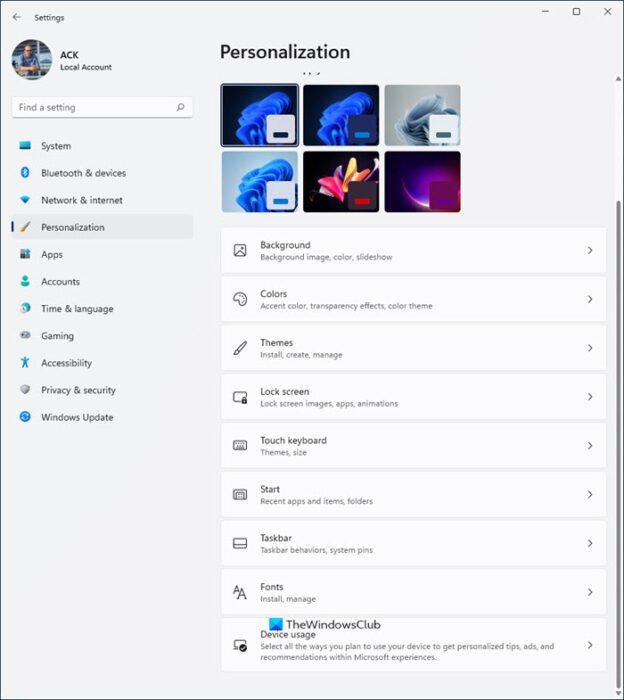
Windows 11 Personalization: Making Your PC Truly Yours.
Hey there, fellow Windows enthusiasts!
Ever feel like your computer is just… blah? Like a beige box in a world of vibrant colors? You stare at the same default wallpaper day after day, the same boring taskbar, the same predictable everything. It's like eating plain toast every morning when you crave a gourmet breakfast burrito. We've all been there, scrolling endlessly through generic backgrounds, feeling a tiny bit of our souls wither with each click. It's a silent epidemic, friends, the "Default Desktop Blues." But fear not, because there's a cure!
Think about it: your phone is probably bursting with personalized ringtones, customized widgets, and a photo gallery that tells your unique story. Why should your computer be any different? After all, you likely spend a significant portion of your day interacting with your PC, whether you're working, creating, gaming, or just browsing the internet for funny cat videos (we all do it!). Shouldn't that experience be, well,you?
The good news is that Windows 11 offers a treasure trove of personalization options, all neatly tucked away within the Windows Settings app. It's like a secret portal to a world of customization, waiting to be unlocked. And the best part? You don't need to be a tech whiz to navigate it. It's designed to be user-friendly, intuitive, and even…dare I say…fun!
We're not talking about just changing your wallpaper (though we'll definitely cover that!). We're talking about tweaking everything from your accent colors to your lock screen, your taskbar behavior to your start menu layout. We're talking about transforming your computer from a generic tool into a personalized sanctuary, a digital reflection of your personality.
Imagine this: you fire up your computer, and instead of being greeted by the same old corporate landscape, you're welcomed by a stunning photo of your favorite vacation spot. Or maybe a vibrant abstract design that energizes you for the day ahead. Your accent colors perfectly complement your wallpaper, creating a harmonious visual experience. Your taskbar is customized with the apps you use most often, making your workflow smoother and more efficient. It's a small change, but it can make a big difference in your overall mood and productivity.
But with so many options available, where do you even begin? That's where we come in! We're going to be your guides on this personalization journey, walking you through the Windows Settings app and showing you how to unleash its full potential. We'll explore every nook and cranny, uncover hidden gems, and provide practical tips and tricks to help you create a truly unique and personalized Windows 11 experience.
So, are you ready to say goodbye to the "Default Desktop Blues" and hello to a world of personalized possibilities? Buckle up, because we're about to dive deep into the wonderful world of Windows 11 personalization! What if I told you, you could also make your computerfasterwhile customizing its look? Keep reading to find out how!
Unlocking the Power of Personalization in Windows 11
Alright, friends, let's get down to business. We're going to explore the Windows Settings app and uncover all the amazing personalization options it has to offer. Think of this as your personal guide to transforming your computer from a boring box into a personalized powerhouse!
Accessing the Personalization Settings
First things first, we need to find the Personalization settings. There are a couple of ways to get there:
• Right-Click on the Desktop: This is the easiest way for most folks! Simply right-click anywhere on your desktop background, and you'll see a context menu pop up. Select "Personalize" from the list, and voila! You're in.
• Through the Settings App: Click on the Start button (the Windows logo on your taskbar), then click on the gear icon to open the Settings app. Once you're in the Settings app, look for "Personalization" in the left-hand sidebar. Click on it, and you'll be transported to the land of customization!
Background Bliss: Setting the Stage for Success
The background is the first thing you see when you turn on your computer, so it's a great place to start personalizing. Here's what you can do:
• Choose Your Own Picture: Got a favorite photo? A stunning landscape from your last vacation? A picture of your adorable pet? You can set it as your background! Simply select "Picture" from the "Personalize your background" dropdown menu, then click on "Browse photos" to find the image you want to use.
• Embrace the Slideshow: Feeling indecisive? Or maybe you just have too many amazing photos to choose from? No problem! Select "Slideshow" from the dropdown menu, then choose a folder containing your favorite images. Windows 11 will automatically cycle through these images, changing your background at a set interval (you can customize the interval in the settings).
• Dive into Windows Spotlight: Want a constantly changing stream of beautiful, high-quality images curated by Microsoft? Select "Windows spotlight" from the dropdown menu. You'll get a new background image every day, along with interesting facts and information about the location featured in the photo. It's like a daily dose of wanderlust!
• Solid Color Simplicity: Sometimes, less is more. If you prefer a clean and minimalist look, you can choose a solid color for your background. Select "Solid color" from the dropdown menu, then pick your favorite hue from the color palette.
Real-Life Example: I once helped a friend who was struggling with productivity. She was constantly distracted by her busy and cluttered desktop. We decided to switch to a simple, calming blue solid color background. The result? She reported feeling more focused and less overwhelmed. Sometimes, the simplest changes can have the biggest impact!
Colors That Pop: Adding a Splash of Personality
The "Colors" section in the Personalization settings allows you to customize the accent colors used throughout Windows 11. These colors appear in your taskbar, Start menu, window borders, and other interface elements.
• Choose Your Accent Color: Windows 11 can automatically pick an accent color based on your background image, or you can choose your own. Simply select "Automatic" or "Manual" from the "Choose your accent color" dropdown menu. If you choose "Manual," you'll be presented with a color palette to choose from.
• Dark Mode vs. Light Mode: Do you prefer a dark and moody interface, or a bright and airy one? You can switch between "Dark" and "Light" mode in the "Choose your mode" section. You can also set a custom mode, choosing "Dark" for your apps and "Light" for your Windows interface, or vice versa.
• Show Accent Color on Start and Taskbar: This is where the magic happens! By toggling this option on, you can apply your chosen accent color to the Start menu and taskbar, adding a touch of personalization to these key areas.
Expert Perspective: Color psychology is a real thing! Different colors can evoke different emotions and feelings. For example, blue is often associated with calmness and serenity, while red is associated with energy and excitement. Experiment with different accent colors to see what works best for you and your mood.
Themes: A One-Stop Shop for Personalization
Themes are pre-designed sets of customizations that include a background image, accent colors, sounds, and mouse cursors. They're a great way to quickly and easily personalize your computer with a cohesive look and feel.
• Browse the Theme Gallery: Windows 11 comes with a few pre-installed themes, but you can also download more from the Microsoft Store. Simply click on "Browse themes" to open the Store and explore the available options. You can find themes based on different styles, colors, and subjects.
• Customize Your Own Theme: Want to create your own unique theme? You can! Simply customize your background, colors, sounds, and mouse cursor to your liking, then click on "Save theme" to save your customizations as a new theme. You can then easily switch between your custom theme and other themes whenever you want.
Current Trend: Many users are creating custom themes based on their favorite video games, movies, and TV shows. It's a fun way to show off your interests and personalize your computer to reflect your passions.
Lock Screen Legends: Making a Memorable First Impression
The lock screen is the first thing you see when you turn on your computer (before you log in), so it's another great opportunity to personalize your experience.
• Choose Your Lock Screen Image: Similar to the background settings, you can choose a picture, slideshow, or Windows spotlight image for your lock screen.
• Show Lock Screen Status: You can choose which apps show their status on the lock screen. This can be useful for quickly checking notifications or seeing the current weather.
• Lock Screen Timeout Settings: Adjust your screen timeout settings and decide how long your screen will remain on when inactive before turning off to save power.
Realistic Future Prediction: In the future, we may see lock screens that are even more interactive and personalized, perhaps incorporating biometric data or AI-powered recommendations.
Taskbar Tweaks: Optimizing Your Workflow
The taskbar is the bar at the bottom of your screen that contains the Start button, search box, and other app icons. You can customize it to make it more efficient and personalized to your workflow.
• Pin Your Favorite Apps: Pin your most frequently used apps to the taskbar for quick and easy access. Simply right-click on an app icon and select "Pin to taskbar."
• Customize Taskbar Behavior: You can customize the behavior of the taskbar, such as automatically hiding it when it's not in use, changing the size of the icons, and choosing where the taskbar is located on the screen (top, bottom, left, or right).
• System Tray Icons: Choose which icons appear in the system tray (the area in the lower-right corner of the taskbar). You can hide icons for apps that you don't need to see all the time, decluttering your taskbar and making it easier to find the icons you need.
Clear Explanation: By customizing your taskbar, you can significantly improve your workflow and make your computer more efficient. It's like having a personalized command center at your fingertips!
Start Menu Style: A Fresh Look at Your Apps
The Start menu is the menu that appears when you click on the Start button. In Windows 11, the Start menu has been redesigned with a cleaner and more modern look.
• Pin Your Favorite Apps: Just like the taskbar, you can pin your favorite apps to the Start menu for quick and easy access.
• Organize Your Apps into Folders: You can organize your apps into folders in the Start menu, making it easier to find the apps you need. Simply drag and drop app icons onto each other to create a folder.
• Customize the Recommended Section: The "Recommended" section of the Start menu shows apps and files that you've recently used. You can customize this section to show more or fewer items, or even disable it altogether.
Concrete Example: I know a graphic designer who has customized their Start menu with folders for different types of design projects (e.g., "Logos," "Websites," "Marketing Materials"). This makes it much easier for them to find the apps and files they need for each project.
Frequently Asked Questions
Here are some frequently asked questions about using the Windows Settings app for personalization in Windows 11:
Question 1: How do I change the size of the text on my screen?
Answer: Go to Settings > Accessibility > Text size. You can then use the slider to adjust the text size to your liking.
Question 2: How do I change the mouse cursor?
Answer: Go to Settings > Bluetooth & devices > Mouse > Additional mouse settings. In the Mouse Properties window, click on the "Pointers" tab. You can then choose a new cursor scheme or customize individual cursors.
Question 3: Can I change the sounds that Windows 11 makes?
Answer: Yes! Go to Settings > System > Sound > More sound settings. In the Sound window, click on the "Sounds" tab. You can then choose a new sound scheme or customize individual sounds.
Question 4: How do I revert to the default Windows 11 settings?
Answer: If you've made a lot of changes and want to start fresh, you can reset your PC to its factory settings. Go to Settings > System > Recovery > Reset this PC. Be sure to back up your important files before doing this, as it will erase everything on your hard drive.
In Conclusion: Your Windows, Your Way
Alright, friends, we've reached the end of our personalization journey! We've explored the Windows Settings app, uncovered its hidden treasures, and learned how to transform your computer from a boring box into a personalized powerhouse.
We started by accessing the Personalization settings, then delved into the world of backgrounds, colors, themes, lock screens, taskbar tweaks, and Start menu styles. We've seen how even small changes can make a big difference in your overall experience and productivity.
Remember, personalization is all about making your computer work for you. It's about creating a digital environment that reflects your personality, your interests, and your workflow. Don't be afraid to experiment with different settings and find what works best for you.
Now, it's your turn! Take what you've learned and start personalizing your Windows 11 experience today. Experiment with different backgrounds, colors, themes, and settings. Don't be afraid to get creative and make your computer truly yours.
Ready to take your Windows 11 personalization to the next level? Start with your background! Find a stunning image that inspires you, or create a custom slideshow of your favorite memories. Then, choose accent colors that complement your background and reflect your personality.
Don't just settle for the default settings. Unleash your creativity and make your computer a reflection of who you are. You spend so much time using your computer, so why not make it an enjoyable and personalized experience?
Go forth and personalize, my friends! Create a Windows 11 experience that is uniquely you. And remember, the possibilities are endless!
What are you waiting for? Go personalize your computer and make it truly yours!
Now, tell me, what's the first thing you're going to personalize on your Windows 11 computer?

Post a Comment for "Windows 11: Using the Windows Settings App for Personalization"
Post a Comment