Windows 11: Using the Windows Settings App for Personalization
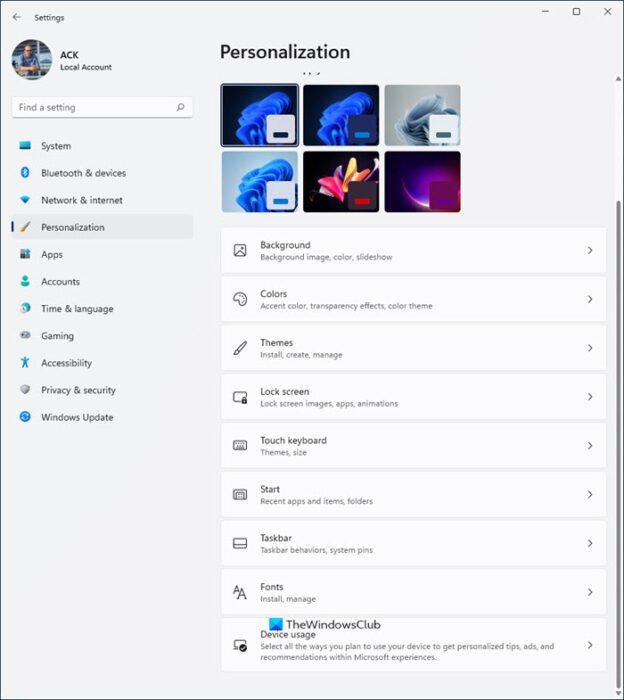
Windows 11 Personalization: Making Your PC Truly Yours.
Hey there, fellow Windows enthusiasts!
Ever feel like your computer is just…well,generic? Like every time you sit down, you're staring at the digital equivalent of a beige cubicle? We’ve all been there. You boot up your Windows 11 machine, and BAM! The same old default wallpaper, the same predictable theme. It's functional, sure, but is itinspiring? Does it spark joy? Probably not. It's like showing up to a party wearing the same outfit as everyone else – functional, but not exactly a reflection ofyou. You wouldn't wear the same clothes every day, so why should your computer look the same every day?
Think about it:your phone is probably plastered with personalized widgets, custom icons, and a lock screen photo of your adorable pet (or your equally adorable child, we won't judge). Why shouldn't your PC, the machine you probably spend a significant chunk of your day interacting with, get the same love? Especially with remote work becoming the norm, our computers are more than just tools; they're our digital workspaces, our entertainment centers, and sometimes, our only connection to the outside world. They're practically extensions of ourselves. And a bland, uninspired workspace can lead to a bland, uninspiredyou. Let’s face it, staring at the default Windows 11 background for hours on end isn’t exactly a recipe for peak productivity or unbridled creativity. It's more likely to lead to glazed-over eyes and a yearning for a tropical vacation (or maybe just a nap).
The good news? Windows 11 gives you a surprising amount of power to personalize your experience, all thanks to the handy-dandy Settings app. Forget diving into arcane registry edits or downloading shady third-party customization tools. Everything you need to transform your digital desktop from drab to fab is right at your fingertips. We're talking wallpapers that change with the time of day, accent colors that pop, themes that reflect your personality, and even ways to tweak the Start menu and taskbar to your liking. And the best part? It’s all surprisingly easy to do, even if you’re not a tech whiz. Consider it digital interior design, but without the hefty price tag (and the potential for accidentally knocking over a priceless vase). Think of it as giving your PC a makeover, a digital spa day, if you will. After all, a happy computer user is a productive computer user (or at least, that's what we tell ourselves when we spend an hour meticulously arranging our desktop icons).
But where do you evenstart? The sheer number of options in the Settings app can be overwhelming. It’s like walking into a giant candy store – so much potential sweetness, but also the potential for a sugar-induced headache. Which is precisely why we're here to guide you through the wonderland of Windows 11 personalization. We’ll break down the key settings, offer some creative ideas, and help you unlock the full potential of your digital canvas. We’ll show you how to make your PC not just a tool, but a reflection of your unique style and personality. We'll turn that beige cubicle into a vibrant, personalized space that sparks joy and boosts productivity.
Ready to ditch the default and create a Windows 11 experience that's uniquelyyou? Keep reading, because we're about to dive deep into the wonderful world of Windows 11 personalization. By the end of this, you'll be a personalization pro, customizing your PC with the finesse of a seasoned interior designer. Are you ready to unlock the secret to a more enjoyable and productive computing experience?
Dive Deep into Windows 11 Personalization
Let's be honest, the default Windows 11 experience is functional, but it's hardly inspiring. The good news is that Microsoft has baked in a ton of customization options, allowing you to transform your PC into a reflection of your personality and workflow. The key to unlocking this potential is the Windows Settings app, your central hub for all things personalization. So, grab your virtual paintbrush, and let's get started!
Background Bliss: Wallpapers and More
Your wallpaper is the first thing you see when you boot up your PC, so it's prime real estate for personalization. A stunning image can instantly improve your mood and set the tone for your day. But the Settings app offers more than just static images.
• Choosing Your Perfect Wallpaper:
This is the most basic, yet impactful, change you can make. The Settings app lets you choose from a picture, solid color, slideshow, or even Windows Spotlight, which automatically updates your wallpaper with stunning images from around the world. For a personalized touch, upload your own photos – maybe a favorite vacation spot, a cherished pet, or a piece of artwork that inspires you. Consider setting up different wallpapers for different virtual desktops to easily distinguish between your work and personal environments. It's like having a different view from each "window" of your digital workspace.
• Unleash the Power of Slideshows:
Tired of staring at the same image day in and day out? Create a slideshow of your favorite photos! Simply choose a folder containing your images, and Windows will automatically rotate through them at a specified interval. You can even shuffle the images to keep things fresh. Imagine a slideshow of your family vacations, constantly reminding you of happy memories. Or a collection of inspiring quotes that motivate you throughout the day. It's a subtle but powerful way to inject positivity into your daily routine.
• Windows Spotlight: A World of Beauty at Your Fingertips:
If you're feeling indecisive, let Windows Spotlight do the work for you. This feature downloads breathtaking images from Bing and sets them as your wallpaper. Each day, you'll be greeted by a new and stunning view of the world. It's like traveling the globe without leaving your desk! Plus, Windows Spotlight often provides interesting facts and information about the featured locations. You might just learn something new while admiring a beautiful landscape.
• Beyond the Image: Background Settings Deep Dive:
Don't just stop at choosing an image. Dig into the advanced settings to fine-tune your background experience. You can choose how the image is positioned on your screen (fill, fit, stretch, tile, center, or span), adjust the background color, and even enable transparency effects. Experiment with these settings to find the perfect look for your monitor and personal preferences. For example, if you're using a high-resolution monitor, you might want to choose the "fill" option to ensure that the image covers the entire screen without distortion.
Colors and Themes: Setting the Mood
Your color scheme can have a surprisingly significant impact on your mood and productivity. Bright, vibrant colors can energize you, while softer, more muted tones can create a calming and relaxing atmosphere. The Windows 11 Settings app lets you customize your color scheme to suit your preferences.
• Choosing Your Accent Color:
The accent color is the color that highlights certain elements of the Windows interface, such as the Start menu, taskbar, and window borders. Choosing an accent color that complements your wallpaper can create a cohesive and visually appealing look. You can either let Windows automatically choose an accent color based on your wallpaper, or you can select one manually from a wide range of options. Consider choosing a color that reflects your personality or the overall theme of your desktop. For example, if you're going for a minimalist look, you might choose a subtle gray or white accent color. If you're feeling bold, you might opt for a vibrant red or blue.
• Dark Mode vs. Light Mode: Finding Your Balance:
Dark mode has become increasingly popular in recent years, and for good reason. It can reduce eye strain, especially in low-light environments. Windows 11 lets you easily switch between light and dark mode, or even set a custom schedule so that your PC automatically switches modes at certain times of the day. Experiment with both modes to see which one you prefer. Some people find that dark mode is easier on their eyes for extended periods of reading or writing, while others prefer the brighter, more vibrant look of light mode. Ultimately, it's a matter of personal preference.
• Transparency Effects: Adding Depth and Dimension:
Windows 11 offers a subtle but effective transparency effect that allows you to see a faint blur of the background through certain elements of the interface, such as the Start menu and taskbar. This can add depth and dimension to your desktop, creating a more visually appealing experience. You can easily toggle transparency effects on or off in the Settings app. Some users find that transparency effects can make the interface feel more modern and sophisticated, while others prefer a more solid and opaque look.
• Themes: Pre-Designed Style Packs:
If you're feeling overwhelmed by the prospect of customizing your color scheme from scratch, you can choose from a variety of pre-designed themes. Themes are collections of wallpapers, colors, and sounds that are designed to work together to create a specific look and feel. You can download additional themes from the Microsoft Store, or even create your own custom themes. Themes are a great way to quickly transform the entire look and feel of your desktop with just a few clicks.
Lock Screen Customization: First Impressions Matter
The lock screen is the first thing you see when you turn on your PC, so it's another opportunity to make a personalized statement. Windows 11 offers a variety of options for customizing your lock screen, from choosing a wallpaper to displaying useful information.
• Setting a Lock Screen Wallpaper:
Just like with your desktop wallpaper, you can choose a picture, slideshow, or Windows Spotlight to display on your lock screen. Choose an image that you find visually appealing and that sets a positive tone for the day. Consider using a different image for your lock screen than for your desktop wallpaper to create a sense of variety. For example, you might use a calming nature scene on your lock screen and a more vibrant and energetic image on your desktop.
• Displaying Lock Screen Status:
You can choose which apps display status information on your lock screen. This can be a useful way to quickly glance at important information, such as upcoming calendar events, email notifications, or the weather forecast. Choose the apps that are most relevant to you and that provide information that you find valuable. For example, if you rely heavily on your calendar, you might want to display your next appointment on your lock screen. If you're a frequent traveler, you might want to display the weather forecast for your current location.
• Lock Screen Timeout Settings:
You can adjust the amount of time that your lock screen is displayed before your PC automatically goes to sleep. This can be a useful way to conserve battery power, especially if you're using a laptop. However, you might want to increase the lock screen timeout if you frequently need to access information on your lock screen without unlocking your PC.
Start Menu and Taskbar Tweaks: Optimize Your Workflow
The Start menu and taskbar are essential navigation tools in Windows 11. Customizing these elements can significantly improve your workflow and make your PC more efficient to use.
• Pinning Apps and Folders to the Start Menu:
Pin your most frequently used apps and folders to the Start menu for quick and easy access. Simply right-click on an app or folder and select "Pin to Start." You can then rearrange the pinned items to your liking. This is a great way to streamline your workflow and avoid having to search for apps every time you need them. Consider organizing your pinned apps into groups based on their function or category. For example, you might create a group for productivity apps, a group for entertainment apps, and a group for communication apps.
• Taskbar Customization: Show or Hide Icons:
The taskbar displays icons for currently running apps, as well as quick access icons for system functions like volume control and network settings. You can customize which icons are displayed on the taskbar to declutter your screen and make it easier to find the icons you need. Simply right-click on the taskbar and select "Taskbar settings." From there, you can choose which system icons are displayed, as well as which apps are allowed to display notification badges.
• Taskbar Behaviors: Alignment and Auto-Hide:
Windows 11 allows you to align the taskbar to the left, center, or right of the screen. You can also choose to automatically hide the taskbar when it's not in use, freeing up more screen space. Experiment with these settings to find the configuration that works best for your workflow. Some users prefer to align the taskbar to the left for a more traditional Windows experience, while others prefer to center it for a more modern and symmetrical look. Automatically hiding the taskbar can be a great way to maximize screen space, especially on smaller monitors.
• Start Menu Layout: More Pins or More Recommendations?:
The Start menu in Windows 11 defaults to showing a mix of pinned apps and recommended files. You can adjust this layout to prioritize either pinned apps or recommended files, depending on your usage habits. If you primarily use the Start menu to launch apps, you might want to prioritize pinned apps. If you primarily use the Start menu to access recent files, you might want to prioritize recommended files. You can also disable recommended files altogether if you prefer a clean and minimalist Start menu.
Questions and Answers About Windows 11 Personalization
Still have questions about personalizing your Windows 11 experience? Here are some common questions and their answers:
Q: Will personalizing my PC slow it down?
A: In most cases, no. The personalization options we've discussed are relatively lightweight and shouldn't significantly impact your PC's performance. However, if you're using a very old or underpowered PC, excessive use of transparency effects or animated wallpapers might cause a slight performance hit. If you notice any slowdown, try disabling some of these features.
Q: Can I revert to the default Windows 11 settings if I don't like my customizations?
A: Yes, absolutely! If you're unhappy with your customizations, you can easily revert to the default Windows 11 settings. In the Settings app, go to "System" > "Recovery" and select "Reset this PC." You'll have the option to keep your personal files or remove everything. Be sure to back up your important data before resetting your PC.
Q: Are there any third-party apps that can enhance my Windows 11 personalization options?
A: Yes, there are many third-party apps that offer additional personalization options. However, be careful when downloading and installing software from unknown sources, as it could potentially contain malware. Stick to reputable apps from trusted developers. Some popular third-party personalization apps include Rainmeter (for creating custom desktop widgets), Stardock Window Blinds (for customizing the look of window frames and title bars), and Lively Wallpaper (for using animated wallpapers).
Q: How can I share my custom theme with others?
A: While Windows 11 doesn't offer a built-in way to directly share your custom theme, you can manually package your wallpaper, color scheme, and sound settings into a theme file. To do this, go to the "Themes" section of the Settings app and click "Save theme." Give your theme a name and save it to a location on your PC. You can then share this theme file with others, who can install it by double-clicking on it.
Final Thoughts: Unleash Your Creativity and Make Windows 11 Yours
We've reached the end of our journey through the personalization options in Windows 11. Remember, your PC is more than just a tool – it's an extension of you. By taking the time to customize your Windows 11 experience, you can create a digital workspace that is not only functional but also inspiring and enjoyable. We started with the understanding that a default setup, while practical, might not resonate with your personal style or boost your daily drive. We proposed a solution: diving into the Windows 11 Settings app to transform your digital environment.
From selecting the perfect wallpaper that speaks to your soul to choosing accent colors that energize your day and tweaking the Start menu and taskbar to optimize your workflow, every detail matters. Don't be afraid to experiment and try new things. The possibilities are endless. Consider each tweak as a brushstroke on your digital canvas, contributing to a masterpiece that reflects your unique identity. The aim was to guide you through this process, making it easy and fun to tailor every aspect of your Windows 11 experience.
Now it's your turn to take the reins. Dive into the Settings app and start experimenting. Discover what works best for you, and don't be afraid to break the mold and create something truly unique. Whether you prefer a minimalist aesthetic, a vibrant and colorful display, or a dark and moody theme, Windows 11 gives you the tools to bring your vision to life. Turn your computer into a reflection of your personality, a haven of productivity, and a source of daily inspiration.
So, go ahead, unleash your creativity and make Windows 11 yours. Start personalizing your PC today, and experience the difference it can make in your daily life! What are you waiting for? Go customize your Windows 11 now!

Post a Comment for "Windows 11: Using the Windows Settings App for Personalization"
Post a Comment