Windows 11: Using the Windows Settings App for Personalization
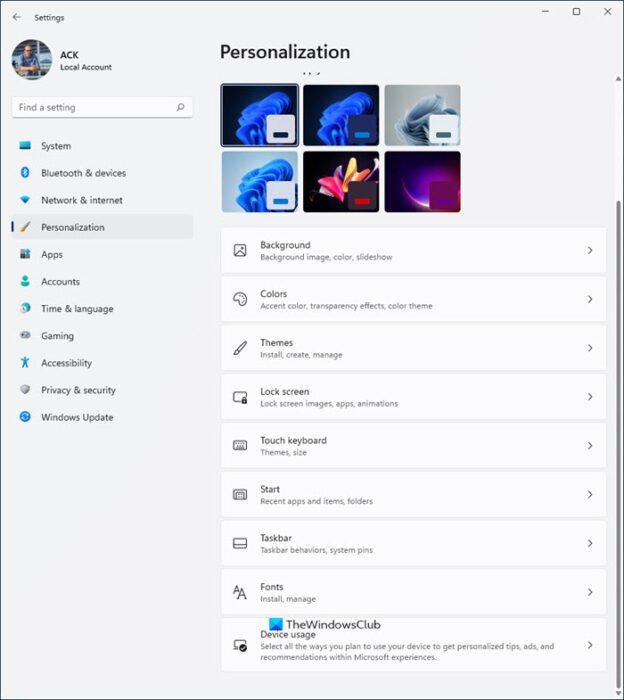
Personalize Your Windows 11: A Deep Dive into the Settings App
Hey there, fellow Windows enthusiasts! Ever feel like your computer is just… blah? Like it's wearing the same grey suit every day? I get it. We spend so much time staring at our screens; they might as well reflect our personality, right? Think of it this way: your phone gets a custom case, your car gets a personalized license plate – why should your Windows 11 PC be any different?
Unlocking Your Personal Style: The Windows 11 Settings App
The good news is, Windows 11 gives you a TON of power to personalize almost every aspect of your digital world. And the magic portal to all this customization? The Windows Settings app. It's not just for tech gurus; it's designed for everyone, even if you think "registry edit" sounds like something out of a fantasy novel. Let's be real, navigating menus and options can sometimes feel like wandering through a digital maze. But fear not! I’m going to show you how to make your Windows 11 experience uniquely yours, step by simple step.
Imagine walking into a room that instantly feels like you.That's what personalizing your Windows 11 is all about. It's not just about making things look pretty (although that's definitely a bonus!). It's about creating an environment where you feel comfortable, inspired, and productive. Are you ready to turn your mundane machine into a vibrant expression of your style? Let's dive in and discover how the Windows Settings app can unlock a whole new level of personalization!
Have you ever wondered how much control youreallyhave over your operating system's look and feel? You might be surprised! From subtle tweaks to dramatic overhauls, the Settings app offers a surprising array of tools to make Windows 11 truly your own. And trust me, once you start experimenting, you'll be hooked. So, buckle up, because we're about to embark on a journey to personalize your Windows 11 experience like never before!
The Personalization Powerhouse: A Tour of the Settings App
Think of the Windows Settings app as your digital workshop. It's where you can tinker, tweak, and transform your operating system to perfectly match your needs and preferences. Now, some of you might be thinking, "Oh great, another complicated settings menu." But I promise, it's more intuitive than you think. Let’s take a look at all the ways that you can personalize your Windows 11:
• Background Bliss: Setting the Scene for Success
Let's start with the basics: your background. It's the first thing you see when you log in, so it should be something that makes you happy, calm, or motivated. Windows 11 offers a few options, but the real fun begins when you start using your own images. The personalization option for your background can completely transform your experience with your computer.
• Solid Color Simplicity: Sometimes, less is more. A clean, solid color can be surprisingly calming and professional. Experiment with different shades to find one that suits your mood.
• Picture Perfect: Use a personal photo that you love. A picture of your family, a favorite pet, or a breathtaking landscape can bring a smile to your face every time you log in.
• Slideshow Spectacle: Why settle for one image when you can have many? Create a folder of your favorite pictures and set Windows to cycle through them automatically.
• Windows Spotlight Wonder: Let Windows surprise you with stunning images from around the world. The Spotlight feature also provides interesting facts and trivia about the featured locations.
• Colors That Pop: Infusing Your Interface with Personality
The color scheme of your Windows interface can have a big impact on how you perceive and interact with your computer. Fortunately, Windows 11 offers a wealth of options for customizing your colors.
• Choose Your Mode: Light mode for a bright and airy feel, or dark mode for reduced eye strain in low-light environments. You can even set Windows to automatically switch between modes based on the time of day.
• Accent Color Adventures: Select an accent color to highlight buttons, menus, and other interface elements. Choose a color that reflects your personality or complements your background image.
• Custom Color Creations: Dive even deeper and create your own custom color scheme. Adjust the hue, saturation, and brightness to achieve the perfect look.
• Themes That Transform: A Complete Makeover with a Single Click
Themes are pre-designed collections of backgrounds, colors, sounds, and cursors that can instantly transform the look and feel of your Windows 11 experience.
• Explore the Gallery: Windows offers a variety of built-in themes, from nature-inspired landscapes to sleek and modern designs.
• Download More Delights: The Microsoft Store is a treasure trove of additional themes, many of which are free to download.
• Create Your Own Combination: Mix and match elements from different themes to create a truly unique look.
• Lock Screen Liberation: Making Your First Impression Count
The lock screen is the first thing you see when you turn on your computer, so it's a great opportunity to make a statement. Personalize your Lock Screen!
• Picture Perfect: Use a personal photo or a stunning landscape to create a visually appealing lock screen.
• Slideshow Showcase: Display a rotating slideshow of your favorite images.
• Status Symbols: Choose which apps you want to display on the lock screen, such as the weather, calendar, or email.
• Sounds That Soothe (or Excite!): Customizing Your Audio Experience
Don't underestimate the power of sound! Windows 11 lets you customize the sounds associated with various system events, such as notifications, errors, and startup. The sounds you hear can either positively or negatively impact your computing experience!
• Choose Your Scheme: Select from a variety of pre-defined sound schemes, or create your own custom scheme.
• Replace Individual Sounds: Swap out specific sounds for something more to your liking. For example, you could replace the default notification sound with a more subtle chime.
• Cursor Customization: Pointing the Way to Personalization
Believe it or not, even your mouse cursor can be customized! Windows 11 offers a range of cursor styles and sizes to suit your preferences.
• Size Matters: Adjust the size of your cursor to make it easier to see.
• Style Guide: Choose from a variety of cursor styles, including inverted colors, animated cursors, and more.
• Taskbar Tweaks: Optimizing Your Workflow
The taskbar is your primary tool for navigating Windows, so it's important to configure it to your liking.
• Location, Location, Location: Move the taskbar to the top, left, or right of your screen.
• Icon Illumination: Customize the icons that appear on the taskbar.
• Behavior Modification: Adjust the behavior of the taskbar, such as automatically hiding it when not in use.
• Font Fantastic: Choosing the Right Typeface
The font you use can have a significant impact on readability and visual appeal. Windows 11 lets you choose your preferred font for various interface elements.
• System Font Selection: Change the default font used throughout Windows.
• App-Specific Fonts: Some apps allow you to customize the font used within the app itself.
• Start Menu Styling: Reimagining Your Launchpad
The Start menu is your gateway to all your apps and settings, so it's worth taking the time to personalize it.
• Pinpoint Your Priorities: Pin your favorite apps and folders to the Start menu for quick access.
• Arrange with Agility: Organize your pinned items into groups for easy navigation.
• Recommendation Removal: Disable the "Recommended" section if you prefer a cleaner look.
• Accessibility Adjustments: Making Windows Work for Everyone
Windows 11 includes a range of accessibility features that can be customized to meet your specific needs.
• Text Size Transformation: Increase the size of text on the screen for improved readability.
• Magnifier Magic: Use the Magnifier tool to zoom in on specific areas of the screen.
• Narrator Navigation: Enable the Narrator tool to have Windows read text aloud.
• Color Filter Fun: Apply color filters to make it easier to distinguish between colors.
Why Bother Personalizing? The Benefits Beyond Aesthetics
Okay, so making your computer look pretty is cool and all, but is there really a point to spending time personalizing your Windows 11 experience? Absolutely! It's not just about aesthetics; it's about boosting your productivity, improving your focus, and creating a more enjoyable computing experience overall. Think of it like this: your workspace affects your work. A cluttered, disorganized desk can lead to a cluttered, disorganized mind. The same principle applies to your digital workspace.
• Increased Productivity: A well-organized and personalized environment can help you find what you need quickly and easily, saving you valuable time and frustration.
• Improved Focus: A calming and visually appealing environment can reduce distractions and help you stay focused on the task at hand.
• Reduced Eye Strain: Dark mode and customizable color schemes can reduce eye strain, especially during long computing sessions.
• Enhanced Accessibility: Accessibility features can make Windows easier to use for people with disabilities.
• A Sense of Ownership: Personalizing your Windows 11 experience can give you a sense of ownership and control over your digital environment.
Advanced Personalization: Digging Deeper for the Dedicated
For those of you who are truly passionate about personalization, there are even more advanced options available. These options require a bit more technical knowledge, but the results can be truly transformative. I suggest that you only make changes if you're 100% comfortable with the process. Messing around with the wrong settings could potentially cause problems with your system. If you're unsure about something, it's always best to err on the side of caution.
• Registry Tweaks: The Windows Registry is a database that contains low-level settings for Windows. By editing the registry, you can customize almost any aspect of the operating system. However, be warned: making incorrect changes to the registry can cause serious problems.
• Group Policy Editor: The Group Policy Editor is a tool that allows you to configure settings for users and computers on a network. It can also be used to customize Windows on a single computer.
• Third-Party Tools: There are a variety of third-party tools available that can help you personalize Windows. These tools often offer features that are not available in the built-in Settings app.
Navigating the Personalization Minefield: Tips and Tricks
Personalizing your Windows 11 experience can be a lot of fun, but it's also important to be aware of some potential pitfalls. Here are a few tips and tricks to help you navigate the personalization minefield: Think of them as safety guidelines for your customization journey!
• Back Up Your System: Before making any major changes to your system, it's always a good idea to back up your data. This will allow you to restore your system to its previous state if something goes wrong.
• Experiment with Caution: Don't be afraid to experiment with different settings, but do so with caution. If you're unsure about something, it's always best to do some research first.
• Take Notes: Keep track of the changes you make so that you can easily revert them if necessary.
• Don't Overdo It: A little personalization can go a long way. Don't overload your system with too many customizations, as this can lead to performance problems.
Common Questions About Windows 11 Personalization
Still have some questions about personalizing your Windows 11 experience? Here are some frequently asked questions to help you get started:
• Question 1: How do I change my desktop background in Windows 11?
• Answer: Right-click on your desktop, select "Personalize," then click on Background.From there, you can choose a picture, solid color, or slideshow.
• Question 2: How do I enable dark mode in Windows 11?
• Answer: Go to "Settings" > "Personalization" > Colors.Under "Choose your mode," select Dark.• Question 3: Can I download more themes for Windows 11?
• Answer: Yes! Open the Microsoft Store app and search for themes.You'll find a wide variety of themes to choose from, many of which are free.
• Question 4: How do I change the sounds that Windows 11 makes?
• Answer: Go to "Settings" > "System" > Sound.Then, click on "More sound settings." In the Sound window, go to the "Sounds" tab and select a sound scheme or customize individual sounds.
So, there you have it: a comprehensive guide to personalizing your Windows 11 experience. Remember, the goal is to create an environment that makes you feel comfortable, inspired, and productive. Don't be afraid to experiment and have fun with it! Your computer is your canvas, so unleash your inner artist and create something truly unique.
Now, I challenge you to take what you've learned today and apply it to your own Windows 11 setup. Start with something small, like changing your desktop background or enabling dark mode. Then, gradually explore the other personalization options and see what you can create. The possibilities are endless!
With the power of personalization at your fingertips, you can transform your mundane machine into a vibrant expression of your style, your passions, and your unique personality. So go ahead, dive in, and create a Windows 11 experience that is truly your own. Because in the end, it's not just about the technology; it's about how we use it to express ourselves and make our lives a little bit brighter.
Ready to unleash your inner designer and make Windows 11 truly yours? Take a few minutes right now to change one small thing – your background, your accent color, even your mouse cursor. Trust me, you'll be surprised at how much of a difference it makes. What are you waiting for? Go personalize!

Post a Comment for "Windows 11: Using the Windows Settings App for Personalization"
Post a Comment