Windows 11: Using the Windows Settings App for Personalization
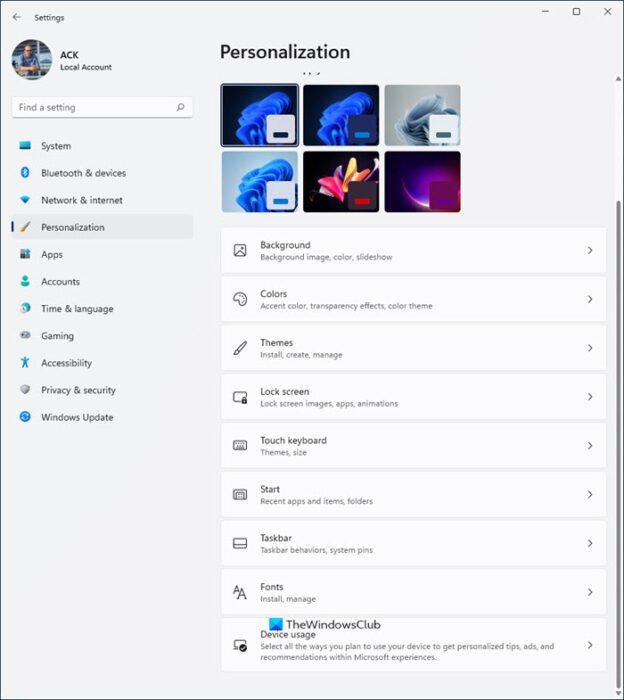
Unlock Your Windows 11: A Deep Dive into Personalization Settings
Hello there, fellow Windows enthusiasts!
Ever feel like your computer is just... bland? Like a beige wall in a world of vibrant colors? We've all been there. You stare at the same default background, the same tired taskbar, and the same generic fonts, day in and day out. It’s enough to make you yearn for the days of customizing your My Space page (remember those?). But fear not, my friends, because Windows 11 has a secret weapon: the Personalization settings. Think of it as your digital makeover artist, ready to transform your desktop from drab to fab.
Now, you might be thinking, "Personalization? Sounds complicated." But trust me, it's easier than figuring out your taxes (and probably more fun). We're not talking about hacking the registry or installing some sketchy third-party software. We're talking about simple, intuitive tools built right into Windows 11, just waiting for you to unleash your inner designer. The kind of tools that let you finally make your computer feel like, well,yours.
We've all been there, right? That moment when you see someone else's desktop and think, "Wow, that'ssothem." Maybe it's a breathtaking landscape photo, a playful collage of their favorite things, or a sleek, minimalist design that screams "organized genius." Whatever it is, it reflects their personality and makes their computer feel like an extension of themselves.
But let's be honest, most of us stick with the default settings because, well, it's just easier. We're busy people! We've got emails to answer, spreadsheets to crunch, and Tik Tok videos to watch. Who has time to fiddle with themes and colors? But what if I told you that spending just a few minutes tweaking your personalization settings could actually boost your productivity and improve your mood? Think of it as a mini-vacation for your eyes, a little burst of creativity that can brighten your day.
Imagine this: You fire up your computer on a Monday morning, dreading the week ahead. But instead of being greeted by the same old boring background, you see a picture of your favorite beach, the sun shimmering on the water, the waves gently lapping at the shore. Suddenly, that mountain of emails doesn't seem so daunting. You feel a little bit calmer, a little bit more inspired, a little bit more ready to tackle whatever comes your way. That's the power of personalization, my friends. It's about creating a digital environment that supports your well-being and helps you thrive.
And it's not just about aesthetics. Personalization can also improve your accessibility. Windows 11 offers a range of options for customizing fonts, colors, and cursor sizes, making it easier for people with visual impairments to use their computers. It's about making technology more inclusive and ensuring that everyone can enjoy the benefits of a personalized computing experience.
Now, before you start picturing yourself spending hours agonizing over color palettes and icon sizes, let me assure you that it doesn't have to be overwhelming. We're going to break down the Windows 11 Personalization settings into easy-to-digest chunks, so you can start customizing your desktop like a pro in no time. We'll explore everything from changing your background and choosing a theme to customizing your taskbar and lock screen. We'll even delve into some advanced settings that will allow you to fine-tune your Windows 11 experience to your exact preferences.
We'll explore the exciting world of themes, and learn how to craft a visual symphony that perfectly expresses you. Ready to ditch the digital doldrums and transform your Windows 11 experience into a personalized paradise? Stay tuned, because we're about to dive deep into the wondrous world of Windows 11 Personalization settings, and unlock the secrets to creating a desktop that's as unique and inspiring as you are. So, grab your digital paintbrush, fire up your imagination, and let's get started!
Unlocking the Power of Personalization in Windows 11
Okay, friends, let's get down to the nitty-gritty. You're ready to transform your Windows 11 experience from mundane to magnificent, and the Personalization settings are your toolkit. Let's explore each area and see how you can make your computer truly your own.
• Background Bliss: Setting the Stage
Your background is the first thing you see when you log into your computer, so why not make it something you love? Windows 11 offers a variety of options, from static images to dynamic slideshows. Here’s how to make it happen:
First, navigate to Settings > Personalization > Background. You'll find a dropdown menu labeled "Personalize your background." From there, you can choose from several options:
Picture: Choose a single image to display as your background. You can select from the default Windows 11 images or browse your own photos. This is perfect for showcasing your favorite vacation snapshots, family portraits, or even a funny meme that makes you smile.
Solid Color: Sometimes, simplicity is key. Choose a solid color background for a clean and minimalist look. This can be surprisingly effective, especially if you're trying to reduce distractions and focus on your work.
Slideshow: Keep things interesting by setting up a slideshow of your favorite photos. Windows 11 will automatically rotate through the images at a specified interval, adding a touch of dynamism to your desktop. Just select a folder containing your pictures and let the show begin!
Windows Spotlight: Feeling adventurous? Let Windows choose your background for you with Windows Spotlight. This feature downloads stunning images from Bing and displays them on your lock screen and desktop. You'll discover breathtaking landscapes, architectural marvels, and fascinating wildlife, all curated by the Microsoft team. It's like a daily dose of visual inspiration, without any effort on your part.
Once you've chosen your background source, you can further customize its appearance. You can choose how the image is positioned on your screen (e.g., Fill, Fit, Stretch, Tile, Center), ensuring that it looks perfect no matter your monitor's size or resolution. Play around with these options until you find the perfect balance.
• Themes: A Symphony of Style
Themes are pre-designed collections of visual elements, including backgrounds, colors, sounds, and mouse cursors. They offer a quick and easy way to transform the overall look and feel of your Windows 11 experience. Here’s how to explore the world of themes:
Navigate to Settings > Personalization > Themes. You'll find a selection of pre-installed themes, ranging from light and airy to dark and dramatic. Simply click on a theme to apply it, and watch as your desktop transforms before your eyes.
But the fun doesn't stop there! You can also download additional themes from the Microsoft Store. The Store offers a vast library of themes, created by Microsoft and third-party designers, catering to every taste and style. Whether you're a fan of nature photography, abstract art, or vintage designs, you're sure to find a theme that speaks to you.
You can also customize existing themes to your liking. Change the background, colors, or sounds to create a truly unique and personalized experience. It's like having a digital wardrobe full of outfits, ready to be mixed and matched to suit your mood.
• Colors: Painting Your Digital Canvas
Colors play a crucial role in the overall look and feel of your Windows 11 experience. They can influence your mood, reduce eye strain, and even improve your productivity. Here’s how to fine-tune your color settings:
Navigate to Settings > Personalization > Colors. Here, you can choose your preferred Windows mode: Light or Dark. Light mode is bright and airy, perfect for daytime use, while Dark mode is easier on the eyes in low-light environments. You can also choose "Custom" to set different modes for Windows and your apps.
The "Accent color" setting allows you to choose a color that will be used to highlight various elements of the Windows interface, such as the Start menu, taskbar, and window borders. You can choose from a range of pre-defined colors or select a custom color using the color picker. Experiment with different accent colors to find one that complements your background and theme.
You can also choose whether to show the accent color on the Start menu, taskbar, and title bars. This can add a subtle touch of personalization to your desktop. If you prefer a more minimalist look, you can disable these options.
• Lock Screen: Welcoming You Back
Your lock screen is the first thing you see when you wake up your computer, so why not make it a pleasant sight? Windows 11 offers a variety of options for customizing your lock screen, from displaying beautiful images to providing useful information.
Navigate to Settings > Personalization > Lock screen. Here, you can choose your lock screen background source. The options are similar to those available for your desktop background: Windows Spotlight, Picture, and Slideshow.
You can also choose which apps display status information on your lock screen. For example, you can display the current weather, upcoming calendar events, or new email notifications. This can be a convenient way to stay informed without having to unlock your computer.
The "Screen timeout" setting allows you to specify how long your computer should wait before turning off the display and locking the screen. This is a useful feature for saving power and protecting your privacy.
• Taskbar: Taming the Beast
The taskbar is your gateway to all your apps and open windows, so it's important to customize it to your liking. Windows 11 offers a range of options for customizing the taskbar, from changing its position to hiding unwanted icons.
Navigate to Settings > Personalization > Taskbar. Here, you can choose which icons are displayed in the system tray (the area in the bottom-right corner of the screen). You can hide icons for apps that you don't use frequently, keeping your taskbar clean and uncluttered.
You can also choose whether to show the search box, task view button, and widgets button on the taskbar. These features can be useful for some users, but others may prefer to hide them to save space.
The "Taskbar behaviors" setting allows you to customize the behavior of the taskbar, such as whether to automatically hide it when you're not using it, whether to show badges on taskbar apps, and whether to group similar taskbar buttons.
• Start Menu: Your Launchpad to Productivity
The Start menu is your primary hub for launching apps, accessing settings, and shutting down your computer. Windows 11 offers a range of options for customizing the Start menu, from pinning your favorite apps to organizing them into folders.
Navigate to Settings > Personalization > Start. Here, you can choose which apps are displayed in the "Pinned" section of the Start menu. Simply right-click on an app and select "Pin to Start" to add it to the Pinned section. You can also drag and drop apps to rearrange them.
The "Show most used apps" setting allows you to display a list of your most frequently used apps in the Start menu. This can be a convenient way to quickly access the apps you use most often.
The "Folders" setting allows you to add folders to the Start menu, providing quick access to your documents, pictures, music, and other files. This can be a great way to organize your Start menu and make it easier to find what you're looking for.
By taking the time to explore these personalization options, you can create a Windows 11 experience that is both visually appealing and highly functional. It's all about finding what works best for you and creating a digital environment that supports your productivity, creativity, and well-being. So go ahead, unleash your inner designer and transform your Windows 11 experience into a personalized paradise!
Frequently Asked Questions About Windows 11 Personalization
Let's tackle some common questions that might pop up as you embark on your personalization journey. We're here to make the process as smooth as possible.
• Question: Can I use animated GIFs as my background?
Answer: While Windows 11 doesn't natively support animated GIFs as desktop backgrounds, there are third-party applications that can enable this feature. However, be aware that using animated GIFs can consume more system resources and potentially impact performance. Experiment with caution!
• Question: How do I create my own custom theme?
Answer: Creating a custom theme is easier than you might think! Start by choosing a background image, selecting an accent color, and customizing your sounds. Once you're happy with the results, right-click on the desktop and select Personalize.Then, navigate to "Themes" and click "Save current theme." Give your theme a name, and you're all set! You can now share your custom theme with friends or use it on other computers.
• Question: Can I revert back to the default Windows 11 settings if I don't like my customizations?
Answer: Absolutely! If you ever want to revert back to the default Windows 11 settings, simply navigate to Settings > System > Recovery. Click the "Reset PC" button and choose the "Keep my files" option to preserve your personal data. This will reinstall Windows 11 and restore the default settings.
• Question: Are there any performance considerations when customizing Windows 11?
Answer: While most personalization options have minimal impact on performance, certain features, such as using high-resolution background images or running resource-intensive visual effects, can potentially slow down your computer. If you experience performance issues, try reducing the resolution of your background image, disabling unnecessary visual effects, or closing any unnecessary applications.
Wrapping Up: Your Personalized Windows 11 Awaits
Congratulations, my friends! You've now armed yourself with the knowledge and tools to transform your Windows 11 experience from bland to brilliant. We've explored the depths of the Personalization settings, uncovered the secrets to creating stunning themes, and learned how to fine-tune every aspect of your desktop to reflect your unique personality and style.
We've covered everything from setting the perfect background to customizing your taskbar and Start menu. You now know how to choose a theme that resonates with you, select accent colors that complement your background, and create a lock screen that welcomes you back with a smile. You've even learned how to troubleshoot common personalization issues and optimize your settings for performance.
But the journey doesn't end here. The world of Windows 11 personalization is constantly evolving, with new themes, features, and customization options being added all the time. So, continue to explore, experiment, and discover new ways to make your computer truly your own.
Now it's time to take action! Head over to your Windows 11 settings and start personalizing your desktop today. Experiment with different backgrounds, themes, and colors until you find the perfect combination that reflects your unique style and enhances your productivity. Don't be afraid to get creative and have fun with it!
Remember, your computer is more than just a tool. It's an extension of yourself, a digital canvas for expressing your creativity and personality. By taking the time to personalize your Windows 11 experience, you can create a digital environment that inspires you, supports you, and helps you achieve your goals.
So, go forth and create a Windows 11 experience that is as unique and inspiring as you are. The possibilities are endless, and the only limit is your imagination. Are you ready to unlock your personalized Windows 11 paradise?

Post a Comment for "Windows 11: Using the Windows Settings App for Personalization"
Post a Comment