Windows 11: Using the Windows Settings App for Personalization
Revamp Your Windows 11: A Personalization Paradise Awaits!
Hey there, Windows enthusiasts! Ever feel like your computer is just…blah? Like it’s wearing the same outfit every day, and you’re tired of seeing it? We’ve all been there. Your computer, much like your living room, deserves a little TLC and a splash of personality. I mean, who wants to stare at the same default background when you could be gazing at a picture of your adorable pet, a breathtaking landscape, or, let's be honest, a meme that perfectly captures your current mood?
Think of your Windows 11 desktop as a blank canvas. It's an opportunity to express yourself, boost your mood, and maybe even impress your friends with your tech-savvy style. But where do you even begin? Diving into the labyrinthine world of computer settings can feel like trying to assemble IKEA furniture without the instructions – frustrating, time-consuming, and potentially ending in tears. And let’s face it, most of us just want something that looks good without having to earn a degree in computer science.
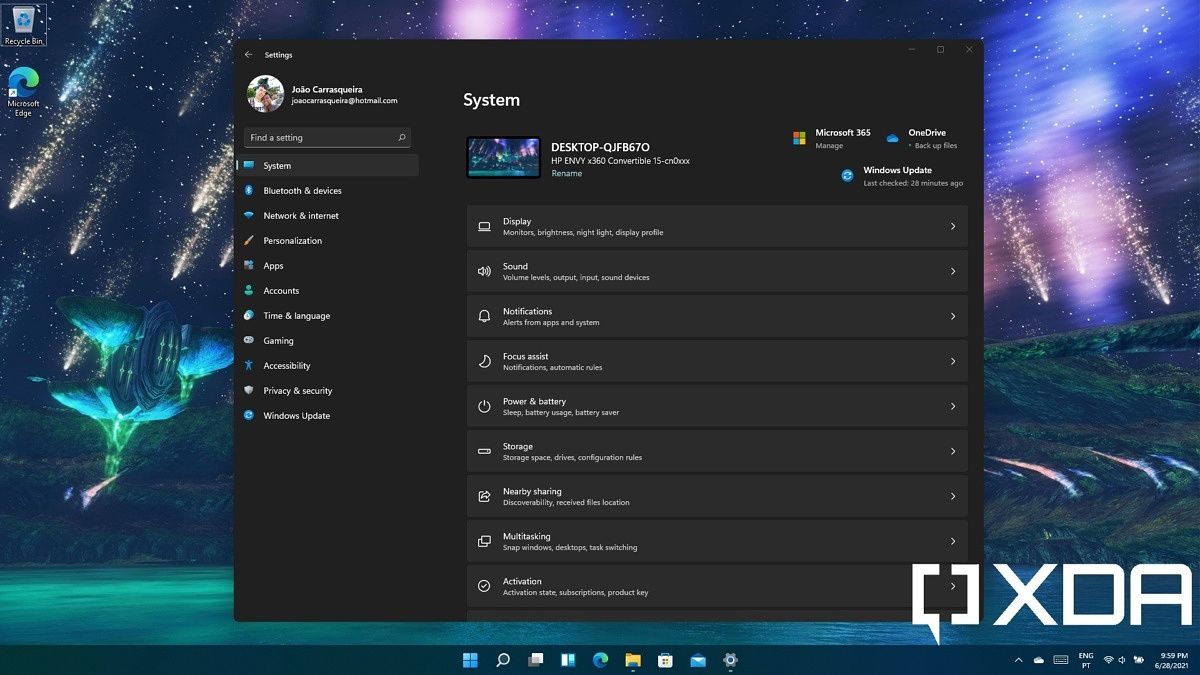
The good news is, Windows 11 has a secret weapon for personalization: the Windows Settings app! It’s like a magical control panel where you can tweak and transform your desktop into a reflection of your unique self. We're talking backgrounds, colors, themes, lock screens, and even the way your mouse cursor looks! Sounds exciting, right? But maybe a little daunting too?
Don't worry, friends! We’re here to be your guide on this journey of digital self-expression. Forget those complicated tutorials filled with tech jargon. We’re going to break it down, step-by-step, in a way that’s easy to understand and even a little bit fun. We’ll show you how to navigate the Windows Settings app like a pro, unlock its personalization potential, and create a desktop that you’ll actually enjoy looking at.
So, are you ready to ditch the dull and embrace the dazzling? Want to learn how to make your Windows 11 experience truly your own? Then keep reading, because we’re about to turn your computer into a personalized masterpiece!
Unlocking the Power of Personalization in Windows 11
Personalizing your Windows 11 experience isn't just about aesthetics; it's about creating a workspace that feels comfortable, inspiring, and truly yours. It's about making your computer a reflection of your personality, your interests, and your workflow. And the best part? It's all incredibly easy to do using the Windows Settings app.
Diving into the Personalization Settings
First things first, let’s get acquainted with the star of the show: the Personalization settings. Think of this as your command center for all things customization. To access it, you’ve got a couple of options:
- Right-click on any empty space on your desktop. A menu will pop up, and you'll see "Personalize" listed. Click on it, and bam! You're in.
- Alternatively, you can press the Windows key + I. This will open the main Settings app. Then, click on "Personalization" in the left-hand menu.
Once you’re in the Personalization settings, you’ll see a bunch of different options. Let's explore them one by one!
Background Bliss: Choosing Your Perfect Backdrop
The background is the first thing you see when you turn on your computer, so it’s a great place to start your personalization journey. Windows 11 offers a few different background options:
- Picture: This lets you set a static image as your background. You can choose from the default Windows 11 images, browse your own photo library, or even download stunning wallpapers from the internet. Pro tip: high-resolution images look best!
- Solid Color: If you prefer a minimalist look, you can choose a solid color for your background. This is a great option if you want a clean and distraction-free workspace.
- Slideshow: Want a constantly changing background? The Slideshow option lets you select a folder of images that will rotate automatically. You can customize the interval between image changes and even choose whether to shuffle the images. Imagine seeing a new vacation photo every day!
- Windows Spotlight: This is a fun option that automatically downloads and displays beautiful images from Microsoft's Bing search engine. It also often includes interesting facts and information about the featured locations. It's like a mini-vacation every time you turn on your computer.
To really make your background pop, consider the overall color scheme of your desktop. If you have a lot of icons or widgets, a simpler background might be best. If you prefer a more visually stimulating experience, go wild with a vibrant and detailed image!
Colors That Captivate: Setting Your Accent
The Colors settings let you customize the accent color that appears throughout Windows 11. This color is used for things like window borders, taskbar highlights, and button outlines. Choosing the right accent color can really tie your entire desktop theme together.
- Choose Your Mode: First, you'll need to decide whether you want to use Light mode or Dark mode. Light mode gives your windows and apps a bright, airy feel, while Dark mode uses darker colors to reduce eye strain, especially in low-light environments. You can even set Windows to automatically switch between Light and Dark mode based on the time of day.
- Accent Color: Once you've chosen your mode, you can select your accent color. Windows 11 offers a range of predefined colors, or you can choose a custom color using the color picker. Experiment with different colors to see what looks best with your background and overall theme.
- Show Accent Color on Start and Taskbar: This option lets you apply your accent color to the Start menu and taskbar. This can add a subtle pop of color to these areas and make them feel more integrated with your overall theme.
- Transparency Effects: Enabling transparency effects can add a touch of depth and visual interest to your windows and menus. However, keep in mind that transparency effects can sometimes impact performance, especially on older computers.
Themes That Transform: One-Click Makeovers
Themes are pre-designed collections of backgrounds, colors, sounds, and cursors that can completely transform the look and feel of your desktop with just one click. Windows 11 comes with a few pre-installed themes, and you can also download additional themes from the Microsoft Store.
- Browse Available Themes: In the Themes settings, you'll see a list of available themes. Click on a theme to preview it and apply it to your desktop.
- Download New Themes: To find more themes, click on the "Browse themes" button. This will open the Microsoft Store, where you can browse and download a wide variety of free and paid themes.
- Customize Existing Themes: You can also customize existing themes by changing the background, colors, sounds, or cursor. This allows you to create a theme that perfectly reflects your personal style.
Think of themes as pre-packaged outfits for your desktop. They're a great way to quickly change the look and feel of your computer without having to manually adjust all the individual settings.
Lock Screen Luxury: Making the First Impression Count
The lock screen is the first thing you see when you turn on your computer, so it’s a great opportunity to make a statement. Windows 11 offers a few different lock screen options:
- Windows Spotlight: Similar to the background option, Windows Spotlight displays beautiful images from Bing on your lock screen. It also often includes interesting facts and information about the featured locations.
- Picture: You can choose a static image to display on your lock screen. This is a great option if you want a more personal touch.
- Slideshow: Similar to the background option, you can create a slideshow of images to display on your lock screen.
You can also choose to display app notifications on your lock screen. This allows you to quickly see important information, such as new emails or calendar appointments, without having to unlock your computer.
Beyond the Basics: Advanced Personalization
Once you've mastered the basics of personalization, you can start exploring some of the more advanced options. Here are a few ideas to get you started:
- Taskbar Tweaks: Customize the appearance and behavior of your taskbar by right-clicking on it and selecting "Taskbar settings." You can change the size of the icons, hide or show system icons, and even move the taskbar to the top or sides of the screen.
- Start Menu Magic: Personalize the Start menu by pinning your favorite apps and folders. You can also organize your apps into groups and customize the layout of the Start menu.
- Font Fanatic: Change the default font used throughout Windows 11. This can have a subtle but noticeable impact on the overall look and feel of your desktop. Just be careful not to choose a font that is too difficult to read!
- Mouse Mania: Customize the appearance and behavior of your mouse cursor. You can change the size, color, and shape of the cursor, and even add a trail effect.
Remember, personalization is all about experimentation. Don't be afraid to try new things and see what works best for you. The goal is to create a desktop that you love and that makes you feel productive and inspired.
Q&A: Your Personalization Questions Answered
Got questions about personalizing your Windows 11 experience? We've got answers! Here are a few frequently asked questions to help you on your customization journey:
- Question: Can I use animated GIFs as my desktop background?
- Answer: While Windows 11 doesn't natively support animated GIFs as desktop backgrounds, you can use third-party software like Lively Wallpaper or Desk Scapes to achieve this effect. These apps allow you to set animated GIFs, videos, and even web pages as your background. Just be mindful of performance, as animated backgrounds can sometimes consume more system resources.
- Question: How do I create a custom theme in Windows 11?
- Answer: Creating a custom theme is easy! Simply choose your desired background, colors, sounds, and cursor settings. Then, right-click on your desktop and select Personalize.In the Personalization settings, click on "Themes" and then click on "Save theme." Give your theme a name, and you're all set! You can now easily switch between your custom theme and other themes.
- Question: My background image looks blurry. What can I do?
- Answer: A blurry background image is usually caused by using an image with a low resolution. To fix this, make sure you're using an image with a resolution that matches or exceeds your screen resolution. For example, if your screen resolution is 1920x1080, you should use an image with at least that resolution. You can also try adjusting the "Choose a fit" setting in the Background settings. Experiment with different options like "Fill," "Fit," "Stretch," "Tile," and "Center" to see which one looks best.
- Question: How do I change the size of the text and icons on my desktop?
- Answer: To change the size of the text and icons, right-click on your desktop and select "Display settings." In the Display settings, you'll find a "Scale" option. This allows you to adjust the size of text, apps, and other items on your screen. Experiment with different scaling percentages to find a size that is comfortable for you. You can also adjust the size of icons individually by right-clicking on the desktop, selecting "View," and then choosing from "Large icons," "Medium icons," or "Small icons."
And there you have it, friends! You've now unlocked the secrets of the Windows Settings app and discovered the power of personalization in Windows 11. We’ve journeyed through backgrounds, colors, themes, and beyond, arming you with the knowledge to transform your computer into a reflection of your unique style and preferences.
But remember, the real magic happens when you start experimenting. Don't be afraid to try new things, mix and match different settings, and discover what truly resonates with you. After all, your computer is your digital sanctuary, and it should feel like a place where you can be productive, creative, and inspired.
Now, it's time for you to take action! Go forth and personalize your Windows 11 experience. Dive into the Settings app, unleash your inner artist, and create a desktop that you absolutely love. Show off your masterpiece to your friends, family, or even share it online! Let the world see your unique digital flair.
So, what are you waiting for? Your personalized Windows 11 paradise awaits! Are you ready to make your computer a true reflection of you?

Post a Comment for "Windows 11: Using the Windows Settings App for Personalization"
Post a Comment