Windows 11: Using the Windows Settings App for Personalization
Customize Your Windows 11: A Deep Dive into Personalization Settings
Hey there, Windows enthusiasts!
Ever feel like your computer is just… blah? Like it's wearing the same outfit every single day, and frankly, you're tired of looking at it? We get it. In a world where we can customize everything from our coffee orders to our car interiors, why should our operating system be stuck in a rut? Think about it: your phone wallpaper reflects your personality, your ringtone announces your arrival, and even your smartwatch band shows off your style. But what about that trusty Windows 11 machine that powers your work, your play, and basically your entire digital life? Is it trulyyou?
The truth is, many of us barely scratch the surface of Windows 11's personalization options. We stick with the default theme, the standard background, and the same old icons, day in and day out. It's like driving a Ferrari but never shifting out of first gear! We're missing out on a whole world of customization that can not only make our computers more visually appealing but also improve our productivity and overall user experience.
Imagine this:you're working on a crucial project, deadlines looming, and stress levels rising. Suddenly, your desktop background shifts to a calming image of a serene beach at sunset. Or perhaps your accent color subtly changes to match the current season, bringing a touch of nature to your digital workspace. These small changes might seem trivial, but they can have a surprisingly positive impact on your mood and focus. It's like giving your brain a mini-vacation, a moment of visual refreshment amidst the chaos of daily tasks.
Now, I know what you might be thinking: "Customization? Sounds complicated! I don't have time to mess around with settings." But fear not, my friend! Windows 11 has made personalization incredibly easy and accessible, all thanks to the powerful (and often overlooked) Windows Settings app. It's a treasure trove of options just waiting to be explored, and with a little guidance, you can transform your computer from a generic workstation into a personalized masterpiece.
Think of the Settings app as your personal digital stylist. It's where you can tweak everything from the color scheme and background to the lock screen and taskbar, all with a few simple clicks. It's like having a team of designers at your fingertips, ready to bring your vision to life. And the best part? You don't need to be a tech guru to master it. We're going to walk you through the key personalization features step-by-step, so you can unleash your inner artist and create a Windows 11 experience that truly reflects your unique style.
But before we dive in, let's address a common misconception: personalization isn't just about aesthetics. It's also about accessibility and usability. Customizing your font size, cursor visibility, and even mouse settings can significantly improve your comfort and efficiency. It's about tailoring your computer to your specific needs and preferences, making it a more enjoyable and productive tool to use.
Consider this scenario: You're giving a presentation, and your audience is struggling to see your cursor on the screen. A quick trip to the Settings app, and you can instantly enlarge your cursor and highlight it with a bright color, ensuring that everyone can follow along with ease. Or perhaps you have a visual impairment that makes it difficult to read small text. With a few simple adjustments, you can increase the font size and improve the contrast, making your computer more accessible and user-friendly. These are just a few examples of how personalization can go beyond mere aesthetics and improve your overall computing experience.
The Windows Settings app also opens the door to a world of themes, sounds, and cursors. You can download unique themes from the Microsoft Store to change the entire look and feel of your system. Or, you can add custom sounds for various events, such as startup, shutdown, and notifications, to create a more personalized and engaging experience. You can even replace the default mouse cursor with something more whimsical or practical, depending on your preferences.
Think about the power of visual cues in our daily lives. We respond to color, shape, and design in ways that we often don't even realize. By customizing your Windows 11 environment, you can create a visual landscape that inspires, motivates, and supports your work. A calming blue theme might help you focus during long work sessions, while a vibrant, colorful theme might boost your creativity when you're brainstorming new ideas. The possibilities are endless, and the only limit is your imagination.
However, here’s a little secret: many users avoid personalization because they fear making a mistake or messing up their system. They worry about accidentally deleting important files or changing a setting that they can't undo. But the truth is, Windows 11 makes it incredibly easy to revert to the default settings if you ever need to. There's no risk involved in experimenting with different options and finding what works best for you.
It's like trying on different outfits at a clothing store. You can try on as many styles as you want, and if you don't like something, you can simply take it off and try something else. The same goes for Windows 11 personalization. You can experiment with different themes, colors, and settings without worrying about permanently damaging your system. And if you ever get lost or confused, you can always consult the built-in help documentation or search online for tutorials and guides.
So, are you ready to unlock the full potential of your Windows 11 experience? Are you ready to transform your computer from a generic workstation into a personalized masterpiece that reflects your unique style and enhances your productivity? Let's dive into the Windows Settings app and explore the exciting world of personalization!
But here’s the burning question: what if you could make your computer not justlookbetter, but actuallyworkbetter for you? What if tweaking a few settings could boost your productivity, reduce your stress, and make your entire computing experience more enjoyable? Prepare to be amazed, because we're about to show you how to do just that!
Unlocking the Power of Personalization in Windows 11
Ready to dive into making your Windows 11 truly yours? Here’s how to wield the power of the Settings app for ultimate personalization:
Accessing the Personalization Settings
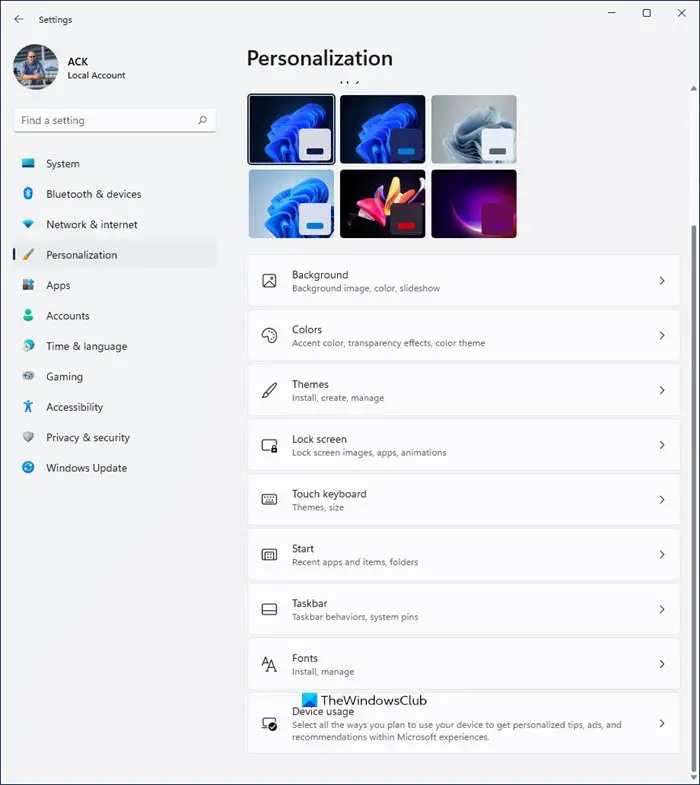
- First, let's get to the heart of the matter. Right-click on your desktop. A menu will pop up, and you want to select Personalize.Alternatively, you can hit the Windows key, type "Settings," and then click on the Settings app. Once inside, navigate to "Personalization" in the left-hand menu. This is where the magic happens!
Background Bliss: Setting the Scene
- Your background is like the stage for your digital life. Change it up to suit your mood! In the Personalization settings, click on Background.You'll see options to choose a picture, a solid color, a slideshow, or even Windows Spotlight, which automatically updates your background with stunning images from around the world.
- Want to use your own photos? Select "Picture" and then click "Browse photos" to select your favorite image. Crop it, tile it, or stretch it to fit your screen perfectly. You can even set up a slideshow of your vacation photos to keep those happy memories alive while you work.
- Feeling minimalist? Choose "Solid color" for a clean and distraction-free background. You can select from a range of preset colors or create your own custom hue.
Colors That Pop: Accentuate Your Style
- Colors can evoke different emotions and set the tone for your workspace. Click on "Colors" in the Personalization settings to customize the accent colors in Windows 11.
- You can let Windows automatically pick an accent color based on your background, or you can choose your own. Experiment with different shades to see what resonates with you. The accent color will be applied to various elements of the Windows interface, such as the Start menu, taskbar, and window borders.
- Dark mode enthusiast? Toggle the "Choose your mode" option to switch between light and dark themes. Dark mode can be easier on the eyes, especially in low-light environments. You can even set Windows to automatically switch between light and dark modes based on the time of day.
Themes for the Win: Complete Makeovers
- Themes are like pre-packaged design solutions that change the entire look and feel of your Windows 11 environment. Click on "Themes" in the Personalization settings to explore a variety of options.
- Windows 11 comes with several built-in themes that you can choose from. Each theme includes a unique background, accent color, and sound scheme. You can also download additional themes from the Microsoft Store.
- Want to create your own custom theme? Start with a built-in theme and then customize the background, colors, sounds, and cursor to your liking. Save your custom theme so you can easily switch back to it later.
Lock Screen Love: Make it Personal
- The lock screen is the first thing you see when you turn on your computer, so why not make it a reflection of your personality? Click on "Lock screen" in the Personalization settings to customize it.
- You can choose a picture, a slideshow, or Windows Spotlight for your lock screen background. You can also add apps to display quick status information, such as calendar events, email notifications, and weather updates.
- Want to show off your favorite photos? Set up a slideshow of your family pictures or travel snapshots. You can even choose the order in which the photos are displayed and set the duration of each slide.
Taskbar Tweaks: Control at Your Fingertips
- The taskbar is your command center in Windows 11, and you can customize it to your liking. Click on "Taskbar" in the Personalization settings to explore the options.
- You can choose which icons are displayed on the taskbar, such as the Search, Task View, Widgets, and Chat icons. You can also hide the taskbar altogether when you're not using it.
- Want to move the taskbar to a different location on the screen? Unfortunately, Windows 11 has removed this feature. However, you can still customize the size and appearance of the taskbar to make it more comfortable to use.
- Personalize System Tray: Manage what appears in the System Tray (the area in the taskbar with the clock and notification icons). Remove clutter by hiding icons you rarely use and keep essential ones visible.
Fonts: Choose Your Words Wisely
- Fonts play a huge role in readability and aesthetics. While Windows 11 doesn't offer a direct "Fonts" option within the main Personalization settings, you can still manage your fonts through the Settings app.
- Type "Fonts" in the Windows search bar and click on "Fonts settings." Here, you can browse installed fonts, install new fonts, and adjust font settings for various elements of the Windows interface.
- Experiment with different fonts to find one that you find easy to read and visually appealing. You can also customize the font size and style to improve readability, especially if you have a visual impairment.
Start Menu Magic: Pin What Matters
- The Start menu is your gateway to all your apps and settings. Personalize it to make it more efficient and user-friendly.
- Pin your most frequently used apps to the Start menu for quick access. Simply right-click on an app and select "Pin to Start." You can also rearrange the tiles to organize your apps in a way that makes sense to you.
- Customize the "Recommended" section of the Start menu to show recently opened files and apps. This can be a convenient way to quickly access the files you've been working on.
- Declutter the Start Menu: Remove default apps you don't use and organize the remaining ones into folders. This simplifies navigation and makes it easier to find what you need.
Mouse Pointer: Guiding Your Way
- Customize your mouse pointer to enhance visibility and style. Search for "Mouse pointer" in the Windows search bar and click on "Change the mouse pointer display or speed."
- Adjust the size and color of the mouse pointer to make it easier to see on the screen. You can also choose from a variety of pre-designed mouse pointers or download custom pointers from the internet.
- For presentations, enable the "Show location of pointer when I press the CTRL key" option to help your audience follow your cursor.
Sounds: Tune into Your System
- Sound schemes can add a touch of personality to your Windows 11 experience. Search for "Sound settings" in the Windows search bar and click on "Sound Control Panel" on the right.
- Customize the sounds that play when certain events occur, such as startup, shutdown, and notifications. You can choose from a variety of pre-installed sound schemes or create your own custom scheme.
- Want to silence those annoying notification sounds? Simply turn off the sounds for specific events or disable system sounds altogether.
Frequently Asked Questions
Let's tackle some common questions you might have about personalizing Windows 11:
- Q: Will personalizing Windows 11 slow down my computer?
- A: Generally, no. Most personalization options, such as changing the background or accent color, have a minimal impact on performance. However, using animated backgrounds or running resource-intensive themes may slightly affect performance on older or less powerful computers. It's always a good idea to monitor your system's performance after making significant changes.
- Q: Can I revert to the default Windows 11 settings if I don't like my customizations?
- A: Absolutely! Windows 11 makes it easy to revert to the default settings. In the Personalization settings, you can usually find an option to "Reset to default theme" or "Reset to default settings." This will undo any customizations you've made and restore the original Windows 11 look and feel.
- Q: Where can I find more themes and wallpapers for Windows 11?
- A: The Microsoft Store is a great place to find a wide variety of themes and wallpapers for Windows 11. Simply search for "Windows themes" or "wallpapers" in the store to browse the available options. You can also find websites that offer free or paid themes and wallpapers for Windows
11.
- Q: How can I make my Windows 11 computer more accessible for people with disabilities?
- A: Windows 11 offers a range of accessibility features that can be customized to meet the needs of people with disabilities. You can adjust the font size, cursor visibility, and mouse settings to improve readability and usability. You can also enable features like Narrator, Magnifier, and Speech Recognition to make your computer more accessible. These options are generally located in the Accessibility settings within the main Settings app.
Wrapping Up: Your Personalized Windows Awaits!
So, there you have it! A comprehensive guide to personalizing your Windows 11 experience using the Windows Settings app. We've covered everything from backgrounds and colors to themes, lock screens, and taskbar tweaks. We hope this article has empowered you to take control of your digital environment and create a Windows 11 experience that truly reflects your unique style and preferences.
Remember, personalization is more than just aesthetics. It's about creating a computing experience that is both visually appealing and functionally efficient. By customizing your settings to suit your specific needs and preferences, you can boost your productivity, reduce your stress, and make your computer a more enjoyable tool to use.
Now it's your turn! Dive into the Windows Settings app and start experimenting with the various personalization options. Don't be afraid to try new things and see what works best for you. The possibilities are endless, and the only limit is your imagination.
Your Call to Action: Take just 15 minutes today to change ONE thing about your Windows 11 personalization. Maybe it's a new background, a different accent color, or just pinning your most used app to the Start menu. See how that small change affects your day!
Remember, creating a personalized computing experience is an ongoing process. As your tastes and needs evolve, you can always revisit the Windows Settings app and make further adjustments. So, keep exploring, keep experimenting, and keep customizing until you've created a Windows 11 environment that you truly love. Now go forth and create a Windows 11 experience that is uniquely you. Your digital canvas awaits!
Now, aren't you just a little bit curious to see what amazing creations you can come up with?

Post a Comment for "Windows 11: Using the Windows Settings App for Personalization"
Post a Comment