Windows 11: Using the Windows Control Panel for System Tweaks
Mastering Windows 11: Unleashing the Power of Control Panel Tweaks
Hey there, tech enthusiasts! Ever feel like your Windows 11 machine isn't quite humming the way it should? Like it's holding back, just waiting for you to unlock its true potential? We've all been there. Maybe your system feels a bit sluggish, or perhaps you're just itching to customize every nook and cranny of your digital world. Well, guess what? The answer might be hiding in plain sight: the good ol' Windows Control Panel!
Now, I know what you might be thinking. The Control Panel? Isn't that like, ancient history? A relic from the Windows XP days? And while it's true that Microsoft has been subtly nudging us towards the Settings app, the Control Panel remains a powerhouse for system tweaks and customizations. It's like that trusty multi-tool you keep in your drawer – not always the prettiest, but incredibly versatile when you need it. Think of it this way: the Settings app is like browsing a curated online store with limited options. The Control Panel, on the other hand, is like a massive hardware store with every possible tool and gizmo imaginable. Sometimes, you need that hardware store to really get the job done!
Here's the thing: Windows 11 is a fantastic operating system, but it's designed to appeal to a broad audience. That means it's often configured out-of-the-box with settings that might not be optimal foryourspecific needs and preferences. Maybe you're a gamer who wants to squeeze every last frame per second out of your rig. Or perhaps you're a creative professional who needs to fine-tune your system for demanding tasks like video editing or graphic design. Or maybe, just maybe, you just want to change the way your mouse pointer looks because, let's face it, the default one is kinda boring. Whatever your reason, the Control Panel offers a level of control and customization that the Settings app simply can't match. It's where you go to dive deep, tweak to your heart's content, and truly make Windows 11 your own.
But navigating the Control Panel can feel a bit like wandering through a labyrinth, especially if you're not familiar with all its nooks and crannies. It's packed with options, settings, and utilities, some of which are incredibly useful, while others are… well, let's just say they're best left untouched unless you know exactly what you're doing. It can be overwhelming, even for experienced Windows users. And that's where we come in!
In this guide, we're going to demystify the Windows 11 Control Panel and show you how to use it to unlock your system's full potential. We'll walk you through some of the most useful and impactful tweaks you can make, from optimizing performance and managing hardware to customizing your user experience and enhancing security. We'll explain everything in plain English, without getting bogged down in technical jargon. And we'll even throw in a few tips and tricks along the way to help you navigate the Control Panel like a pro. So, buckle up, grab your favorite beverage, and get ready to become a Control Panel master. Are you ready to unlock the hidden power of your Windows 11 machine?
Ready to dive in and transform your Windows 11 experience? Let's get started!
Let's face it, Windows 11 is pretty good out of the box, but with a little tweaking, it can beamazing. The Control Panel, despite sometimes feeling like a digital attic, is packed with tools to make that happen. It’s where you go when you want to really personalize and optimize your experience. So, let's explore some key areas and how you can bend them to your will.
Tuning System Performance
Is your computer feeling a little sluggish? Don’t resign yourself to slow load times just yet! The Control Panel has some tricks up its sleeve.
• Adjusting Visual Effects:
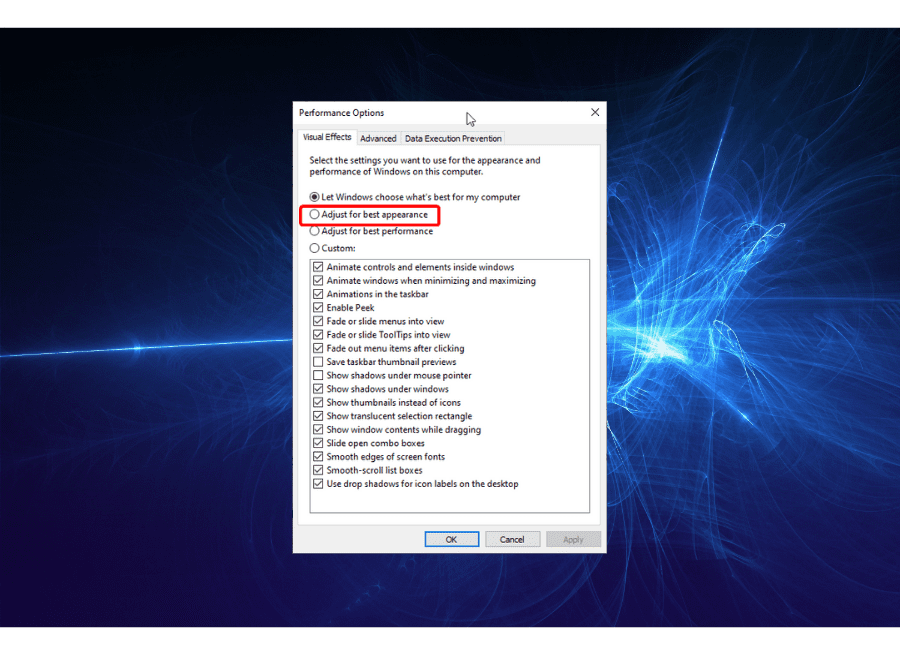
Windows loves to look pretty, but all those animations and shadows can eat up resources. Head to "System and Security" then "System," then "Advanced system settings" on the left. Under the "Performance" section, click Settings.Here, you can choose "Adjust for best performance" to disable all the visual goodies. Or, get granular and pick and choose which effects you want to keep. It’s a sweet spot between looking nice and running fast.
Think of it like this: those animations are like extra sprinkles on your ice cream. They look nice, but you don'tneedthem to enjoy the ice cream itself. Disabling them is like removing the sprinkles to save a few calories (in this case, processing power!).
• Managing Startup Programs:
Too many programs launching when you turn on your PC? This can seriously slow things down. While Task Manager (Ctrl+Shift+Esc) is the go-to for disabling startup apps these days, the Control Panel provides another avenue, although indirectly. By identifying and uninstalling programs you no longer need via "Programs and Features," you can indirectly reduce the number of startup processes. Regularly reviewing and uninstalling unused programs not only declutters your system but also frees up valuable resources, contributing to faster boot times and overall performance.
It's like having a bunch of uninvited guests showing up at your door every morning. You wouldn't let them all in, would you? Get rid of the freeloading programs and reclaim your system's resources!
• Power Options:
Optimize your power plan for performance. Navigate to "Hardware and Sound" then "Power Options." Select "High performance" to prioritize speed over energy saving. Be warned though, this might drain your laptop battery faster! You can also customize a power plan to fine-tune how your computer uses energy. For instance, you can set when the display turns off and when the computer goes to sleep. This is perfect for balancing performance and energy efficiency.
Think of your computer like a car. "High performance" is like putting your foot down on the gas pedal, while "Power saver" is like cruising in eco-mode. Choose the mode that best suits your driving (computing) needs!
Customizing Your User Experience
Make Windows 11 truly yours! The Control Panel has tons of customization options to personalize your experience.
• Changing Mouse Settings:
Customize your mouse pointer, scroll speed, and button configuration. Head to "Hardware and Sound" then Mouse.Here, you can adjust everything from pointer speed to double-click speed. You can even change the appearance of your mouse pointer with different themes and sizes. Find a setup that's comfortable and efficient for you. Remember, a comfortable mouse is a happy mouse (and a happy you!).
Ever felt like your mouse pointer is moving too slow or too fast? Or that the double-click speed is just not right? The Mouse settings are your friend. Tweak them to your liking and enjoy a more comfortable and efficient computing experience.
• Personalizing the Taskbar and Start Menu:
While most taskbar and Start Menu customizations are now done through the Settings app, the Control Panel offers alternative routes to access some of these settings. For example, the "Taskbar and Navigation" properties (accessible by right-clicking the taskbar and selecting "Taskbar settings") allow you to control taskbar behaviors, notification area icons, and other aspects of the Windows interface. While the Settings app is the primary interface for these settings, the Control Panel provides a parallel pathway for those who prefer a more traditional approach.
Think of your taskbar and Start Menu as your digital command center. Customize them to suit your workflow and make accessing your favorite apps and features a breeze.
• Adjusting Display Settings:
Fine-tune your monitor's resolution, refresh rate, and color calibration. While the Settings app is generally used for display settings, the Control Panel provides access to advanced display adapter properties. In the Control Panel, navigate to "Hardware and Sound" then "Display," then click on "Change display settings." From there, you can access advanced adapter properties to adjust refresh rates, color management, and other settings specific to your graphics card. This level of control can be particularly useful for gamers and creative professionals who require precise display settings.
Your monitor is your window to the digital world. Make sure it's showing you the best possible view by adjusting these settings to your liking.
Managing Hardware and Devices
Take control of the hardware connected to your computer.
• Device Manager:
This is your go-to place for troubleshooting hardware issues. Find it under "Hardware and Sound." Here, you can view all the devices connected to your computer, check their status, update drivers, and troubleshoot problems. If a device isn't working correctly, the Device Manager is the first place to check. It can help you identify driver issues, conflicts, and other hardware-related problems.
Think of the Device Manager as your computer's doctor. It can diagnose and fix problems with your hardware. If a device isn't working properly, consult the Device Manager for a diagnosis.
• Printers and Devices:
Add, remove, and manage your printers, Bluetooth devices, and other peripherals. Located under "Hardware and Sound," this section allows you to add new devices, troubleshoot existing ones, and manage device settings. You can also set a default printer, manage print queues, and configure device-specific settings. Keep your peripherals organized and working smoothly with this handy tool.
Your printers and devices are your computer's companions. Keep them happy and healthy by managing them effectively in this section.
• Sound Settings:
Configure your audio input and output devices. Adjust the volume, select default devices, and troubleshoot sound problems. Access this section through "Hardware and Sound" then Sound.From here, you can manage your speakers, microphones, and other audio devices. You can also adjust sound levels, configure audio enhancements, and troubleshoot sound-related issues. Get your audio sounding just right with these settings.
Sound is an essential part of the computing experience. Make sure your audio is crystal clear and perfectly balanced with these settings.
Enhancing System Security
Keep your computer safe and secure with these Control Panel settings.
• Windows Defender Firewall:
Configure your firewall settings to protect your computer from unauthorized access. Find it under "System and Security." The Windows Defender Firewall is your first line of defense against network-based threats. It blocks unauthorized connections and helps prevent malware from infecting your system. Make sure it's enabled and configured correctly to keep your computer safe.
Think of your firewall as your computer's bodyguard. It protects you from online threats and keeps your data safe and secure.
• User Accounts:
Manage user accounts, change passwords, and configure user privileges. Located under "User Accounts," this section allows you to create, modify, and delete user accounts. You can also change passwords, configure user privileges, and manage account security settings. Keep your user accounts secure and organized with these settings.
Your user accounts are your digital identities. Keep them secure and organized by managing them effectively in this section.
• Security and Maintenance:
This section provides an overview of your computer's security and maintenance status. Find it under "System and Security." Here, you can check for updates, run maintenance tasks, and troubleshoot security issues. It provides a centralized location for monitoring your computer's overall health and security.
Think of this section as your computer's health checkup. It helps you identify and address potential problems before they become serious.
The Control Panel might seem a bit old-fashioned, but it remains a powerful tool for tweaking and customizing Windows 11. Don't be afraid to dive in and explore! Just remember to take things slowly and make sure you understand what you're changing before you make any permanent modifications.
Now that you're armed with this knowledge, go forth and conquer the Control Panel! Tweak your system to perfection and unleash the full potential of your Windows 11 machine.
Frequently Asked Questions (FAQs)
Still have some burning questions about the Control Panel? Let's tackle a few common ones:
• Q: Is the Control Panel going away entirely in future versions of Windows?
A: That's the million-dollar question! Microsoft has been gradually migrating settings to the modern Settings app, but the Control Panel still houses many features not yet available elsewhere. It's likely that the Control Panel will eventually be phased out completely, but it's going to be a slow, gradual process. For now, it remains an essential tool for power users and anyone who wants to fine-tune their system.
• Q: I accidentally messed something up in the Control Panel. What do I do?
A: Don't panic! Most settings can be easily reverted to their default values. If you're unsure how to undo a change, try searching online for instructions specific to the setting you modified. System Restore is also your friend. It allows you to roll back your system to a previous state, undoing any recent changes you've made.
• Q: Can I create shortcuts to specific Control Panel applets?
A: Absolutely! This is a great way to quickly access your most frequently used settings. Simply right-click on the desktop, select "New," then Shortcut.In the location field, type `control` followed by the name of the Control Panel applet you want to access (e.g., `control powercfg.cpl` for Power Options). You can find a list of Control Panel applet names online.
• Q: Is it safe to experiment with different settings in the Control Panel?
A: While it's generally safe to explore the Control Panel, it's always a good idea to proceed with caution. Avoid making changes to settings you don't understand, and always create a system restore point before making significant modifications. If you're unsure about a particular setting, search online for more information or consult a trusted tech expert.
So there you have it, friends! We've journeyed through the labyrinthine depths of the Windows 11 Control Panel, uncovering its hidden treasures and demystifying its complex settings. We've explored how to tune system performance, customize your user experience, manage hardware and devices, and enhance system security. You're now equipped with the knowledge and skills to unlock the full potential of your Windows 11 machine and truly make it your own.
But remember, knowledge is only power when it's put into action. So, don't let this newfound understanding gather dust on the shelf. Take some time to explore the Control Panel, experiment with different settings, and discover the tweaks that work best for you. The more you tinker, the more comfortable you'll become with the Control Panel, and the more effectively you'll be able to optimize your Windows 11 experience.
And now, for your call to action: I challenge you to pick one setting in the Control Panel that you've never touched before and explore it. Maybe it's the power options, the display settings, or even the indexing options. Research what it does, understand its impact, and then tweak it to your liking. You might be surprised at what you discover!
Remember, the world of technology is constantly evolving, and there's always something new to learn. So, stay curious, keep exploring, and never stop tweaking! Who knows, you might just stumble upon the perfect setting that transforms your Windows 11 experience from good to extraordinary.
Now go forth and conquer the Control Panel! What awesome tweaks will you discover today?

Post a Comment for "Windows 11: Using the Windows Control Panel for System Tweaks"
Post a Comment