Windows 11: Using the Windows File Explorer for Advanced File Management
Windows 11 File Explorer: Unleash Your Inner File Management Pro
Hey there, friends! Ever feel like your files are playing hide-and-seek on your computer, and you're always the one losing? Navigating the digital jungle of folders and files on your Windows 11 system can feel overwhelming, especially when you're wrestling with a mountain of documents, photos, and downloads. It's like trying to find a matching sock in a dryer filled with static cling – frustrating, time-consuming, and ultimately, a waste of your precious energy. This article, "Windows 11 File Explorer: Unleash Your Inner File Management Pro," is your guide to mastering the Windows 11 File Explorer and transforming it from a source of stress into a powerful tool for organizing your digital life.
Mastering Windows 11 File Explorer for Efficient File Management
Wouldn't it be awesome if you could effortlessly find thatonespecific file buried deep within your hard drive, without wanting to throw your computer out the window? We've all been there: staring blankly at a screen full of disorganized files, desperately trying to remember what you named that crucial document (was it "Final_Report_V3," "Report_FINAL," or something completely different?). The Windows File Explorer, despite being a fundamental part of the operating system, is often underutilized. Many users stick to the basics, missing out on a wealth of features that can dramatically improve file management efficiency.
This article will delve deep into the advanced features of Windows 11 File Explorer, offering practical tips and tricks to help you become a true file management pro. We’ll explore everything from advanced search techniques and customized views to file compression, sharing, and even cloud integration. Think of it as your personal File Explorer boot camp, transforming you from a disorganized file hoarder into a streamlined, efficient digital ninja.
Consider this: imagine you’re a photographer with thousands of images scattered across multiple folders. Finding theperfectphoto for a client project can feel like searching for a needle in a haystack. But with the power of File Explorer's advanced filtering and tagging capabilities, you can quickly narrow down your search, locate the exact image you need, and impress your client with your lightning-fast turnaround time.
Or perhaps you're a student juggling multiple assignments and research papers. Staying organized is crucial for academic success. File Explorer's Quick Access feature and custom folder views can help you prioritize your most important files, easily track your progress, and avoid last-minute panics.
The possibilities are endless! By mastering the Windows 11 File Explorer, you'll not only save time and reduce frustration but also unlock a new level of productivity. So, ditch the digital clutter and get ready to unleash your inner file management pro. Keep reading, and we'll show you how to take control of your files and conquer the chaos! Are you ready to transform your File Explorer experience? Let’s dive in!
Optimizing Your Windows 11 File Explorer Experience
Customizing the Windows 11 File Explorer Interface
The first step to efficient file management is making the File Explorerfeellike home. The default interface can be functional, but it doesn't always cater toyourspecific needs. Luckily, Windows 11 offers a range of customization options to tailor the File Explorer to your workflow.
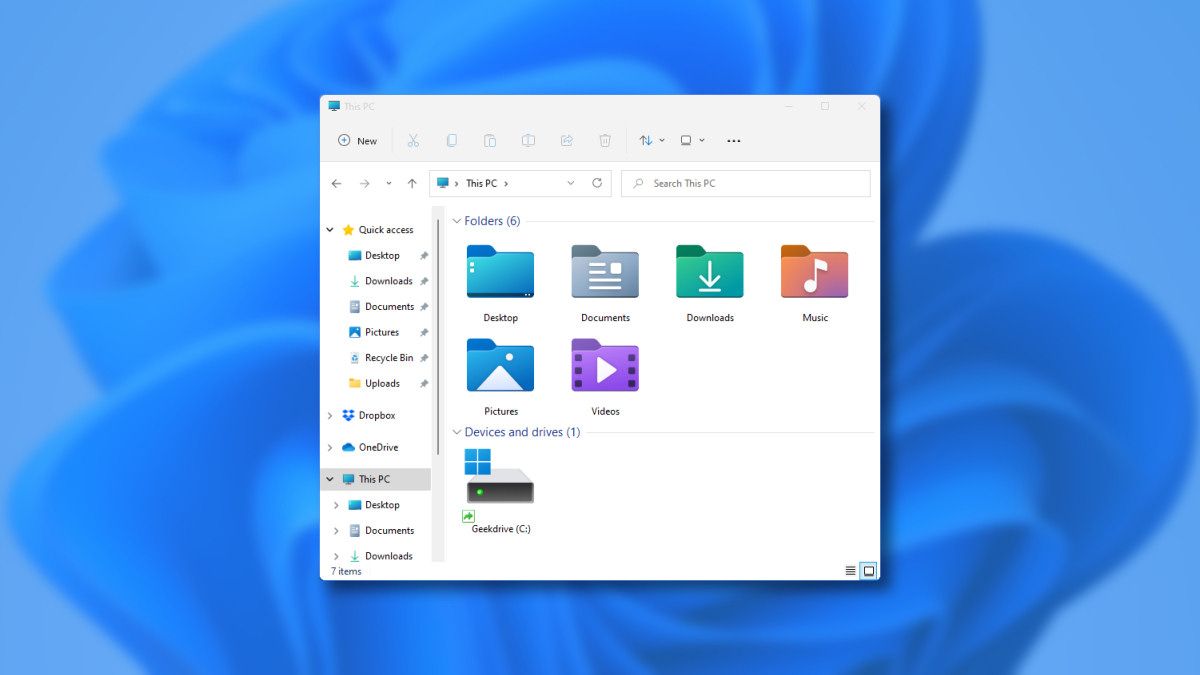
The Ribbon vs. Command Bar: Windows 11 has moved away from the ribbon interface that was present in previous versions of Windows. Now, you have thecommand barat the top of the File Explorer window. This command bar provides quick access to essential functions like cut, copy, paste, rename, share, and delete. Getting familiar with these commands will save you valuable time. You can further customize this bar with Power Toysfeatures such as "Always on Top."
The Navigation Pane: On the left side of the File Explorer window, you'll find the navigation pane. This pane allows you to quickly access frequently used locations like Quick Access, This PC, Network, and One Drive. Right-click in the navigation pane to customize which folders are displayed. You can add your most frequently accessed folders for easy access.
View Options: Windows 11 offers several view options to display your files and folders. You can choose from icons, lists, details, tiles, and content. Thedetailsview is particularly useful for advanced file management as it allows you to sort files by name, date modified, size, type, and other attributes. Experiment with different views to find what works best for you.
Mastering Advanced Search Techniques in Windows 11
The search functionality in Windows 11 File Explorer isfarmore powerful than most people realize. It’s not just about typing a file name and hoping for the best. You can use advanced search operators and filters to pinpoint exactly what you're looking for.
Basic Search Operators: Start with the basics. Use quotation marks to search for exact phrases (e.g., "quarterly report"). Use the ORoperator to search for files containing either of two terms (e.g.,budget OR forecast). And use the NOToperator to exclude certain terms (e.g.,photos NOT vacation).
File Properties:One of the most powerful search techniques is using file properties. You can search for files based on their size ( size:large), date modified (datemodified:last week), file type (type:pdf), or even author (author:John Doe). Combine these properties to create highly specific searches. For instance,size:large datemodified:this month type:docxwill find all large Word documents modified this month.
Indexing Options: Ensure that Windows Search is indexing the locations where you store your files. Go to Indexing Optionsin the Control Panel to add or remove folders from the index. Indexing speeds up searches considerably, making it much easier to find what you need.
Leveraging Quick Access and Favorites in Windows 11
Quick Access and Favorites are your secret weapons for quickly accessing your most frequently used files and folders.
Quick Access: The Quick Access section in the navigation pane displays your most recently accessed folders and files. You can alsopinfolders to Quick Access for permanent access. Simply right-click on a folder and select Pin to Quick access. This is a great way to keep your project folders, frequently used documents, and other important locations readily available.
Favorites: While Windows 11 doesn't have a dedicated "Favorites" section like older versions of Windows, you can easily create shortcuts to your favorite files and folders and place them in a convenient location, such as the desktop or a dedicated folder in your Documents library. Another handy way to use Favoritesis to drag and drop the folder to the left pane for quick access.
File Organization and Management Strategies in Windows 11
Implementing a Consistent File Naming Convention
A well-defined file naming convention is the foundation of any effective file management system. It's like having a clear map of your digital landscape, making it easy to navigate and find what you need.
Be Descriptive: Avoid generic names like "Document1.docx" or "Image.jpg." Instead, use descriptive names that clearly indicate the content of the file. For example, "2024-Q2-Sales-Report.docx" or "Family-Vacation-Hawaii-2023.jpg."
Use Dates Consistently: Incorporate dates into your file names using a consistent format (e.g., YYYY-MM-DD). This makes it easy to sort files chronologically.
Avoid Special Characters: Stick to letters, numbers, underscores, and hyphens in your file names. Avoid special characters like question marks, asterisks, and slashes, as they can cause compatibility issues.
Creating a Logical Folder Structure
A well-organized folder structure is essential for keeping your files organized and easy to find. Think of it as building a well-organized library, where each book has its place.
Start with Broad Categories: Begin by creating broad categories for your files, such as "Documents," "Photos," "Videos," and Projects. Create Subfolders: Within each category, create subfolders to further organize your files. For example, in the "Documents" folder, you might have subfolders for "Reports," "Invoices," "Letters," and Contracts.Keep it Simple:Avoid creating excessively deep folder structures. The goal is to make it easy to find your files, not to get lost in a maze of folders.
Utilizing Tags and Metadata in Windows 11
Tags and metadata provide a powerful way to add additional information to your files, making them easier to search and organize.
Adding Tags: To add tags to a file, right-click on the file, select Properties, and go to the Detailstab. In the Tagsfield, enter the tags you want to associate with the file, separated by semicolons.
Using Metadata: Windows 11 automatically stores metadata for many file types, such as author, date created, date modified, and file size. You can also add custom metadata fields to your files.
Searching by Tags and Metadata: Use the search functionality in File Explorer to search for files based on their tags or metadata. For example,tags:importantwill find all files tagged as important.## Advanced File Explorer Features in Windows 11
File Compression and Extraction
Windows 11 has built-in support for compressing and extracting files, making it easy to manage large files and share them with others.
Compressing Files: To compress files into a ZIP archive, select the files you want to compress, right-click, and select Compress to ZIP file. This will create a ZIP file containing the selected files.
Extracting Files: To extract files from a ZIP archive, right-click on the ZIP file and select Extract All. This will extract the contents of the ZIP file to a folder of your choice.
Sharing Files and Folders
Windows 11 offers several ways to share files and folders with others, both locally and remotely.
Sharing via Network: To share files or folders on your local network, right-click on the file or folder, select Properties, go to the Sharingtab, and click Share. You can then select the users or groups you want to share the file or folder with.
Sharing via One Drive: One Drive integration in Windows 11 makes it easy to share files and folders with others via the cloud. Simply upload the files to your One Drive folder and then share them with specific people or create a shareable link.
Integrating Cloud Storage Services
Seamless integration with cloud storage services like One Drive, Dropbox, and Google Drive is a huge benefit of Windows 11. One Drive Integration:One Drive is deeply integrated into Windows
11. Your One Drive folder appears in the File Explorer navigation pane, making it easy to access and manage your cloud files. You can also set up One Drive to automatically back up your important files and folders.
Third-Party Cloud Storage: If you use other cloud storage services, such as Dropbox or Google Drive, you can install their desktop applications to integrate them into File Explorer. This allows you to access and manage your cloud files directly from File Explorer.
Troubleshooting Common File Explorer Issues in Windows 11
Addressing Slow Performance and Crashes
File Explorer can sometimes experience slow performance or even crash. Here are some common causes and solutions: Excessive Files in a Folder:If you have a folder with thousands of files, it can take a long time for File Explorer to load and display the contents. Try breaking the folder into smaller subfolders.
Corrupted System Files: Corrupted system files can cause File Explorer to malfunction. Run the System File Checker (SFC) tool to scan for and repair corrupted system files. To do this, open Command Prompt as an administrator and typesfc /scannow.
Driver Issues: Outdated or corrupted device drivers can also cause File Explorer problems. Update your device drivers to the latest versions.
Resolving File Access Permissions Errors
Sometimes, you may encounter errors when trying to access certain files or folders due to permission issues.
Take Ownership: If you don't have permission to access a file or folder, you can take ownership of it. Right-click on the file or folder, select Properties, go to the Securitytab, click Advanced, and then change the owner to your user account.
Check User Permissions: Ensure that your user account has the necessary permissions to access the file or folder. In the Securitytab, check the permissions assigned to your user account and make sure you have read and write access.
Dealing with Missing or Corrupted Files
Losing important files can be a nightmare. Here are some steps you can take to recover missing or corrupted files: Check the Recycle Bin:The first place to look for missing files is the Recycle Bin. If you accidentally deleted a file, you can restore it from the Recycle Bin.
Use File History: Windows 11 has a built-in File History feature that automatically backs up your files. If you've enabled File History, you can restore previous versions of your files.
Data Recovery Software: If you can't find your files in the Recycle Bin or File History, you may need to use data recovery software to scan your hard drive for lost files. There are many free and paid data recovery tools available.
By mastering these advanced file management techniques, you can transform the Windows 11 File Explorer from a source of frustration into a powerful tool for organizing your digital life.
Conclusion: Become a Windows 11 File Explorer Master
We've journeyed through the depths of the Windows 11 File Explorer, uncovering hidden features and powerful techniques that can transform you from a file management novice to a seasoned pro. From customizing the interface to mastering advanced search techniques, implementing effective file organization strategies, and troubleshooting common issues, you now possess the knowledge and skills to conquer your digital clutter and take control of your files.
Remember, the key to efficient file management is consistency and a willingness to experiment. Don't be afraid to try out different approaches and find what works best foryou. Implement a file naming convention that makes sense, create a logical folder structure that reflects your workflow, and leverage the power of tags and metadata to add extra layers of organization.
With these tools at your disposal, you can save time, reduce frustration, and unlock a new level of productivity. No more endless scrolling through disorganized folders, no more wasted time searching for thatoneelusive file. You are now equipped to navigate your digital landscape with confidence and ease.
So, take action today! Start by implementing one or two of the techniques we've discussed in this article. Customize your File Explorer interface, create a new folder structure, or experiment with advanced search operators. The more you practice, the more comfortable and proficient you'll become.
Are you ready to conquer your digital clutter and become a Windows 11 File Explorer master? Start today and unleash your inner file management pro! Now that you've learned all these techniques, which one are you most excited to try first? Happy organizing!

Post a Comment for "Windows 11: Using the Windows File Explorer for Advanced File Management"
Post a Comment