Windows 11: How to Use the Control Panel
Windows 11: Your Guide to Mastering the Control Panel
Navigating Windows 11 can feel like exploring a new city; the Control Panel is essentially its hidden city hall, packed with all the essential tools and settings to fine-tune your experience!
Step One:
Windows 11: Demystifying the Control Panel for Everyday Users.
Step Two:
Hey there, friend! Ever feel like your computer is speaking a different language? Like you're trying to adjust something simple – say, changing your mouse speed or uninstalling thatoneprogram you accidentally downloaded – but you're lost in a labyrinth of menus and options? Yeah, we've all been there. You're probably thinking, "Where do I evenbegin?" That's where the Control Panel comes in.
Think of the Control Panel as the OG settings hub in Windows. It's been around for ages, quietly housing all thedeepsystem configurations you might need. Windows 11, while sleek and modern with its fancy Settings app, still relies on the Control Panel for many functionalities. It’s like that reliable, slightly outdated but incredibly useful tool you keep in your garage.
Now, with Windows 11 pushing users toward the newer Settings app (whichisgreat, don't get us wrong!), the Control Panel can feel a bit…hidden. It's not exactly front and center anymore. But don't let that fool you. It's still a powerhouse. Imagine trying to adjust power management settings to stop your laptop from dying in the middle of that crucial video call. Or troubleshooting a printer that suddenly decides it hates you. Chances are, you'll be dipping into the Control Panel.
The Control Panel allows you to manage hardware, software, user accounts, network settings, and system settings. You can uninstall programs, change accessibility options, configure network adapters, manage power plans, adjust date and time, and configure sound settings. All of these elements are essential for a smooth and personalized Windows 11 experience. It is the central hub for controlling your operating system, giving you detailed configuration possibilities that the more recent Settings app does not provide.
Windows 11hastried to make things easier with its updated Settings app, and for everyday tasks, it's usually enough. But for those more complex or niche adjustments, the Control Panel remains the go-to. Think of it as the difference between ordering a pizza online (Settings app) and actually cooking a gourmet meal from scratch (Control Panel). One is quick and convenient, the other gives you complete control.
And honestly, finding the Control Panel in Windows 11 can feel like a mini-quest in itself! Microsoft hasn't exactly made it obvious. It's almost like they'retryingto hide it! Maybe they think it's too "old school" or something. But we know better, right? We know the Control Panel is still a vital part of the Windows experience.
So, are you ready to become a Control Panel pro? To unlock the secrets hidden within your Windows 11 system? To finally understand what all those mysterious icons actuallydo? This guide is your map to navigating this often-overlooked, but incredibly powerful, tool. Get ready to take control (pun intended!) of your Windows 11 experience. We’re about to dive in and show you everything you need to know, from finding it to using it like a seasoned tech wizard. Stick around, and you'll be amazed at how much you can actually customize and optimize your system! What if you can finally fix that annoying sound issue that's been driving you crazy?
Step Three:
Accessing the Control Panel in Windows 11
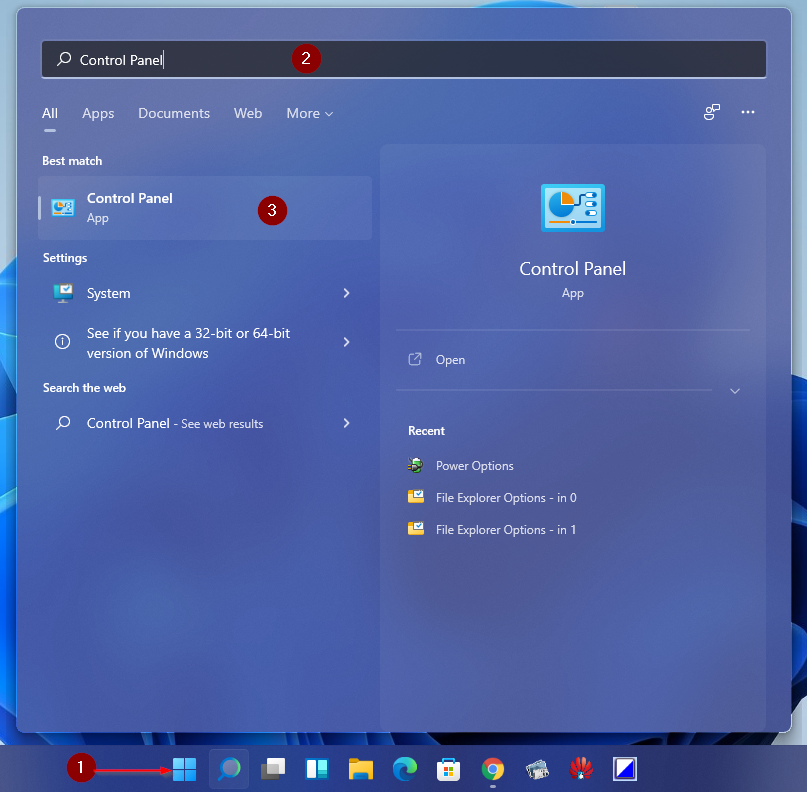
Okay, so first things first: how do you evenfindthis elusive Control Panel in Windows 11? Microsoft hasn't exactly made it a prominent feature, but don't worry, it's still there. Here are a few ways to access it: The Search Bar is Your Friend:This is probably the easiest and most direct method. Simply click on the search bar in your taskbar (or press the Windows key + S). Type "Control Panel" and hit Enter. Voila! The Control Panel should appear as the top result. Think of the search bar as your digital bloodhound, always ready to sniff out what you need. This works because Windows indexes all its programs and features, making them easily searchable. This is especially helpful if you are not sure where to find something.
Run Command to the Rescue: Another quick way is to use the Run command. Press the Windows key + R to open the Run dialog box. Type "control" (without the quotes) and press Enter. Boom! The Control Panel appears. It's like a secret code that unlocks a hidden door. The Run command is a direct instruction to execute a program or command; "control" is the command-line shortcut for opening the Control Panel.
From the Start Menu (Sort Of): While it's not directly listed in the Start menu by default, you can add it there. Right-click on the Start button, then select "Task Manager." From the Task Manager, click on "Run new task," then type "control" (without quotes) and press Enter. When the Control Panel opens, you can right-click on its icon in the taskbar and select "Pin to taskbar" or "Pin to Start." This keeps it readily available! It is a great way to ensure it is easily accessible.
Creating a Desktop Shortcut: For even faster access, you can create a desktop shortcut. Right-click on your desktop, select "New," and then Shortcut.In the "Type the location of the item" field, enter "control" (without the quotes) and click Next.Give the shortcut a name (like "Control Panel") and click Finish.Now you have a shortcut right on your desktop! A desktop shortcut is an excellent way to instantly access frequently used programs and tools.
Navigating the Control Panel Interface
Once you've found the Control Panel, you'll be greeted with a window full of icons and options. Don't be intimidated! The interface is actually quite straightforward once you understand how it's organized.
View By: Categories, Icons, or Icons: The Control Panel offers three different viewing modes: Category, Large Icons, and Small Icons. The Category view groups related settings together, making it easier to find what you're looking for. The Icons views display all the individual settings as icons, either large or small. Experiment with different views to see which one you prefer. Personally, if one isn't working for you, switch to another, then back again.
Understanding the Categories: If you're using the Category view, you'll see groups like "System and Security," "Network and Internet," "Hardware and Sound," "Programs," "User Accounts," "Appearance and Personalization," "Clock and Region," and "Ease of Access." Each category contains a set of related settings. For example, the "Hardware and Sound" category includes settings for managing printers, sound devices, and power options. Categories are logical groupings designed to streamline navigation, but individual settings may be hard to find inside.
Using the Search Bar Within the Control Panel: Just like the main Windows search bar, the Control Panel has its own search bar in the upper-right corner. If you know the name of the setting you're looking for, simply type it into the search bar and press Enter. The Control Panel will display the relevant results. This is super useful for quickly finding specific settings without having to browse through categories. It's a focused way to search for a specific feature.
The Address Bar: At the top of the Control Panel window, you'll see an address bar, similar to the one in File Explorer. You can use this to navigate directly to specific Control Panel items. For example, typing "Control Panel\System and Security" into the address bar will take you directly to the "System and Security" category. This is a great shortcut for advanced users who know the exact path to the settings they need. Direct access can save time if you know where to go.
Key Control Panel Features You Should Know
Now that you know how to access and navigate the Control Panel, let's take a look at some of the most useful features it offers: Uninstalling Programs:This is probably one of the most common reasons people use the Control Panel. To uninstall a program, go to "Programs" and then "Programs and Features." Select the program you want to remove and click Uninstall.Follow the on-screen instructions to complete the process. This is essential for keeping your system clean and free of unwanted software. Many users may also prefer to use a third-party uninstaller to ensure unwanted files are also removed.
Managing User Accounts: The Control Panel allows you to manage user accounts, including creating new accounts, changing passwords, and setting account privileges. Go to "User Accounts" and then "User Accounts" again to access these settings. Managing user accounts is crucial for security and privacy, especially on shared computers.
Configuring Network Settings: If you're having network issues, the Control Panel is your go-to place for troubleshooting. Go to "Network and Internet" and then "Network and Sharing Center." From here, you can view your network status, change adapter settings, and troubleshoot network problems. A wired and wireless connection can also be accessed.
Adjusting Power Options: Want to customize how your computer uses power? Go to "Hardware and Sound" and then "Power Options." Here, you can choose a power plan, customize plan settings, and configure what happens when you press the power button. This is especially important for laptop users who want to maximize battery life. These settings are particularly useful for optimizing performance or conserving battery.
Changing Date and Time: Need to adjust the date and time on your computer? Go to "Clock and Region" and then "Date and Time." Here, you can manually set the date and time or synchronize with an internet time server. While it may seem simple, incorrect time settings can cause problems with software and online services.
Device Manager: The Device Manager is a hidden gem for troubleshooting hardware problems. You can find it by searching in the Control Panel. It allows you to check the status of hardware devices, update drivers, and troubleshoot conflicts. Knowing how to use the Device Manager is invaluable for diagnosing and fixing hardware issues.
Why the Control Panel Still Matters in Windows 11
Despite the push towards the Settings app, the Control Panel remains an essential tool for Windows 11 users. Here's why: Advanced Configuration Options:The Control Panel offers more granular control over system settings than the Settings app. It's the place to go when you need to make advanced customizations or troubleshoot complex issues. It is the best resource for accessing many of the more advanced tools.
Legacy Compatibility: Many older programs and utilities rely on the Control Panel for their settings and configurations. Removing the Control Panel entirely would break compatibility with these programs. Many users may rely on legacy software that is incompatible with modern features.
A Centralized Hub: The Control Panel provides a centralized location for managing all aspects of your system, from hardware and software to network and security settings. It's a one-stop shop for system configuration. It offers a comprehensive overview of your system's settings.
Familiarity: For many long-time Windows users, the Control Panel is a familiar and comfortable interface. They know where to find the settings they need and are comfortable navigating the interface. Users who have used Windows for a long time may be more familiar with its layout.
Mastering the Control Panel is a worthwhile investment. It empowers you to take full control of your Windows 11 experience, troubleshoot problems effectively, and customize your system to your exact needs. So, don't be afraid to explore! The Control Panel is your friend, and with a little practice, you'll be a Control Panel pro in no time! You'll be able to troubleshoot and customize your system more efficiently.
Step Four:
Alright, friend, we've reached the end of our journey into the heart of the Windows 11 Control Panel. We've explored how to find it, navigate its interface, and use its key features. From uninstalling pesky programs to managing user accounts and tweaking power settings, you're now armed with the knowledge to take control (again, pun intended!) of your system.
The Control Panel might seem a bit old-school compared to the shiny new Settings app, but it's still a vital part of the Windows 11 experience. It offers a level of control and customization that the Settings app simply can't match. Think of it as your secret weapon for troubleshooting problems, optimizing performance, and tailoring your system to your exact needs.
Now, it's time to put your newfound knowledge into action! Don't just let this guide sit on your hard drive. Open up the Control Panel on your own Windows 11 machine and start exploring. Experiment with the different settings, try out some of the tips and tricks we've discussed, and see what you can discover. The more you use the Control Panel, the more comfortable you'll become with it.
So, here's your call to action: *Go explore the Control Panel! Find at least three settings you didn't know existed and try changing them. See how they affect your system and learn something new. And if you run into any problems, don't be afraid to come back to this guide for reference. Remember, the Control Panel is your friend, and with a little practice, you'll be a Windows 11 master in no time.
Don't just be a user; be a master of your Windows 11 system!
Now that you know how to use it, what will you customize first?

Post a Comment for "Windows 11: How to Use the Control Panel"
Post a Comment