Windows 11: How to Use the Command Prompt
Windows 11: Unleashing the Power of the Command Prompt.
Step One:
Unlocking the secrets of Windows 11's Command Prompt: a comprehensive guide for everyday users.
Step Two:
Hey there, tech explorers!
Ever feel like your computer is a mysterious black box, and you're just pushing buttons and hoping for the best? Or maybe you've seen those cool hacker movies and thought, "I wish I could dothat"? Well, the secret weapon to demystifying your Windows 11 machine (minus the illegal hacking, of course!) is right at your fingertips:it's the Command Prompt.
Now, I know what you might be thinking. "Command Prompt? Sounds intimidating! I'm not a programmer!" But trust me,it's not as scary as it looks. In fact, with a little guidance, you can unlock a whole new level of control and understanding of your computer. Think of it like learning a new language – the language your computer speaks! Once you get the hang of a few basic commands, you'll be amazed at what you can accomplish.
Imagine this: you're troubleshooting a Wi-Fi issue, and the usual "restart your router" advice isn't working. Instead of throwing your hands up in despair, you could use the Command Prompt to diagnose the problem, flush your DNS settings, and get back online like a tech wizard. Or maybe you want to rename a bunch of files at once, without having to painstakingly click and rename each one. The Command Prompt makes it a breeze!
Let’s be real. Most people think of the Command Prompt as some relic from the ancient days of computing, a clunky, text-based interface that's been superseded by shiny graphical user interfaces (GUIs). And while it's true that modern operating systems are designed to be user-friendly with visual cues and clickable icons, the Command Prompt remains a powerful and essential tool for anyone who wants to truly understand and control their computer. It allows you to directly interact with the operating system, bypassing the GUI and executing commands with precision.
But here’s the thing: the Command Prompt isn't just about geeky technical tasks. It's aboutempowerment. It's about understanding how your computer works under the hood and taking control of your digital world. It's about solving problems, automating tasks, and impressing your friends with your newfound tech skills.
This article will break down the Command Prompt into bite-sized, easy-to-understand pieces. We'll cover the basics, explore some useful commands, and even show you how to use the Command Prompt to troubleshoot common Windows 11 issues.
So, are you ready to ditch the fear and embrace the power? Let's dive in and unlock the secrets of the Windows 11 Command Prompt! What if I told you that you could actually make your computerdanceto your tune, just by typing a few simple words? Intrigued? Keep reading!
Step Three:
Getting Started with the Windows 11 Command Prompt
Okay, friends, let's start at the very beginning (a very good place to start!). The Command Prompt, also known ascmd.exe, is a command-line interpreter available in most Windows operating systems. It's basically a text-based interface that allows you to interact directly with the operating system by typing in commands. Don't worry; you don't need to be a coding genius to use it!
Opening the Command Prompt in Windows 11
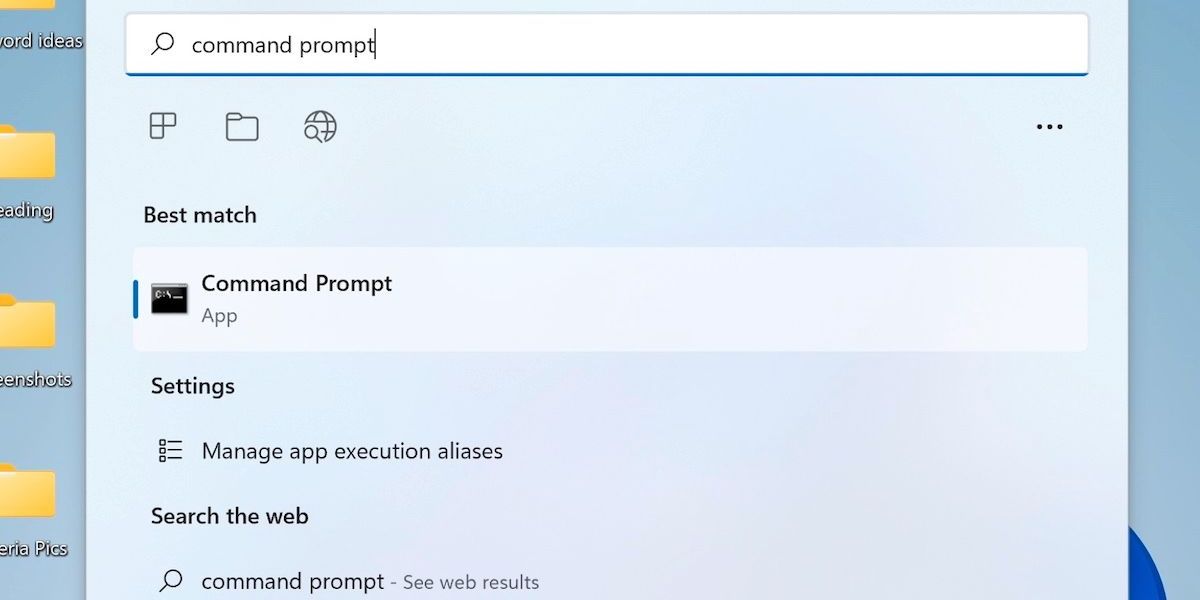
There are several ways to access the Command Prompt in Windows 11: Search:The easiest way is usually to type "cmd" or "command prompt" in the Windows search bar located on the taskbar. The "Command Prompt" app will appear; just click it to open.
Run Dialog: Press the Windows key + Rto open the "Run" dialog box. Type "cmd" and press Enter. This is a quick and efficient method.
Start Menu: Click the Start button, then scroll down the list of apps to find "Windows Tools." Click on "Windows Tools," and you should see "Command Prompt" listed.
Right-Click on the Start Button: Right-click on the Start button (or press Windows key + X) and select "Terminal" (which often defaults to Power Shell, but can be configured to open Command Prompt).
Pro Tip: If you need to run commands that require administrative privileges, you'll need to open the Command Prompt as an administrator. To do this, right-click on the "Command Prompt" app in the search results or Start menu and select "Run as administrator."This is crucial for certain commands that modify system settings.
Understanding the Command Prompt Interface
The Command Prompt window is pretty basic, but it's important to understand what you're looking at.
Title Bar: Displays the name of the window (usually "Command Prompt"). Command Prompt: This is the actual prompt where you type your commands. It usually looks something like `C:\Users\Your Name>`.The drive letter (C:) indicates the current drive, and the path (C:\Users\Your Name) indicates the current directory. Cursor:The blinking line that indicates where you can type.
Basic Navigation in the Command Prompt
Navigating the Command Prompt is different from using a graphical file explorer. You use commands to move between directories. Here are a few essential ones: `cd` (Change Directory):This command allows you to change the current directory.
To move to a subdirectory, type `cd Directory Name` (e.g., `cd Documents`).
To move back to the parent directory, type `cd ..`
To move to the root directory of the current drive, type `cd \`
`dir` (Directory): This command lists the files and subdirectories in the current directory. It's like looking inside a folder. You can use it to see what files are available before trying to open them.
`md` or `mkdir` (Make Directory): This command creates a new directory (folder). For example, `md New Folder` will create a new folder called "New Folder" in the current directory.
`rd` or `rmdir` (Remove Directory): This command removes an empty directory. Note: The directory must be empty before you can remove it. To remove a directoryandits contents, you'll need to use additional commands or options (more on that later).
Essential Command Prompt Commands for Windows 11
Now that you know how to navigate, let's explore someessentialcommands that will make your life easier.
`help`: Need a reminder of what a command does? Just type `help` followed by the command name (e.g., `help cd`) to get a brief explanation.
`ipconfig`: This command displays your computer's IP configuration information. This is incredibly useful for troubleshooting network issues. Typing `ipconfig /all` will provide even more detailed information.
`ping`: This command sends a signal to a specified IP address or domain name to test network connectivity. For example, `ping google.com` will test your connection to Google.If you get a reply, it means your computer can communicate with that server.
`tracert` (Trace Route): This command traces the route that your data takes to reach a specific destination. It shows you each "hop" along the way. It's helpful for identifying bottlenecks in your network connection.
`tasklist`: This command displays a list of all the processes currently running on your computer. It's like a more detailed version of Task Manager.
`taskkill`: This command allows you to terminate a specific process. You'll need the process ID (PID) from the `tasklist` command to use this. Be careful using this command, as killing the wrong process can cause problems.
`shutdown`: This command allows you to shut down or restart your computer from the command line.
`shutdown /s` shuts down the computer.
`shutdown /r` restarts the computer.
`shutdown /t xxx` shuts down after xxx seconds (e.g., `shutdown /t 60` shuts down after 60 seconds).
`shutdown /a` aborts a scheduled shutdown.
Using Wildcards in the Command Prompt
Wildcards are special characters that you can use to represent one or more characters in a file name or directory name. They can be incredibly useful for performing actions on multiple files at once.
`` (Asterisk):Representsanynumber of characters. For example, `dir.txt` will list all files with the `.txt` extension in the current directory.
`?` (Question Mark): Representsa singlecharacter. For example, `dir file?.txt` will list files like `file1.txt`, `file2.txt`, but not `file12.txt`.
Redirecting Output in the Command Prompt
You can redirect the output of a command to a file. This is useful for saving the results of a command for later analysis.
`>` (Greater Than): Redirects the output of a command to a file, overwriting the file if it already exists. For example, `dir > filelist.txt` will save the list of files in the current directory to a file called `filelist.txt`.
`>>` (Double Greater Than): Redirects the output of a command to a file, appending the output to the file if it already exists. For example, `dir >> filelist.txt` will add the list of files in the current directory to the end of the `filelist.txt` file.
Troubleshooting Common Windows 11 Issues with Command Prompt
The Command Prompt can be a powerful tool for troubleshooting common Windows 11 issues.
Network Connectivity Problems: Use `ipconfig`, `ping`, and `tracert` to diagnose network issues. You can also use `nslookup` to troubleshoot DNS problems.
File System Errors: Use the `chkdsk` command to check the integrity of your hard drive and fix errors. For example, `chkdsk /f C:` will check the C: drive for errors and attempt to fix them.You'll likely need to schedule this to run on the next restart.
System File Checker (SFC): Use the `sfc /scannow` command to scan for and repair corrupted system files. This can often fix issues caused by damaged or missing Windows files.
Driver Issues: While you can't directly update drivers through the Command Prompt, you can use it to identify problematic drivers. Use the `driverquery` command to list all installed drivers.
Batch Scripting: Automating Tasks with the Command Prompt
For more advanced users, batch scripting allows you to automate repetitive tasks by creating a file containing a series of Command Prompt commands.
Create a text file with the `.bat` extension.
Write your commands in the file, one command per line.
Save the file and double-click it to run the script.
For example, you could create a batch script to back up your important files to an external hard drive every night.
Windows 11 Command Prompt Tips and Tricks
Command History: Use theupanddownarrow keys to cycle through your previously entered commands. Tab Completion: Type the beginning of a file name or directory name and press the Tabkey to automatically complete the name. Copy and Paste: You can copy and paste text in the Command Prompt window by right-clicking and selecting "Mark," then selecting the text you want to copy and pressing Enter. To paste, right-click again.Alternatively, you can use Ctrl+Shift+C and Ctrl+Shift+V for copy and paste. Command Aliases (Doskey): The `doskey` command allows you to create aliases for frequently used commands. For example, you could create an alias `backup=xcopy C:\My Documents D:\Backup /s /e /y` to quickly back up your documents folder.
Step Four:
So, there you have it, friends! A comprehensive guide to unlocking the power of the Windows 11 Command Prompt. From basic navigation and essential commands to troubleshooting and automation, you've now got the tools to take control of your computer and impress your friends with your newfound tech skills.
This article covered everything from opening the Command Prompt to understanding its interface and navigating through directories. It also highlighted essential commands like `ipconfig`, `ping`, `tracert`, and `sfc /scannow` that can help you troubleshoot common Windows 11 issues. Furthermore, it explored the use of wildcards and output redirection for more advanced file management.
Now that you've explored the fascinating world of the Command Prompt, it’s time to put your knowledge into action. Go ahead, open the Command Prompt on your Windows 11 machine and start experimenting. Try out the commands we discussed, troubleshoot a network issue, or even create a simple batch script to automate a task.The more you use it, the more comfortable you'll become.
Your call to action: Try using the `sfc /scannow` command to scan your system files for errors and fix them.It's a great way to ensure your Windows 11 installation is healthy and stable.
Remember, the Command Prompt isn't just a tool for tech experts; it's a powerful resource available to everyone. By embracing the Command Prompt, you can gain a deeper understanding of your computer and unlock its full potential.
Keep exploring, keep learning, and keep pushing the boundaries of your tech knowledge. You've got this! Now, isn't it time to go and make your computer do somethingamazing? What will you conquer with the Command Prompt today?

Post a Comment for "Windows 11: How to Use the Command Prompt"
Post a Comment