Linux System Administration: Managing Disk Space and File Systems
Step One:
Mastering Linux: A Practical Guide to Disk Space and File System Management.
Step Two:
Learn Linux disk space management tips & file system best practices. Optimize your server performance! Essential guide for system admins and enthusiasts.
Hey there, Linux aficionados! Ever felt like your server is screaming, "I'm full!" but you have no idea what's hogging all the disk space? It's like finding out your teenager has been hoarding pizza boxes under the bed – unexpected and slightly horrifying. You're not alone! We've all been there, staring blankly at cryptic error messages, desperately trying to figure out why our applications are suddenly choking.
Think of your Linux server as a meticulously organized kitchen. You've got your pantry (the root directory), your fridge (different partitions), and various drawers for all your utensils (files and directories). Now, imagine someone decided to cram every pot, pan, and spatula into a single drawer. Chaos, right? That's what happens when your disk space isn't managed properly.
The consequences can range from mildly annoying (applications running slower than a snail in molasses) to downright disastrous (system crashes, data loss, the dreaded "out of memory" error). Imagine trying to deploy that crucial update at 3 AM, only to be greeted by a system that refuses to cooperate because it's too busy trying to squeeze data into a space smaller than a gnat's whisker.
But fear not, because this guide is your culinary roadmap to a perfectly organized Linux kitchen! We're going to dive deep into the world of disk space management and file systems, demystifying the tools and techniques you need to keep your servers running smoothly and efficiently. We’ll explore everything from identifying the biggest space hogs to optimizing your file systems for maximum performance.
Think of this article as your personal Linux sherpa, guiding you through the treacherous terrain of disk usage and file system intricacies. We'll break down complex concepts into digestible chunks, providing practical examples and real-world scenarios. You'll learn how to wield powerful commands likedu, df, andfdiskwith confidence, turning you into a disk space management wizard.
We'll even tackle the often-intimidating world of Logical Volume Management (LVM), which allows you to dynamically resize and manage your storage volumes without needing to reboot your system in the middle of the night. Because let's face it, nobody wants to be that person.
Ever wondered how companies like Google and Amazon manage petabytes of data? Okay, we won't be building Google's infrastructure today, but the fundamental principles we'll cover are the same. Understanding these concepts will empower you to handle everything from a small home server to a large-scale enterprise environment.
So, buckle up, grab a cup of coffee (or your preferred beverage of choice), and prepare to embark on a journey to mastering Linux disk space and file system management. Ready to unlock the secrets to a lean, mean, and efficient Linux machine? Keep reading, because the adventure is just beginning! Let’s find out how to prevent those late-night server emergencies and become the hero of your IT department (or just your home network).
Step Three:
Understanding Linux Disk Space Management
Effective Linux system administration hinges on mastering disk space management. This involves understanding how storage is allocated, monitoring usage, and implementing strategies to optimize space utilization. Failing to do so can lead to performance bottlenecks, application failures, and even system crashes.
Monitoring Disk Usage withdf
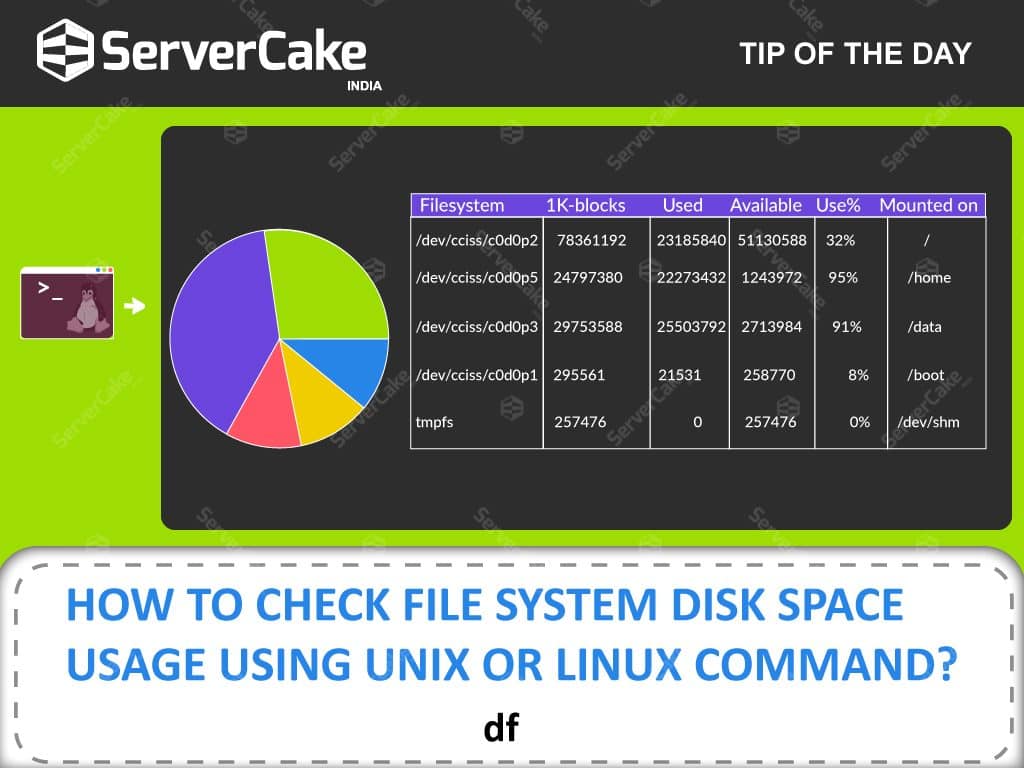
Thedf(disk free) command is your first line of defense in monitoring disk space. It provides a snapshot of the file system's overall usage, showing the total size, used space, available space, and mount point for each partition.
Basic Usage: Simply typing `df` in the terminal will display the disk space usage in kilobytes, which isn't very human-readable.
Example: `df` Human-Readable Output:The `-h` option makes the output much easier to understand by displaying sizes in human-readable format (e.g., KB, MB, GB). This is your best friend when quickly checking disk usage.
Example: `df -h` Specific File System Type:Use the `-t` option to filter the output by file system type, such as ext4 or XFS. This can be useful for isolating specific partitions.
Example: `df -h -t ext4` Include All File Systems:The `-a` option includes all file systems in the output, even those with zero usage.
Example: `df -a` Inode Information:Use the `-i` option to see inode usage, which is the number of files and directories, rather than storage space. Running out of inodes means you can't create new files, even if you have storage space.
Example: `df -i`
Think ofdfas your server's weight scale. It tells you how much your storage is being utilized. Keep an eye on those numbers to prevent overeating (i.e., running out of disk space).
Identifying Large Files and Directories withdu
Whiledfshows overall disk usage,du(disk usage) helps you pinpoint which files and directories are consuming the most space. It recursively calculates the disk space used by each directory and file within it.
Basic Usage: Run `du .` in a directory to see the disk usage of each file and subdirectory within that directory. The output will be in kilobytes.
Example: `du .` Human-Readable Output: The `-h` option, just like withdf, makes the output more readable.
Example: `du -h .` Summarized Output:The `-s` option displays only the total disk usage for each directory, rather than individual files within it. This helps you quickly identify the largest directories.
Example: `du -hs .` Sort by Size:Combineduwith thesortcommand to list directories by size, from largest to smallest. This isincrediblyhelpful for finding the biggest culprits.
Example: `du -hs . | sort -h` Specify Depth:The `-d` option limits the depth of the directory tree thatdutraverses. For example, `du -h -d 1 .` will only show the usage of directories one level deep.
Example: `du -h -d 1 .`
Imagineduas your server's detective, sniffing out the files and folders that are secretly hoarding all the resources. Use it regularly to catch those space-hogging villains!
Removing Unnecessary Files
Once you've identified the largest files and directories, the next step is to determine if they're actually needed. Old log files, temporary files, and unnecessary backups are common culprits.
Identify Old Log Files: Log files can grow rapidly over time. Use commands likefindto locate and remove or archive old log files.
Example: `find /var/log -type f -name "*.log" -mtime +30 -delete` (This command finds log files older than 30 days in /var/log and deletes them. Be careful when using the -delete option! Double-check your command before running it.) Clean Temporary Directories:Temporary directories like /tmp and /var/tmp often accumulate unnecessary files. Regularly clean these directories usingrmor by creating a cron job.
Example: `rm -rf /tmp/*` (Again, use with caution!) Remove Duplicate Files:Tools likefdupescan help you identify and remove duplicate files.
Example: `fdupes -r /path/to/search` (This finds duplicate files recursively in the specified path.)
Think of this as decluttering your server's digital attic. Get rid of the junk you don't need to free up valuable space. Just make sure you're not throwing away anything important! It is always wise to back up anything before you delete it.
Compressing Files
Compressing files is a great way to reduce their size without deleting them. This is particularly useful for archiving old data or storing large files.
gzip*: A common compression tool that compresses individual files.
Example: `gzip filename` (This compresses 'filename' and creates 'filename.gz'.) tar*: Often used in conjunction withgziporbzip2to create archives of multiple files and directories.
Example: `tar -czvf archive.tar.gz directory` (This creates a gzipped archive named 'archive.tar.gz' of the 'directory'.) bzip2*: Another compression tool that generally provides better compression thangzip, but takes longer to compress and decompress.
Example: `bzip2 filename` (This compresses 'filename' and creates 'filename.bz2'.) xz*: Offers even better compression ratios thanbzip2, but is the slowest of the three.
Example: `xz filename` (This compresses 'filename' and creates 'filename.xz'.)
Compression is like squeezing all the air out of your server's storage bags. You can store more stuff in the same amount of space.
Optimizing Linux File Systems
Beyond managing individual files, optimizing your file system is crucial for overall disk space efficiency and performance.
Understanding File System Types
Linux supports various file system types, each with its own characteristics and trade-offs. Choosing the right file system for your needs is essential.
ext4: The most common file system in modern Linux distributions. It's a general-purpose file system that offers good performance and reliability. It is the industry standard. XFS: A high-performance journaling file system that's well-suited for large files and high-throughput workloads. It is the best option if you are running many large files. Btrfs: A modern file system with advanced features like snapshots, checksumming, and built-in volume management. ZFS: Another advanced file system known for its data integrity features and support for large storage volumes.
Choosing a file system is like selecting the right type of container for your server's data. Consider your storage needs and workload characteristics when making your choice.
Partitioning Strategies
Partitioning your hard drive allows you to divide it into separate logical volumes, each with its own file system. Proper partitioning can improve security, performance, and data recovery.
/: The root partition, where the operating system and core system files are located. This is essential. /home:Where user home directories are stored. Separating this partition allows you to reinstall the OS without losing user data. /var:Where variable data like log files, databases, and website content are stored. /boot:Contains the bootloader and kernel, necessary for starting the system. Swap:Used for virtual memory, providing a space on the hard drive for the system to use when physical RAM is full.
Partitioning is like organizing your server's rooms into different compartments. Keep the essentials separate from the clutter for better organization and resilience.
Logical Volume Management (LVM)
LVM provides a flexible way to manage storage volumes. It allows you to create, resize, and manage logical volumes without repartitioning your disk or interrupting your system.
Physical Volumes (PVs): The physical hard drives or partitions that are used to create the LVM. Volume Groups (VGs): A collection of one or more PVs that are treated as a single storage pool. Logical Volumes (LVs):Virtual partitions that are created within a VG. These are the file systems that you actually mount and use.
LVM is like having a super-flexible storage container. You can easily add or remove space as needed without disrupting your server.
Monitoring and Maintaining File System Health
Regularly monitoring and maintaining your file system is crucial for preventing data loss and ensuring optimal performance.
fsck*: A tool for checking and repairing file system errors. Run it periodically, especially after a system crash.
Example: `fsck /dev/sda1` (This checks and repairs the file system on /dev/sda1.Important: This should typically be done on an unmounted partition.) SMART Monitoring:Use SMART (Self-Monitoring, Analysis and Reporting Technology) tools to monitor the health of your hard drives and detect potential failures.
Example: `smartctl -a /dev/sda` (This displays the SMART data for /dev/sda.)
Think of file system maintenance as your server's regular check-up. Catching problems early can prevent major disasters.
Quotas
Disk quotas limit the amount of disk space a user or group can consume. This prevents individual users from hogging all the resources and ensures fair usage.
User Quotas: Limit the disk space used by individual users. Group Quotas: Limit the disk space used by a group of users.
Quotas are like setting budgets for disk space usage. It keeps everyone from overspending and ensures there's enough for everyone else.
Step Four:
Alright, friends, that was quite the deep dive into the world of Linux disk space and file system management! We started by understanding the importance of efficient storage, learned how to use powerful commands likedfandduto monitor usage, and explored strategies for removing unnecessary files, compressing data, and optimizing our file systems. We even tackled the complexities of LVM and the importance of file system health monitoring!
Now, it's time to put this knowledge into action. Your call to action is toschedule a regular disk space audit for your Linux systems. Set a reminder in your calendar to rundfanddu, identify any potential space hogs, and take steps to optimize your storage. Whether it's cleaning up old log files, compressing archives, or repartitioning your disk with LVM, taking proactive steps will keep your servers running smoothly and prevent those dreaded "out of disk space" emergencies.
Start small if you feel overwhelmed. Even just spending 15 minutes a week checking your disk usage can make a huge difference. Remember, maintaining a clean and well-organized file system is an ongoing process, not a one-time fix.
Think of it this way: mastering Linux system administration is like learning a new language. It takes time, practice, and dedication. But with each command you learn, each problem you solve, you're building a valuable skillset that will serve you well in your career (or even just in your home lab!).
So, go forth, conquer your disk space challenges, and become the master of your Linux domain! Stay curious, keep learning, and never be afraid to experiment (in a safe environment, of course!).
Are you ready to take control of your Linux storage and become a disk space management superhero? What's the first thing you're going to check on your servers today?

Post a Comment for "Linux System Administration: Managing Disk Space and File Systems"
Post a Comment