Windows 11: Using the Windows Control Panel for System Tweaks
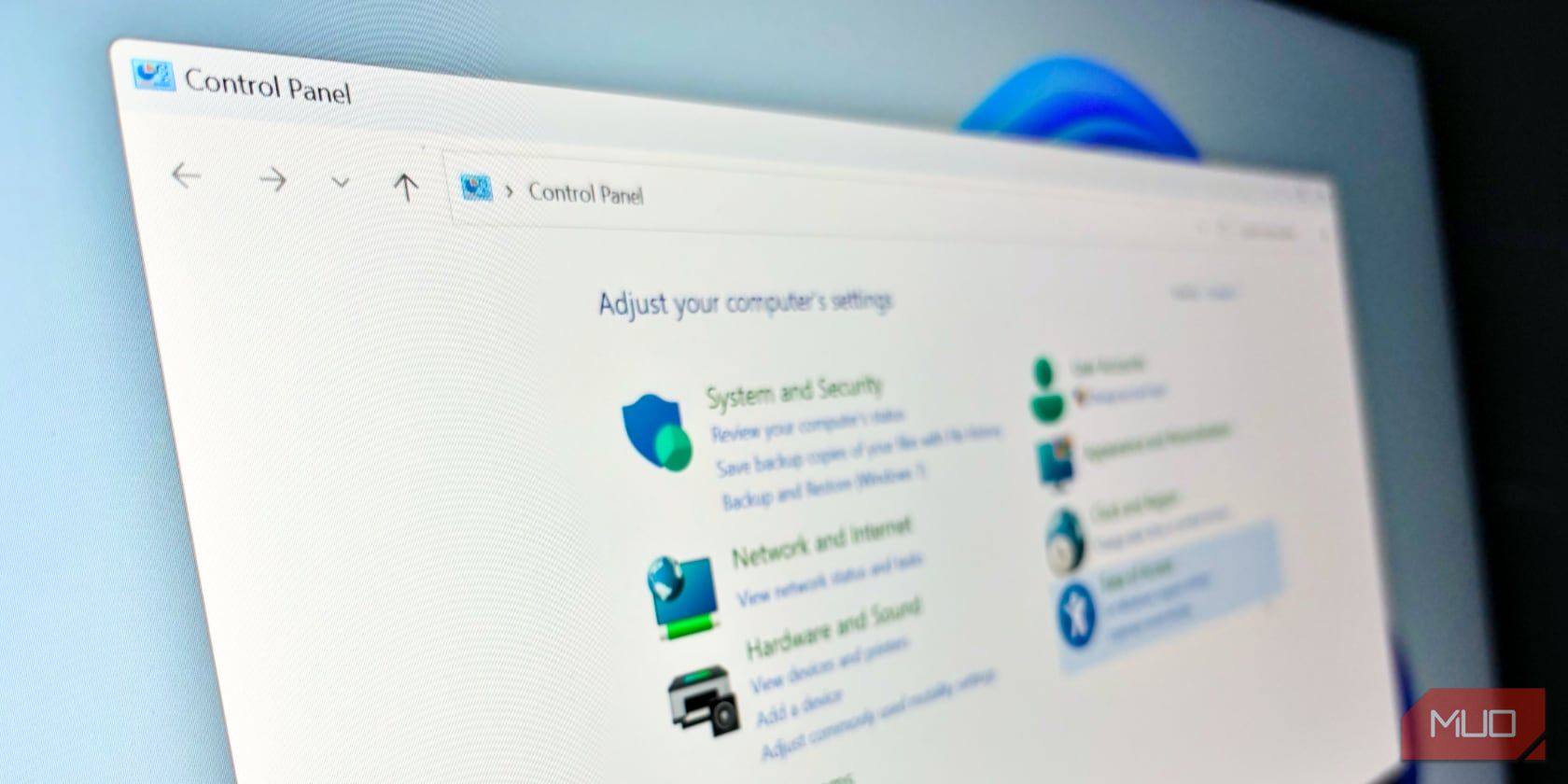
Unleash Your Windows 11 Potential: Master the Control Panel!
Hey there, tech enthusiasts! Ever feel like your Windows 11 machine is a mysterious black box, full of hidden potential you just can't quite unlock? Maybe you're tired of that pesky notification popping up at the worst possible moment, or perhaps you dream of a perfectly customized desktop experience. We've all been there! It's like trying to assemble IKEA furniture without the instructions – frustrating, time-consuming, and often ending in disaster (or at least a slightly lopsided bookshelf).
Let's face it, Windows is powerful, but sometimes navigating its settings can feel like wandering through a digital maze. You click one thing, and suddenly you're three menus deep, wondering how you even got there. And don't even get me started on the modern "Settings" app. It's sleek and modern, sure, but sometimes it feels like important options are hidden just out of reach, moved around on a whim.
But fear not, my friends! There's a hidden gem within Windows 11, a trusty old friend that's been around for ages, offering a surprising amount of control and customization: the Control Panel. Yes, that seemingly outdated relic of Windows past is still alive and kicking, packed with tools and settings that can help you tweak your system to your heart's content. Think of it as the veteran mechanic who knows all the ins and outs of your car, while the fancy new digital interface is just trying to sell you a self-driving upgrade you don't need.
Maybe you're thinking, "The Control Panel? Isn't that thing ancient history?" Well, while it might not be the flashiest part of Windows, it's a powerhouse of functionality. It’s where you’ll find many settings that haven't yet been fully migrated to the new Settings app, offering a level of granular control that the modern interface often lacks. It’s the place to go when you need to get serious about customizing your experience.
And trust me, it’s easier to use than you might think. We’re going to walk through it together, step by step. Forget those overly complicated tech manuals – we're going to break it down into simple, actionable tips that anyone can understand.
Ready to ditch the frustration and take control of your Windows 11 experience? Let's dive in and uncover the secrets hidden within the Control Panel. You might be surprised at what you discover! Are you ready to unlock some serious customization potential and make Windows 11 trulyyourown?
Mastering the Windows 11 Control Panel: Your Guide to System Tweaks
Alright, let’s get down to brass tacks. You want to tweak your Windows 11 system, and the Control Panel is your secret weapon. But where do you even begin? Don't worry; we'll guide you through some of the most useful features and settings it offers. Prepare to be amazed by the level of customization you can achieve!
•Accessing the Control Panel:The Gateway to Power
First things first, you need to find the darn thing. While it's not prominently displayed on the Start menu anymore, it's still easily accessible. The quickest way is to simply type "Control Panel" in the Windows search bar (the one next to the Start button). Alternatively, you can right-click on the Start button and select "Run," then type "control" and press Enter. Voila! The Control Panel appears in all its glory.
Once you've found it, consider pinning it to your taskbar or Start menu for easy access in the future. This will save you precious seconds every time you need to tweak a setting. Every second counts, right? Think of it as adding a superpower to your Windows workflow.
•Uninstalling Programs:Declutter Your Digital Life
Over time, our computers accumulate a lot of digital baggage – programs we installed and forgot about, trial software that expired, and who-knows-what-else. The Control Panel offers a straightforward way to uninstall these unwanted programs.
Navigate to "Programs" and then "Programs and Features." You'll see a list of all the programs installed on your computer. Simply select the program you want to remove and click Uninstall.Follow the on-screen instructions, and poof! It's gone. Just be careful not to uninstall anything you actually need! Before you click uninstall, do a quick search online to find out what it does and if you need it. We don’t want any disasters happening!
Regularly decluttering your installed programs can free up disk space, improve system performance, and reduce clutter in your Start menu. Think of it as a digital spring cleaning, leaving your computer feeling fresh and rejuvenated.
•Managing User Accounts:Family Sharing Done Right
If you share your computer with family members or other users, managing user accounts is crucial. The Control Panel allows you to create, modify, and delete user accounts, as well as manage their permissions and passwords.
Go to "User Accounts" and then "User Accounts" again (yes, it's a bit redundant). Here, you can add new users, change account types (standard or administrator), and manage passwords. This is especially useful if you want to give your kids limited access to the computer or prevent them from making changes to system settings. No more accidental system meltdowns!
Properly managing user accounts ensures that everyone has their own private space on the computer and that sensitive data is protected. It's like having individual bedrooms in a house, ensuring everyone has their own space and privacy.
•Customizing Mouse and Keyboard Settings:Your Personal Touch
Did you know you can customize the way your mouse and keyboard behave in Windows 11? The Control Panel lets you adjust settings such as mouse speed, double-click speed, scroll wheel sensitivity, and keyboard repeat delay.
For mouse settings, go to "Hardware and Sound" and then Mouse.For keyboard settings, go to "Hardware and Sound" and then Keyboard.Experiment with different settings until you find what works best for you. For example, if you find that your mouse is moving too slowly, increase the mouse speed. If you accidentally double-click too often, increase the double-click speed.
These seemingly small tweaks can significantly improve your overall computing experience. It's like finding the perfect ergonomic chair – it might not seem like a big deal, but it can make a world of difference in your comfort and productivity.
•Configuring Power Options:Saving Energy and Extending Battery Life
If you're using a laptop, managing power options is essential for extending battery life. The Control Panel allows you to customize power plans, adjust screen brightness, and configure sleep settings.
Navigate to "Hardware and Sound" and then "Power Options." Here, you can choose from different power plans (Balanced, Power saver, High performance) or create your own custom plan. You can also configure when the screen turns off and when the computer goes to sleep.
By carefully configuring power options, you can strike a balance between performance and battery life. It's like driving a car – you can floor it and burn through gas quickly, or you can drive conservatively and save fuel. The choice is yours!
•Troubleshooting System Problems:Your Digital First Aid Kit
When things go wrong with your computer, the Control Panel's troubleshooting tools can be a lifesaver. These tools can automatically diagnose and fix common problems with hardware, software, and network connections.
Go to "System and Security" and then Troubleshooting.Here, you'll find a variety of troubleshooters for different categories, such as hardware and devices, network and internet, and programs. Simply select the appropriate troubleshooter and follow the on-screen instructions.
While the troubleshooters aren't always a guaranteed fix, they can often resolve simple problems quickly and easily. Think of them as a digital first aid kit, providing basic remedies for common ailments.
•Managing Devices and Printers:Keeping Everything Connected
Connecting and managing devices like printers, scanners, and external hard drives is a common task. The Control Panel provides a centralized location for managing these devices.
Go to "Hardware and Sound" and then "Devices and Printers." Here, you can add new devices, update drivers, and configure device settings. This is especially useful for troubleshooting printer problems or setting up a new scanner.
Keeping your devices properly connected and configured ensures that everything works smoothly and efficiently. It's like having a well-oiled machine, with all the parts working together in perfect harmony.
•Setting up Windows Firewall:Your First Line of Defense
Security is paramount in today's digital world. Windows Firewall helps protect your computer from unauthorized access and malicious software. The Control Panel allows you to configure firewall settings and manage exceptions.
Navigate to "System and Security" and then "Windows Defender Firewall." Here, you can turn the firewall on or off, configure inbound and outbound rules, and allow specific apps to communicate through the firewall. It's generally recommended to keep the firewall turned on unless you have a specific reason to disable it.
Properly configuring Windows Firewall is an essential step in protecting your computer from online threats. Think of it as a security guard, preventing unwanted guests from entering your digital home.
•Customizing Regional Settings:Making Windows Your Own
If you live in a country that uses a different date format, currency symbol, or number format, you can customize these settings in the Control Panel. This ensures that Windows displays information in a way that is familiar and comfortable for you.
Go to "Clock and Region" and then Region.Here, you can change the date format, time format, currency symbol, and number format. You can also customize the language used by Windows.
Customizing regional settings makes Windows feel more like home. It's like decorating your living room with personal touches, making it a space that reflects your unique identity.
•Exploring Accessibility Options:Making Windows More Inclusive
Windows 11 includes a variety of accessibility options designed to make the operating system easier to use for people with disabilities. The Control Panel provides access to these options, allowing you to customize settings such as font size, screen contrast, and keyboard shortcuts.
Navigate to "Ease of Access" and then "Ease of Access Center." Here, you'll find a variety of accessibility tools and settings, such as Magnifier, Narrator, On-Screen Keyboard, and High Contrast. Experiment with these settings to find what works best for you or someone you know who might benefit from them.
Exploring accessibility options can make Windows more inclusive and accessible to everyone. It's like building a ramp next to a staircase, making it easier for people with mobility impairments to access a building.
Q&A: Control Panel Clarity
Let's tackle some common questions about the Control Panel to clear up any lingering confusion.
•Question:Is the Control Panel going away in Windows 11?
Answer: While Microsoft is gradually migrating settings to the modern Settings app, the Control Panel is still present in Windows 11 and contains many settings that are not yet available elsewhere. It's likely to remain a part of Windows for the foreseeable future, though its role may diminish over time.
•Question:What's the difference between the Control Panel and the Settings app?
Answer: The Control Panel is a legacy interface that provides access to a wide range of system settings, while the Settings app is a modern interface designed to be more user-friendly. The Settings app is gradually replacing the Control Panel, but many settings are still only available in the Control Panel.
•Question:Is it safe to make changes in the Control Panel?
Answer: Most changes you make in the Control Panel are safe, but it's always a good idea to be cautious. Before making any changes, make sure you understand what the setting does and what the potential consequences are. If you're unsure, do some research online or consult with a tech-savvy friend.
•Question:Can I customize the Control Panel itself?
Answer: While you can't directly customize the Control Panel's appearance or layout, you can change the way items are displayed (by category, large icons, or small icons) and you can add shortcuts to frequently used settings to your taskbar or Start menu.
Your Windows 11 Journey Starts Now
We've journeyed through the depths of the Windows 11 Control Panel, uncovering its hidden treasures and demystifying its functionality. From uninstalling unwanted programs to fine-tuning mouse settings and configuring power options, you now have the knowledge and tools to take control of your Windows 11 experience. Remember, the Control Panel is your secret weapon, a powerful tool that can help you customize your system to your heart's content.
But knowledge is only powerful when applied. Now it's time to put what you've learned into practice. Explore the Control Panel, experiment with different settings, and discover the possibilities. Don't be afraid to tweak things and see what happens – after all, that's how you learn! And remember, if you ever get stuck, you can always refer back to this guide or search online for help. The internet is your friend!
So, what are you waiting for? Dive in, explore, and unleash the full potential of your Windows 11 machine. Take that first step towards a customized, optimized, and trulyyour Windows experience! Go forth, tweak, and conquer!
Now, go forth and conquer the Control Panel! What customization will you tackle first?

Post a Comment for "Windows 11: Using the Windows Control Panel for System Tweaks"
Post a Comment