Windows 11: Using the Windows File Explorer for Advanced File Management
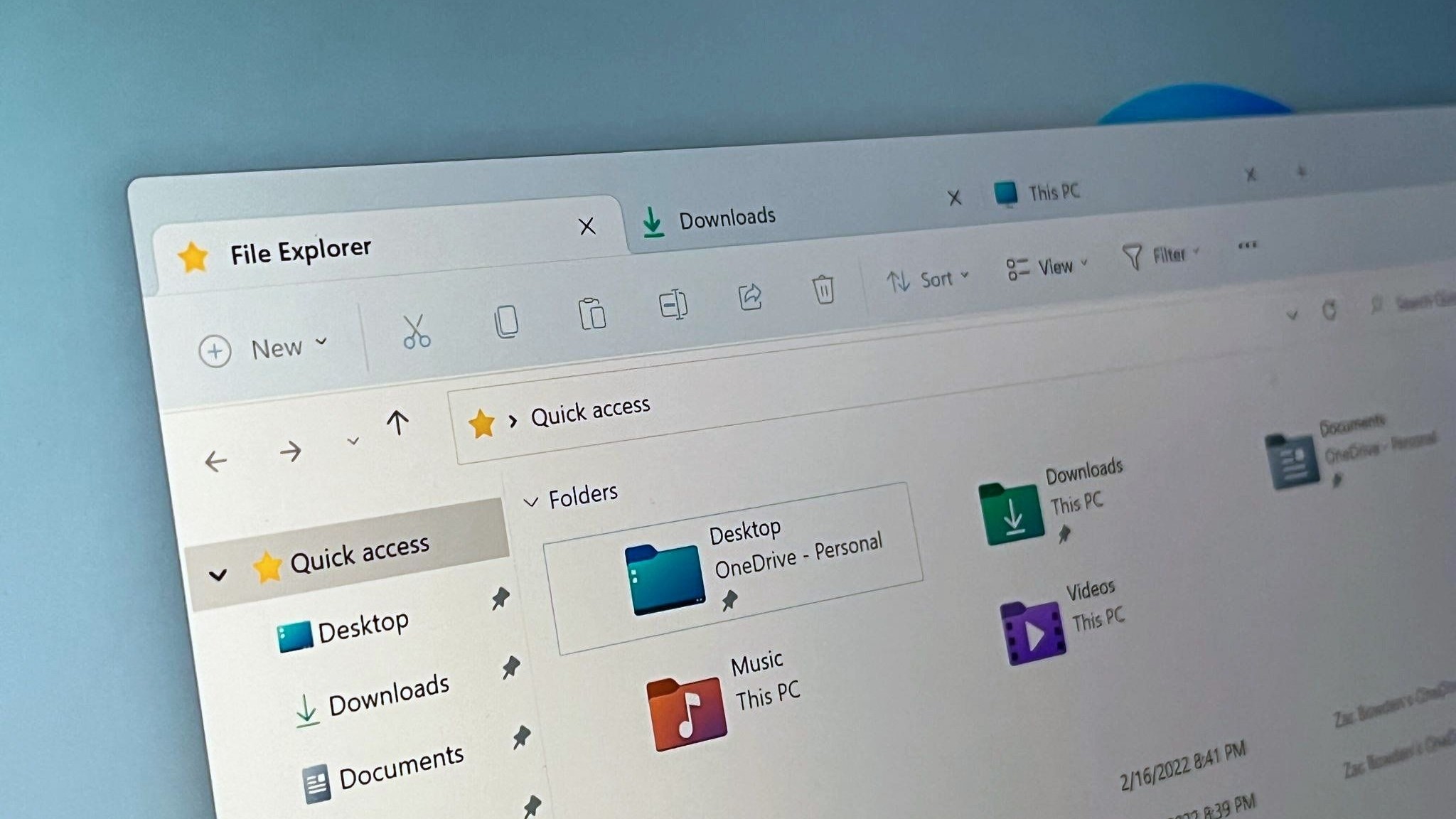
Windows 11 File Explorer: Unleash the Power User Within!
Hey there, tech enthusiasts! Ever feel like your computer is a messy desk, and you're just shuffling papers instead of getting things done? We've all been there. You click through folders, search for that one elusive file, and spend way too much time justorganizingthings instead of, you know, actuallydoingthings. It's like being stuck in digital quicksand, right?
Think about it: how many times have you opened File Explorer, only to be greeted by a chaotic jumble of folders and files? You know that precious document issomewherein the depths of your drive, but finding it feels like an archaeological dig. You sift through layer after layer, cursing the day you decided to name everything "Document1," "Document2," and so on. (We've all been guilty of that, haven't we?) Then, after what feels like an eternity, you finally unearth your treasure – only to realize you need to make the exact same journey again tomorrow! It's enough to make you want to throw your computer out the window (please don't, your neighbors will judge!).
And it's not just about finding files. Have you ever tried renaming a whole batch of photos, only to find yourself manually typing each new name, one by one? Talk about a soul-crushing task! Or maybe you've struggled to compress a large video file to share with a friend, wrestling with complicated settings and confusing jargon. It's like trying to assemble IKEA furniture without the instructions – frustrating and ultimately resulting in a minor existential crisis. Let's face it, managing files on Windows can sometimes feel like a chore, especially when you're trying to do anything beyond the basics.
But what if I told you that File Explorer, that humble little window you've probably been taking for granted, is actually a powerful tool packed with features that can transform you from a digital hoarder into a file management ninja? Windows 11 has seriously upgraded this trusty app with lots of enhancements and hidden features. It's true! File Explorer isn't just for navigating to your documents; it's your secret weapon for conquering your digital chaos. We're talking about boosting your productivity, saving you time, and making your digital life significantly less stressful. Stop just surviving with your files, and startthrivingwith them!
Ready to unlock the hidden potential of Windows 11 File Explorer? Stick around, because we're about to dive deep into the world of advanced file management. We'll uncover tips, tricks, and techniques that will turn you into a master of organization. Prepare to have your mind blown (okay, maybe notblown, but definitely pleasantly surprised!). Get ready to reclaim control over your digital domain and discover the awesome power that's been hiding in plain sight all along. Let’s get started!
Unleash the Power of Windows 11 File Explorer
Mastering Advanced File Management
Alright, friends, let's get down to business. Windows 11 File Explorer isn't just a window to your files; it's a command center for your digital world. Here’s how to take control:
• Harness the Power of the Ribbon Interface:The ribbon at the top of File Explorer isn't just there for decoration. It's your gateway to a whole host of advanced features. Don't just glance at it –useit! Explore the different tabs like "Home," "Share," and "View" to discover options you never knew existed. For example, the "Home" tab lets you quickly copy, paste, delete, rename, and even move files with just a click. No more right-clicking and sifting through menus!
• Dive Deep with Advanced Search Operators:Tired of aimlessly searching for files with generic keywords? It’s time to learn the magic of advanced search operators. These little commands can dramatically narrow down your search results and help you find exactly what you're looking for in seconds. For instance, try using "size:>10MB" to find files larger than 10 megabytes or "date:today" to find files modified today. You can even combine operators like "type:pdf date:last week" to find all PDF files modified in the last week. It’s like having a personal file-finding assistant!
• Batch Rename Like a Pro:Manually renaming files is a tedious task for the ages. Instead, use File Explorer's built-in batch renaming tool to rename multiple files at once with a consistent naming scheme. Simply select the files you want to rename, press F2, and enter a new name. Windows will automatically append a number to each file name, creating a neatly organized series. This is a lifesaver for organizing photos, documents, or any other type of file where consistency is key.
• Create and Manage ZIP Archives with Ease:Need to compress files for sharing or archiving? File Explorer makes it a breeze to create and manage ZIP archives without the need for any third-party software. Simply select the files you want to compress, right-click, and choose "Compress to ZIP file." You can also extract files from ZIP archives just as easily by right-clicking and selecting "Extract All." It's a convenient and efficient way to manage your compressed files.
• Customize Your View for Maximum Efficiency:The default view in File Explorer isn't always the most efficient for your needs. Customize the view to show the information that's most important to you. You can change the view to "Details" to see file sizes, modification dates, and other important metadata. You can also add columns to the Details view to show even more information, such as the author, title, or tags of a file. Experiment with different views and columns to find the perfect configuration for your workflow.
• Unleash the Power of Libraries:Libraries are virtual folders that can aggregate files from multiple locations into a single, organized view. Think of them as shortcuts to your files, regardless of where they're stored on your computer. You can create libraries for specific projects, file types, or anything else that makes sense for your workflow. To create a library, right-click in the navigation pane and choose "New" > Library.Then, add folders to the library from any location on your computer.
• Master the Art of File Tagging:File tags are like digital sticky notes that you can attach to your files to help you organize and find them more easily. You can tag files with keywords, project names, or any other relevant information. To add a tag to a file, right-click on the file, choose "Properties," and then click on the "Details" tab. In the "Tags" field, enter your tags, separated by semicolons. You can then search for files by tag using the search bar in File Explorer.
• Take Control with Quick Access:The Quick Access section in File Explorer is your personalized shortcut to your most frequently used folders and files. Pin folders to Quick Access for instant access, saving you time and clicks. You can also remove folders from Quick Access if you no longer need them. To pin a folder, right-click on it and choose "Pin to Quick access."
• Explore the Command Bar:The command bar in File Explorer is a dynamic toolbar that adapts to the currently selected file or folder. It provides quick access to relevant commands, such as "Copy," "Move," "Delete," "Rename," and Share.The commands that appear in the command bar will change depending on the type of file or folder you have selected. For example, if you select an image file, the command bar will show commands related to image editing and viewing.
• Sync Your Files with One Drive:One Drive is Microsoft's cloud storage service, and it's deeply integrated into Windows 11 File Explorer. You can use One Drive to sync your files across multiple devices, back up your data, and share files with others. To sync your files with One Drive, simply sign in to One Drive in File Explorer and then drag and drop your files into the One Drive folder. Your files will automatically be uploaded to the cloud and synced to your other devices.
• Utilize the 'Share' Functionality:The Share functionality in File Explorer makes sharing files with others incredibly easy. Simply select the file or folder you want to share, click the "Share" button in the ribbon, and choose how you want to share it. You can share files via email, One Drive, or other apps. You can also create a link to share the file with anyone, even if they don't have a Microsoft account.
• Understanding Storage Sense:Storage Sense is a feature in Windows 11 that automatically frees up disk space by deleting temporary files, emptying the Recycle Bin, and removing unused files. You can configure Storage Sense to run automatically on a schedule or manually when you need to free up space. To configure Storage Sense, go to "Settings" > "System" > "Storage" and turn on the "Storage Sense" switch. You can then customize the settings to your liking.
• Using File History for Backup and Recovery:File History is a feature in Windows 11 that automatically backs up your files to an external drive. You can use File History to restore previous versions of your files if they are lost, damaged, or accidentally deleted. To enable File History, go to "Settings" > "System" > "Storage" > "Advanced storage settings" and click on "File History." Then, select an external drive to use for your backups and turn on the "Automatically back up my files" switch.
• Keyboard Shortcuts are Your Friend:Become a File Explorer ninja by mastering keyboard shortcuts. Learn shortcuts like Ctrl+C (copy), Ctrl+V (paste), Ctrl+X (cut), Ctrl+Z (undo), Ctrl+A (select all), and Delete (delete). These shortcuts will save you countless clicks and dramatically speed up your file management workflow. Make a cheat sheet and keep it handy until you've memorized the most useful shortcuts.
• Integrate Cloud Storage Seamlessly:Windows 11 makes it easy to integrate cloud storage services like Dropbox, Google Drive, and One Drive directly into File Explorer. This allows you to access your cloud-based files just like any other folder on your computer. Simply install the cloud storage app and follow the instructions to sync your files with File Explorer.
Frequently Asked Questions About File Explorer
• Question:How do I quickly access a deeply nested folder without having to click through multiple levels of directories?
• Answer:Use the address bar! Type the folder path directly into the address bar at the top of File Explorer. Windows 11 will automatically suggest folder names as you type, making it even faster to navigate. You can also copy and paste folder paths from other applications into the address bar.
• Question:How can I find large files that are taking up too much space on my hard drive?
• Answer:Use the "size:" search operator in File Explorer. Type "size:gigantic" to find files larger than 128 MB, "size:huge" for files between 50 MB and 128 MB, or "size:large" for files between 16 MB and 50 MB. You can also use specific sizes like "size:>1GB" to find files larger than 1 gigabyte.
• Question:Can I customize the appearance of File Explorer to make it more visually appealing?
• Answer:Absolutely! While Windows 11 offers a modern and clean design, you can customize the color scheme and accent colors to match your personal preferences. Go to "Settings" > "Personalization" > "Colors" to choose your preferred colors. You can also enable dark mode to reduce eye strain in low-light environments.
• Question:Is there a way to preview files without having to open them in their respective applications?
• Answer:Yes! File Explorer has a built-in preview pane that allows you to quickly preview the contents of many different file types, including images, documents, videos, and audio files. To enable the preview pane, click the "View" tab in the ribbon and then click the "Preview pane" button. The preview pane will appear on the right side of File Explorer, allowing you to preview files simply by selecting them.
So there you have it, friends! You've now unlocked the secrets to mastering Windows 11 File Explorer and transformed yourself into a file management extraordinaire. We've explored advanced search techniques, batch renaming tricks, library management, file tagging, and a whole lot more. You're no longer a mere mortal shuffling through files; you're a digital sorcerer, wielding the power of File Explorer to bend your digital world to your will.
But the journey doesn't end here. The real magic happens when you put these techniques into practice and make them a part of your daily workflow. Experiment with different features, customize your settings, and find what works best for you. Don't be afraid to explore and discover new ways to optimize your file management process.
Now, it's time for you to take action! Start by implementing just one or two of the techniques we've discussed today. Maybe you'll begin using advanced search operators to find those elusive files, or perhaps you'll create a library to organize your most important projects. Whatever you choose, make a conscious effort to apply what you've learned. And remember, practice makes perfect. The more you use these techniques, the more natural and intuitive they will become.
So go forth, conquer your digital chaos, and unleash the power of Windows 11 File Explorer! The digital world is your oyster; now go make it organized, efficient, and stress-free. Are you ready to become the ultimate file management master?

Post a Comment for "Windows 11: Using the Windows File Explorer for Advanced File Management"
Post a Comment