Windows 11: Using the Windows Control Panel for System Tweaks
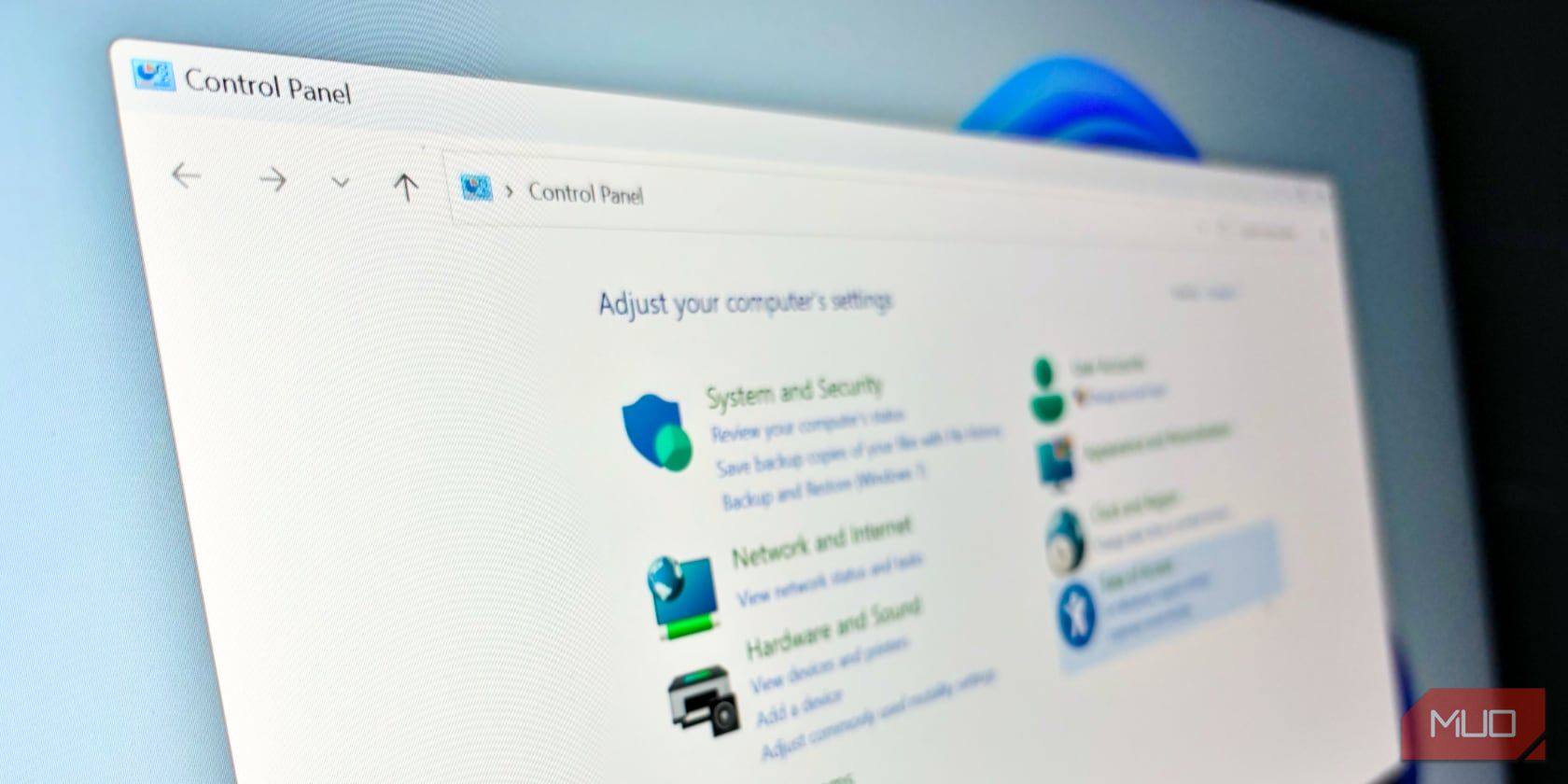
Windows 11 Control Panel: Your System Tweaking Powerhouse
Hey there, tech enthusiasts! Ever feel like your Windows 11 machine is a bit… generic? Like it's just another cog in the digital machine? We've all been there. You get a new computer, and it's zippy for about a week. Then, bloatware creeps in, settings get messed up, and suddenly your lightning-fast PC feels more like a rusty bicycle. The good news is, you don't have to resign yourself to a sluggish, frustrating experience. There's a hidden gem tucked away inside Windows 11 that gives you the power to take back control: the Control Panel.
Now, I know what you might be thinking. "The Control Panel? Isn't that like, ancient history? I thought everything was in Settings now!" And you're not entirely wrong. Microsoft has been pushing the Settings app hard, and for good reason – it's more modern and user-friendly (usually). But the Control Panel is still there, lurking beneath the surface, holding the keys to some seriously powerful system tweaks. Think of it like this: the Settings app is the front door to your house, easy to access and good for most everyday tasks. But the Control Panel? That's the secret basement where you keep all the tools for serious DIY projects. We're talking about tweaking power settings for maximum battery life, managing your devices like a pro, uninstalling programs that refuse to go away, and even diving into the depths of your network configuration. It's the ultimate power user's playground. And it's still incredibly relevant in Windows 11. You might have searched the settings for hours looking for a specific function to disable, yet it's just one click away in the control panel. In many cases, some functionalities can still only be tweaked using the control panel.
The reason the Control Panel remains relevant is because it offers a level of granularity and control that the Settings app simply doesn't provide. While Settings aims for simplicity and ease of use, the Control Panel embraces complexity and offers a deeper dive into the inner workings of your system. It's the difference between ordering a pre-built computer and building one yourself. One is convenient, the other gives you ultimate control. So, if you're ready to stop feeling like a passive user and start truly mastering your Windows 11 machine, the Control Panel is your secret weapon. Are you ready to unlock its hidden potential and turn your PC into a finely tuned, personalized powerhouse?
Unlocking the Power of the Windows 11 Control Panel
The Windows 11 Control Panel is your gateway to customizing and optimizing your system in ways you might not have thought possible. Let's explore some key areas and how you can use them to improve your computing experience. Think of this as your guided tour to becoming a Windows 11 ninja. You'll be tweaking settings and optimizing performance like a pro in no time!
Navigating the Control Panel
First things first, how do you even get to this mystical Control Panel? There are a few ways, but here's the easiest:
• Press the Windows key + R to open the Run dialog box.
• Type "control" (without the quotes) and press Enter.
• Voila! The Control Panel appears.
Now, depending on your view settings, you might see a bunch of icons or a categorized list. If you prefer the classic icon view (which I personally find easier to navigate), look for the "View by" option in the upper-right corner and select "Small icons" or "Large icons." This will give you a comprehensive overview of all the available options.
System and Security: Your PC's Health Center
This is where you'll find tools to manage your system's overall health and security. Let's dive into a few key areas:
• Security and Maintenance: Think of this as your PC's check-up tool. It alerts you to potential problems, like outdated antivirus software or driver issues. Regularly checking this section can help you prevent problems before they even start. It’s like going to the doctor for a routine check-up. A small effort can prevent major health catastrophes.
• Windows Defender Firewall: This is your first line of defense against online threats. You can use it to configure firewall settings, allow or block specific apps, and monitor network activity. Think of it as your digital gatekeeper, protecting your PC from unwanted intruders.
• System: This provides a wealth of information about your computer, including your processor, RAM, operating system version, and activation status. You can also access advanced system settings from here, such as virtual memory and environment variables. This is your PC’s ID card – learn to read it and you’ll understand your machine much better.
Hardware and Sound: Taming Your Peripherals
This section lets you manage all the hardware connected to your computer, from your mouse and keyboard to your printers and sound devices.
• Devices and Printers: Here, you can view all the devices connected to your computer, add new devices, and troubleshoot problems. If your printer is acting up, this is the first place to look. It's like a digital inventory of all your gadgets.
• Sound: This allows you to configure your audio settings, including your default playback and recording devices, volume levels, and sound effects. You can even customize the sounds that Windows plays for different events. This is where you can make your PC sound like you want it to.
• Power Options: This is crucial for laptop users. You can create and customize power plans to optimize battery life or performance. For example, you can create a "Battery Saver" plan that reduces screen brightness and disables unnecessary background processes to extend your battery life when you're on the go. Or, you can create a "High Performance" plan that unlocks your CPU's full potential for demanding tasks. This is essential for maximizing battery life and optimizing performance.
Network and Internet: Mastering Your Connection
This section is all about managing your network connections and internet settings.
• Network and Sharing Center: This provides a central hub for managing your network connections, viewing your network status, and troubleshooting network problems. You can also create a homegroup or join an existing one for easy file sharing between computers on your network. It’s your network command center.
• Internet Options: This lets you configure your internet settings, including your homepage, security settings, and privacy settings. You can also clear your browsing history and manage your cookies from here. Think of it as the control panel for your web browser.
Programs: Uninstalling the Unwanted
This is where you go to uninstall programs that you no longer need or want. It's also where you can manage Windows features, such as turning on or off optional components.
• Programs and Features: This displays a list of all the programs installed on your computer. You can select a program and click "Uninstall" to remove it. Be careful when uninstalling programs, as some programs are essential for your system to function properly. When in doubt, do a quick Google search before uninstalling anything. It’s your app removal station.
• Turn Windows features on or off: This lets you enable or disable optional Windows features, such as Internet Information Services (IIS) or the Windows Subsystem for Linux (WSL). These features can be useful for developers or advanced users, but they're not necessary for most people. If you're not sure what a feature does, it's best to leave it turned off. It's like enabling or disabling extra features on your phone.
User Accounts: Managing Your Digital Identity
This section lets you manage your user accounts, including creating new accounts, changing passwords, and configuring user account control (UAC) settings.
• User Accounts: This allows you to create new user accounts, change your password, change your account picture, and manage your account type (administrator or standard user). It's important to have a strong password for your user account to protect your privacy and security. This is your digital identity manager.
• User Account Control: This helps prevent unauthorized changes to your computer by prompting you for confirmation whenever a program tries to make changes that require administrator privileges. You can adjust the UAC settings to control how frequently you're prompted. It’s like a digital bodyguard.
Appearance and Personalization: Making Windows Your Own
This section lets you customize the look and feel of Windows, including your desktop background, screen saver, window colors, and fonts.
• Personalization: This allows you to change your desktop background, window colors, sounds, and screen saver. You can also download themes from the Microsoft Store to give your computer a fresh new look. This is your digital makeover studio.
• Display: This lets you adjust your screen resolution, brightness, and text size. You can also configure multiple displays if you have more than one monitor. This is your screen settings manager.
Ease of Access: Making Windows Accessible to Everyone
This section provides tools to make Windows easier to use for people with disabilities.
• Ease of Access Center: This provides a central hub for configuring accessibility settings, such as the narrator, magnifier, on-screen keyboard, and high contrast mode. These settings can be invaluable for people with visual, auditory, or motor impairments. This is Windows' accessibility hub.
Clock and Region: Setting Your Time and Location
This section lets you configure your date, time, and region settings.
• Date and Time: This allows you to set your date and time manually or automatically synchronize with an internet time server. It's important to have the correct date and time set on your computer, as many applications rely on this information. This is your time and date control.
• Region: This lets you configure your region settings, including your language, currency, and date and time formats. These settings can affect how some applications behave. This is your location settings manager.
Making the Control Panel Work for You: Real-World Examples
Okay, enough theory. Let's look at some real-world examples of how you can use the Control Panel to improve your Windows 11 experience.
• Speed Up Your PC: Go to System and Security > System > Advanced system settings > Performance > Settings. Adjust the visual effects to "Adjust for best performance" to disable unnecessary animations and visual effects that can slow down your computer. It’s a quick and easy way to boost performance.
• Extend Your Laptop's Battery Life: Go to Hardware and Sound > Power Options. Create a custom power plan with lower screen brightness and shorter sleep times. You can also disable unnecessary background processes to further extend your battery life. This is a must for laptop users.
• Uninstall Stubborn Programs: Sometimes, programs refuse to uninstall properly. In this case, you can try using a third-party uninstaller tool or manually removing the program's files and registry entries. Be careful when editing the registry, as incorrect changes can cause serious problems. It requires more work to properly uninstall stubborn programs.
• Customize Your Mouse Settings: Go to Hardware and Sound > Mouse. Adjust the mouse pointer speed, double-click speed, and scroll wheel settings to your liking. You can also customize the appearance of your mouse pointer. Make your mouse work for you.
The Windows 11 Control Panel is a treasure trove of system tweaking goodness. By exploring its various sections and settings, you can unlock the full potential of your PC and customize it to your exact needs. So, don't be afraid to dive in and experiment! You might be surprised at what you discover.
Frequently Asked Questions
Here are some frequently asked questions about using the Windows 11 Control Panel:
• Q: Is the Control Panel being phased out in Windows 11?
A: While Microsoft is gradually migrating some Control Panel features to the Settings app, the Control Panel is still an integral part of Windows 11 and contains many options not yet available elsewhere. It's unlikely to disappear completely anytime soon.
• Q: Is it safe to make changes in the Control Panel?
A: Most changes you make in the Control Panel are safe, but it's always a good idea to research any setting you're unsure about before changing it. Backing up your system before making major changes is also a good precaution.
• Q: How do I find a specific setting in the Control Panel?
A: The search bar in the upper-right corner of the Control Panel is your friend! Just type in what you're looking for, and the Control Panel will display relevant results.
• Q: Can I customize the Control Panel?
A: Yes, you can customize the Control Panel by changing the view settings (large icons, small icons, or category view) and by adding or removing shortcuts to frequently used items.
Conclusion
So there you have it, friends! The Windows 11 Control Panel, a seemingly old-school tool that still packs a serious punch. We've journeyed through its various sections, from system security to hardware management, uncovering hidden settings and customization options that can truly transform your Windows 11 experience. We've seen how it's not just about tweaking settings; it's about taking control and tailoring your PC to perfectly fit your needs. Remember those real-world examples? Speeding up your PC, extending battery life, and banishing stubborn programs are just a few of the ways the Control Panel can make your life easier and more productive.
The Control Panel is not just a relic of the past; it's a powerful tool that continues to be relevant in the modern Windows landscape. It's a testament to Microsoft's commitment to providing users with options and control over their computing environment. While the Settings app offers a streamlined and user-friendly experience for common tasks, the Control Panel remains the go-to destination for advanced users and anyone who wants to dive deeper into the inner workings of their system.
But knowledge is only power if you use it. So, I encourage you to take what you've learned today and start exploring the Control Panel on your own. Don't be afraid to experiment, try new things, and discover the hidden potential within your Windows 11 machine. Who knows, you might just unlock a whole new level of productivity and efficiency.
Now, it's your turn to take action! Go ahead and open your Control Panel right now. Pick one setting that you've always been curious about and dive in. Maybe it's adjusting your mouse settings, configuring your power plan, or uninstalling that pesky program you've been meaning to get rid of. Whatever it is, take that first step and start mastering your Windows 11 machine today!
Remember, a well-tuned PC is a happy PC (and a happy user!). So, go forth, explore, and conquer the Control Panel. You've got this! What's the first tweak you're going to make?

Post a Comment for "Windows 11: Using the Windows Control Panel for System Tweaks"
Post a Comment