Linux System Administration: Managing Disk Space and File Systems
Linux Disk Mastery: Conquering Space and File Systems.
Hey there, tech enthusiasts! Ever felt like your Linux system is a meticulously organized office, until suddenly it resembles a teenager’s bedroom after a week-long gaming marathon? We’ve all been there. One minute you're cruising along, installing software, creating virtual environments, and the next… BAM! “Disk full” errors start popping up like unwanted guests at a party. You begin frantically deleting things, not really sure what's safe to remove, hoping you don't accidentally nuke your entire operating system. It’s like trying to defuse a bomb while blindfolded – stressful, to say the least. And let's not even get started on file systems. They're like the foundations of your digital house, but understanding them can sometimes feel like deciphering ancient hieroglyphs. XFS? EXT4? Btrfs? It's a veritable alphabet soup of storage solutions, each with its own quirks and benefits. Picking the wrong one can lead to performance bottlenecks, data corruption, or just plain incompatibility.
Think of it this way: imagine you're building a Lego masterpiece. You carefully select each brick, ensuring it fits perfectly into your design. But what if your Lego bricks were scattered haphazardly in a giant bin, with no rhyme or reason to their placement? That's what managing disk space and file systems on Linux can feel like without the right knowledge. Or perhaps you're a chef preparing a gourmet meal. You have all the ingredients, but if you don't understand how to properly measure, mix, and cook them, you'll end up with a culinary disaster. Similarly, mastering disk space and file systems is essential for ensuring your Linux system runs smoothly and efficiently. You need to understand how to partition your drives, format them with the appropriate file system, and monitor their usage to prevent those dreaded “disk full” errors.
The good news is, it doesn’t have to be a daunting task. With a little guidance and some practical tips, you can become a Linux disk management guru, transforming your system from a chaotic mess into a well-oiled machine. We're going to dive deep into the world of Linux disk space and file systems, providing you with the knowledge and skills you need to confidently manage your storage. We’ll cover everything from the basics of partitioning and formatting to advanced techniques like LVM and disk quotas.
But why is this so important, you ask? Well, beyond the immediate relief of avoiding “disk full” errors, proper disk management can have a significant impact on your system’s performance, stability, and security. A well-organized file system can improve read and write speeds, reduce fragmentation, and make it easier to recover from data loss. Plus, understanding disk quotas can help you prevent individual users or processes from hogging all the available space, ensuring fair resource allocation. And in today's world, where data is king, mastering these skills is more valuable than ever. From personal home servers to large-scale enterprise deployments, every Linux system relies on a solid foundation of disk management. So buckle up, friends, because we’re about to embark on a journey to conquer the complexities of Linux storage. Are you ready to unlock the secrets of efficient disk management and finally tame those unruly file systems? Let’s get started!
Diving Deep into Linux Disk Management
Alright, let's roll up our sleeves and get into the nitty-gritty details of managing disk space and file systems on Linux. We’re not just talking about surface-level knowledge here. We want you to understand the "why" behind the how.This means exploring the core concepts, practical commands, and advanced techniques that will empower you to take complete control of your Linux storage.
Understanding the Basics: Partitions and File Systems
First things first, let's demystify the fundamental building blocks: partitions and file systems. Think of your physical hard drive as a large, empty warehouse. You wouldn't just dump everything in there randomly, would you? You'd want to organize it into separate sections or rooms, each serving a specific purpose. That's where partitions come in.
• Partitions: These are distinct sections of your hard drive that are treated as separate logical drives. You can create multiple partitions on a single physical drive, allowing you to install different operating systems, store different types of data, or isolate critical system files. For example, you might have one partition for your operating system (/), another for your user home directories (/home), and a third for swap space.
• File Systems: Once you have your partitions, you need to format them with a file system. A file system is a method of organizing and storing files on a storage device. It defines how files are named, stored, and retrieved. Different file systems have different features, performance characteristics, and compatibility levels.
Choosing the right file system is crucial for optimal performance and reliability. Let's take a look at some of the most popular options:
• EXT4: This is the most common file system for Linux distributions. It’s a robust and well-tested file system that offers good performance and a wide range of features. EXT4 is generally a safe bet for most use cases.
• XFS: This file system is known for its excellent performance with large files and high-performance workloads. It’s often used in server environments and for applications that require fast I/O.
• Btrfs: This is a modern file system that offers advanced features like snapshots, copy-on-write, and built-in volume management. It’s a good choice for users who want to take advantage of these features.
• ZFS: Another advanced file system that is known for its data integrity features and its ability to handle large storage pools. ZFS is often used in enterprise environments.
When deciding which file system to use, consider the following factors:
• Performance: How important is speed? Some file systems are faster than others for certain types of workloads.
• Reliability: How important is data integrity? Some file systems offer better protection against data corruption.
• Features: Do you need advanced features like snapshots or volume management?
• Compatibility: Is the file system compatible with your operating system and applications?
Practical Commands: Mounting, Unmounting, and Checking Disk Space
Now that we have a basic understanding of partitions and file systems, let's get our hands dirty with some practical commands. These commands will allow you to mount, unmount, and check disk space on your Linux system.
• Mounting: Mounting a file system makes it accessible to your system. When you mount a file system, you associate it with a specific directory in your file system hierarchy, called a mount point. The mount command is used to mount file systems. For example, to mount a partition at /mnt/data, you would use the following command: ```sudo mount /dev/sdb1 /mnt/data```
• Unmounting: Unmounting a file system makes it inaccessible to your system. The umount command is used to unmount file systems. For example, to unmount the file system at /mnt/data, you would use the following command: ```sudo umount /mnt/data```
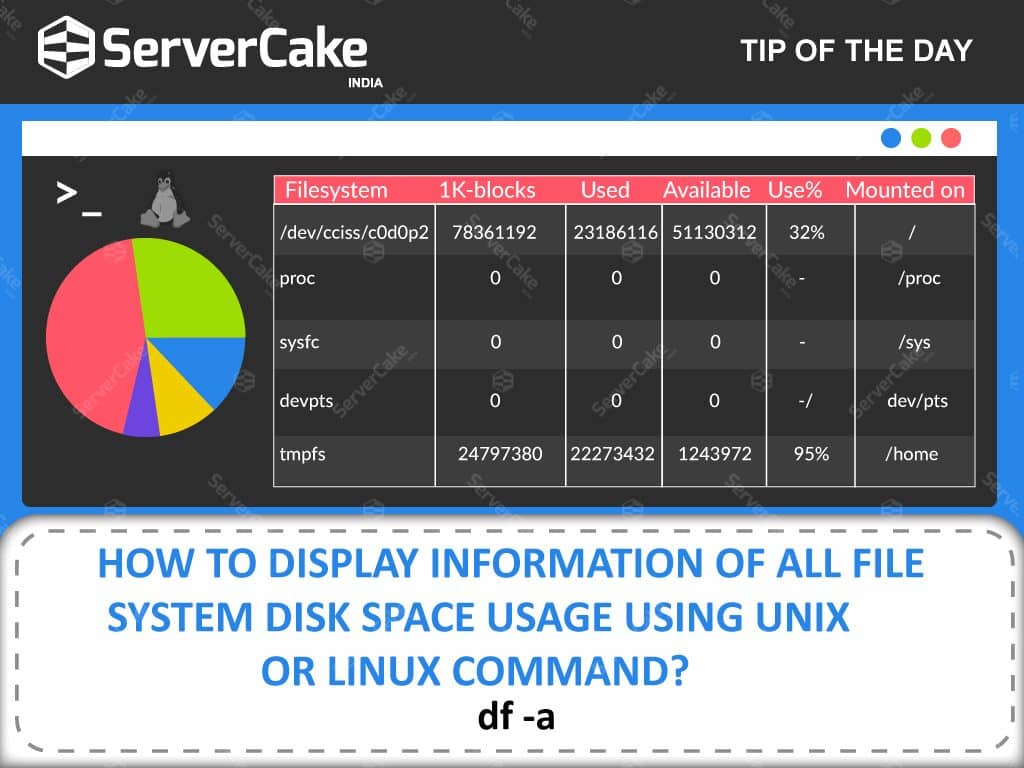
• Checking Disk Space: It’s crucial to keep an eye on your disk space usage to prevent those dreaded “disk full” errors. The df command is used to display disk space usage. For example, to display the disk space usage of all mounted file systems, you would use the following command: ```df -h``` The -h option makes the output human-readable, displaying sizes in kilobytes, megabytes, and gigabytes.
• Disk Usage per Directory: To see how much space each directory is taking up, you can use the du command. For example, to display the disk usage of the current directory, you would use the following command: ```du -sh .``` The -s option displays the total size of each directory, and the -h option makes the output human-readable.
• Cleaning Up Unnecessary Files: Over time, your system can accumulate a lot of unnecessary files, such as temporary files, log files, and cached data. These files can take up valuable disk space and slow down your system. You can use tools like Bleach Bit or the command-line tool find to identify and remove unnecessary files. For example, to find and delete all files older than 30 days in the /tmp directory, you would use the following command: ```find /tmp -type f -mtime +30 -delete```
Advanced Techniques: LVM and Disk Quotas
For those of you who want to take your disk management skills to the next level, let's explore some advanced techniques: Logical Volume Management (LVM) and disk quotas.
• Logical Volume Management (LVM): LVM is a powerful tool that allows you to create flexible and dynamic storage configurations. With LVM, you can combine multiple physical hard drives into a single logical volume, which can then be divided into logical volumes. This allows you to easily resize, move, and manage your storage without having to worry about the limitations of physical partitions. Imagine you have three physical hard drives. With LVM, you can combine them into a single logical volume, which you can then divide into multiple logical volumes, each with its own size and file system. If you need to increase the size of one of the logical volumes, you can easily do so by adding more space from the underlying physical drives.
• Disk Quotas: Disk quotas allow you to limit the amount of disk space that individual users or groups can use. This is useful for preventing users from hogging all the available space and ensuring fair resource allocation. You can set quotas on a per-user or per-group basis, and you can also set soft and hard limits. A soft limit is a warning threshold, while a hard limit is an absolute maximum. When a user exceeds their soft limit, they receive a warning. When they exceed their hard limit, they are prevented from writing any more data to the file system.
Real-World Examples and Case Studies
To illustrate the importance of proper disk management, let's take a look at some real-world examples and case studies.
• Web Server: A web server that runs out of disk space can crash, causing downtime and lost revenue. Proper disk monitoring and proactive cleanup of log files and temporary files can prevent this. Regularly analyze web server logs to identify potential issues and optimize performance. Implement a log rotation policy to prevent log files from growing too large.
• Database Server: A database server that runs out of disk space can lead to data corruption and loss. Using LVM to create flexible storage configurations and disk quotas to limit the amount of space that individual databases can use can help prevent this. Consider using a separate partition or logical volume for database logs to isolate them from the main database files.
• Home Server: A home server that is used for file sharing and media streaming can quickly fill up with data. Implementing disk quotas for individual users and regularly cleaning up unnecessary files can help prevent this. Use a tool like du to identify large files and directories that are taking up a lot of space. Consider using a cloud storage service to offload some of your data.
These are just a few examples of how proper disk management can help you prevent problems and optimize performance. By mastering the techniques we've discussed in this article, you'll be well-equipped to handle any disk management challenge that comes your way. Remember, friends, a well-managed disk is a happy disk! And a happy disk means a happy system administrator.
Frequently Asked Questions
Let's tackle some of the most common questions that pop up when discussing Linux disk management and file systems.
• Question 1: What's the difference between a hard link and a symbolic link?
• Answer: Ah, links! Think of hard links as multiple doors leading to the same room. They point directly to the same physical data on the disk. If you delete one hard link, the data remains accessible through the other hard link. Symbolic links, on the other hand, are like shortcuts. They point to another file or directory by name. If the original file is deleted, the symbolic link becomes broken.
• Question 2: How can I find the largest files on my system?
• Answer: Great question! The `du` command is your friend here. Try something like `du -hsx /
| sort -rh | head -10`. This command will find the top 10 largest files and directories on your system, excluding files on different file systems. It’s a great way to identify space hogs. |
|---|
• Question 3: Is it safe to delete files in the /tmp directory?
• Answer: Generally, yes! The /tmp directory is designed for temporary files that are not meant to persist across reboots. However, it’s always a good idea to exercise caution. Make sure you’re not deleting anything that you know is currently in use by a running application. A safe approach is to clear the /tmp directory on boot, which most systems do automatically.
• Question 4: How do I extend a logical volume if my volume group is full?
• Answer: Extending a logical volume requires free space in the volume group. If the volume group is full, you’ll need to add a new physical volume (e.g., a new hard drive or partition) to the volume group. Once you’ve added the new physical volume, you can then extend the logical volume. The basic steps are: 1. Create a physical volume: `pvcreate /dev/sd X`.
2. Extend the volume group: `vgextend your_vg_name /dev/sd X`.
3. Extend the logical volume: `lvextend -l +100%FREE /dev/your_lv_name`. Finally, resize the file system on the logical volume to use the newly added space.
Conclusion
So, friends, we've journeyed through the fascinating world of Linux disk management and file systems, from understanding the basics of partitions and file systems to exploring advanced techniques like LVM and disk quotas. We've armed you with the knowledge and practical commands you need to confidently manage your storage, prevent those pesky "disk full" errors, and optimize your system's performance. Remember, mastering these skills is not just about avoiding headaches; it's about empowering you to take full control of your Linux environment.
We started by understanding what partitions and file systems are, making analogies to everyday scenarios to make it feel familiar. You learned that partitions are like dividing a big warehouse into smaller rooms, and file systems are the methods you use to organize items in those rooms. Then, we dived into a series of practical commands that every Linux user should know: mount for connecting a storage device to a directory, umount for safely disconnecting it, df for checking disk space usage, and du for assessing disk usage per directory. Each command brings a level of control and awareness to your fingertips, allowing you to monitor and manage your storage effectively.
For those who wanted more, we delved into advanced techniques such as Logical Volume Management (LVM) and disk quotas. LVM allows you to create dynamic and flexible storage solutions, enabling you to easily resize and manage your storage without being limited by physical partitions. Disk quotas give you the power to set limits on how much space individual users or groups can use, ensuring that no single user monopolizes all the available storage. We then illustrated the real-world implications with scenarios like web servers, database servers, and home servers, showing how the knowledge of disk management can prevent crashes, data loss, and performance bottlenecks.
In essence, this article has been a comprehensive guide that aims not just to inform but to transform you into a proficient Linux system administrator. Whether you're managing a personal home server or overseeing a complex enterprise environment, the principles and techniques discussed here are universally applicable. Embrace this knowledge, and you’ll be well-equipped to handle any disk management challenge that comes your way.
Now, it's time to put your newfound knowledge into action. I encourage you to experiment with the commands and techniques we’ve discussed in this article on a test environment. Try creating partitions, formatting file systems, mounting and unmounting devices, and setting up disk quotas. The more you practice, the more comfortable and confident you’ll become.
So, are you ready to transform your Linux system from a chaotic mess into a well-oiled machine? Now that you're equipped with the knowledge and skills, what's the first disk management task you plan to tackle? Go forth and conquer!

Post a Comment for "Linux System Administration: Managing Disk Space and File Systems"
Post a Comment