Linux Command Line: Advanced Shell Scripting Techniques
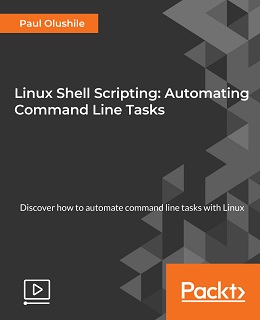
Unlock the Power User Within: Mastering Advanced Linux Shell Scripting
Hey there, fellow command-line adventurers! Ever feel like you're just scratching the surface of what your Linux terminal can do? Like you're driving a Ferrari in first gear? Well, buckle up, because we're about to shift into overdrive. We're diving deep into the world of advanced shell scripting, where you can bend your system to your will and automate just about anything. Think of it as learning a secret language that lets you whisper instructions directly to your computer, making it dance to your tune.
For many of us, the command line starts as a scary, blinking cursor. We cautiously type in commands we've Googled, hoping they don't accidentally format our hard drives (we've all been there, right?). We learn the basics – navigating directories, listing files, maybe even piping a command or two together. We feel…adequate. But then, we see the seasoned Linux gurus, those keyboard ninjas who effortlessly orchestrate complex tasks with seemingly impenetrable lines of code. We wonder, "How do they do that?"
The secret, my friends, lies in shell scripting. It's more than just stringing together commands. It's about logic, control flow, and the art of making your computer work smarter, not harder. It's about turning repetitive tasks into single keystrokes, creating custom tools that fit your specific needs, and generally feeling like a boss every time you open your terminal.
But let's be honest, advanced shell scripting can seem daunting. There are variables, loops, functions, regular expressions… It's enough to make your head spin faster than a corrupted hard drive. And that's where this guide comes in. We're not going to throw a bunch of jargon at you and leave you to fend for yourself. Instead, we'll break down the key concepts, provide real-world examples, and guide you step-by-step through the process of mastering advanced shell scripting techniques.
Think of this as your personal training program. We'll start with the fundamentals and gradually build up to more complex topics. You'll learn how to write scripts that are not only powerful but also readable, maintainable, and secure. You'll discover how to debug your scripts like a pro, handle errors gracefully, and even optimize them for performance.
Imagine being able to automate your daily backups with a single command. Picture yourself creating custom monitoring tools that alert you to potential problems before they even happen. Envision yourself building complex workflows that streamline your development process and save you countless hours of tedious work.
This isn't just about learning new commands and syntax. It's about unlocking a new level of understanding of how your system works. It's about gaining the ability to solve problems creatively and efficiently. It's about becoming a true Linux power user.
So, are you ready to take your shell scripting skills to the next level? Are you ready to transform from a command-line novice into a scripting master? Then keep reading, because we're just getting started. We're about to explore the advanced techniques that will empower you to write scripts that are not only functional but also elegant, efficient, and truly your own. Let's delve into the fascinating world of advanced shell scripting techniques and discover the magic they hold! What if I told you there was a way to make your scripts so smart they could practically write themselves? (Okay, maybe notquitewrite themselves, but pretty darn close.)
Advanced Shell Scripting Techniques: A Deep Dive
Alright, friends, let's get down to brass tacks. We're going to explore some of the most powerful and useful techniques that will elevate your shell scripting game. Forget those basic tutorials; we're going to delve into real-world scenarios and give you the tools you need to tackle complex automation tasks.
•Functions:The Building Blocks of Scripting Mastery
Think of functions as mini-programs within your script. They allow you to encapsulate a block of code that performs a specific task and then reuse that code multiple times throughout your script. This not only makes your code more organized and readable but also reduces redundancy and simplifies maintenance.
Imagine you need to perform the same series of operations on multiple files. Instead of copying and pasting the code each time, you can define a function that takes the filename as an argument and performs the operations. This way, you only need to write the code once, and you can call the function with different filenames as needed.
Here's a simple example:
function greet { echo "Hello, $1!" } greet "World" greet "User"
This script defines a function called `greet` that takes one argument (represented by `$1`) and prints a greeting message. When you run this script, it will output:
Hello, World! Hello, User!
Functions can also return values, which allows you to create more complex and modular scripts. The `return` statement in a function specifies the exit status of the function, which can then be accessed using the `$?` variable. While you can't directly return complex data structures, you can use techniques like printing the data to standard output and capturing it into a variable.
•Arrays:Organizing Your Data for Efficient Processing
Arrays are essential for storing and manipulating collections of data within your scripts. They allow you to group related values together and access them using an index. This is particularly useful when you need to process a list of filenames, IP addresses, or any other type of data.
In Bash, arrays can be created in several ways. You can explicitly define the elements of the array:
my_array=("apple" "banana" "cherry")
Or you can populate the array from the output of a command:
files=$(ls.txt) my_array=($files)
Once you have an array, you can access its elements using their index, starting from 0:
echo ${my_array[0]} # Output: apple echo ${my_array[1]} # Output: banana
Arrays also support various operations, such as adding elements, deleting elements, and iterating over the elements. For example, you can use a loop to process each element of an array:
for item in "${my_array[@]}"; do echo "Processing: $item" done
Using arrays effectively can significantly improve the efficiency and readability of your scripts, especially when dealing with large datasets.
•Regular Expressions:The Art of Pattern Matching
Regular expressions (regex) are a powerful tool for pattern matching and text manipulation. They allow you to search for specific patterns within strings, extract relevant information, and perform complex substitutions. While regex can seem intimidating at first, mastering them is essential for advanced shell scripting.
Bash provides several ways to use regular expressions. The `grep` command is commonly used for searching for lines that match a pattern:
grep "pattern" filename
You can also use the `=~` operator in conditional expressions to test if a string matches a regex:
string="Hello, world!" if [[ "$string" =~ "world" ]]; then echo "String contains 'world'" fi
For more complex regex operations, you can use tools like `sed` and `awk`. These tools allow you to perform substitutions, extract fields, and perform other advanced text manipulations.
Learning regular expressions is a journey, but the rewards are well worth the effort. They will empower you to solve a wide range of text processing problems with ease. Online regex testers can be very helpful when building and debugging your regex patterns.
•Conditional Statements:Making Decisions in Your Scripts
Conditional statements (if-then-else) allow your scripts to make decisions based on certain conditions. This is essential for creating scripts that can adapt to different situations and handle different types of input.
The basic syntax of an if-then-else statement in Bash is:
if [ condition ]; then # Code to execute if condition is true else # Code to execute if condition is false fi
The `condition` can be any expression that evaluates to true or false. You can use various operators to compare numbers, strings, and files. For example:
if [ "$var" = "value" ]; then echo "Variable is equal to 'value'" fi if [ -f "filename" ]; then echo "File exists" fi
You can also chain multiple conditions together using logical operators like `&&` (and) and `
| ` (or): |
|---|
if [ "$var1" = "value1" ] && [ "$var2" = "value2" ]; then echo "Both variables have the correct values" fi
Conditional statements are the foundation of creating intelligent and adaptable scripts. They allow your scripts to respond dynamically to different inputs and situations.
•Loops:Automating Repetitive Tasks
Loops are used to repeat a block of code multiple times. This is essential for automating repetitive tasks, such as processing a list of files, iterating over an array, or performing a calculation until a certain condition is met.
Bash provides several types of loops, including `for`, `while`, and `until` loops.
The `for` loop is used to iterate over a list of items:
for item in "item1" "item2" "item3"; do echo "Processing: $item" done
The `while` loop is used to repeat a block of code as long as a certain condition is true:
count=0 while [ $count -lt 10 ]; do echo "Count: $count" count=$((count + 1)) done
The `until` loop is used to repeat a block of code until a certain condition is true:
count=0 until [ $count -ge 10 ]; do echo "Count: $count" count=$((count + 1)) done
Loops are a powerful tool for automating repetitive tasks and making your scripts more efficient.
•Error Handling:Gracefully Recovering from Problems
Even the best scripts can encounter errors. It's important to handle these errors gracefully to prevent your script from crashing and to provide informative messages to the user.
Bash provides several mechanisms for error handling. You can use the `set -e` command to make the script exit immediately if any command fails. This is a good practice to prevent errors from cascading and causing further problems.
You can also use the `try-catch` construct to handle specific errors:
try { # Code that might fail } catch { # Code to execute if an error occurs }
While Bash doesn't have a built-in `try-catch` construct, you can simulate it using conditional statements and the `$?` variable, which contains the exit status of the last command.
Effective error handling is essential for creating robust and reliable scripts. It allows your scripts to recover gracefully from problems and provide informative feedback to the user.
•Input/Output Redirection:Controlling the Flow of Data
Input/output redirection allows you to control the flow of data to and from your scripts. You can redirect the output of a command to a file, redirect the input of a command from a file, or pipe the output of one command to the input of another command.
The `>` operator is used to redirect the output of a command to a file:
command > filename
The `<` operator is used to redirect the input of a command from a file:
command < filename
The `|` operator is used to pipe the output of one command to the input of another command:
command1 | command2
Input/output redirection is a powerful tool for manipulating data and creating complex workflows.
•Process Substitution:Dynamically Generating Input
Process substitution allows you to treat the output of a command as if it were a file. This is useful for passing dynamically generated data to commands that expect a filename as input.
Bash provides two forms of process substitution:
<(command) # Output is available for reading >(command) # Input is available for writing
For example, you can use process substitution to compare the output of two commands using the `diff` command:
diff <(command1) <(command2)
Process substitution is a powerful technique for creating flexible and dynamic scripts.
•Debugging Techniques:Finding and Fixing Errors
Debugging is an essential part of the scripting process. Even the most experienced programmers make mistakes, and it's important to have the tools and techniques to find and fix those errors quickly.
Bash provides several debugging options. You can use the `set -x` command to print each command to the terminal before it is executed. This can be helpful for tracing the execution flow of your script and identifying where errors are occurring.
You can also use the `echo` command to print the values of variables at various points in your script. This can help you understand how the data is changing and identify any unexpected values.
Another useful technique is to use a debugger like `bashdb`. This allows you to step through your script line by line, inspect the values of variables, and set breakpoints.
Effective debugging is essential for creating reliable and error-free scripts.
•Security Considerations:Protecting Your System
Security should always be a top priority when writing shell scripts. Malicious scripts can cause serious damage to your system, so it's important to be aware of the potential risks and take steps to mitigate them.
One of the most important security considerations is to avoid using user-supplied input directly in commands. This can lead to command injection vulnerabilities, where an attacker can inject malicious commands into your script.
Instead, you should always sanitize user-supplied input before using it in commands. This can involve escaping special characters, validating the input against a whitelist, or using parameterized queries.
Another important security consideration is to avoid running scripts with elevated privileges unless absolutely necessary. If you need to perform tasks that require root privileges, you should use the `sudo` command and carefully consider the potential risks.
By following these security considerations, you can help protect your system from malicious scripts and ensure that your scripts are safe to use.
Frequently Asked Questions (FAQ)
Let's tackle some common questions that often arise when diving into advanced shell scripting.
•Question:What's the best way to handle passwords in a script securely?
•Answer:Storing passwords directly in a script is a big no-no. Instead, use environment variables or, even better, a dedicated secrets management tool. You can prompt the user for the password when the script runs or use a secure storage mechanism like `gpg` to encrypt the password. Never hardcode passwords into your scripts!
•Question:How can I make my scripts more portable across different Linux distributions?
•Answer:Stick to standard POSIX shell syntax whenever possible. Avoid using Bash-specific features that may not be available in other shells. Test your scripts on different distributions to identify any compatibility issues. Use tools like `#!/usr/bin/env bash` at the beginning of your script to ensure that the correct interpreter is used.
•Question:What are some common mistakes to avoid when writing shell scripts?
•Answer:Forgetting to quote variables, not handling errors properly, using `eval` (which can be a security risk), and not validating user input are all common mistakes. Always quote your variables to prevent word splitting and globbing, use `set -e` to exit immediately on errors, avoid `eval` whenever possible, and sanitize user input to prevent command injection vulnerabilities.
•Question:How do I make my scripts run automatically on a schedule?
•Answer:Use `cron`! Cron is a time-based job scheduler that allows you to schedule scripts to run automatically at specific times or intervals. You can edit the crontab file using the `crontab -e` command. Be careful when scheduling scripts to run automatically, especially if they require elevated privileges.
Conclusion: Your Journey to Shell Scripting Mastery
And there you have it, friends! We've covered a lot of ground, from functions and arrays to regular expressions and error handling. You've now armed yourself with a powerful arsenal of advanced shell scripting techniques that will enable you to automate complex tasks, streamline your workflows, and become a true Linux power user.
Remember, mastering shell scripting is a journey, not a destination. It takes time, practice, and a willingness to experiment. Don't be afraid to try new things, break things, and learn from your mistakes. The more you practice, the more comfortable you'll become with the various concepts and techniques.
The key is to start small, build upon your knowledge, and gradually tackle more complex projects. Don't try to learn everything at once. Focus on one or two techniques at a time and master them before moving on to the next.
Now that you have a solid foundation in advanced shell scripting, it's time to put your knowledge to the test. Start by automating some of the tasks that you perform regularly. Create custom tools that solve specific problems that you encounter. Contribute to open-source projects and share your knowledge with others.
The possibilities are endless. With shell scripting, you can automate just about anything. You can create custom monitoring tools, streamline your development process, and even build complex applications.
So, what are you waiting for? Go forth and script! The world of automation awaits.
Your next step? Pick one technique from this guide – maybe functions, maybe regular expressions – and dedicate an hour to practicing it. Create a small script that uses that technique to solve a real-world problem you face regularly. Share your script with a friend and ask for feedback. This hands-on experience is what will truly solidify your understanding and turn you into a scripting master. What amazing script will you create today?

Post a Comment for "Linux Command Line: Advanced Shell Scripting Techniques"
Post a Comment