Windows 11: Using Virtual Desktops for Enhanced Productivity
Windows 11 Virtual Desktops: Your Secret Weapon for Peak Productivity
Hey there, fellow Windows enthusiasts! Ever feel like your digital workspace is a chaotic explosion of windows, icons, and half-finished projects? Like a digital version of that one drawer in your kitchen – you know, the one where everything goes to die? We’ve all been there. You're juggling browser tabs for research, a Word document for writing, a spreadsheet for budgeting, and maybe even a game or two (don't worry, your secret's safe with me). It's like trying to conduct an orchestra with only one hand – messy and ultimately unproductive.
Let's be honest, most of us treat our desktops like digital landfills. A jumbled mess of shortcuts, open applications, and that one file we can never seem to find. It’s a recipe for distraction and a productivity killer. Remember that time you werethis closeto finishing that critical report, only to get sidetracked by a notification from social media and then spend the next hour watching cat videos? Yeah, me too. Don’t even get me started on the agony of Alt-Tab hell, endlessly cycling through dozens of windows trying to find the right one.
But what if I told you there was a simple, built-in solution to this digital dilemma? A way to organize your digital life, boost your focus, and reclaim your productivity? Think of it as having multiple monitors without actually having multiple monitors. Sound intriguing?
The answer, my friends, lies within the power of Windows 11 Virtual Desktops! It’s like having multiple separate screens, each dedicated to a specific task or project. Imagine a world where your work apps are neatly organized on one desktop, your personal stuff on another, and your gaming setup on a third. No more clutter, no more distractions, just pure, unadulterated focus. Curious to learn how you can unlock this productivity powerhouse? Keep reading, because we're about to dive deep into the wonderful world of Windows 11 Virtual Desktops and show you how to become a multi-desktop master!
Think of it like this: your brain is a highly efficient engine, but it needs the right fuel and environment to perform at its best. Clutter and distractions are like throwing sand in the gears, slowing everything down and causing unnecessary friction. Virtual Desktops, on the other hand, provide a clean, organized workspace that allows your brain to focus on the task at hand. It's like having a dedicated office for each area of your life. Ready to transform your digital workspace from chaotic mess to organized bliss? Let's do this!
Unlocking Peak Productivity: Mastering Windows 11 Virtual Desktops
Virtual desktops in Windows 11 are more than just a fancy feature; they're a powerful tool for managing your workflow and boosting your productivity. They allow you to create multiple, separate workspaces on a single screen, each with its own set of open applications and windows. Think of them as different rooms in your house, each dedicated to a specific activity. Let's explore how to harness the power of virtual desktops to achieve peak productivity.
• Streamline Your Workflow with Task-Specific Desktops
The core idea behind virtual desktops is to separate your tasks into different workspaces. This minimizes distractions and allows you to focus on what's important. For example:
Imagine you're a writer working on a novel, a blog post, and a freelance article all at the same time (because who isn't juggling multiple projects these days?). Instead of having all those documents, research tabs, and communication apps crammed onto one desktop, create separate desktops for each project. One desktop can be dedicated to your novel, with your writing software, character notes, and world-building resources. Another desktop can house your blog post research, draft, and editing tools. And a third can manage your freelance article, with client communications, research materials, and submission guidelines. This keeps everything organized and prevents you from getting overwhelmed by the sheer volume of open windows.
Let's say you're a student balancing online classes, research papers, and social life (because, you know, life). You could create one desktop for your online classes, with your video conferencing software, online textbooks, and class notes. Another desktop could be dedicated to research, with your browser tabs open to scholarly articles, research databases, and citation management tools. And a third desktop could be your "chill zone," with your social media apps, streaming services, and messaging platforms (for those much-needed study breaks). By compartmentalizing your digital life, you can stay focused on your studies without getting constantly distracted by social media or other non-academic pursuits.
By dedicating specific desktops to specific tasks, you create a focused environment that minimizes distractions and allows you to concentrate on the task at hand. It's like having a separate office for each project, allowing you to switch between them seamlessly without losing focus.
• Conquer Multitasking with Organized Workspaces
We all know that multitasking is often a myth, but sometimes it's unavoidable. Virtual desktops can help you manage multiple tasks more effectively by providing organized workspaces for each.
Let’s take a scenario: You're a project manager juggling multiple projects, each with its own set of tasks, deadlines, and team members. Instead of trying to manage everything from a single desktop, create separate desktops for each project. This allows you to keep all the relevant files, communication channels, and project management tools organized and easily accessible. You can switch between projects with a simple keystroke, without getting bogged down in a sea of unrelated windows.
Consider this: You're a graphic designer working on a website mockup, a social media campaign, and a print advertisement simultaneously. You could create separate desktops for each project, with your design software, image libraries, and client feedback organized on each desktop. This allows you to focus on each project individually, without getting distracted by the details of the other projects. You can easily switch between desktops to compare designs, incorporate feedback, or manage deadlines for each project.
By organizing your tasks into separate workspaces, you can minimize distractions, improve focus, and ultimately get more done in less time. It's like having a dedicated command center for each project, allowing you to manage everything efficiently and effectively.
• Eliminate Distractions and Enhance Focus
One of the biggest benefits of virtual desktops is their ability to minimize distractions and enhance focus. By isolating your work from your personal life, you can create a more productive and focused environment.
Imagine you're working from home and you have one desktop dedicated to work, with your work email, project files, and communication tools. Then, you have another desktop dedicated to personal use, with your social media apps, streaming services, and online shopping websites. When you're working, you stay on the work desktop, avoiding the temptation to check social media or browse the internet. During your breaks, you can switch to the personal desktop to relax and unwind, without feeling guilty about neglecting your work.
Consider this: You're a writer trying to finish a chapter of your novel, but your phone keeps buzzing with notifications and your social media accounts are constantly vying for your attention. You could create a dedicated writing desktop, with your writing software and a distraction-blocking app. Close all other applications and silence your phone. By creating a distraction-free environment, you can immerse yourself in your writing and make significant progress on your novel.
By creating dedicated workspaces for work and personal activities, you can minimize distractions, improve focus, and create a more productive environment. It's like having a separate office for work and a separate living room for relaxation, allowing you to switch between them without bringing the distractions of one into the other.
• Customize Your Desktops for Personalized Productivity
Virtual desktops in Windows 11 are highly customizable, allowing you to tailor each desktop to your specific needs and preferences. This can further enhance your productivity and create a more personalized workspace.
Think about setting different backgrounds for each desktop to easily distinguish between them. Use a calming nature scene for your work desktop and a vibrant cityscape for your personal desktop. You can also customize the taskbar on each desktop to show only the applications that are relevant to that workspace. This keeps your taskbar clean and uncluttered, making it easier to find the applications you need.
Imagine you're a software developer working on multiple projects. You can create separate desktops for each project, each with its own set of development tools, code editors, and testing environments. You can even customize the theme and color scheme of each desktop to match the project's branding or your personal preferences. This creates a visually distinct workspace for each project, making it easier to stay organized and focused.
By customizing your desktops, you can create a personalized workspace that enhances your productivity and makes you feel more comfortable and in control. It's like decorating each room in your house to reflect your personal style and preferences, creating a space that you enjoy spending time in.
• Seamlessly Switch Between Workspaces for Effortless Multitasking
Switching between virtual desktops in Windows 11 is quick and easy, allowing you to seamlessly transition between tasks and projects. This effortless multitasking can significantly boost your productivity.
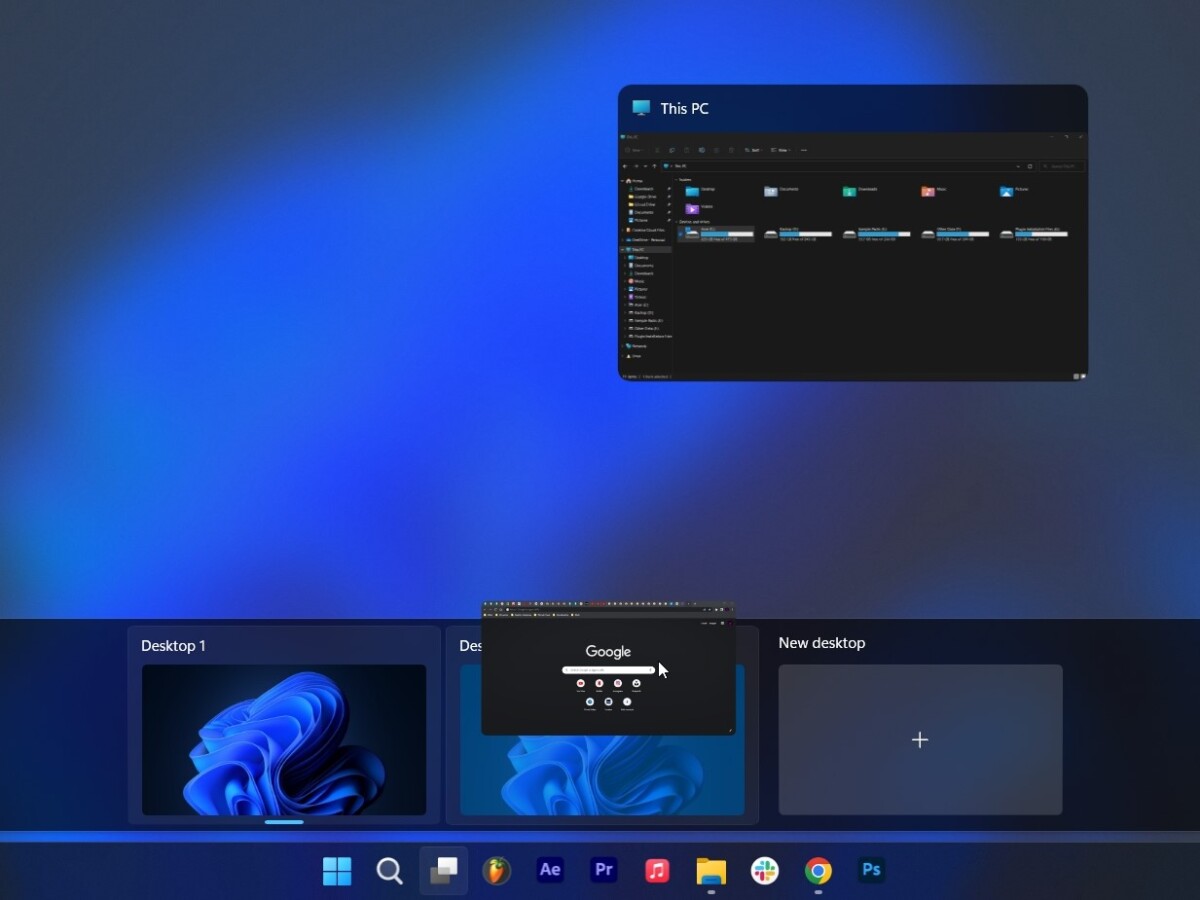
Use the keyboard shortcut Windows key + Ctrl + Left/Right arrow keys to quickly switch between desktops. You can also use Task View (Windows key + Tab) to see all your open desktops and switch between them with a click. If you're using a touchpad, you can also swipe left or right with three fingers to switch between desktops.
Picture this: You're in a meeting on one desktop, taking notes on another, and researching a topic on a third. With a simple keystroke, you can switch between these desktops seamlessly, without disrupting your workflow. You can even drag and drop windows between desktops to organize your workspace on the fly.
By mastering the art of switching between virtual desktops, you can become a multitasking ninja, effortlessly juggling multiple tasks and projects without losing focus. It's like having a superpower that allows you to be in multiple places at once, managing everything with ease and efficiency.
Virtual desktops are an often overlooked feature in Windows 11, but they can be a game-changer for your productivity. By implementing these strategies, you can harness the power of virtual desktops to streamline your workflow, minimize distractions, and achieve peak performance.
Frequently Asked Questions
Here are some frequently asked questions about using Virtual Desktops in Windows 11:
Question: How do I create a new virtual desktop in Windows 11?
Answer: Simply press Windows Key + Ctrl + D to create a new virtual desktop. Alternatively, you can open Task View (Windows Key + Tab) and click the "New desktop" button in the bottom right corner.
Question: Can I move an application window from one virtual desktop to another?
Answer: Absolutely! Open Task View (Windows Key + Tab), right-click on the window you want to move, select "Move to," and then choose the destination desktop.
Question: How many virtual desktops can I create in Windows 11?
Answer: Windows 11 allows you to create up to 20 virtual desktops, providing ample space for organizing even the most complex workflows.
Question: Can I customize the background for each virtual desktop?
Answer: Yes, you can! Go to Settings > Personalization > Background and choose a different background for each desktop to easily distinguish between them.
So, there you have it: Virtual Desktops are incredibly easy to use, customize and they are designed for almost every Windows 11 user.
In conclusion, we've explored the transformative power of Windows 11 Virtual Desktops for enhancing your productivity. We've seen how these virtual workspaces can streamline your workflow by organizing tasks, minimizing distractions, and allowing for seamless multitasking. By creating dedicated desktops for different projects or activities, you can focus on what's important and avoid the mental clutter that often leads to procrastination and decreased efficiency.
Now, it's time to take action! Start experimenting with Virtual Desktops in Windows 11 and discover how they can revolutionize your workflow. Create separate desktops for work, personal projects, or entertainment, and customize them to suit your specific needs and preferences. Embrace the power of organized workspaces and unlock your full productivity potential.
Remember, the key to success is to take that first step. Don't be afraid to experiment and find what works best for you. Embrace the power of virtual desktops and create a digital workspace that empowers you to achieve your goals and live your best life. Now go forth and conquer your digital world, one virtual desktop at a time! Are you ready to become a multi-desktop master and unleash your inner productivity ninja?

Post a Comment for "Windows 11: Using Virtual Desktops for Enhanced Productivity"
Post a Comment