Windows 11: Using the Windows Settings App for Personalization
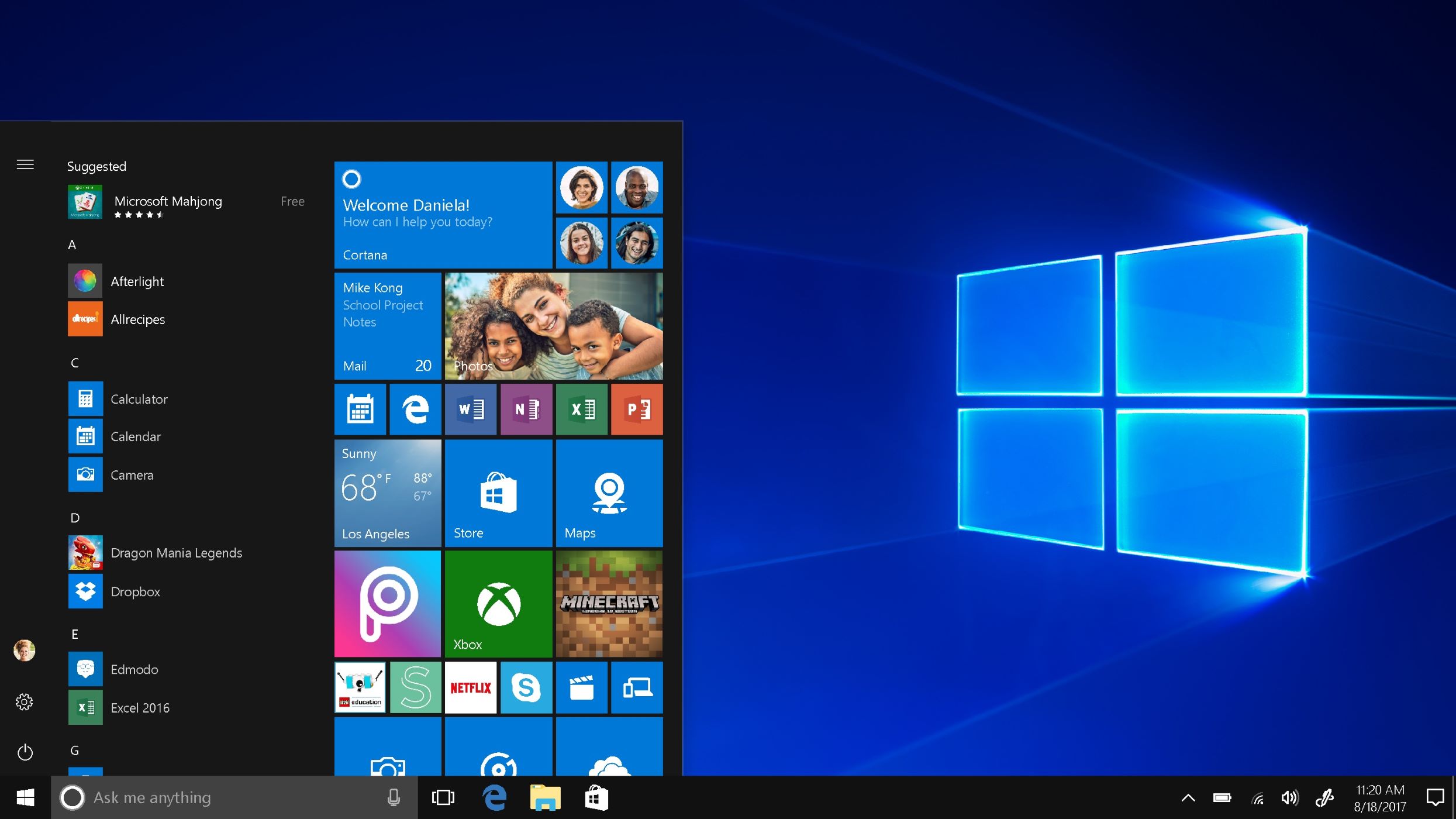
Customize Your Windows 11 Experience: A Deep Dive into Personalization.
Hey there, tech enthusiasts! Ever feel like your computer is just...blah? Like it's wearing the same outfit every day and desperately needs a makeover? We've all been there. You stare at the same default wallpaper, the same tired taskbar, and the same predictable color scheme, and a little piece of your soul withers away. It's like living in a beige box! You wouldn’t let your wardrobe get that stale, so why let your digital life suffer the same fate?
The good news is, Windows 11 has a secret weapon against this digital monotony: the Settings app. And within that app lies a treasure trove of personalization options just waiting to be unlocked. It's like having a digital interior designer at your fingertips, ready to transform your desktop from drab to fab. Think of it this way: your computer is your digital home, and the Settings app is your key to making it trulyyours. Want a calming blue theme to reduce eye strain during those late-night work sessions? Done. Craving a vibrant, ever-changing slideshow of your favorite travel photos? Easy peasy. Dreaming of a taskbar that disappears when you don't need it, maximizing your screen real estate? Consider it handled.
But here's the thing: many of us only scratch the surface of these personalization features. We might change the wallpaper once in a blue moon, but we rarely delve deeper into the settings that can truly transform our Windows 11 experience. And that's a shame, because there's so much potential for customization and optimization just waiting to be unleashed. It's like buying a fancy sports car and only ever driving it in first gear. You're missing out on all the fun!
Maybe you're intimidated by the sheer number of options in the Settings app. Maybe you're worried about accidentally messing something up. Or maybe you just don't know where to start. Trust me, I get it. The digital world can be overwhelming. But fear not, my friends! Because in this guide, we're going to take a deep dive into the Windows 11 Settings app and unlock its personalization superpowers. We'll explore every nook and cranny, uncovering hidden gems and showing you how to customize your desktop to your heart's content. We'll cover everything from changing your wallpaper and theme to customizing your taskbar and Start menu. We'll even delve into advanced settings like accent colors and transparency effects. By the end of this article, you'll be a Windows 11 personalization pro, capable of creating a desktop that is not only visually appealing but also optimized for your specific needs and workflow. Ready to turn your computer into a reflection of your unique personality and style? Let's dive in!
Unlocking Windows 11 Personalization: A Step-by-Step Guide
So, you're ready to transform your Windows 11 experience? Excellent! Let's get started. The key to unlocking all the personalization magic lies within the Settings app. Think of it as your digital workshop, filled with tools and options to craft the perfect desktop environment. Here’s a detailed roadmap to guide you through the process:
Accessing the Personalization Settings
First things first, we need to find the entrance to our personalization playground. There are a few ways to get there, but here’s the most straightforward method:
• Right-click anywhere on your desktop. A context menu will appear.
• Select "Personalize" from the menu. This will immediately open the Personalization section of the Settings app.
Alternatively, you can also access the Personalization settings through the main Settings app:
• Click on the Start button (the Windows logo in the bottom-left corner of your screen).
• Click on the Settings icon (it looks like a gear).
• In the Settings app, click on "Personalization" in the left-hand menu.
Background Customization: Beyond the Default Wallpaper
The background is the first thing you see when you turn on your computer, so it's a great place to start your personalization journey. Windows 11 offers a variety of options beyond the static default wallpaper.
•Choose a Picture:If you have a favorite photo or image, you can set it as your background. Click on the "Picture" option in the Background settings. Then, click the "Browse photos" button to select an image from your computer. You can also choose how the image is positioned on your screen (e.g., Fill, Fit, Stretch, Tile, Center, Span). “Fill” usually works best for modern displays.
•Embrace the Slideshow:Feeling adventurous? Set up a slideshow of your favorite images. Click on the "Slideshow" option. Then, click the "Browse" button to select a folder containing your images. You can customize the interval at which the images change (from 1 minute to 1 day). Enable the "Shuffle" option for a more random and surprising experience. Consider using a dedicated folder specifically for your slideshow wallpapers, so you can easily add and remove images as your tastes evolve.
•Solid Color Simplicity:Sometimes, less is more. Choose a solid color for a clean and minimalist look. Click on the "Solid color" option and select your desired color from the palette. For a truly custom color, click the "Custom color" button to access a color picker. Darker colors can be easier on the eyes, especially in low-light environments.
•Windows Spotlight:A Daily Dose of Freshness: If you're looking for inspiration, try the "Windows spotlight" option. This feature automatically downloads stunning images from Microsoft's Bing search engine and sets them as your background. The images change daily, so you'll always have something new to look at. You can even provide feedback on the images you like or dislike to help personalize the experience further.
•Contrast Themes:This is an accessibility setting, but it can also be a useful tool for personalization. Access it by searching "Contrast themes" in the Windows search bar. You can choose from several high contrast themes, or customize your own. This can be especially useful for users with visual impairments, or for those who simply prefer a bolder, more defined look.
Colors: Setting the Mood with Accent Colors
The "Colors" section of the Personalization settings allows you to customize the accent color throughout Windows 11. This color will appear in various places, such as the Start menu, taskbar, window borders, and buttons.
•Choose Your Mode:First, decide whether you want to use a "Light" or "Dark" mode. Light mode uses a bright color scheme, while Dark mode uses a darker color scheme. Dark mode can be easier on the eyes, especially in low-light conditions. You can also choose "Custom" mode to independently set the default Windows mode and the default app mode. This allows for a hybrid approach, such as using Dark mode for Windows and Light mode for apps.
•Pick an Accent Color:Windows 11 can automatically pick an accent color based on your background image, or you can choose your own. Select "Automatic" to let Windows do the work, or select "Manual" to choose a specific color from the palette. For even more control, click the "Custom color" button to access a color picker and create your own unique accent color. Experiment with different colors to see what works best for you. A subtle accent color can add a touch of elegance, while a bold accent color can make a statement.
•Show Accent Color on Surfaces:You can choose whether or not to show the accent color on the Start menu, taskbar, and title bars. Toggle these options on or off to customize the appearance of these elements. Showing the accent color on these surfaces can help tie your entire desktop theme together.
•Transparency Effects:Enable or disable transparency effects for a subtle visual flourish. Transparency effects can make your desktop feel more modern and airy. However, they can also consume more system resources, so consider disabling them if you're experiencing performance issues.
Themes: A One-Click Makeover
Themes are pre-designed sets of customizations that include a background image, accent color, sounds, and cursor. They're a quick and easy way to completely transform the look and feel of your Windows 11 desktop.
•Browse Available Themes:Windows 11 comes with a variety of built-in themes. Click on the "Themes" section in the Personalization settings to browse the available options. Preview each theme to see how it will look on your desktop before applying it.
•Download More Themes:If you're not satisfied with the built-in themes, you can download more from the Microsoft Store. Click on the "Browse themes" button to access the Microsoft Store and explore a wide variety of free and premium themes. There are themes available for every taste, from nature and landscapes to art and abstract designs.
•Customize Your Own Theme:You can also create your own custom theme by modifying the settings in the Background, Colors, Sounds, and Cursor sections of the Personalization settings. Once you're happy with your customizations, you can save your theme for future use. This is a great way to create a unique and personalized desktop environment that reflects your individual style.
Lock Screen: Personalize Your Pre-Login Experience
The lock screen is the screen that appears when you first turn on your computer or when you lock it. It's another opportunity to express your personality and customize your Windows 11 experience.
•Choose a Lock Screen Background:You can choose a picture, slideshow, or Windows Spotlight image for your lock screen background. The options are similar to those available for the desktop background. Choose an image that is visually appealing and informative.
•Show Lock Screen Status:You can choose which apps show status updates on the lock screen. This allows you to quickly glance at important information, such as the weather, calendar events, or email notifications, without having to unlock your computer.
•Screen Timeout Settings:Customize the screen timeout settings to automatically turn off the display after a period of inactivity. This can help conserve battery life on laptops and reduce energy consumption on desktops.
•Lock Screen Slideshow from One Drive:Integrate your One Drive account to showcase your photos directly on the lock screen. This is a convenient way to display your memories and keep your lock screen fresh and engaging.
Taskbar: Taming the Bottom Bar
The taskbar is the bar at the bottom of your screen that displays your open apps and system icons. It's a crucial part of the Windows 11 interface, and you can customize it to better suit your needs.
•Taskbar Items:Choose which system icons (such as the search box, task view button, widgets, and chat icon) are displayed on the taskbar. If you prefer a cleaner look, you can hide some or all of these icons.
•Taskbar Alignment:You can align the taskbar icons to the left or center of the taskbar. Centering the icons is the default in Windows 11, but you can change it to the left if you prefer a more traditional look.
•Taskbar Behaviors:Customize the behavior of the taskbar, such as whether it automatically hides when you're not using it, whether it shows badges on taskbar buttons, and whether it groups similar windows together. The "Automatically hide the taskbar" option is great for maximizing screen space, especially on smaller displays.
•Pin Apps for Quick Access:Right-click on any app icon in the Start menu or app list, and select “Pin to taskbar.” This adds the app icon to your taskbar, allowing you to quickly launch it with a single click. This is a great way to keep your most frequently used apps readily accessible.
Start Menu: Reclaiming Your Digital Launchpad
The Start menu is your gateway to all your apps, settings, and files. Windows 11 has a redesigned Start menu, and you can customize it to your liking.
•Pin Apps to the Start Menu:Just like with the taskbar, you can pin apps to the Start menu for quick access. Simply right-click on an app icon and select "Pin to Start."
•Organize Pinned Apps:Drag and drop the pinned app icons to rearrange them and create custom groups. This allows you to organize your apps in a way that makes sense to you.
•Show More or Fewer Pinned Apps:You can adjust the number of pinned apps that are displayed in the Start menu. This allows you to customize the size and layout of the Start menu to your preferences.
•Folders in the Start Menu:Add shortcuts to folders like Documents, Pictures, and Music directly to the Start menu for easy access. This can be a convenient way to quickly access your frequently used files.
•Personalize Recommendations:The Start menu offers recommendations based on your usage. You can personalize these recommendations to better reflect your interests and needs.
Advanced Personalization Tips and Tricks
Now that you've mastered the basics of Windows 11 personalization, let's delve into some advanced tips and tricks to take your customization skills to the next level:
•Third-Party Customization Tools:Explore third-party apps that offer advanced customization options beyond those available in the Settings app. There are tools that allow you to customize the Start menu, taskbar, file explorer, and other aspects of the Windows 11 interface.
•Registry Tweaks:For the truly adventurous, you can modify the Windows Registry to unlock even more customization options. However, be warned: modifying the Registry can be risky, so proceed with caution and back up your Registry before making any changes.
•Power Shell Scripting:Use Power Shell scripts to automate personalization tasks and apply custom settings across multiple computers. This is a great way to streamline the customization process and ensure consistency across your devices.
•Accessibility Options:Don't forget to explore the accessibility options in the Settings app. These options can help you customize Windows 11 to better suit your individual needs, such as adjusting the text size, contrast, and narrator settings.
•Regularly Update Your Drivers:Ensure that your graphics drivers are up to date to ensure optimal performance and compatibility with the latest Windows 11 features. Outdated drivers can cause visual glitches and performance issues.
Frequently Asked Questions
Here are some common questions about Windows 11 personalization:
•Question:How do I revert to the default Windows 11 theme?
•Answer:Go to Settings > Personalization > Themes and select one of the default Windows themes.
•Question:Can I use animated GIFs as my desktop background?
•Answer:While Windows 11 doesn't natively support animated GIFs as desktop backgrounds, you can use third-party apps to achieve this.
•Question:How do I change the size of the text and icons on my desktop?
•Answer:Go to Settings > System > Display and adjust the "Scale" setting to increase or decrease the size of the text and icons.
•Question:How can I sync my personalization settings across multiple devices?
•Answer:Make sure you're signed in to Windows 11 with a Microsoft account and that "Sync your settings" is enabled in Settings > Accounts > Windows backup > Remember my preferences.
Conclusion: Your Windows, Your Way
We've covered a lot of ground in this comprehensive guide to Windows 11 personalization. From changing your wallpaper and accent colors to customizing your taskbar and Start menu, you now have the knowledge and tools to transform your desktop into a reflection of your unique personality and style. Remember, your computer is your digital home, and you deserve to make it a space that is both visually appealing and optimized for your specific needs and workflow.
So, what are you waiting for? Dive into the Settings app, experiment with different options, and create a Windows 11 experience that is truly your own. Don't be afraid to get creative and try new things. After all, personalization is all about expressing yourself and making your computer work for you, not the other way around.
Now that you're armed with this newfound knowledge, I challenge you to take action. Spend just 30 minutes exploring the Personalization settings in Windows 11 and make at least one change to your desktop. Whether it's changing your wallpaper, tweaking your accent color, or reorganizing your Start menu, take that first step towards creating a more personalized and enjoyable computing experience. You might be surprised at how much of a difference it can make!
Ready to unleash your inner digital designer and create a Windows 11 desktop that is uniquely you? What exciting personalization project will you tackle first?

Post a Comment for "Windows 11: Using the Windows Settings App for Personalization"
Post a Comment