Windows 11: Using the Windows Command Prompt for Advanced Users
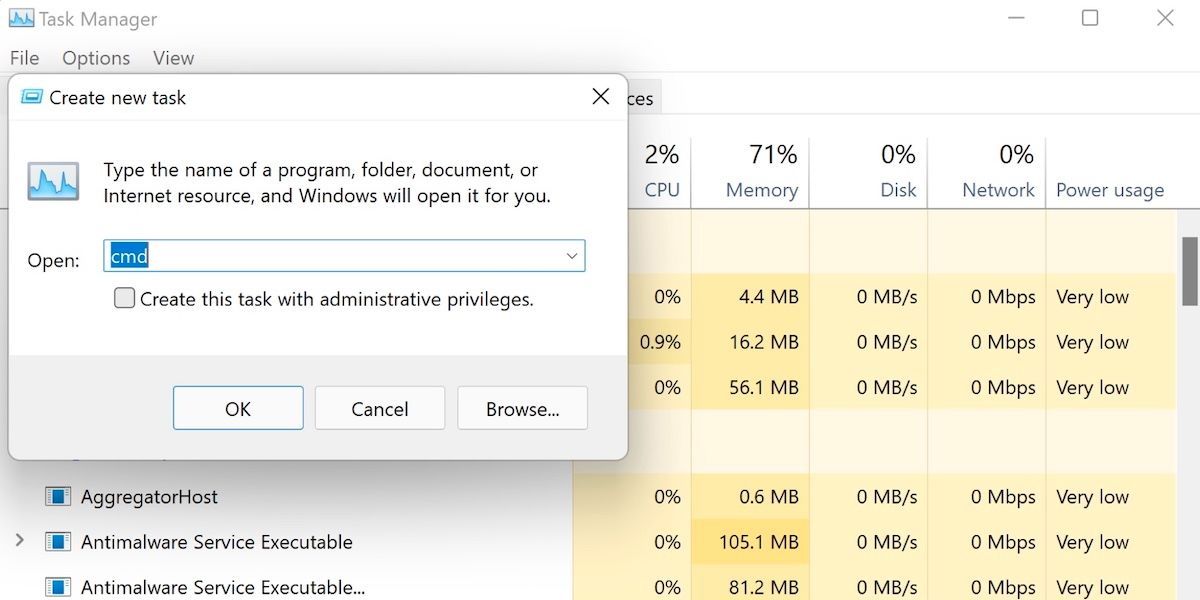
Unleash the Power of Windows 11: Mastering the Command Prompt.
Hey there, tech enthusiasts! Ever feel like your computer is just a fancy toaster oven, and you’re only using 10% of its potential? Or maybe you're tired of clicking through endless menus to get something done? Well, buckle up, because we're about to dive into the hidden depths of Windows 11 – specifically, the Command Prompt.
Beyond the Mouse: Taking Control with the Command Prompt
Okay, let’s be honest. When you first hear "Command Prompt," images of a dark screen with cryptic text might flash before your eyes. It might seem like something only hackers and super-nerds can understand. But trust me, friends, it's not as scary as it looks! Think of it as your direct line to the heart of Windows, a way to bypass all the graphical fluff and get things donefast. We can use the Command Prompt to accomplish many tasks that sometimes require us to click through a multitude of menus.
Imagine this: you need to rename a whole bunch of files at once. Clicking, right-clicking, renaming... it's enough to make you want to throw your mouse out the window. But with the Command Prompt? A single line of code can handle it all. Or maybe you want to troubleshoot a network issue. Instead of fumbling through settings, a quick command can give you all the information you need.
Look, we all know Windows is pretty user-friendly these days. But sometimes, that friendliness comes at the cost of efficiency and control. The Command Prompt gives you back that control, allowing you to bend Windows to your will. Want to automate tasks? Check disk health? Manage system processes? The Command Prompt is your Swiss Army knife.
Now, you might be thinking, "Why bother learning this stuff? Everything seems to work fine as it is." And that's perfectly valid! But think of it like this: youcouldget around town on a scooter. But wouldn’t you rather have a sports car if you knew how to drive it? The Command Prompt is that sports car, ready to unleash the full potential of your Windows 11 machine.
So, are you ready to ditch the mouse, embrace the command line, and become a Windows power user? Stick with me, and we’ll unlock the secrets of the Command Prompt together! By the end of this journey, you'll not only understand the basics but also learn some advanced techniques that will impress your friends and maybe even yourself. Let’s get started!
Navigating the Command Prompt Landscape
Before we start throwing commands around like confetti, let's get familiar with our surroundings. Think of the Command Prompt as a digital room. You need to know how to move around, where things are, and what the different parts do. Let's break it down:
•Opening the Command Prompt: First things first, you need to find the door to this digital room. There are a few ways to do this in Windows 11:
• Search Bar: Type "cmd" or "Command Prompt" in the Windows search bar and hit Enter. Easy peasy!
• Run Dialog: Press the Windows key + R to open the Run dialog box, type "cmd," and press Enter. Another quick way in.
• Start Menu: Scroll through the Start Menu to find "Command Prompt" under the Windows Tools folder. A bit more manual, but still works.
•Understanding the Prompt: Once you're inside, you'll see something like "C:\Users\Your Name>". This is the prompt. It's telling you:
• Current Drive: "C:" indicates you're currently on the C drive.
• Current Directory: "C:\Users\Your Name" shows your current location within the file system. Think of it as the address of the folder you're currently in.
• The ">" symbol: This is just a visual cue that the Command Prompt is ready to receive your commands.
•Basic Navigation Commands: Now that you're inside, you need to know how to move around. These commands are your basic directions:
• `cd`: This stands for "change directory." Use it to move to a different folder. For example, `cd Documents` will take you to the Documents folder within your current directory.
• `cd ..`: This moves you up one level in the directory structure (i.e., to the parent folder).
• `cd \`: This takes you directly to the root directory of the current drive (e.g., C:\).
• `dir`: This command lists the files and folders in your current directory. It’s like looking around the room to see what’s there.
Practice these commands a bit. Get comfortable moving around the file system. It's like learning to walk before you can run. Don't worry about memorizing everything right away. Just get a feel for how it works.
Essential Commands for Everyday Tasks
Now that you know how to navigate, let’s learn some commands that will actually make your life easier. These are the workhorses of the Command Prompt, the commands you'll use most often:
•File Management: Forget clicking and dragging. The Command Prompt lets you manage files with speed and precision:
• `copy`: Copies a file from one location to another. For example, `copy myfile.txt D:\Backup` copies "myfile.txt" to the "Backup" folder on the D drive.
• `move`: Moves a file from one location to another. Similar to copy, but it deletes the original file after moving it.
• `del`: Deletes a file. Be careful with this one! There's no recycle bin in the Command Prompt. `del myfile.txt` deletes "myfile.txt".
• `ren`: Renames a file. `ren myfile.txt newfile.txt` renames "myfile.txt" to "newfile.txt".
• `mkdir`: Creates a new directory (folder). `mkdir New Folder` creates a folder named "New Folder" in your current directory.
• `rmdir`: Removes a directory. Again, be careful! `rmdir New Folder` removes the "New Folder" directory, but it must be empty. To remove a directory with files in it, use `rmdir /s New Folder`.
•System Information: Need to know something about your computer? The Command Prompt can help:
• `systeminfo`: Displays detailed information about your system, including the operating system version, processor, memory, and more.
• `ipconfig`: Displays network configuration information, including your IP address, subnet mask, and gateway. This is super useful for troubleshooting network issues.
• `tasklist`: Lists all the processes currently running on your computer. Useful for identifying resource-hogging applications.
•Disk Management: Keep your hard drive in tip-top shape with these commands:
• `chkdsk`: Checks the integrity of your hard drive and fixes errors. Run `chkdsk C: /f` to check the C drive and fix errors.
• `diskpart`: A powerful tool for managing disks and partitions. Be careful with this one, as it can be used to wipe entire drives.
These are just a few of the essential commands. There are many more to explore, but these will give you a solid foundation.
Unlocking Advanced Techniques
Alright, friends, now we're getting into the good stuff! Ready to take your Command Prompt skills to the next level? Let's explore some advanced techniques that will truly make you a Windows power user.
•Batch Scripting: Automate Your Tasks: Batch scripts are like mini-programs you can write to automate repetitive tasks. They're basically a series of Command Prompt commands saved in a text file with a ".bat" extension.
• Example: Let's say you want to back up your Documents folder every day. You could create a batch script that copies the folder to an external drive.
• Open Notepad and type the following:
`@echo off`
`xcopy "C:\Users\Your Name\Documents" "D:\Backup\Documents" /s /e /y`
`echo Backup Complete!`
`pause`
• Save the file as "backup.bat" (make sure to select "All Files" in the "Save as type" dropdown).
• Double-click the "backup.bat" file to run the script.
• Explanation:
• `@echo off`: Suppresses the display of commands in the Command Prompt window.
• `xcopy`: A more powerful version of the `copy` command that can copy entire directories and subdirectories.
• `"C:\Users\Your Name\Documents"`: The source directory (your Documents folder).
• `"D:\Backup\Documents"`: The destination directory (the "Backup" folder on your D drive).
• `/s`: Copies directories and subdirectories (except empty ones).
• `/e`: Copies directories and subdirectories, including empty ones.
• `/y`: Suppresses the prompt to confirm overwriting existing files.
• `echo Backup Complete!`: Displays a message when the backup is complete.
• `pause`: Pauses the Command Prompt window so you can see the message before it closes.
•Piping and Redirection: Chaining Commands Together: Piping and redirection allow you to connect commands together, using the output of one command as the input of another.
• Piping (`|`): Sends the output of one command to the input of another.
• Example: `tasklist | findstr "notepad"`
• This command lists all running processes (`tasklist`) and then filters the results to show only the processes that contain the word "notepad" (`findstr`).
• Redirection (`>` and `<`): Redirects the output of a command to a file or takes the input of a command from a file.
• `>`: Redirects the output of a command to a file, overwriting the existing file if it exists.
• Example: `dir > filelist.txt`
• This command lists the files and folders in the current directory (`dir`) and saves the output to a file named "filelist.txt".
• `>>`: Redirects the output of a command to a file, appending the output to the existing file.
• Example: `echo "This is a new line" >> filelist.txt`
• This command adds the text "This is a new line" to the end of the "filelist.txt" file.
• `<`: Redirects the input of a command from a file.
• Example: `sort < names.txt > sorted_names.txt`
• This command sorts the lines in the "names.txt" file (`sort`) and saves the sorted output to a file named "sorted_names.txt".
•Using Variables: Store and Reuse Data: Variables allow you to store data and reuse it later in your commands.
• Setting a variable: Use the `set` command to assign a value to a variable.
• Example: `set My Variable=Hello World`
• Accessing a variable: Enclose the variable name in percent signs (`%`).
• Example: `echo %My Variable%`
• This command will display "Hello World" in the Command Prompt window.
These advanced techniques open up a whole new world of possibilities. Experiment with them, try different combinations, and see what you can create!
Troubleshooting Tips and Tricks
Even the most seasoned Command Prompt users run into snags from time to time. Here are a few troubleshooting tips to help you out when things go wrong:
•Typos Happen: Double-Check Your Commands: The Command Prompt is unforgiving. A single typo can cause a command to fail. Double-check your spelling and syntax carefully.
•Help is Your Friend: Use the `/`? Option: Most commands have a help option that provides information about their syntax and usage. Just type the command followed by `/`? (e.g., `copy /?`) to display the help information.
•Google is Your Best Ally: Search for Solutions: If you're stuck, don't be afraid to Google it! There are tons of resources online that can help you troubleshoot Command Prompt problems.
•Run as Administrator: Elevated Privileges: Some commands require administrator privileges to run correctly. If you're getting "Access Denied" errors, try running the Command Prompt as an administrator. To do this, right-click the Command Prompt icon and select "Run as administrator."
•Understand Error Messages: Decipher the Codes: Error messages can be cryptic, but they often provide clues about what went wrong. Take the time to read and understand the error message.
•Use the History: Recall Previous Commands: The Command Prompt keeps a history of the commands you've entered. Use the up and down arrow keys to scroll through your command history and reuse previous commands.
Don't get discouraged if you encounter errors. It's all part of the learning process. The more you experiment and troubleshoot, the better you'll become at using the Command Prompt.
Command Prompt FAQs
Here are some frequently asked questions about using the Command Prompt in Windows 11:
•Question: How do I copy multiple files at once using the Command Prompt?
•Answer: You can use wildcards to copy multiple files that match a specific pattern. For example, `copy.txt D:\Backup` will copy all files with the ".txt" extension from the current directory to the "Backup" folder on the D drive.
•Question: How do I find a specific file on my computer using the Command Prompt?
•Answer: You can use the `dir` command with the `/s` option to search for a file in the current directory and all its subdirectories. For example, `dir myfile.txt /s` will search for "myfile.txt" in the current directory and all its subdirectories.
•Question: How do I clear the Command Prompt screen?
•Answer: You can use the `cls` command to clear the Command Prompt screen.
•Question: How do I exit the Command Prompt?
•Answer: You can type `exit` and press Enter to close the Command Prompt window.
So, there you have it, friends! We've explored the depths of the Windows 11 Command Prompt, from basic navigation to advanced techniques. We've armed you with the knowledge and skills you need to take control of your computer and become a true Windows power user.
Now it’s your turn to act, the next steps are now in your hands. Why not try creating a simple batch script to automate a task you do regularly? It could be backing up your files, renaming a bunch of photos, or anything else that involves repetitive actions. By applying what you’ve learned, you’ll solidify your understanding and discover even more ways the Command Prompt can make your life easier.
We've journeyed from basic commands to advanced techniques, and hopefully, you've realized that the Command Prompt isn't just a scary black box – it's a powerful tool that can unlock the full potential of your Windows 11 machine. Embrace the command line, experiment with different commands, and don't be afraid to make mistakes. Remember, every error is a learning opportunity. Now go forth and conquer the Command Prompt! Are you ready to make a difference in the world of Windows?

Post a Comment for "Windows 11: Using the Windows Command Prompt for Advanced Users"
Post a Comment