Windows 11: How to Use the Control Panel
Windows 11: Unveiling the Power of the Control Panel
Hey there, tech enthusiasts! Ever feel like your computer is a mysterious black box, filled with settings you don't quite understand? Or maybe you're trying to fix a simple problem, like your printer refusing to cooperate, and you end up clicking through endless menus with no luck? We've all been there. It's like searching for that single matching sock in the laundry abyss – frustrating and seemingly impossible. The digital world can sometimes feel like a giant game of hide-and-seek, especially when you're looking for those crucial system settings. Think about it: you're trying to install a new program, but Windows throws a tantrum about permissions. Or your display decides to go rogue, showing everything in a comically large font size. Suddenly, you're transported back to the early 2000s, squinting at pixels the size of postage stamps. It's enough to make you want to toss your computer out the window and revert to carrier pigeons.
But fear not, because hidden within the sleek, modern interface of Windows 11 lies a powerful tool that puts you back in control: the Control Panel. Yes, that's right. The Control Panel, which might sound like some dusty relic from Windows past, is still very much alive and kicking in Windows 11. It's like that trusty old Swiss Army knife you keep in your drawer – not the flashiest gadget, but incredibly versatile and reliable when you need it most. It might not be the first thing you see when you boot up your computer, but trust me, knowing how to navigate it can save you a whole lot of headaches.
Why is understanding the Control Panel so important? Well, imagine you're a chef trying to whip up a gourmet meal, but you have no idea where the pots, pans, or spices are stored in your kitchen. Chaos, right? The Control Panel is like the organized kitchen for your computer. It's where you go to fine-tune your system settings, manage hardware, control user accounts, and troubleshoot problems. It's the central hub for all things Windows. Without it, you're essentially wandering around in the dark, hoping to stumble upon the right settings by accident.
Now, you might be thinking, "But Windows 11 has a Settings app! Isn't that enough?" And while the Settings app is definitely a step forward in terms of user-friendliness, it doesn't offer the same level of granular control as the Control Panel. It's like comparing a fast-food burger to a gourmet steak. Both will fill you up, but one offers a much richer and more satisfying experience. The Settings app is great for basic adjustments, but when you need to dive deep and tweak advanced settings, the Control Panel is your best friend.
Think of the Control Panel as the behind-the-scenes maestro orchestrating all the intricate functions of your Windows 11 orchestra. It's where you can adjust the volume of specific instruments (applications), ensure each musician (hardware component) is playing in tune, and even rearrange the entire stage (system configuration) to your liking. Knowing how to wield this power is key to unlocking the full potential of your machine.
But here's the thing: finding the Control Panel in Windows 11 isn't as straightforward as it used to be. Microsoft has subtly tucked it away, almost like a hidden treasure waiting to be discovered. But don't worry, we're here to provide you with the treasure map! This guide will walk you through everything you need to know about accessing and using the Control Panel in Windows 11. We'll show you the different ways to find it, explain its key features, and provide practical examples of how it can help you solve common computer problems. Get ready to become a Windows 11 Control Panel pro! Are you ready to unlock the secrets of your Windows 11 system?
Accessing the Control Panel in Windows 11: Your Treasure Map
Okay, friends, let's get down to business. Finding the Control Panel in Windows 11 can feel like a mini-adventure, but we've got you covered. Here are a few reliable ways to unearth this hidden gem:
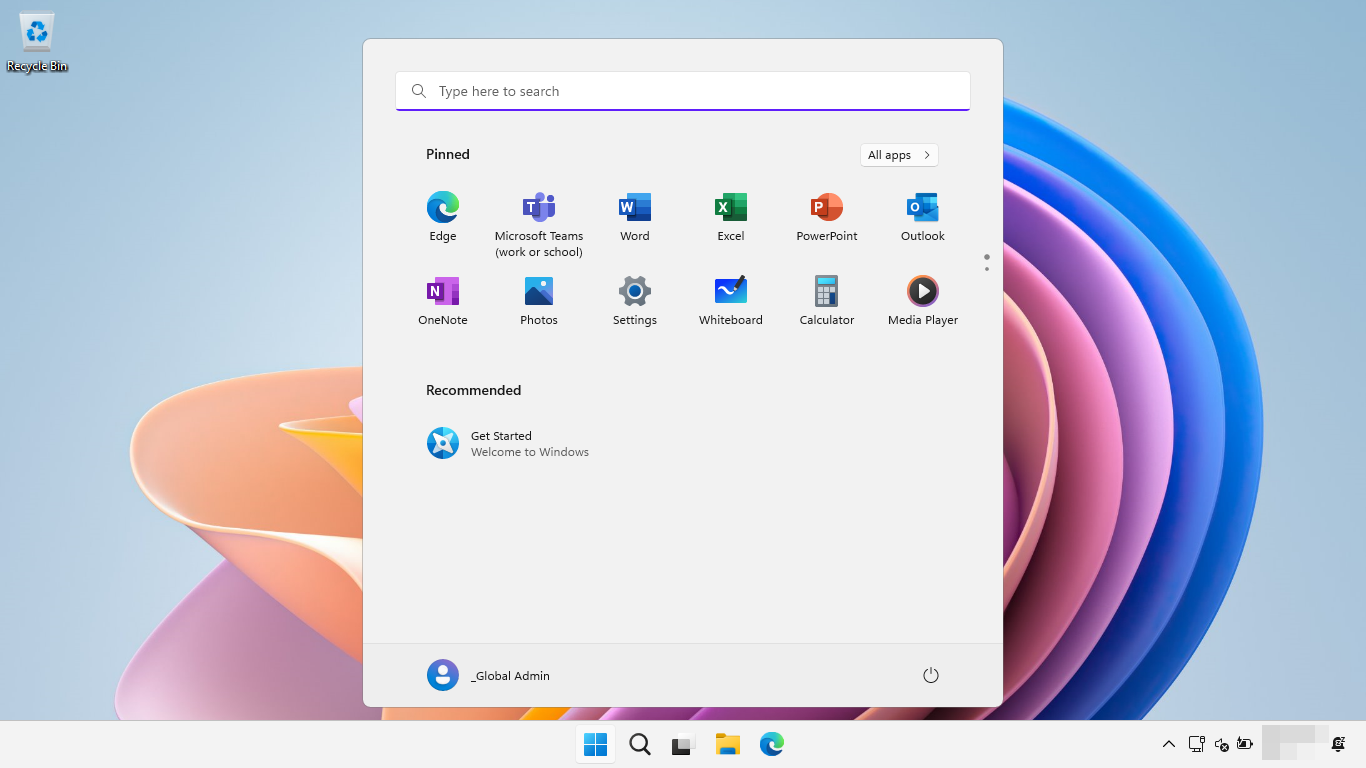
• The Classic Start Menu Search: This is probably the most straightforward method. Click on the Start button, type "Control Panel" (without the quotes), and hit Enter. Voila! The Control Panel should appear as the top result. It's like asking Google a simple question and getting the exact answer you were looking for.
• The Run Command Route: Press the Windows key + R to open the Run dialog box. Type "control" (again, without the quotes) and press Enter. This is a quick and efficient way to launch the Control Panel, especially if you're a keyboard shortcut enthusiast. Think of it as a secret handshake with your computer.
• The Windows Terminal Power Move: If you're comfortable with the command line, you can use the Windows Terminal. Open the Terminal, type "control" (you guessed it, without the quotes), and press Enter. Boom! The Control Panel appears. This is a great option for power users who love to flex their tech muscles.
• Creating a Desktop Shortcut: For easy access, you can create a shortcut on your desktop. Right-click on an empty area of your desktop, select "New," then Shortcut.In the location field, type "control" (no quotes) and click Next.Give the shortcut a name (e.g., "Control Panel") and click Finish.Now you have a convenient shortcut right on your desktop. This is like having a VIP pass to your favorite club.
Navigating the Control Panel Interface: A Guided Tour
Alright, you've successfully unearthed the Control Panel. Now what? The interface might look a bit overwhelming at first, but don't worry, we'll break it down for you. Think of it as exploring a new city – with a little guidance, you'll be navigating like a local in no time.
• View by Category: This is the default view and organizes the Control Panel items into logical categories like "System and Security," "Network and Internet," "Hardware and Sound," etc. This is a good starting point if you're not sure where to find a specific setting. It's like browsing the sections in a well-organized bookstore.
• View by Large Icons/Small Icons: These views display all the Control Panel items as individual icons. This can be useful if you know exactly what you're looking for, as it allows you to quickly scan through all the available options. It's like having all the ingredients for a recipe laid out in front of you.
• The Search Bar: Located at the top right corner of the Control Panel, the search bar is your best friend when you're trying to find a specific setting. Just type in what you're looking for (e.g., "mouse," "keyboard," "power options"), and the Control Panel will display the relevant results. It's like having a personal assistant who can instantly locate anything you need.
Essential Control Panel Tools: Your Digital Toolkit
Now that you're familiar with the layout, let's dive into some of the most useful tools the Control Panel has to offer. These are the tools you'll likely use most often, so it's worth getting to know them well. Think of them as the essential tools in your digital toolkit – the screwdriver, wrench, and pliers that you'll reach for time and time again.
• System and Security: This category houses a wealth of important settings related to your system's security and overall health. You'll find options for managing Windows Defender Firewall, checking your system information, and configuring power options. It's like the security guard and doctor for your computer, all rolled into one.
• Network and Internet: This is where you go to manage your network connections, troubleshoot internet problems, and configure your network adapter settings. It's like the control center for all things internet-related.
• Hardware and Sound: This category allows you to manage your hardware devices, such as printers, mice, keyboards, and sound cards. You can also adjust your sound settings and configure your audio devices here. It's like the control panel for all your computer's peripherals.
• Programs: This is where you go to uninstall programs, manage installed updates, and configure default programs. It's like the decluttering tool for your computer, helping you remove unwanted software and keep your system running smoothly.
• User Accounts: This category allows you to manage user accounts, change passwords, and configure user account control settings. It's like the gatekeeper for your computer, controlling who has access and what they can do.
• Appearance and Personalization: This is where you go to customize the look and feel of your Windows 11 system, including changing your desktop background, adjusting your display settings, and configuring your taskbar. It's like the interior designer for your computer, allowing you to create a personalized and visually appealing experience.
• Clock and Region: Here, you can adjust your date and time settings, configure your region and language preferences, and customize your currency and number formats. It's like the timekeeper and translator for your computer, ensuring that everything is displayed correctly based on your location and preferences.
• Ease of Access: This category provides tools and settings to make your computer easier to use if you have a disability. You'll find options for magnifying the screen, using a screen reader, and customizing keyboard and mouse settings. It's like the accessibility specialist for your computer, making it more inclusive and user-friendly for everyone.
Real-World Examples: Putting the Control Panel to Work
Okay, enough theory. Let's see how the Control Panel can help you solve real-world problems. Here are a few practical examples:
• Fixing Printer Problems: If your printer is acting up, you can use the "Devices and Printers" section in the Control Panel to troubleshoot the issue. You can check the printer's status, update its drivers, and run diagnostic tests. It's like having a printer repair technician built into your computer.
• Managing Startup Programs: If your computer is taking forever to boot up, you can use the "Task Manager" (accessible through the Control Panel or by pressing Ctrl+Shift+Esc) to disable unnecessary startup programs. This can significantly speed up your boot time. It's like streamlining your morning routine to get out the door faster.
• Adjusting Display Settings: If your display is not looking quite right, you can use the "Display" settings in the Control Panel to adjust the resolution, brightness, and other display settings. This can help improve your viewing experience and reduce eye strain. It's like fine-tuning your TV to get the perfect picture.
• Uninstalling Problematic Programs: If a program is causing problems or you simply don't need it anymore, you can use the "Programs and Features" section in the Control Panel to uninstall it. This can help free up disk space and improve your system's performance. It's like Marie Kondo-ing your computer and getting rid of anything that doesn't spark joy.
• Configuring Power Options: If you're concerned about battery life or energy consumption, you can use the "Power Options" settings in the Control Panel to customize your power plan. You can choose between different power modes (e.g., balanced, power saver, high performance) and configure settings like sleep and hibernation. It's like managing your computer's energy consumption to save money and reduce your carbon footprint.
Advanced Tips and Tricks: Level Up Your Control Panel Skills
Ready to take your Control Panel skills to the next level? Here are a few advanced tips and tricks that will help you become a true Control Panel master:
• Using Command-Line Shortcuts: For even faster access to specific Control Panel items, you can use command-line shortcuts. For example, typing "control printers" in the Run dialog box will directly open the "Devices and Printers" section. You can find a list of these shortcuts online. It's like learning secret codes to unlock hidden features.
• Creating Custom Control Panel Views: You can create custom Control Panel views by organizing your favorite items into a single folder. This can be useful if you frequently access the same settings. It's like creating a personalized dashboard for your most important tools.
• Exploring Hidden Control Panel Items: Some Control Panel items are hidden by default. You can reveal these items by typing "control /name Microsoft.Hidden" in the Run dialog box. Be careful when modifying these hidden settings, as they can potentially affect your system's stability. It's like exploring a secret underground tunnel – proceed with caution!
Control Panel vs. Settings App: A Head-to-Head Comparison
As we mentioned earlier, Windows 11 also has a Settings app, which provides a more modern and user-friendly interface for managing system settings. But which one should you use – the Control Panel or the Settings app? Here's a quick comparison:
• Control Panel: Offers more granular control and access to advanced settings. Best for experienced users who need to tweak specific settings or troubleshoot complex problems. It's like a professional-grade tool with lots of options and adjustments.
• Settings App: Offers a simpler and more intuitive interface. Best for basic adjustments and everyday tasks. It's like a user-friendly tool designed for casual users.
In general, the Settings app is sufficient for most everyday tasks, but the Control Panel is still essential for advanced configuration and troubleshooting. It's like having both a Swiss Army knife and a full set of tools – each has its own purpose and strengths.
Troubleshooting Common Control Panel Issues
Even the best tools can sometimes run into problems. Here are a few common Control Panel issues and how to fix them:
• Control Panel Not Opening: If the Control Panel refuses to open, try restarting your computer. If that doesn't work, try running the System File Checker (SFC) tool to scan for and repair corrupted system files. It's like giving your computer a reboot and a checkup.
• Missing Control Panel Items: If some Control Panel items are missing, try resetting the Control Panel view to its default settings. You can also try running the DISM (Deployment Image Servicing and Management) tool to repair the Windows image. It's like restoring your Control Panel to its original state and fixing any underlying problems.
• Control Panel Crashing: If the Control Panel crashes frequently, try updating your graphics drivers. You can also try running a malware scan to check for infections. It's like updating your computer's software and protecting it from viruses.
Future of the Control Panel: What to Expect
The future of the Control Panel is a bit uncertain. Microsoft has been gradually moving settings from the Control Panel to the Settings app, and it's possible that the Control Panel will eventually be phased out altogether. However, given its power and flexibility, it's likely that it will remain a part of Windows for the foreseeable future, at least for advanced users who need its granular control. It's like a classic tool that will always have its place, even as newer tools emerge.
Windows 11 Control Panel: Frequently Asked Questions
Got some lingering questions about the Windows 11 Control Panel? Let's tackle some common queries:
• Question: Is the Control Panel still necessary in Windows 11?
Answer: While Windows 11 pushes users towards the Settings app for basic configurations, the Control Panel remains crucial for advanced settings, legacy hardware management, and certain troubleshooting tasks. It's still your go-to for deep dives into system configurations.
• Question: How do I pin the Control Panel to the Start Menu or Taskbar?
Answer: Simple! Search for "Control Panel" in the Start Menu, right-click on it, and select "Pin to Start" or "Pin to Taskbar." This provides quick access without needing to search every time.
• Question: Can I customize the Control Panel's appearance?
Answer: Yes, you can change the view to large icons, small icons, or category view. Choose the one that best suits your workflow and preferences for easy navigation.
• Question: What's the difference between "System" in Control Panel and "About" in Settings?
Answer: While both provide system information, "System" in the Control Panel offers more detailed hardware and performance information, while "About" in Settings gives a basic overview. For in-depth specs, the Control Panel version is often more comprehensive.
So, there you have it: a comprehensive guide to using the Control Panel in Windows 11. We've covered everything from accessing it to navigating its interface to using its essential tools. Now it's your turn to put your newfound knowledge to work. Go forth and conquer your Windows 11 system!
The Control Panel in Windows 11 is more than just a collection of settings; it's a powerful tool that puts you in control of your computer. With its granular settings and troubleshooting options, it can help you solve problems, customize your system, and optimize your performance. Don't let its slightly hidden location fool you – the Control Panel is still a vital part of Windows 11. It is the secret weapon in your arsenal, ready to be deployed whenever you need to fine-tune, repair, or optimize your digital experience. Master the Control Panel, and you will master your Windows 11 system.
So, now you're armed with the knowledge to navigate the Control Panel like a pro. Take some time to explore the different settings and familiarize yourself with its various tools. You might be surprised at what you discover! Remember, the Control Panel is your friend. Don't be afraid to experiment and try new things. After all, the best way to learn is by doing. And who knows, you might just become the resident tech guru among your friends and family. Now that you've unlocked the power of the Windows 11 Control Panel, it's time to take action! Start exploring, experimenting, and customizing your system to your heart's content. What are you waiting for?
Ready to dive in and personalize your Windows 11 experience? Remember, knowledge is power, and now you have the power to take control of your system!

Post a Comment for "Windows 11: How to Use the Control Panel"
Post a Comment