Windows 11: How to Customize the Start Menu
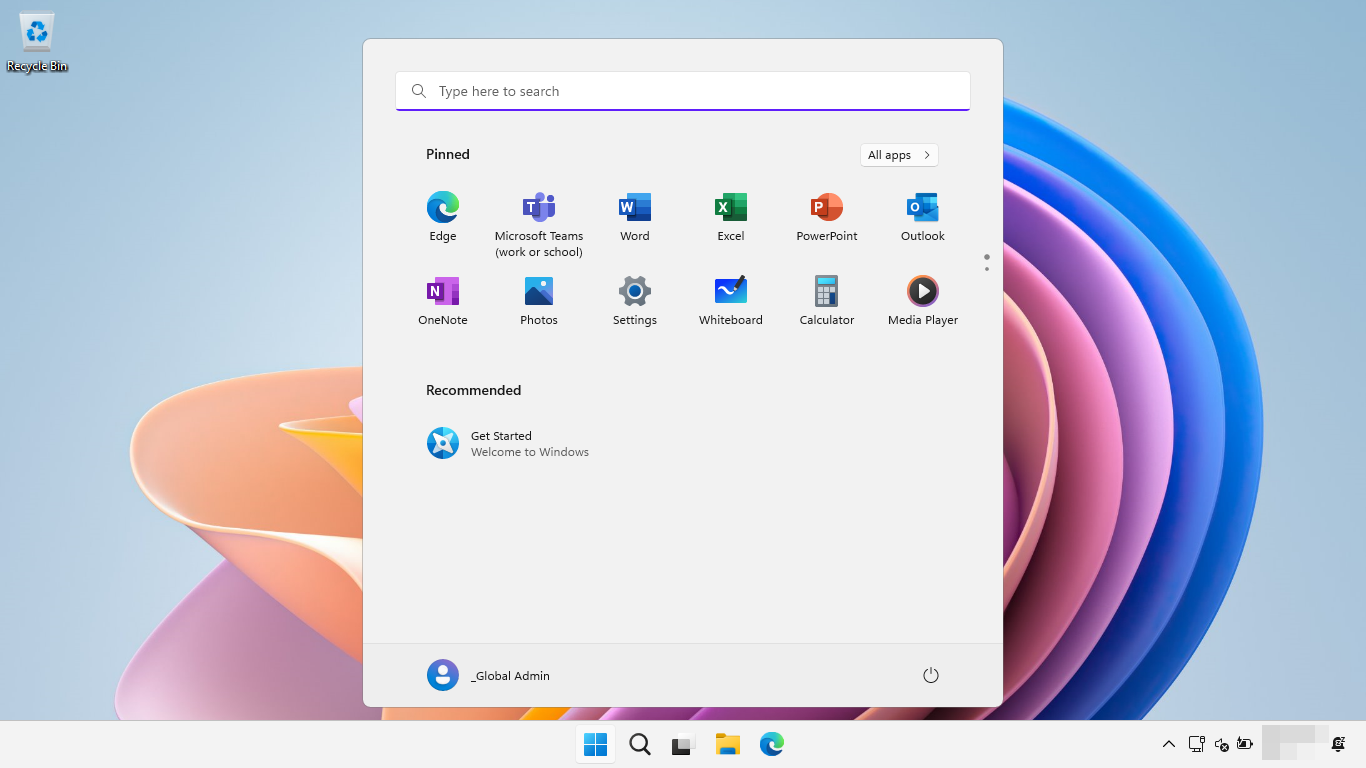
Windows 11: Mastering Your Start Menu – A Guide to Personalization
Hello there, fellow Windows enthusiasts!
Ever feel like your Windows 11 Start Menu is just…blah? Like a beige wall in a world of vibrant colors? You’re not alone! We've all been there, staring blankly at the same old icons, wishing we could inject a little bit ofusinto our digital lives. I mean, seriously, who wants to open their computer to a screen that looks like everyone else's? Where's the personality? Where's the pizzazz?
Think of it this way: Your Start Menu is like your digital front door. It's the first thing you see when you fire up your computer, and it should reflectyou. It should be organized in a way that makes sense toyou, filled with the apps and shortcutsyouuse most often. Instead, it often feels like a random assortment of things Microsoft thinks we should be interested in. It’s like going to a party and being forced to talk to someone you have absolutely nothing in common with. Awkward, right?
The good news is, you don't have to settle for a generic Start Menu! Windows 11, despite its quirks, actually offers a surprising amount of customization options. It’s like discovering a secret menu at your favorite restaurant – you knew the basics were good, but now you’re finding out there’s a whole world of delicious possibilities you never even knew existed. We are going to dive headfirst into the world of Windows 11 Start Menu customization. We're talking about everything from pinning your favorite apps to creating custom folders to decluttering all that unnecessary bloatware. I promise, it's easier than you think. Think of me as your friendly neighborhood Windows whisperer, here to guide you through the process.
Why is this so important, anyway? Well, for starters, a personalized Start Menu can significantly boost your productivity. Imagine being able to access your most frequently used apps with a single click, instead of having to hunt through a sea of icons. It's like having a super-organized desk versus a chaotic mess – which one makes you feel more efficient and less stressed? A well-organized Start Menu can also save you time. Time is money, friends! And who doesn’t want to save a little time? Even if it’s just a few seconds each day, those seconds add up to minutes, and minutes add up to hours over the course of a year. Imagine what you could do with all that extra time!
Moreover, customizing your Start Menu is a fantastic way to express your individuality. It's a small but meaningful way to make your computer feel likeyours. It's like choosing the perfect wallpaper or arranging your desk just so – it’s about creating an environment that reflects your personality and makes you feel comfortable and inspired. In a world where everything feels increasingly generic and mass-produced, taking the time to personalize your digital space can be a surprisingly rewarding experience.
But here’s the kicker: many people don’t realize just how much control they have over their Start Menu. They assume it’s just something they have to live with, a necessary evil of using Windows. They resign themselves to the default settings, never exploring the hidden customization options that are just waiting to be discovered. It's like owning a high-performance sports car and only ever driving it in first gear. You're missing out on so much potential!
So, are you ready to unlock the full potential of your Windows 11 Start Menu? Are you ready to transform it from a source of frustration into a personalized hub of productivity and inspiration? Then buckle up, because we're about to embark on a journey of digital discovery. We'll explore the hidden corners of the Start Menu, uncover its secrets, and learn how to bend it to your will. Prepare to be amazed at just how much you can do with a little bit of know-how. Let’s make your Start Menu sing! Now, isn’t that an exciting proposition? Keep reading to find out exactly how to do it!
Unlocking the Power of Your Windows 11 Start Menu
Alright, let's get down to business! We're going to walk through the process of customizing your Windows 11 Start Menu step-by-step. I promise, it's not rocket science. Even if you're not a tech whiz, you'll be able to follow along and create a Start Menu that you actually love.
The Basics: Pinning and Unpinning Apps
The most fundamental customization you can do is pinning and unpinning apps. Think of it as curating your own personal gallery of digital tools.
- Pinning Apps: This is how you add your favorite apps to the Start Menu. Simply find the app you want to pin (either by searching for it or browsing through the "All apps" list), right-click on it, and select "Pin to Start." Voila! The app will now appear as a tile on your Start Menu. It’s like inviting your favorite people to your party – you want them close by and easy to find.
- Unpinning Apps: Conversely, if there are apps on your Start Menu that you never use (looking at you, pre-installed bloatware!), you can unpin them. Just right-click on the app tile and select "Unpin from Start." Say goodbye to digital clutter! This is like politely asking someone to leave your party because they're not contributing to the good vibes. No hard feelings, just a need for space.
Grouping and Naming Your Apps
Organization is key to a happy Start Menu. Grouping similar apps together and giving those groups meaningful names can make a huge difference in your productivity. It's like organizing your sock drawer – you wouldn't just throw all your socks in a jumble, would you?
- Creating Groups: Simply drag and drop app tiles next to each other. Windows 11 will automatically create a group. Think of it as building your own little digital neighborhoods.
- Naming Groups: Once you've created a group, you can give it a name. Click on the area above the group and type in a descriptive name, like "Productivity," "Entertainment," or "Creative Tools." This is like putting up street signs in your digital neighborhoods – it helps you find your way around.
- Rearranging Groups: You can also move entire groups around on your Start Menu. Just click and drag the group to its new location. This is like re-zoning your digital city – putting the residential area next to the park and the business district downtown.
Resizing and Moving Tiles
Did you know you can resize the app tiles on your Start Menu? This allows you to emphasize the apps you use most often. Think of it as giving your VIP apps a bigger spotlight.
- Resizing Tiles: Right-click on an app tile, select "Resize," and choose from the available sizes (small, medium, wide, or large). Larger tiles are great for apps you use frequently, while smaller tiles are perfect for less important apps. It’s like choosing the size of your profile picture – you want your most important qualities to be front and center.
- Moving Tiles: Drag and drop tiles to rearrange them within a group or move them to a different group altogether. This is like rearranging your furniture – finding the perfect layout that suits your needs and makes you feel comfortable.
Harnessing the Power of Folders
For ultimate organization, consider using folders to group your apps. This is especially helpful if you have a lot of apps installed.
- Creating Folders: Unfortunately, Windows 11 doesn't directly support creating folders within the Start Menu in the same way you might on your desktop. However, you can achieve a similar effect by grouping apps together and giving the group a very descriptive name that functions like a folder title. For example, instead of calling a group "Games," you could call it "[Folder] Games" to visually indicate that it's a collection of game-related apps. It’s a bit of a workaround, but it gets the job done! Think of it as creating a virtual folder system within the Start Menu.
Customizing the "Recommended" Section
The "Recommended" section of the Start Menu is supposed to show you recently opened files and apps. However, it can sometimes feel a bit random and cluttered. Here's how to tame it.
- Clearing the List: You can clear the entire list of recommended items by going to Settings > Personalization > Start and turning off the "Show recently added apps" and "Show recently opened items in Start, Jump Lists, and File Explorer" options. This gives you a clean slate to work with. It’s like hitting the reset button on your digital memory.
- Managing Individual Items: If you only want to remove specific items from the list, right-click on them and select "Remove from list." This is like deleting unwanted photos from your phone – getting rid of the things you don’t want to see.
- Disabling Recommendations Entirely: If you find the "Recommended" section more annoying than helpful, you can disable it completely by turning off the "Show recently added apps" and "Show recently opened items in Start, Jump Lists, and File Explorer" options in the Settings app (Settings > Personalization > Start). This is like choosing to live off the grid – completely disconnecting from the system’s recommendations.
Beyond the Basics: Advanced Customization Options
Now that you've mastered the basics, let's explore some more advanced customization options.
- Choosing What Folders Appear on the Start Menu: You can choose which folders appear as icons on the left side of the Start Menu (above the Power button). Go to Settings > Personalization > Start > Folders and toggle the switches to show or hide folders like Documents, Downloads, Pictures, Music, and Videos. This allows you to create quick access points to your most important folders. It’s like creating a shortcut panel to your most frequently visited places.
- Changing the Default Power Button Action: By default, the Power button on the Start Menu is set to "Shut down." However, you can change it to "Sleep," "Restart," or "Hibernate" by going to Settings > System > Power & battery > Screen and sleep. This can save you a click or two every time you want to shut down or put your computer to sleep. It’s a small change, but it can make a big difference in your daily workflow.
Troubleshooting Common Start Menu Issues
Sometimes, the Start Menu can act up. Here are some common issues and how to fix them.
- Start Menu Not Opening: If the Start Menu refuses to open, try restarting your computer. If that doesn't work, try running the System File Checker tool by opening Command Prompt as an administrator and typing "sfc /scannow" (without the quotes) and pressing Enter. This tool will scan your system files for errors and attempt to fix them. It’s like calling in a digital handyman to fix a broken door.
- Start Menu Search Not Working: If the Start Menu search isn't working properly, try restarting the Windows Search service. Press Windows Key + R, type "services.msc" (without the quotes) and press Enter. Find the "Windows Search" service, right-click on it, and select Restart.This often resolves search-related issues. It’s like giving your digital bloodhound a fresh scent to follow.
- Start Menu Tiles Missing or Corrupted: If some of your Start Menu tiles are missing or appear corrupted, try resetting the Start Menu layout. This is a more advanced solution that involves editing the registry, so proceed with caution. Search online for instructions on how to reset the Start Menu layout in Windows 11 via registry editing. Remember to back up your registry before making any changes! It’s like rebuilding your digital city from scratch after a natural disaster.
And that's it! You've now mastered the art of customizing your Windows 11 Start Menu. Go forth and create a Start Menu that is both beautiful and functional, a true reflection of your digital self.
Frequently Asked Questions About Customizing the Windows 11 Start Menu
Here are some common questions that people have about customizing the Windows 11 Start Menu, along with their answers:
- Q: Can I change the color of the Start Menu?
A: Yes, you can change the color of the Start Menu to match your overall Windows theme. Go to Settings > Personalization > Colors and choose a color that you like. You can also choose to have Windows automatically pick an accent color from your background.
- Q: Can I make the Start Menu transparent?
A: Yes, you can make the Start Menu transparent to some extent. Go to Settings > Personalization > Colors and turn on the "Transparency effects" option. This will make the Start Menu slightly transparent, allowing you to see the background behind it.
- Q: Can I disable the live tiles on the Start Menu?
A: Windows 11 doesn't have live tiles in the same way that Windows 10 did. However, some apps may still display dynamic content within their tiles. To disable this, you'll need to disable notifications for those apps in the Settings app (Settings > System > Notifications).
- Q: Can I back up my Start Menu layout?
A: Unfortunately, there's no built-in way to back up your Start Menu layout in Windows 11. However, you can use third-party tools to do this. Search online for "Windows 11 Start Menu backup tool" to find a suitable option.
In Conclusion: Your Start Menu, Your Way
Wow, we’ve covered a lot of ground, haven't we? From the humble act of pinning an app to the more advanced techniques of tweaking settings and troubleshooting issues, you're now equipped to conquer your Windows 11 Start Menu and make it truly your own. Think back to where we started – staring at that bland, generic screen, feeling a sense of digital disconnect. Now, you have the power to transform that space into a vibrant, personalized hub that reflects your unique needs and style.
We began by acknowledging the common frustration of a default Start Menu that feels impersonal and inefficient. We emphasized how customizing it can significantly boost your productivity, save you time, and allow you to express your individuality. We then dove into the nitty-gritty of customization, covering everything from pinning and unpinning apps to grouping and naming them, resizing tiles, and even creating folder-like structures for ultimate organization. We explored the often-overlooked "Recommended" section and learned how to tame it to our liking. Finally, we ventured into advanced options like choosing which folders appear on the Start Menu and changing the default power button action.
We also tackled some common Start Menu issues, providing practical solutions for when things go awry. Because let's face it, technology isn't always perfect. But with the knowledge you've gained, you're now prepared to troubleshoot those pesky problems and keep your Start Menu running smoothly.
Now, here's where the rubber meets the road. All this knowledge is great, but it's useless unless you put it into action. So, I challenge you: take just 15 minutes today to customize your Start Menu. Start with something simple, like pinning your three most frequently used apps. Then, experiment with grouping them and giving the group a name. You'll be surprised at how quickly you can transform your Start Menu from a source of frustration into a source of efficiency and joy. Don't be afraid to experiment and play around with the settings. There's no right or wrong way to customize your Start Menu – the only limit is your imagination!
So, take the plunge! Click on that Start button, embrace your inner digital designer, and start creating a Start Menu that truly reflects who you are. Your computer (and your sanity) will thank you for it. Go on, make your digital space a little bit more… you. What are you waiting for? Your personalized Start Menu awaits!

Post a Comment for "Windows 11: How to Customize the Start Menu"
Post a Comment