Linux Command Line: Mastering Essential Commands for Everyday Use
Unlocking the Power of Linux: Your Guide to Command Line Mastery
Hey there, fellow tech enthusiasts! Ever feel like your computer is a mysterious black box, especially when you hear the term "Linux command line?" It sounds intimidating, right? Like something only super-geeks in dark rooms can understand? Well, I'm here to tell you it's not! In fact, mastering the Linux command line is like gaining superpowers for your digital life. It's the key to unlocking the true potential of your Linux system and becoming a more efficient and knowledgeable user.
Think of it this way: imagine you're trying to bake a cake. You could use a pre-made mix, which is like using a graphical interface – easy, but limited. Or, you could use individual ingredients and follow a recipe, giving you complete control over the flavor and texture. That's the command line! It lets you interact with your computer at a deeper level, performing tasks that are simply impossible with a mouse and keyboard alone.
Now, I know what you're thinking: "But I'm not a programmer! I just want to browse the internet and watch cat videos!" And that's perfectly fine! You don't need to be a coding wizard to benefit from the command line. Even basic commands can save you time and effort. Ever tried renaming hundreds of files manually? Ugh, the horror! With a simple command, you can do it in seconds. Need to find a specific file hidden deep within your system? The command line can sniff it out faster than a bloodhound. Want to automate repetitive tasks? The command line is your new best friend.
But the real magic happens when you start combining commands, creating powerful scripts that automate complex workflows. It's like building a Rube Goldberg machine for your computer! Suddenly, you're not just a user, you're a conductor, orchestrating your system to do your bidding. You can manage servers, troubleshoot problems, and even create your own custom tools. The possibilities are endless!
Of course, getting started can be a little daunting. There are so many commands, options, and syntax rules to learn. It's like learning a new language, but instead of talking to people, you're talking to your computer. But don't worry, we're going to break it down into manageable chunks, starting with the essential commands you'll use every day. We'll cover everything from navigating the file system to managing files and directories, to searching for information and controlling processes.
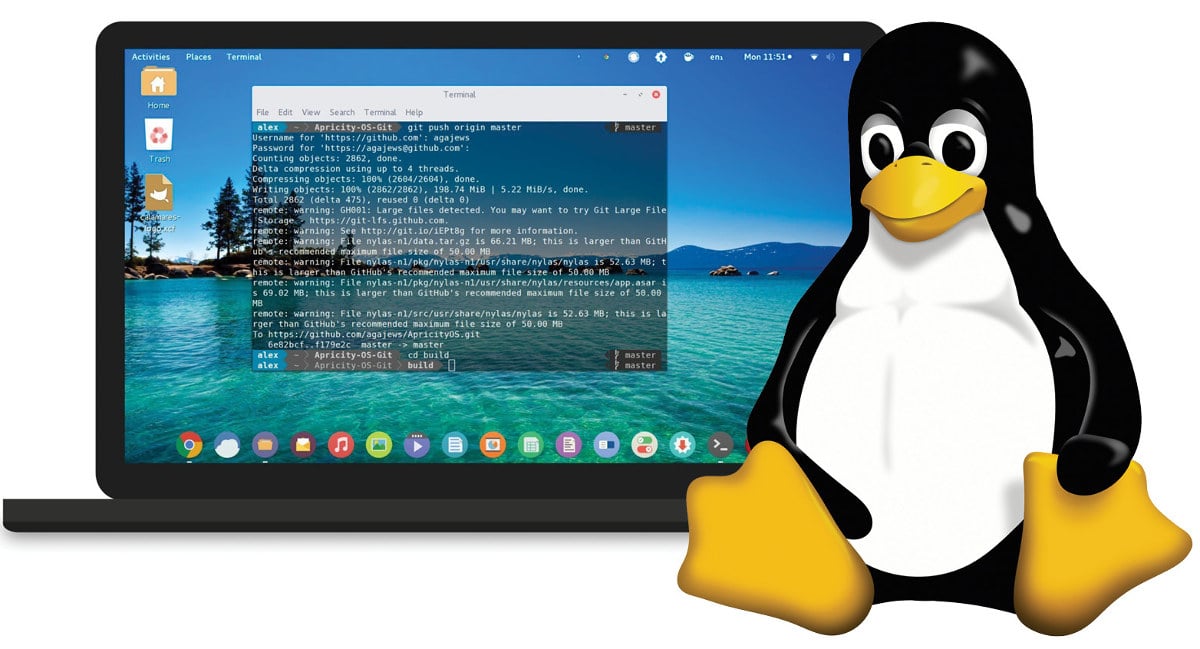
And the best part? You don't need any special equipment or software. If you're running Linux, you already have everything you need. Just open your terminal (that black window that looks like something out of The Matrix) and get ready to unleash your inner command-line ninja.
So, are you ready to dive in and unlock the power of Linux? Are you ready to transform from a casual user into a command-line master? Then buckle up, friends, because this journey is going to be epic! But before we get started, let me ask you this: have you ever wondered why the command line is still so important in today's world of graphical interfaces? The answer might surprise you… Keep reading to find out!
Navigating the Filesystem: Your Digital Compass
Think of the filesystem as your computer's internal map. You need to know how to navigate it to find your way around. These commands are your compass and map combined.
• `pwd`: Print Working Directory. This tells you exactly where you are in the filesystem. It's like asking "Where am I?" to your computer. Type it in and hit enter. The terminal will respond with the full path to your current location.
• `cd`: Change Directory. This allows you to move between directories. Think of it as walking from one room to another in your house. To move into a directory named "Documents," you would type `cd Documents` and press enter. To go back to the previous directory, use `cd ..`.
• `ls`: List. This command displays the contents of a directory, showing you all the files and subdirectories it contains. It's like opening a drawer and seeing what's inside. Type `ls` and press enter to see the contents of your current directory. Add options like `ls -l` (long listing format, providing more details) or `ls -a` (show all files, including hidden ones) to get more information.
Managing Files and Directories: Your Digital Toolbox
Now that you can navigate the filesystem, you need to be able to manipulate files and directories. These commands are your hammer, screwdriver, and wrench.
• `mkdir`: Make Directory. This creates a new directory. It's like building a new room in your house. To create a directory named "My Project," you would type `mkdir My Project` and press enter.
• `touch`: Create an empty file. Sometimes you just need a blank slate. `touch myfile.txt` creates an empty text file named "myfile.txt".
• `cp`: Copy. This copies files or directories from one location to another. It's like making a duplicate of a document. To copy a file named "myfile.txt" to a directory named "Backup," you would type `cp myfile.txt Backup/` and press enter.
• `mv`: Move (or Rename). This moves files or directories to a new location, or renames them. It's like moving furniture around your house. To move "myfile.txt" to the "Backup" directory, you would type `mv myfile.txt Backup/`. To rename "myfile.txt" to "newfile.txt," you would type `mv myfile.txt newfile.txt`.
• `rm`: Remove. This deletes files or directories. Be careful with this one! It's like throwing something away. To remove a file named "myfile.txt," you would type `rm myfile.txt` and press enter. To remove a directory and all its contents, use `rm -r directoryname` (be extra careful with `-r`!).
• `rmdir`: Remove Directory. This removes empty directories. To remove a directory named "Empty Directory," you would type `rmdir Empty Directory` and press enter (the directory must be empty for this to work).
Searching for Information: Your Digital Detective
Sometimes you need to find specific information within your files or directories. These commands are your magnifying glass and fingerprint kit.
• `find`: Find files based on various criteria. This command is incredibly powerful. Want to find all files named "report.pdf"? Try `find . -name report.pdf`. The `.` means "start searching in the current directory".
• `grep`: Search for patterns within files. This command searches for specific text within files. To find all lines in "myfile.txt" that contain the word "important," you would type `grep important myfile.txt` and press enter.
• `head`: Display the first few lines of a file. Useful for quickly previewing a file. `head myfile.txt` shows the first 10 lines.
• `tail`: Display the last few lines of a file. Often used for monitoring log files. `tail myfile.txt` shows the last 10 lines. `tail -f myfile.txt` shows the last 10 lines and continues to display new lines as they are added to the file (great for watching log files in real time!).
Controlling Processes: Your Digital Traffic Controller
Every program running on your computer is a process. These commands allow you to manage those processes.
• `ps`: List running processes. This shows you all the processes currently running on your system. `ps aux` provides a detailed list with information about each process.
• `top`: Display dynamic real-time view of running processes. This command shows you which processes are using the most resources (CPU, memory, etc.). It's like looking at a dashboard of your system's activity.
• `kill`: Terminate a process. This command allows you to stop a running process. First, use `ps` or `top` to find the process ID (PID) of the process you want to kill. Then, type `kill PID` and press enter (replace PID with the actual process ID).
Permissions: Who Gets to Do What?
Linux uses a permission system to control who can access and modify files and directories. This is crucial for security.
• `chmod`: Change permissions. This command allows you to change the permissions of a file or directory. Permissions are typically represented by three sets of characters: `rwx` (read, write, execute) for the owner, the group, and others. For example, `chmod 755 myfile.sh` gives the owner read, write, and execute permissions (7), the group read and execute permissions (5), and others read and execute permissions (5). The numbers 7, 5, and 5 are octal representations of the binary permissions (4 for read, 2 for write, 1 for execute).
• `chown`: Change owner. This command allows you to change the owner of a file or directory. For example, `chown user myfile.txt` changes the owner of "myfile.txt" to "user".
• `chgrp`: Change group. This command allows you to change the group associated with a file or directory. For example, `chgrp group myfile.txt` changes the group of "myfile.txt" to "group".
Piping and Redirection: Command Line Kung Fu
These techniques allow you to combine commands in powerful ways.
• `
| ` (pipe): Redirect the output of one command to the input of another. This is like connecting two pipes together. For example, `ls -l | grep myfile` lists all files in the current directory and then filters the output to only show lines containing "myfile". |
|---|---|
| • `>` (redirection): Redirect the output of a command to a file. This is like pouring water into a bucket. For example, `ls -l > filelist.txt` lists all files in the current directory and saves the output to a file named "filelist.txt". | |
| • `>>` (append redirection): Append the output of a command to a file. This is like adding more water to a bucket that already has some water in it. For example, `echo "New line" >> filelist.txt` adds the line "New line" to the end of the "filelist.txt" file. |
Getting Help: Your Digital Lifeline
Don't be afraid to ask for help! The command line has built-in documentation.
• `man`: Display the manual page for a command. This is your ultimate resource for learning about a command and its options. To view the manual page for the `ls` command, type `man ls` and press enter. Use the arrow keys to navigate the manual page, and press `q` to quit.
• `--help`: Many commands also have a `--help` option that provides a brief summary of the command's usage. For example, `ls --help` displays a list of options for the `ls` command.
These are just the basics, of course, but they're enough to get you started. The key is to practice! Experiment with different commands and options, and don't be afraid to make mistakes. The command line is a powerful tool, and with a little practice, you'll be amazed at what you can do.
Essential Text Editors: Your Digital Notepad
The command line isn't just about moving files around; sometimes you need to edit them too! While graphical text editors are convenient, knowing your way around a command-line text editor is invaluable, especially when working on remote servers or in environments where graphical interfaces aren't available.
• `nano`: A simple and user-friendly text editor. Nano is often the go-to choice for beginners due to its intuitive interface and helpful on-screen prompts. To open a file with nano, simply type `nano filename.txt` (replace `filename.txt` with the actual file name). You can then edit the file and save your changes using the keyboard shortcuts displayed at the bottom of the screen.
• `vim`: A powerful and highly configurable text editor. Vim has a steeper learning curve than nano, but its efficiency and flexibility are unmatched. It's a modal editor, meaning that you switch between different modes (e.g., insert mode for typing, command mode for executing commands). Mastering vim can significantly boost your productivity. To open a file with vim, type `vim filename.txt`.
• `emacs`: Another powerful and highly customizable text editor. Emacs is more than just a text editor; it's a complete environment with built-in features for programming, email, and more. Like vim, Emacs has a learning curve, but its vast capabilities make it a favorite among experienced users. To open a file with emacs, type `emacs filename.txt`.
Package Management: Installing Software Like a Pro
One of the great things about Linux is its package management system, which makes installing, updating, and removing software a breeze. Different distributions use different package managers, but the underlying principles are the same.
• `apt` (Debian/Ubuntu): The Advanced Package Tool (APT) is used on Debian-based distributions like Ubuntu. To update the package list, use `sudo apt update`. To install a package, use `sudo apt install packagename` (replace `packagename` with the actual package name). To remove a package, use `sudo apt remove packagename`.
• `yum` (Red Hat/Cent OS): The Yellowdog Updater, Modified (YUM) is used on Red Hat-based distributions like Cent OS. To update the package list, use `sudo yum update`. To install a package, use `sudo yum install packagename`. To remove a package, use `sudo yum remove packagename`.
• `dnf` (Fedora): DNF is the successor to YUM and is used on Fedora. The commands are similar to YUM: `sudo dnf update`, `sudo dnf install packagename`, and `sudo dnf remove packagename`.
Remember to always use `sudo` before commands that require administrative privileges.
Networking Commands: Talking to the World
The command line also provides powerful tools for managing your network connections.
• `ifconfig` (or `ip`): Display network interface configuration. `ifconfig` (though being replaced by `ip` in some newer systems) shows information about your network interfaces, including IP addresses, MAC addresses, and more. `ip addr` is the modern alternative.
• `ping`: Test network connectivity. This command sends packets to a specified host and measures the time it takes to receive a response. It's a simple way to check if you can reach a server or website. For example, `ping google.com`.
• `netstat` (or `ss`): Display network connections, routing tables, interface statistics, masquerade connections, and multicast memberships. `netstat -a` shows all active network connections. The `ss` command is a more modern and efficient alternative.
• `ssh`: Secure Shell. This command allows you to securely connect to a remote server. For example, `ssh user@remotehost` connects to the server at `remotehost` as the user `user`.
System Information: Knowing Your Machine
Sometimes you need to know details about your system, such as the kernel version, CPU information, or memory usage.
• `uname`: Display system information. `uname -a` shows all available system information.
• `free`: Display amount of free and used memory in the system. `free -m` shows the memory usage in megabytes.
• `df`: Display disk space usage. `df -h` shows the disk space usage in a human-readable format (e.g., GB, MB).
• `du`: Estimate file space usage. `du -sh` shows the disk space usage of each file and directory in the current directory, in a human-readable format.
Real-World Scenarios: Putting It All Together
Let's look at some real-world scenarios to see how these commands can be used in practice.
•Scenario 1:Finding Large Files: Imagine you're running out of disk space and need to find the largest files on your system. You can use a combination of `find` and `du` to accomplish this. First, use `find / -type f -size +100M` to find all files larger than 100MB (replace `/` with the directory you want to search). Then, pipe the output to `du -h` to display the size of each file in a human-readable format. Finally, pipe the output to `sort -hr` to sort the files by size in descending order. The complete command would be: `find / -type f -size +100M
| xargs du -h | sort -hr`. |
|---|
•Scenario 2:Automating Backups: You can use the command line to create a script that automatically backs up your important files and directories. For example, you could use `tar` to create an archive of your home directory and then use `scp` to copy the archive to a remote server. You could then use `cron` to schedule the script to run automatically at regular intervals.
•Scenario 3:Troubleshooting Network Issues: If you're having trouble connecting to the internet, you can use commands like `ping`, `traceroute`, and `netstat` to diagnose the problem. For example, you could use `ping google.com` to check if you can reach Google's servers. If the ping fails, you can use `traceroute google.com` to see where the connection is breaking down.
Staying Secure: A Command Line Perspective
Security is paramount, and the command line offers several tools for enhancing your system's defenses.
• `sudo`: Run commands with administrative privileges. Always be mindful when using `sudo`, as it grants you elevated permissions. Only use it when necessary and double-check the command before executing it.
• `firewall-cmd` (or `iptables`): Configure the firewall. A firewall is a crucial component of any security strategy. `firewall-cmd` (on systems using firewalld) and `iptables` allow you to control which network connections are allowed to enter or leave your system.
• `fail2ban`: Ban IPs that show malicious signs. Fail2ban monitors log files for suspicious activity and automatically bans IP addresses that exhibit such behavior, such as repeated failed login attempts.
Remember, security is an ongoing process, and it's essential to stay informed about the latest threats and vulnerabilities.
The Command Line Community: Learning and Sharing
One of the best things about the command line is the vibrant community of users and developers who are passionate about sharing their knowledge and helping others. There are countless online resources, forums, and communities where you can learn more about the command line, ask questions, and share your own experiences.
•Online Forums:Websites like Stack Overflow and Reddit have dedicated communities for Linux and command-line users. These forums are great places to ask questions, find solutions to problems, and learn from other users.
•Online Documentation:The official documentation for Linux and various command-line tools is an invaluable resource. The `man` pages are a great starting point, but there are also many online guides and tutorials available.
•Local User Groups:Many cities and regions have local Linux user groups that meet regularly to discuss Linux and other related topics. These groups are a great way to meet other Linux users, learn new skills, and get help with problems.
By joining the command line community, you can connect with other users, learn from their experiences, and contribute to the collective knowledge of the community.
Continuous Learning: Mastering the Art
The command line is a vast and ever-evolving landscape, and there's always something new to learn. To truly master the art of the command line, it's essential to embrace a mindset of continuous learning.
•Read Documentation:Regularly read the documentation for the commands you use. This will help you discover new options and features that you may not have been aware of.
•Experiment:Don't be afraid to experiment with different commands and options. The best way to learn is by doing.
•Follow Blogs and Tutorials:There are countless blogs and tutorials online that cover various aspects of the command line. Follow these resources to stay up-to-date on the latest trends and techniques.
•Contribute to the Community:Sharing your knowledge and experiences with others is a great way to reinforce your own learning and help others along the way.
By continuously learning and expanding your knowledge, you can unlock the full potential of the command line and become a true master of your system.
Frequently Asked Questions
Here are some common questions people have about the Linux command line:
• Question: Is the command line really necessary in today's graphical world?
• Answer: While graphical interfaces are convenient for many tasks, the command line offers unparalleled power and flexibility. It allows you to automate tasks, manage servers, and troubleshoot problems in ways that are simply not possible with a GUI. Furthermore, understanding the command line is essential for anyone working with Linux servers or embedded systems.
• Question: Is it difficult to learn the command line?
• Answer: Like any new skill, learning the command line takes time and effort. However, the basic commands are relatively easy to learn, and there are many resources available to help you get started. The key is to practice regularly and not be afraid to experiment.
• Question: Can I break my system by using the wrong command?
• Answer: Yes, it is possible to damage your system by using the wrong command, especially when using `sudo`. However, with a little caution and by understanding the commands you're using, you can minimize the risk. Always double-check your commands before executing them, and be especially careful when using `rm -r` or other commands that can permanently delete files or directories. It's always a good idea to have a backup of your important data.
• Question: What are some good resources for learning more about the command line?
• Answer: There are many excellent resources available for learning more about the command line, including the `man` pages, online tutorials, forums, and books. Some popular online resources include the Linux Documentation Project, the Ubuntu documentation, and the Arch Linux wiki.
In closing, mastering the Linux command line is a journey that empowers you to take full control of your system. We started by understanding the basics of navigating the filesystem, managing files and directories, and searching for information. We then explored more advanced topics such as controlling processes, managing permissions, and using piping and redirection. We also touched on essential text editors, package management, networking commands, and system information. Furthermore, we looked at real-world scenarios, security considerations, the command line community, and the importance of continuous learning. By consistently applying these principles and exploring new commands, you'll unlock endless possibilities.
Now, it's time to put your knowledge into practice! Try experimenting with the commands we've discussed, explore new commands on your own, and don't be afraid to ask for help when you get stuck. The command line is a powerful tool, and with a little dedication, you can become a true master of your system. So, what new command will you learn today? Go forth and conquer the command line!

Post a Comment for "Linux Command Line: Mastering Essential Commands for Everyday Use"
Post a Comment