Windows 11: Using the Windows File Explorer for Advanced File Management
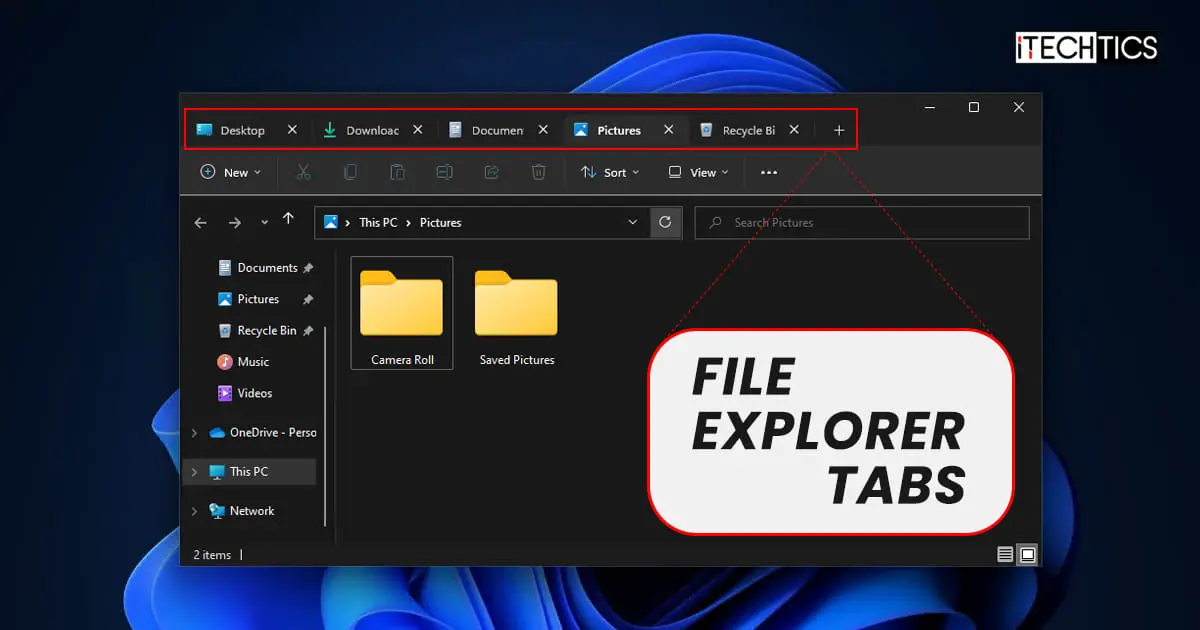
Advanced File Management: Mastering Windows 11 File Explorer.
Hey friends! Ever feel like you're drowning in files on your computer? You're not alone. It's like digital clutter has become the new normal. We’ve all been there, staring blankly at a screen full of folders named "New Folder," "New Folder (2)," and the ever-so-descriptive Stuff.It's a digital jungle out there! But fear not, because today, we’re diving deep into the heart of Windows 11 File Explorer to unlock its hidden potential and bring order to your chaotic digital life. Think of it as becoming a digital Marie Kondo, but instead of thanking your old socks for their service, you're mastering keyboard shortcuts and cloud integration.
Taming the Digital Beast: Mastering Windows 11 File Explorer
Windows 11 File Explorer is more than just a window to view your files; it's a powerful tool brimming with features that can drastically improve your file management skills. We'll explore everything from the basics, like navigating and creating folders, to advanced techniques such as customizing the interface, utilizing cloud integration, and mastering search filters. This journey will transform you from a file-shuffling novice to a file-organizing pro. So, buckle up, grab your favorite beverage, and let's embark on this adventure together! Are you ready to uncover the secrets that will make you a Windows 11 File Explorer master?
The Foundation: Essential File Explorer Skills
Navigating Like a Pro
First things first, let's talk navigation. Forget clicking through endless folders; we're going to teach you how to zip around File Explorer like a digital ninja. The address bar at the top is your best friend. Typing directly into it allows you to jump to any location on your computer instantly. Pressing Alt + Up Arrow will take you to theparentfolder, saving you countless clicks. And those little arrow buttons in the top-left corner? They're your "back" and "forward" buttons, just like in a web browser. Mastering these simple tricks will dramatically speed up your file browsing.
Creating and Organizing Folders
Folders are the building blocks of a well-organized system. Right-clicking in any empty space and selecting "New > Folder" is the traditional way, but did you know you can also use the keyboard shortcut Ctrl + Shift + N? Boom! Instant new folder. Now, the real trick is naming them descriptively. Instead of "Documents," try "Client Proposals - Q3 2024." The more specific you are, the easier it will be to find what you need later. Consider using a consistent naming convention for your projects. For example, "Project Name - Date - Description." This simple habit will save you tons of time in the long run.
File Selection Secrets
Selecting files is another fundamental skill. We all know about Ctrl + A for selecting all files, but what about selecting a range of files? Click on the first file, hold down the Shift key, and click on the last file. Voila! A whole range selected. And what about selectingnon-consecutivefiles? Hold down the Ctrl key and click on each file you want to select. This is incredibly useful when you need to move or copy specific files from a large folder. These little tricks will make your file selection process much more efficient.
The Power of the Right-Click Menu
The right-click menu is a treasure trove of options. Take some time to explore it. You can copy, paste, rename, delete, compress (zip), and even send files directly to other applications. Did you know you can also create shortcuts to frequently used files or folders directly from the right-click menu? Just right-click, select "Create shortcut," and place the shortcut wherever you need it. This is a fantastic way to access your most important files quickly. The right-click menu is your secret weapon for file management efficiency.
Customizing Your File Explorer Experience
Taming the Ribbon Interface
The ribbon at the top of File Explorer can feel a bit overwhelming at first, but it's actually quite powerful. You can customize it to display the commands you use most frequently. Right-click anywhere on the ribbon and select "Customize the Ribbon." From here, you can add, remove, and rearrange commands to your heart's content. Create custom tabs for specific tasks, like photo editing or video production. This allows you to create a personalized File Explorer experience that perfectly suits your workflow.
View Options: Find Your Perfect Perspective
File Explorer offers a variety of view options to display your files, from large icons to detailed lists. Experiment with these options to find the one that works best for you. The "Details" view is particularly useful because it allows you to sort files by name, date, size, type, and other attributes. Click on the column headers to sort your files in ascending or descending order. This is a great way to quickly find the most recent file or the largest file in a folder. Don't be afraid to switch between view options depending on the task at hand.
The Navigation Pane: Your Home Base
The navigation pane on the left side of File Explorer provides quick access to your frequently used locations, such as your desktop, downloads folder, and documents folder. You can customize this pane to include other folders you access regularly. Simply drag and drop a folder from the main window into the navigation pane to add it. You can also remove folders by right-clicking on them and selecting "Unpin from Quick access." This allows you to create a personalized navigation system that puts your most important folders within easy reach.
Dark Mode: Save Your Eyes
If you're working with files for long periods, consider enabling dark mode in File Explorer. This can reduce eye strain and make it more comfortable to work in low-light conditions. To enable dark mode, go to Settings > Personalization > Colors and choose "Dark" under "Choose your mode." This will apply dark mode to File Explorer and other Windows applications. Your eyes will thank you!
Unleashing Advanced File Management Techniques
Mastering Search Filters
The search bar in File Explorer is more powerful than you might think. You can use it to search for files by name, content, date, size, type, and other attributes. For example, to find all Word documents created in the last week, you could type "type:doc date:last week." You can also use wildcards, such as "" to represent any character or "?" to represent a single character. For example, "report. docx" would find all Word documents that start with report.Mastering search filters will save you countless hours of manual searching.
Utilizing Cloud Integration (One Drive and Others)
Windows 11 seamlessly integrates with cloud storage services like One Drive. This allows you to access your files from any device and collaborate with others easily. You can sync your One Drive folder with your computer, so your files are always available offline. You can also share files and folders with others by right-clicking on them and selecting Share.Cloud integration is a game-changer for productivity and collaboration. Consider exploring other cloud storage options like Dropbox and Google Drive, and integrating them with File Explorer for even more flexibility.
Zipping and Unzipping Files
Zipping files is a great way to compress them for easier sharing or archiving. To zip a file or folder, right-click on it and select "Compress to ZIP file." This will create a compressed archive that is smaller in size and easier to send via email. To unzip a file, simply double-click on the ZIP file and drag the contents to a folder on your computer. Windows 11 has built-in support for ZIP files, so you don't need to install any additional software. Zipping and unzipping files is an essential skill for anyone who works with digital files.
File History:Your Time Machine
File History is a built-in Windows feature that automatically backs up your files to an external drive. This allows you to restore previous versions of your files if they are accidentally deleted or corrupted. To enable File History, go to Settings > System > Storage > Advanced storage settings > Backup options and select an external drive. File History will automatically back up your files on a regular basis. This is a lifesaver in case of data loss. Think of it as your personal time machine for your files.
Disk Cleanup: Declutter Your Drive
Over time, your computer can accumulate a lot of unnecessary files, such as temporary files, cached data, and old Windows installations. These files can take up valuable disk space and slow down your computer. Disk Cleanup is a built-in Windows tool that can help you remove these files and free up space. To run Disk Cleanup, search for "Disk Cleanup" in the Start menu and select the drive you want to clean. Disk Cleanup will scan your drive and identify files that can be safely removed. Regularly running Disk Cleanup can keep your computer running smoothly.
Taking Control: Advanced File Operations
Renaming Multiple Files at Once
Ever had a folder full of files with generic names like "Image1.jpg," "Image2.jpg," and so on? Renaming them individually can be a tedious task. Fortunately, Windows 11 allows you to rename multiple files at once. Select all the files you want to rename, right-click on the first file, and select Rename.Type in the new name and press Enter. Windows will automatically rename all the selected files with the new name, adding a number in parentheses to each file. This is a huge time-saver for organizing large collections of files.
Creating Symbolic Links
Symbolic links are like shortcuts on steroids. They allow you to create a virtual link to a file or folder in a different location. When you access a symbolic link, you are actually accessing the original file or folder. This can be useful for organizing files across multiple drives or for creating a shared folder that appears in multiple locations. To create a symbolic link, you need to use the command prompt. Open the command prompt as an administrator and use themklinkcommand. For example, to create a symbolic link called "My Documents" that points to the "C:\Users\Your Name\Documents" folder, you would type: mklink /D "My Documents" "C:\Users\Your Name\Documents". Symbolic links are a powerful tool for advanced file management.
Understanding File Permissions
File permissions control who can access and modify your files. Understanding file permissions is important for security and privacy. You can view and modify file permissions by right-clicking on a file or folder, selecting "Properties," and then clicking on the "Security" tab. Here, you can see which users and groups have access to the file or folder and what permissions they have. You can also add or remove users and groups and change their permissions. Be careful when modifying file permissions, as incorrect permissions can prevent you from accessing your files.
Using Power Shell for Advanced Automation
Power Shell is a powerful command-line shell and scripting language that can be used to automate file management tasks. With Power Shell, you can create scripts to perform complex operations on files and folders, such as renaming multiple files based on specific criteria, copying files from one location to another, and deleting files that are older than a certain date. Learning Power Shell can take your file management skills to the next level. There are many online resources and tutorials available to help you get started with Power Shell.
Creating Libraries
Libraries in Windows are virtual folders that aggregate files from multiple locations into a single view. This is useful for organizing files that are stored in different folders or on different drives. For example, you could create a library called "My Projects" that includes files from your documents folder, your desktop, and an external drive. To create a library, right-click in the navigation pane and select "New > Library." Give the library a name and then add the folders you want to include. Libraries are a convenient way to organize your files without actually moving them.
Wrapping Up: Your Journey to File Explorer Mastery
So, there you have it – a comprehensive guide to mastering Windows 11 File Explorer. We've covered everything from the basics of navigation and organization to advanced techniques like customizing the ribbon, utilizing cloud integration, and automating tasks with Power Shell. By implementing these strategies, you can transform your digital life from chaos to order and become a true file management pro.
Now it's your turn to take action. Start by customizing your File Explorer interface to suit your specific needs. Experiment with different view options, add your favorite folders to the navigation pane, and create custom tabs in the ribbon. Then, delve into the advanced techniques we've discussed, such as mastering search filters, utilizing cloud integration, and creating symbolic links.
Remember, practice makes perfect. The more you use these techniques, the more natural they will become. And before you know it, you'll be navigating and organizing your files with ease and efficiency. Go forth and conquer your digital clutter! What are some of your favorite File Explorer tips and tricks?

Post a Comment for "Windows 11: Using the Windows File Explorer for Advanced File Management"
Post a Comment