Windows 11: Using the Windows Command Prompt for Advanced Users
Unleashing Windows 11 Power: Mastering the Command Prompt
Hey there, tech enthusiasts! Ever feel like Windows is hiding secrets from you? Like there's a whole other world beyond clicking icons and dragging windows? Well, you're not wrong! Windows 11, for all its sleek design and user-friendliness, holds a powerful tool right under its nose: the Command Prompt. Think of it as the Matrix-style interface to your operating system. We're talking about unlocking hidden functionalities, automating tasks, and generally feeling like a coding wizard, even if you’ve never written a line of code in your life. Many users find themselves stuck in the graphical user interface (GUI), unaware of the potential lying dormant within the Command Prompt. This can lead to inefficient workflows and a reliance on third-party tools for tasks that Windows can already handle natively.
This article is your guide to transforming from a casual Windows user to a Command Promptaficionado. We'll demystify the cryptic commands, explore advanced techniques, and show you how to leverage this powerful tool to take complete control of your Windows 11 experience. Forget endless clicking and frustrating menus; get ready to command your computer with precision and efficiency. Are you ready to unlock the hidden power of Windows 11? Let's dive in!
Delving into the Windows 11 Command Prompt
The Command Prompt (often shortened to CMD) has been a part of Windows since its early days. It's a command-line interpreter, which means you interact with your computer by typing commands instead of clicking buttons. Now, before you run screaming, let's be clear:this isn't some arcane ritual reserved for programmers. It's a direct line to your operating system, allowing you to perform tasks more efficiently, troubleshoot issues, and even customize your system in ways the GUI simply can't. Think of it like this: the GUI is like driving an automatic car, while the Command Prompt is like driving a manual. It requires more skill, but gives you far more control over the engine. For those already familiar with Windows 10, you'll find many of the commands and techniques translate directly to Windows 11, but with added features and improvements. Understanding the Command Prompt can significantly enhance your system administration skills, allowing for quicker problem-solving and better resource management.
Why Use the Command Prompt?
Okay, so why bother learning Command Prompt when you can just click around? Fair question! Here's the deal: Efficiency: Many tasks can be completed faster and more efficiently using Command Prompt than through the GUI. Imagine renaming hundreds of files with a single command instead of individually clicking and renaming each one. Automation: Command Prompt allows you to create scripts, which are essentially mini-programs that automate repetitive tasks. Need to back up certain files every day at 3 AM? A script can handle that while you sleep. Troubleshooting: Command Prompt provides access to powerful diagnostic tools that can help you identify and resolve system issues. Things like network problems, file corruption, or driver conflicts can often be diagnosed and even fixed using CMD. Customization: Command Prompt unlocks hidden settings and configurations that aren't accessible through the standard Windows interface. Want to tweak the appearance of your taskbar or disable certain features? CMD can help. Remote Management:The Command Prompt is essential for managing remote computers and servers. You can use it to access and control other machines on your network, making it a crucial tool for system administrators.
In short, the Command Prompt empowers you to take complete control of your Windows 11 system. It's like having a superpower for your computer!
Accessing the Command Prompt in Windows 11
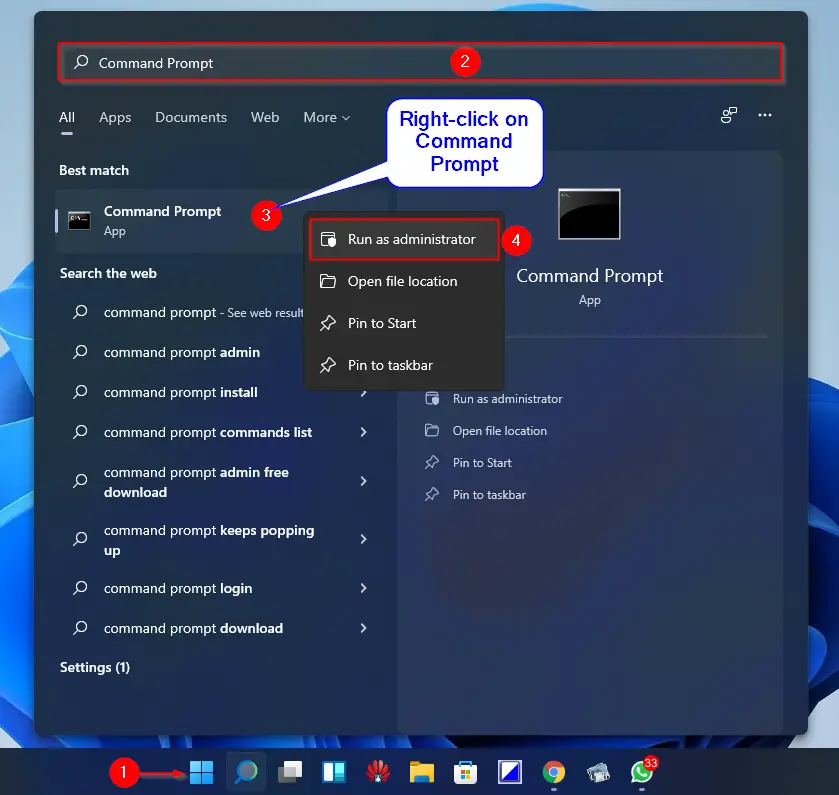
Getting started is simple. There are several ways to access the Command Prompt in Windows 11: Search: Click the Start button, type "cmd" or "Command Prompt," and press Enter. This is the quickest and easiest method. Run Dialog: Press Windows Key + Rto open the Run dialog box, type "cmd," and press Enter. This is a classic shortcut that works in all versions of Windows. Task Manager: Press Ctrl + Shift + Escto open Task Manager, click "File," then "Run new task," type "cmd," and press Enter. This method is useful if you need to run the Command Prompt with elevated privileges. File Explorer: In File Explorer, type "cmd" in the address bar and press Enter. This will open the Command Prompt in the current directory. Right-Click Start Button: Right-click the Start button (or press Windows Key + X) and choose "Terminal" or "Windows Terminal" (if installed). You can then open a Command Prompt tab within the Terminal.
Once you have the Command Prompt open, you'll see a black window with a blinking cursor. This is your portal to the command-line world!
Understanding the Command Prompt Interface
The Command Prompt interface might seem intimidating at first, but it's actually quite simple. Here's a breakdown of the key elements: Command Prompt: This is the text you type to instruct the computer. Current Directory: This indicates the folder you're currently working in. For example, `C:\Users\Your Name>` means you're in your user folder on the C drive. Cursor:The blinking line where you type your commands.
The Command Prompt uses a specific syntax for commands. Generally, a command consists of the command name, followed by any parameters or options. For example:
`command /option parameter`
Don't worry, we'll go through specific commands and their syntax later. The key is to understand that the Command Prompt is all about typing instructions in a precise way. A small error can lead to unexpected results, so pay attention to detail.
Essential Commands for Windows 11 Power Users
Now that you know how to access the Command Prompt and understand its interface, let's explore some essential commands that will make you a Windows 11 power user:
Navigating the File System
The Command Prompt allows you to navigate your file system using commands. Here are the most important ones: `cd` (Change Directory):This command allows you to move between directories. For example, `cd Documents` will change your current directory to the Documents folder. `cd ..` will move you up one level in the directory structure. `cd \` will take you to the root directory of the current drive. `dir` (Directory):This command lists the files and folders in the current directory. You can use options to customize the output. For example, `dir /w` will display the list in a wide format, while `dir /p` will pause the output after each screenful. `dir.txt` will only list files with the ".txt" extension. `mkdir` (Make Directory):This command creates a new directory. For example, `mkdir New Folder` will create a folder named "New Folder" in the current directory. `rmdir` (Remove Directory):This command deletes an empty directory. For example, `rmdir Empty Folder` will delete the folder Empty Folder.Note that the folder must be empty for this command to work. To delete a folder with files, use the `del` command with the `/s` option. `type`:This command displays the content of a text file. For example, `type myfile.txt` will show the contents of "myfile.txt" in the Command Prompt window.
These commands are the foundation of file management in the Command Prompt. Mastering them will allow you to quickly navigate your file system and perform basic operations.
Managing Files and Folders
Beyond navigation, the Command Prompt lets you manage files and folders directly: `copy`:This command copies files from one location to another. For example, `copy myfile.txt C:\Backup` will copy "myfile.txt" to the "Backup" folder on the C drive. `copy.txt C:\Backup` copies all files ending in `.txt`. `move`:This command moves files from one location to another. For example, `move myfile.txt C:\Backup` will move "myfile.txt" to the "Backup" folder on the C drive. This is similar tocut and pastein the GUI. `ren` (Rename):This command renames files or folders. For example, `ren myfile.txt newfile.txt` will rename "myfile.txt" to "newfile.txt." `ren Old Folder New Folder` renames the folder. `del` (Delete):This command deletes files. For example, `del myfile.txt` will delete "myfile.txt." Be careful with this command, as deleted files are not sent to the Recycle Bin by default. `del.tmp` will delete all files ending in `.tmp`. `attrib` (Attributes):This command displays or modifies the attributes of a file or folder, such as read-only, hidden, or system. For example, `attrib +h myfile.txt` will hide the file "myfile.txt." `attrib -h myfile.txt` will unhide it.
With these commands, you can perform a wide range of file management tasks directly from the Command Prompt.
System Information and Utilities
The Command Prompt also provides access to various system information and utilities: `systeminfo`:This command displays detailed information about your system configuration, including the operating system version, hardware specifications, and installed software. This is extremely useful for troubleshooting and diagnosing system problems. `ipconfig`:This command displays your network configuration, including your IP address, subnet mask, and default gateway. `ipconfig /all` shows even more detailed information. `ping`:This command tests the connectivity to a specific host or IP address. For example, `ping google.com` will send packets to Google's servers and report the response time. This is a basic but essential tool for diagnosing network issues. `tracert` (Trace Route):This command traces the route that packets take to reach a specific host or IP address. This can help you identify bottlenecks in your network connection. `tasklist`:This command lists all currently running processes on your system. `taskkill`:This command terminates a running process. You can use the process ID (PID) or the process name to identify the process to kill. For example, `taskkill /PID 1234` will kill the process with ID 1234. `taskkill /IM notepad.exe` will kill all instances of Notepad. Use with caution!
These commands are invaluable for system administrators and advanced users who need to monitor and troubleshoot their systems.
Advanced Techniques: Unleashing the True Power
Now that you've mastered the basics, let's move on to some advanced techniques that will truly unlock the power of the Windows 11 Command Prompt:
Batch Scripting: Automating Tasks
Batch scripting is the art of creating small programs that automate repetitive tasks. A batch script is simply a text file containing a series of Command Prompt commands. When you run the script, the commands are executed sequentially.
Creating a Batch Script: Open a text editor like Notepad and type in the commands you want to execute. Save the file with a ".bat" extension. Running a Batch Script: Double-click the ".bat" file to execute it. You can also run it from the Command Prompt by typing its name.
Here's a simple example of a batch script that backs up your Documents folder:
```batch
@echo off
echo Backing up Documents folder...
xcopy "C:\Users\Your Name\Documents" "D:\Backup\Documents" /s /e /h /y
echo Backup complete!
pause
```
This script first disables echoing of commands to the console (`@echo off`). Then, it displays a message indicating that the backup is in progress. The `xcopy` command copies all files and subdirectories from your Documents folder to the "Backup" folder on the D drive. The `/s` option copies subdirectories, the `/e` option copies empty subdirectories, the `/h` option copies hidden files, and the `/y` option suppresses prompts for confirmation. Finally, the script displays a message indicating that the backup is complete and pauses so you can see the output.
Batch scripting allows you to automate a wide range of tasks, from simple file management to complex system administration. It's a powerful tool for increasing your productivity and efficiency.
Command Chaining and Redirection
Command chaining and redirection allow you to combine and manipulate commands in powerful ways.
Command Chaining: You can execute multiple commands in a single line using the `&&` and `
| ` operators. The `&&` operator executes the second command only if the first command succeeds. The ` | ` operator executes the second command only if the first command fails. |
|---|
For example:
`mkdir New Folder && cd New Folder`
This command will create a new folder named "New Folder" and then change the current directory to the new folder, but only if the `mkdir` command succeeds.
Redirection: You can redirect the output of a command to a file using the `>` and `>>` operators. The `>` operator overwrites the file, while the `>>` operator appends to the file.
For example:
`dir > filelist.txt`
This command will redirect the output of the `dir` command to a file named "filelist.txt," overwriting the file if it already exists.
`dir >> filelist.txt`
This command will append the output of the `dir` command to the file "filelist.txt."
You can also redirect the input of a command from a file using the `<` operator.
For example:
`sort < input.txt > sorted.txt`
This will sort the contents of `input.txt` and write the result to `sorted.txt`.
These techniques allow you to combine commands in creative ways and automate complex tasks.
Using Environment Variables
Environment variables are dynamic values that can be used in Command Prompt commands and batch scripts. They store information about the system, the user, and the current environment.
Accessing Environment Variables: You can access the value of an environment variable using the `%` symbol. For example, `%USERNAME%` will return the current user's name. `%COMPUTERNAME%` will return the computer's name. `%PATH%` contains a list of directories where executable files are located. Setting Environment Variables: You can set environment variables using the `set` command. For example, `set MYVAR=My Value` will set the environment variable "MYVAR" to the value My Value.Environment variables can be used to customize the behavior of commands and scripts and to store information that is needed by multiple commands. They are an essential tool for advanced Command Prompt users.
Command History and Tab Completion
The Command Prompt provides several features to make it easier to type and execute commands: Command History: You can use the up and down arrow keys to scroll through your command history. This allows you to quickly re-execute previously typed commands without having to retype them. Tab Completion: You can use the Tab key to complete file and directory names. Start typing the name of a file or directory, and then press Tab. The Command Prompt will automatically complete the name if it can uniquely identify it. If there are multiple possible completions, press Tab again to cycle through the options.
These features can save you a lot of time and effort when working with the Command Prompt.
Beyond the Basics: Advanced Troubleshooting
The Command Prompt is not just for automating tasks; it's also a powerful tool for troubleshooting system issues. Here are some advanced troubleshooting techniques that you can use:
System File Checker (SFC)
The System File Checker (SFC) is a built-in tool that scans your system files for corruption and replaces any damaged files with original versions.
Running SFC: Open the Command Prompt as an administrator and type `sfc /scannow`. The tool will scan your system files and attempt to repair any errors it finds. This can take some time to complete.
SFC is a valuable tool for resolving system instability and performance issues caused by corrupted system files.
Deployment Image Servicing and Management (DISM)
The Deployment Image Servicing and Management (DISM) tool can be used to repair the Windows image, which is the foundation of your operating system.
Running DISM: Open the Command Prompt as an administrator and type the following command:
`DISM /Online /Cleanup-Image /Restore Health`
This command will connect to Windows Update and download any necessary files to repair the Windows image. This can also take some time to complete.
DISM is useful for resolving more serious system issues that SFC cannot fix. It can also be used to prepare Windows images for deployment to multiple computers.
Chkdsk (Check Disk)
Chkdsk is a tool that scans your hard drive for errors and attempts to repair them.
Running Chkdsk: Open the Command Prompt as an administrator and type `chkdsk /f /r`. The `/f` option tells Chkdsk to fix any errors it finds, and the `/r` option tells it to locate bad sectors and recover readable information. You will be prompted to schedule a disk check on the next system restart.
Chkdsk is useful for resolving issues caused by file system corruption or bad sectors on your hard drive.
Boot Configuration Data (BCD) Management
The Boot Configuration Data (BCD) store contains information about the boot process, including the operating systems that are installed on your computer. If the BCD store becomes corrupted, your computer may fail to boot.
Rebuilding the BCD Store: You can rebuild the BCD store using the `bootrec` command. Boot your computer from a Windows installation disc or USB drive, and then open the Command Prompt. Type the following commands:
`bootrec /fixmbr`
`bootrec /fixboot`
`bootrec /scanos`
`bootrec /rebuildbcd`
These commands will fix the Master Boot Record (MBR), fix the boot sector, scan for installed operating systems, and rebuild the BCD store, respectively.
Rebuilding the BCD store can resolve boot issues caused by corruption or misconfiguration.
Becoming a Command Prompt Master
Mastering the Windows 11 Command Prompt takes time and practice, but the rewards are well worth the effort. By learning the essential commands, exploring advanced techniques, and mastering troubleshooting tools, you can transform yourself from a casual user into a true Windows power user. Don't be afraid to experiment, explore, and try new things. The Command Prompt is a powerful and versatile tool that can help you take complete control of your Windows 11 system.
So, go forth and command!
---
Alright friends, that’s a deep dive into the world of the Windows 11 Command Prompt for advanced users. We’ve covered everything from navigating file systems and managing files, to automating tasks with batch scripts and troubleshooting system issues. From the basics of accessing the Command Prompt to advanced techniques like command chaining and environment variables, hopefully this guide has equipped you with the knowledge and skills to unleash the true power of your Windows 11 machine.
Now, let’s put that knowledge into action! Take some time to experiment with the commands and techniques we've discussed. Try creating a simple batch script to automate a task you perform regularly. Use the System File Checker or DISM tool to scan your system for errors. The more you practice, the more comfortable and confident you'll become with the Command Prompt. Don’t hesitate to explore further on your own and discover even more ways to customize and optimize your Windows 11 experience.
Areyouready to take control and become a true Command Prompt master?

Post a Comment for "Windows 11: Using the Windows Command Prompt for Advanced Users"
Post a Comment