Android Troubleshooting: Solving Common Connectivity Issues
Android SOS: Conquering Common Connection Catastrophes
Hey there, tech adventurers! Ever feel like your Android phone is deliberately playing hide-and-seek with Wi-Fi or Bluetooth, especially when youreallyneed it? Like, say,rightbefore presenting that crucial slideshow at work, or while trying to stream your favorite show on that long-awaited road trip? Yeah, we've all been there, staring blankly at that spinning wheel of doom. It’s enough to make you want to chuck your phone out the window (please don’t!). The frustration of a dropped call, a slow-loading webpage, or a stubbornly disconnected Bluetooth headset is universally understood. It's like technology is conspiring against us at the most inconvenient moments. What’s worse is when you think everything is okay, and suddenly your maps app decides to go offline in the middle of nowhere, leaving you stranded with nothing but your wits and a rapidly dwindling phone battery.
But fear not, fellow Android users! This isn't some inescapable tech curse. More often than not, these connectivity issues are easily solvable with a little troubleshooting know-how. Consider this your ultimate survival guide to navigating the treacherous terrains of Android connectivity problems. We're diving deep into the most common culprits behind your Android device's connection woes and arming you with practical solutions to get you back online and connected in no time. We'll explore everything from simple fixes like restarting your phone to more advanced techniques like tweaking your network settings and diagnosing hardware issues. Think of it as detective work, but instead of solving a crime, you're solving the mystery of why your phone won't connect to the internet.
Imagine being able to confidently diagnose and resolve these issues yourself, saving you time, money, and the headache of dealing with customer support. No more frantic Googling or desperate calls to your tech-savvy friend – you’ll be the connectivity guru! We're going to cover everything, from Wi-Fi problems and Bluetooth blunders to mobile data dilemmas and GPS glitches. So, stick around, because we're about to unlock the secrets to keeping your Android device connected and happy. Ready to say goodbye to those frustrating connectivity issues and hello to seamless, uninterrupted connection? Let's dive in! This guide will equip you to handle almost any connectivity issue that arises with your Android device and make you the go-to person for all your friends experiencing these irritating technology troubles. Let’s get started!
Wi-Fi Woes: Solving Common Android Wi-Fi Problems
Wi-Fi is the lifeline of modern smartphones. It's how we stream videos, download apps, browse the web, and stay connected with the world. So, when your Android device refuses to connect to Wi-Fi, or worse, connects but offers a connection slower than a snail on a leisurely stroll, it's a major inconvenience. But before you throw your router out the window, let's explore some common causes and solutions. A solid wireless connection is necessary for work and entertainment. Without a stable connection, it can be challenging to accomplish important tasks, and streaming entertainment will be laggy. Here are some common solutions: Restart Everything: This is the golden rule of tech troubleshooting. Before diving into complicated settings, simply restart your Android device and your Wi-Fi router. It sounds basic, but it often resolves temporary glitches. Think of it as a digital reboot, giving your devices a fresh start. You would be amazed at how often a simple restart resolves issues. The digital devices that we use every day can become overloaded, and all they need is to reset. Check Wi-Fi Password and Network Name: Double-check that you're entering the correct Wi-Fi password and selecting the correct network name. A simple typo can prevent your device from connecting. Passwords can be tricky with uppercase letters, lowercase letters, numbers, and special symbols all required. Some networks also have a hidden name, so you must manually enter all the information to connect. Forget and Reconnect: Sometimes, the stored Wi-Fi network profile can become corrupted. Go to your Wi-Fi settings, find the network you're trying to connect to, and select "Forget Network." Then, reconnect as if it's a new network, entering the password again. This essentially clears the old data and allows your device to establish a fresh connection. It will be like you're meeting the network for the first time. Check Router Proximity: Make sure you're within a reasonable distance of your Wi-Fi router. Wi-Fi signals weaken with distance and obstructions like walls. Try moving closer to the router to see if it improves the connection. The router should be centrally located in the house so the signal reaches all the different rooms. Update Router Firmware: Outdated router firmware can cause compatibility issues and connectivity problems. Check your router manufacturer's website for instructions on how to update the firmware. Keeping your router firmware up-to-date is a crucial part of router maintenance that most people forget to do. Check for Interference: Other electronic devices, such as microwaves and Bluetooth devices, can interfere with Wi-Fi signals. Try turning off these devices temporarily to see if it improves your Wi-Fi connection. Move these devices away from your wireless router to reduce the interference even more.
Bluetooth Battles: Taming Troublesome Bluetooth Connections on Android
Bluetooth, the unsung hero of wireless connectivity, allows us to connect to a myriad of devices, from headphones and speakers to smartwatches and car stereos. But like any technology, Bluetooth can sometimes be temperamental, leading to frustrating pairing issues, dropped connections, and distorted audio. Many devices use Bluetooth technology, so it is necessary to troubleshoot to continue using the technology. Here's how to troubleshoot those Bluetooth battles: Ensure Devices are in Pairing Mode: This may seem obvious, but it's a common oversight. Make sure both your Android device and the Bluetooth device you're trying to connect to are in pairing mode. Consult the device's manual for instructions on how to enable pairing mode. Some devices will flash a blue light when they are in pairing mode. Restart Bluetooth: Toggle Bluetooth off and then back on on both your Android device and the Bluetooth device. This can refresh the connection and resolve minor glitches. Again, restarting Bluetooth can sometimes resolve issues. Forget and Re-pair: Similar to Wi-Fi, sometimes a corrupted Bluetooth profile can cause problems. In your Android's Bluetooth settings, find the paired device and select "Unpair" or Forget.Then, re-pair the devices as if they were new. This is a great way to create a fresh connection between the devices. Check for Interference: Bluetooth signals can be affected by interference from other electronic devices. Try moving away from other devices or turning them off temporarily to see if it improves the connection. Microwaves are especially known to cause interference in Bluetooth signals. Update Bluetooth Drivers/Firmware: Ensure that your Android device and the Bluetooth device have the latest software updates installed. These updates often include bug fixes and performance improvements that can resolve Bluetooth connectivity issues. Software updates are often overlooked as well. Clear Bluetooth Cache: Sometimes, clearing the Bluetooth cache on your Android device can resolve connectivity issues. Go to Settings > Apps > Show system apps > Bluetooth > Storage > Clear Cache. _Note:_ This may vary depending on your Android version and device manufacturer. You might need to search online for instructions for your specific model.
Mobile Data Mayhem: Getting Your Android Back Online
When Wi-Fi isn't available, mobile data steps in to save the day, keeping us connected on the go. But what happens when your mobile data refuses to work, leaving you stranded in the digital wilderness? Slow loading speeds, broken streaming, and difficulty loading apps are all signs that your mobile data needs some help. Let's tackle some common mobile data dilemmas and how to fix them.
Check Your Data Plan: This might seem obvious, but it's worth verifying that you haven't exceeded your monthly data allowance. Contact your mobile carrier or check your account online to see your current data usage. Running out of data can be frustrating but is easily avoided by monitoring your usage. Toggle Mobile Data On/Off: Similar to restarting Wi-Fi or Bluetooth, simply toggling mobile data off and then back on can often resolve temporary connectivity issues. This is a quick and easy fix to try before digging deeper. This helps to refresh the connection with the mobile provider. Restart Your Device: Again, the trusty restart can come to the rescue. Restarting your Android device can resolve minor software glitches that may be interfering with your mobile data connection. A fresh start can often resolve connectivity issues. Check APN Settings: APN (Access Point Name) settings tell your device how to connect to your mobile carrier's network. Incorrect APN settings can prevent you from accessing mobile data. Contact your mobile carrier for the correct APN settings for your device and manually enter them in your Android's settings. This is especially important if you're using a SIM card from a different carrier than the one your phone was originally designed for. APN settings are unique to each carrier. Check for Network Outages: Sometimes, the problem isn't your device but a network outage in your area. Check your mobile carrier's website or social media channels for information about any known outages. There is nothing you can do to resolve a network outage, but knowing about it can resolve your frustration. Check SIM Card: Ensure your SIM card is properly inserted and activated. Try removing and reinserting the SIM card to ensure a secure connection. A damaged SIM card can also cause connectivity issues. Contact your mobile carrier for a replacement if you suspect your SIM card is damaged. SIM cards are very sensitive and can be damaged by heat or static electricity.
GPS Glitches: Navigating Android GPS Problems
GPS (Global Positioning System) is essential for navigation, location-based apps, and even emergency services. When your Android's GPS malfunctions, it can lead to inaccurate directions, failed location check-ins, and a general sense of being lost in the digital world. A broken GPS can cause a delay, and even cause you to get lost! Here's how to troubleshoot common GPS glitches: Enable Location Services: Ensure that location services are enabled on your Android device. Go to Settings > Location and make sure the toggle is switched on. Also, check that the location mode is set to "High accuracy" for the best results. Sometimes, location services are turned off to conserve battery power. Restart Your Device: You guessed it – the restart trick can also help with GPS issues. Restarting your device can refresh the GPS connection and resolve minor software glitches. Another chance to refresh the connection and get you back on track! Check GPS Signal Strength: GPS signals can be weak in areas with tall buildings, dense foliage, or underground. Try moving to an open area with a clear view of the sky to improve GPS signal strength. GPS relies on receiving signals from satellites, so obstructions can affect accuracy. Update Google Maps: Ensure that you have the latest version of Google Maps installed on your device. Google Maps updates often include bug fixes and performance improvements that can resolve GPS-related issues. Google maps is constantly updated and improved. Calibrate Your Compass: Sometimes, the compass on your Android device can become miscalibrated, leading to inaccurate directions. Open Google Maps and tap the compass icon. Follow the on-screen instructions to calibrate the compass by moving your device in a figure-eight motion. Calibrating your compass can significantly improve GPS accuracy. Clear Google Maps Cache and Data: Clearing the cache and data for Google Maps can sometimes resolve GPS issues. Go to Settings > Apps > Google Maps > Storage > Clear Cache and Clear Data. _Note:_ Clearing data will remove your saved locations and settings, so you'll need to reconfigure them after clearing the data. Sometimes, corrupted data can cause problems with the GPS functionality.
Advanced Android Connectivity Troubleshooting Techniques
Sometimes, the basic troubleshooting steps just don't cut it. When you're facing persistent connectivity issues, it's time to roll up your sleeves and dive into some more advanced techniques. These techniques require a bit more technical know-how, but they can often uncover the root cause of stubborn connection problems. You can become an expert with these troubleshooting techniques!
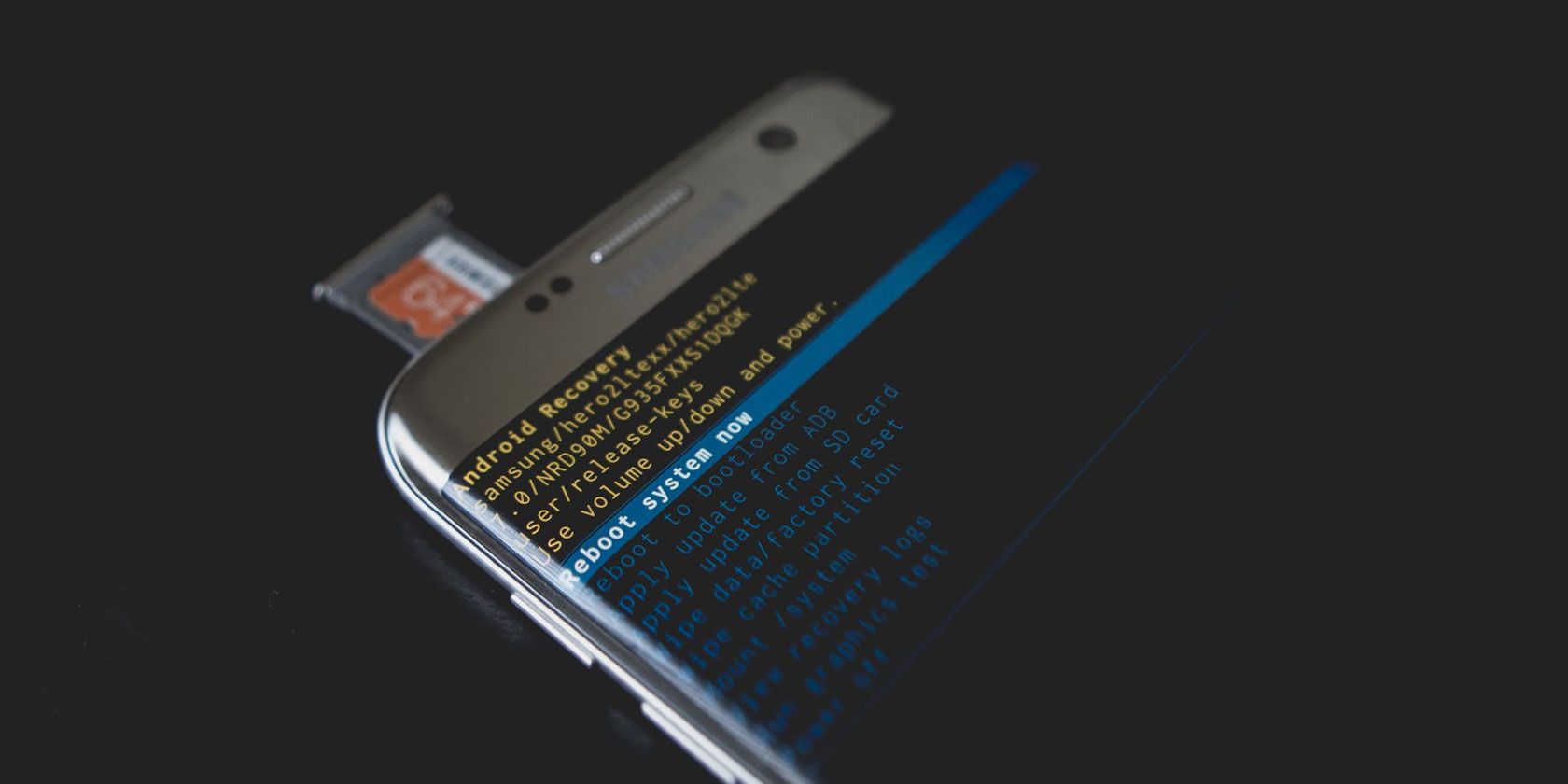
Factory Reset (Use with Caution!): As a last resort, you can try performing a factory reset on your Android device. _Warning:_ This will erase all data on your device, so be sure to back up your important files and data before proceeding. A factory reset will restore your device to its original factory settings, which can resolve persistent software issues that may be causing connectivity problems. It is a big step, so make sure you back up all of your important data! Check for Malware: Malware can sometimes interfere with network connectivity. Run a reputable antivirus scan on your Android device to check for any malicious software. Remove any malware that is detected and see if it resolves the connectivity issues. Keep your antivirus software up to date to protect against the latest threats. Update Android OS: Ensure that your Android operating system is up to date. Software updates often include bug fixes and performance improvements that can resolve connectivity issues. Go to Settings > System > System update to check for updates. Keeping your operating system up to date is crucial for overall device security and performance. Check Hardware Issues: Sometimes, connectivity issues can be caused by hardware problems. If you suspect a hardware issue, such as a damaged antenna or a faulty Wi-Fi chip, consider taking your device to a qualified repair technician for diagnosis and repair. This might require professional assistance to fix. Safe Mode: Booting your Android device into safe mode can help you determine if a third-party app is causing the connectivity issues. In safe mode, only pre-installed apps are loaded. If the connectivity issues disappear in safe mode, then a third-party app is likely the culprit. Uninstall recently installed apps one by one until the problem is resolved. Safe Mode allows you to isolate the source of the problem. Network Settings Reset: Resetting your network settings can resolve persistent connectivity issues. Go to Settings > General management > Reset > Reset network settings. _Note:_ This will reset your Wi-Fi, Bluetooth, and mobile data settings, so you'll need to reconfigure them after the reset. A fresh start for your network configuration!
Android Troubleshooting: Final Thoughts
Android connectivity issues can be frustrating, but with the troubleshooting steps outlined in this guide, you can confidently tackle most common problems. From simple restarts and password checks to more advanced techniques like APN settings and factory resets, you now have the knowledge and tools to diagnose and resolve connectivity issues on your Android device. Remember to start with the simplest solutions first and work your way up to more complex ones. By systematically troubleshooting the issue, you can often pinpoint the cause and get your device back online and connected in no time.
Take charge of your Android experience! Share this guide with your friends and family so that they can also benefit from these troubleshooting tips. No more suffering in silence with dropped calls or slow loading speeds. Empower yourself and others to conquer connectivity catastrophes and enjoy a seamless, connected mobile experience. The more you know, the easier it is to resolve issues quickly and efficiently.
So, go forth and conquer those connection problems! By applying these strategies, you will be able to resolve connectivity issues. Is there a specific tip in the article that you find most helpful? Share your thoughts, and let's keep the conversation going!

Post a Comment for "Android Troubleshooting: Solving Common Connectivity Issues"
Post a Comment