Android Customization: Changing Your Device's Interface and Appearance
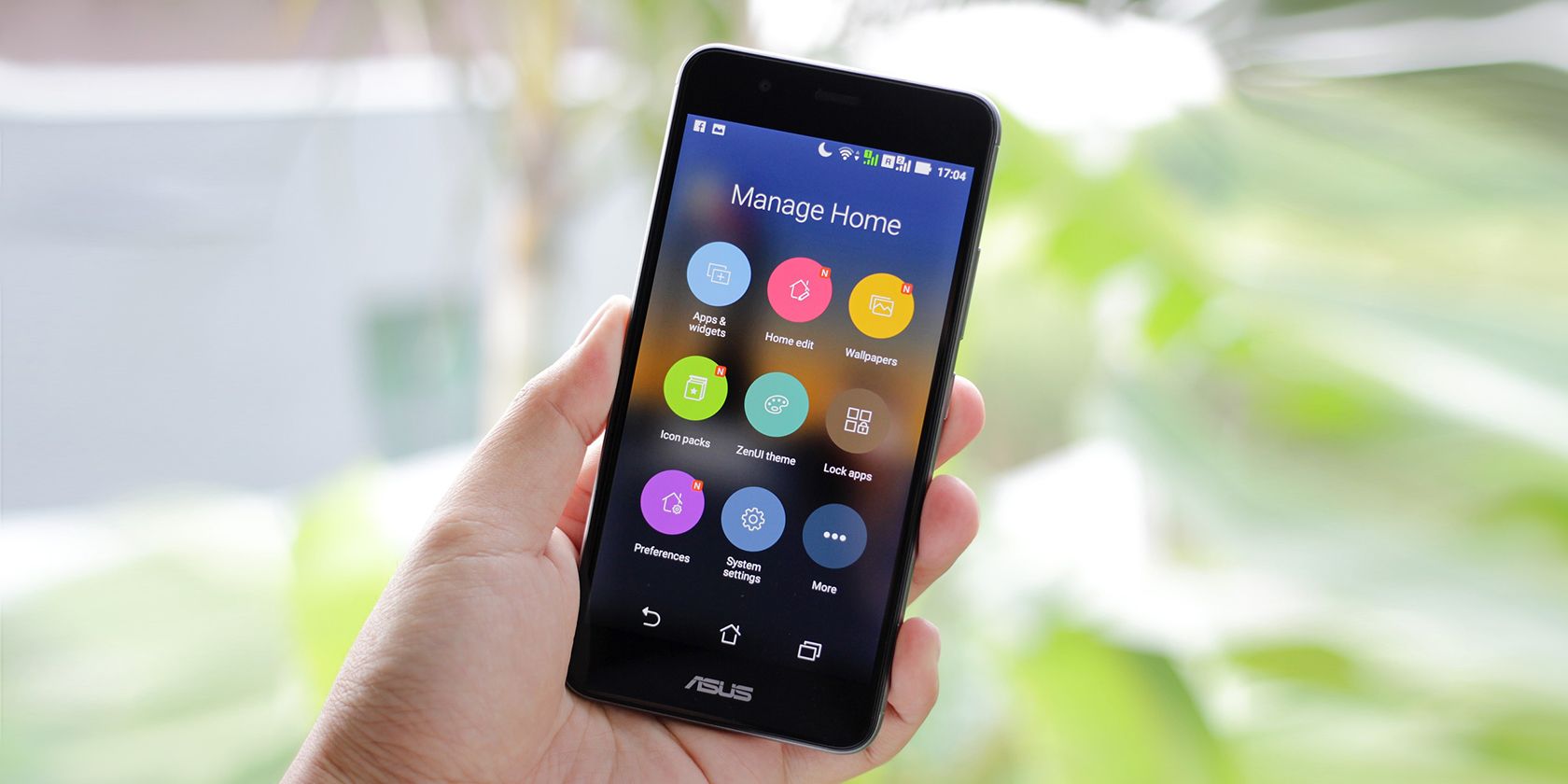
Unleash Your Inner Designer: Android Customization for a Personalized Experience
Android phones are cool; they're like digital blank canvases just waiting for your personal touch! With Android customization, you can transform your device from a generic gadget into a reflection of your unique style. Ready to dive in and make your Android trulyyou?
Diving Deep into Android Customization:Changing Your Device's Interface and Appearance
Ever felt a twinge of phone envy when you see someone rocking a totally unique Android setup? Or maybe you’re just plain tired of thesame oldlook and feel of your device? We’ve all been there. Out of the box, Android is functional, but it’s not exactly screaming "personality!" It’s like buying a house – youcouldlive in it as is, but where's the fun in that? You want to paint the walls, change the floors, maybe even knock down a wall or two!
That's where Android customization comes in,friends. It’s all about taking control of your phone's interface and appearance, tailoring it to your specific tastes. Think of it as giving your phone a digital makeover. We're talking about everything from changing the launcher and icon packs to installing custom ROMs and tweaking system settings. Basically, anything you can do to make your phone look and feeldifferent.
Why bother, you might ask? Well, for starters, it's fun! It's a chance to express yourself, to create something that's uniquely yours. Beyond aesthetics, customization can also improve usability and efficiency. For example, a new launcher might offer better organization, faster access to apps, or improved gesture controls. Who doesn't want a phone that's bothbeautifuland functional?
The beauty of Android is its open nature. Unlike some other mobile operating systems (we won't name names!), Android encourages customization. There's a thriving community of developers creating amazing tools and resources for you to personalize your device. From simple tweaks to complete overhauls, the possibilities are endless. It might seem intimidating at first, but don't worry, we're here to guide you through the process, step by step. Think of this as your personal Android customizationboot camp.
So, are you ready to ditch the default and unlock the full potential of your Android device? Are you tired of having thesamephone as everyone else on the bus? This guide will walk you through the essentials of Android customization, from the basics of launchers and icon packs to more advanced techniques like using widgets and installing custom ROMs. Stick around, and prepare to transform your Android into a personalized powerhouse! Ready to learn all the secrets of Android personalization? Let's jump in!
Understanding the Basics of Android Customization: Changing Your Device's Interface and Appearance
Before we start tweaking, it’s important to understand the key components involved in Android customization. Consider these to be the building blocks that will transform your Android device. Think of it like understanding the different types of paint before you start redecorating your house.
Launchers: The Heart of Your Home Screen
The launcher is essentially thebrainsof your home screen. It's the app that manages your home screen, app drawer, widgets, and more. Switching to a different launcher is one of the easiest and most effective ways to change the overall look and feel of your Android device.
Why change your launcher? The stock launcher on your phone (the one that comes pre-installed) is often pretty basic. Custom launchers offer a range of features that the stock launcher might lack, such as: More customization options*: Change the grid size, icon size, fonts, and more.
Gesture controls*: Swipe up, down, or sideways to launch apps or perform actions.
Theming support*: Apply custom themes to change the look of your entire interface.
Enhanced organization*: Use folders, tabs, and other tools to keep your apps organized.
Popular launcher options: There are countless launchers available on the Google Play Store. Here are a few of the most popular and highly-rated options: Nova Launcher: A highly customizable and feature-rich launcher that's been a favorite among Android users for years. It's known for its smooth performance and extensive customization options.
Action Launcher*: Offers unique features like "Shutters" (reveal widgets by swiping on app icons) and "Covers" (folders that act like apps).
Lawnchair Launcher*: An open-source launcher that aims to recreate the Pixel Launcher experience with added customization options.
Microsoft Launcher*: Seamlessly integrates with Microsoft services like Outlook, To Do, and One Drive.
Smart Launcher*: Automatically organizes your apps into categories for easy access.
How to change your launcher:
1. Download and install the launcher of your choice from the Google Play Store.
2. Press the home button on your phone.
3. You'll be prompted to choose which launcher you want to use. Select the new launcher and choose "Always" to set it as your default.
4. If you want to change the default launcher later, you can go to Settings > Apps > Choose Default Apps > Home App and select your preferred launcher.
Icon Packs: A Fresh Coat of Paint for Your Apps
Icon packs are collections of custom icons that replace the default icons for your apps. It's a quick and easy way to give your home screen acompletelydifferent look.
Why use icon packs? The default icons on your phone might be boring or inconsistent. Icon packs offer a unified and aesthetically pleasing look for your app icons, creating a more cohesive visual experience.
Variety of styles*: Icon packs come in a wide range of styles, from minimalist and modern to cartoonish and playful.
Easy to apply*: Most launchers support icon packs, making it easy to switch between different styles.
Constant updates*: Many icon pack developers regularly update their packs with new icons to support new apps.
Finding icon packs: The Google Play Store is filled with thousands of icon packs, both free and paid. To find them, simply search for "icon pack" in the Play Store.
Things to consider when choosing an icon pack: Style*: Choose an icon pack that matches your personal taste and the overall theme of your home screen.
Completeness*: Make sure the icon pack includes icons for most of the apps you use. Some icon packs may not have icons for all apps.
Resolution*: Choose an icon pack with high-resolution icons for a crisp and clear look.
Compatibility*: Check if the icon pack is compatible with your launcher.
Applying icon packs:
1. Download and install the icon pack of your choice from the Google Play Store.
2. Open your launcher settings. The exact steps will vary depending on your launcher, but it's usually found under "Appearance," "Theme," or "Icon Pack."
3. Select the icon pack you want to use.
4. Your launcher will automatically apply the new icons to your home screen and app drawer.
Widgets: Adding Functionality to Your Home Screen
Widgets are small, interactive elements that you can place on your home screen to provide quick access to information and functionality. Think of them as mini-apps that live on your home screen.
Types of widgets: There are widgets for just about everything, including: Weather: Display current weather conditions and forecasts.
Calendar*: Show upcoming appointments and events.
Music players*: Control playback and view track information.
News*: Display headlines and summaries from your favorite news sources.
Clock*: Display the time and date.
System monitors*: Show CPU usage, memory usage, and battery level.
Adding widgets to your home screen:
1. Long-press on an empty area of your home screen.
2. Tap on Widgets.3. Scroll through the list of available widgets and select the one you want to add.
4. The widget will be placed on your home screen. You can then resize and reposition it as needed.
Customizing widgets: Many widgets offer customization options, allowing you to change their appearance, size, and functionality. To customize a widget, long-press on it and look for a "Settings" or "Configure" option.
By understanding these basic components, you're well on your way to creating a truly personalized Android experience. We've covered the foundations, now it is time to go a little deeper and uncover some awesome customizations. Are you ready to dive deeper?
Advanced Android Customization: Changing Your Device's Interface and Appearance
Once you've mastered the basics, you can explore more advanced customization options to further refine your Android experience. These tweaks can give you even more control over your phone's appearance and functionality.
Custom ROMs: A Whole New Operating System
A custom ROM (Read-Only Memory) is a modified version of the Android operating system that replaces the stock ROM that came with your phone. Installing a custom ROM can give you access to new features, improved performance, and a completely different user interface.This is like completely renovating your house, down to the foundation.
Why install a custom ROM? New features: Custom ROMs often include features that are not available on the stock ROM, such as advanced power management, enhanced security, and customizable system settings.
Improved performance*: Some custom ROMs are optimized for performance, resulting in smoother animations, faster app loading times, and better battery life.
Latest Android version*: If your phone is no longer receiving updates from the manufacturer, you can install a custom ROM to get the latest version of Android.
Complete customization*: Custom ROMs offer a level of customization that's simply not possible with the stock ROM. You can change virtually every aspect of the system, from the boot animation to the status bar icons.
Popular custom ROMs:
Lineage OS*: One of the most popular and well-supported custom ROMs, known for its stability and wide device compatibility.
Pixel Experience*: A ROM that aims to recreate the Google Pixel experience on other Android devices.
Paranoid Android*: A highly customizable ROM with a focus on design and innovation.
Resurrection Remix*: A ROM that combines features from multiple other ROMs, offering a huge range of customization options.
Important considerations before installing a custom ROM:
Backup your data*: Installing a custom ROM will erase all data on your phone, so it's essential to back up your important files, photos, and contacts.
Unlock your bootloader*: Before you can install a custom ROM, you need to unlock your phone's bootloader. This process varies depending on your device and may void your warranty.
Root your phone (optional)*: Some custom ROMs require root access. Rooting your phone gives you administrative privileges, allowing you to access and modify system files.
Follow the instructions carefully*: Installing a custom ROM can be a complex process, and it's important to follow the instructions carefully to avoid bricking your phone.
Installing a custom ROM is an advanced procedure and should only be attempted by experienced users. If you're not comfortable with the process, it's best to seek help from a qualified technician or online forum.
Substratum and Theming Engines: Deep System Customization
Substratum is a theming engine that allows you to apply custom themes to your Android system without installing a custom ROM. It's a powerful tool for changing the look of your status bar, navigation bar, system apps, and more.Imagine being able to repaint every room in your house without moving any furniture!
How Substratum works: Substratum uses "overlays" to modify system files. These overlays are applied on top of the existing system files, allowing you to change the appearance of your phone without making permanent changes.
Benefits of using Substratum:
No need to root your phone (in some cases)*: While some Substratum themes require root access, many themes can be applied without rooting your device.
Wide range of themes*: There are countless Substratum themes available, offering a variety of styles and customization options.
Easy to apply and remove themes*: Applying and removing Substratum themes is a simple process. If you don't like a theme, you can easily disable it or uninstall it.
Requirements for using Substratum:
Substratum app*: You'll need to install the Substratum app from the Google Play Store.
Compatible device*: Substratum is compatible with most Android devices running Android 7.0 Nougat and above.
Supported ROM*: Some ROMs may not be fully compatible with Substratum. Check the Substratum documentation for a list of supported ROMs.
Using Substratum:
1. Install the Substratum app from the Google Play Store.
2. Browse the Play Store for Substratum themes.
3. Download and install the theme of your choice.
4. Open the Substratum app and enable the theme.
5. Select the elements you want to theme (e.g., status bar, navigation bar, system apps).
6. Build and enable the theme.
7. Reboot your phone to apply the changes.
Xposed Framework: A Powerful Customization Tool
The Xposed Framework is a powerful tool that allows you to modify the behavior of your Android system and apps without modifying the APK files. It's like a "plugin" system for Android, allowing you to add new features and functionality to your phone.This is like adding new gadgets and features to your house without needing to rewire anything!
How the Xposed Framework works: The Xposed Framework uses "modules" to modify the behavior of your system and apps. These modules are small pieces of code that hook into the system and make changes on the fly.
Benefits of using the Xposed Framework:
Wide range of modules*: There are countless Xposed modules available, offering a variety of features and customization options.
No need to modify APK files*: Xposed modules modify the system in memory, so you don't need to modify the APK files of your apps.
Easy to enable and disable modules*: You can easily enable and disable Xposed modules without reinstalling them.
Requirements for using the Xposed Framework:
Root access*: The Xposed Framework requires root access.
Xposed Installer app*: You'll need to install the Xposed Installer app.
Important considerations before installing the Xposed Framework:
Compatibility*: The Xposed Framework is not compatible with all Android devices and ROMs. Check the Xposed documentation for a list of compatible devices and ROMs.
Stability*: Some Xposed modules may cause stability issues on your phone. It's important to test modules carefully before using them extensively.
Installing the Xposed Framework:
The installation process for the Xposed Framework can be complex and may vary depending on your device and ROM. Refer to the Xposed documentation for detailed instructions.
These advanced customization options can take your Android experience to the next level. However, it's important to proceed with caution and follow the instructions carefully to avoid damaging your phone. Remember, back up your data before making any major changes to your system. Ready to finalize your new look?
Final Touches and Maintaining Your Customized Android: Changing Your Device's Interface and Appearance
You've tweaked, you've themed, and you've transformed your Android device into a personalized masterpiece. But the journey doesn't end there! Maintaining your customized setup is crucial to ensuring a smooth and enjoyable experience.Think of it as keeping your newly renovated house clean and organized.
Keeping Your System Up-to-Date
Just like any other software, your Android system and apps require regular updates to fix bugs, improve performance, and enhance security. Keeping your system up-to-date is especially important when you're using custom ROMs, themes, and modules.
Updating your custom ROM: If you're using a custom ROM, check the ROM developer's website or forum for updates. The update process will vary depending on the ROM, but it usually involves flashing a new ZIP file through recovery mode. Updating your apps: Keep your apps up-to-date by enabling automatic updates in the Google Play Store. This will ensure that you always have the latest versions of your apps with the latest bug fixes and security patches. Updating Substratum themes and Xposed modules:Check for updates to your Substratum themes and Xposed modules regularly. Theme and module developers often release updates to fix bugs, improve performance, and add new features.
Managing Battery Life
Customization can sometimes impact battery life, especially if you're using resource-intensive themes, widgets, or modules. Here are some tips for managing battery life on your customized Android device: Use a battery monitor app: A battery monitor app can help you identify apps and processes that are draining your battery. This will allow you to optimize your usage and improve battery life. Disable unused features: Disable features that you don't use, such as Bluetooth, Wi-Fi, and location services. Adjust screen brightness: Reduce your screen brightness to a comfortable level. Use a dark theme: Dark themes can save battery life on devices with AMOLED displays. Limit background processes: Limit the number of apps that are running in the background. Optimize widgets: Some widgets can consume a lot of battery power. Choose widgets that are efficient and only display the information you need.
Troubleshooting Common Issues
Even with the best planning, you may encounter issues after customizing your Android device. Here are some common issues and how to troubleshoot them: Bootloops: A bootloop occurs when your phone gets stuck in a continuous reboot cycle. This can be caused by a corrupt system file or an incompatible theme or module. To fix a bootloop, you may need to flash a clean ROM or restore a backup. App crashes: App crashes can be caused by a variety of factors, including incompatible themes, modules, or system settings. Try disabling any recently installed themes or modules to see if that resolves the issue. Performance issues: Performance issues, such as slow animations and lag, can be caused by resource-intensive themes, widgets, or modules. Try disabling or removing these elements to improve performance. Battery drain: Battery drain can be caused by a variety of factors, including resource-intensive themes, widgets, modules, and background processes. Use a battery monitor app to identify the culprits and optimize your usage. Incompatible themes or modules:Some themes and modules may not be compatible with your device or ROM. If you experience issues after installing a theme or module, try disabling or removing it.
Backing Up Your Data
Backing up your data is crucial before making any major changes to your system. This will allow you to restore your data if something goes wrong.
Use a cloud backup service: Use a cloud backup service, such as Google Drive or Dropbox, to back up your important files, photos, and contacts. Create a Nandroid backup: A Nandroid backup is a complete backup of your entire system, including your operating system, apps, and data. You can create a Nandroid backup using a custom recovery, such as TWRP.
Cleaning Up Unused Customizations
Over time, you may accumulate a collection of unused themes, icon packs, widgets, and modules. Cleaning up these unused customizations can free up storage space and improve performance.
Uninstall unused apps: Uninstall any apps that you no longer use, including launchers, icon packs, and widget apps. Remove unused themes and modules: Disable and uninstall any Substratum themes and Xposed modules that you're not using. Delete unused files:Delete any unused files from your internal storage, such as old backups and downloaded files.
Android customization is an ongoing process. By following these tips and keeping your system well-maintained, you can continue to enjoy a personalized and optimized Android experience for years to come.
You've now successfully navigated the world of Android customization, learning everything from basic tweaks to advanced modifications. Congratulations on transforming your device into a reflection ofyou! The only thing left to do now is to go forth and continue experimenting. Go apply that amazing knowledge of Android customization! Ready to unleash your inner designer?

Post a Comment for "Android Customization: Changing Your Device's Interface and Appearance"
Post a Comment