Android Troubleshooting: Solving Common Connectivity Issues
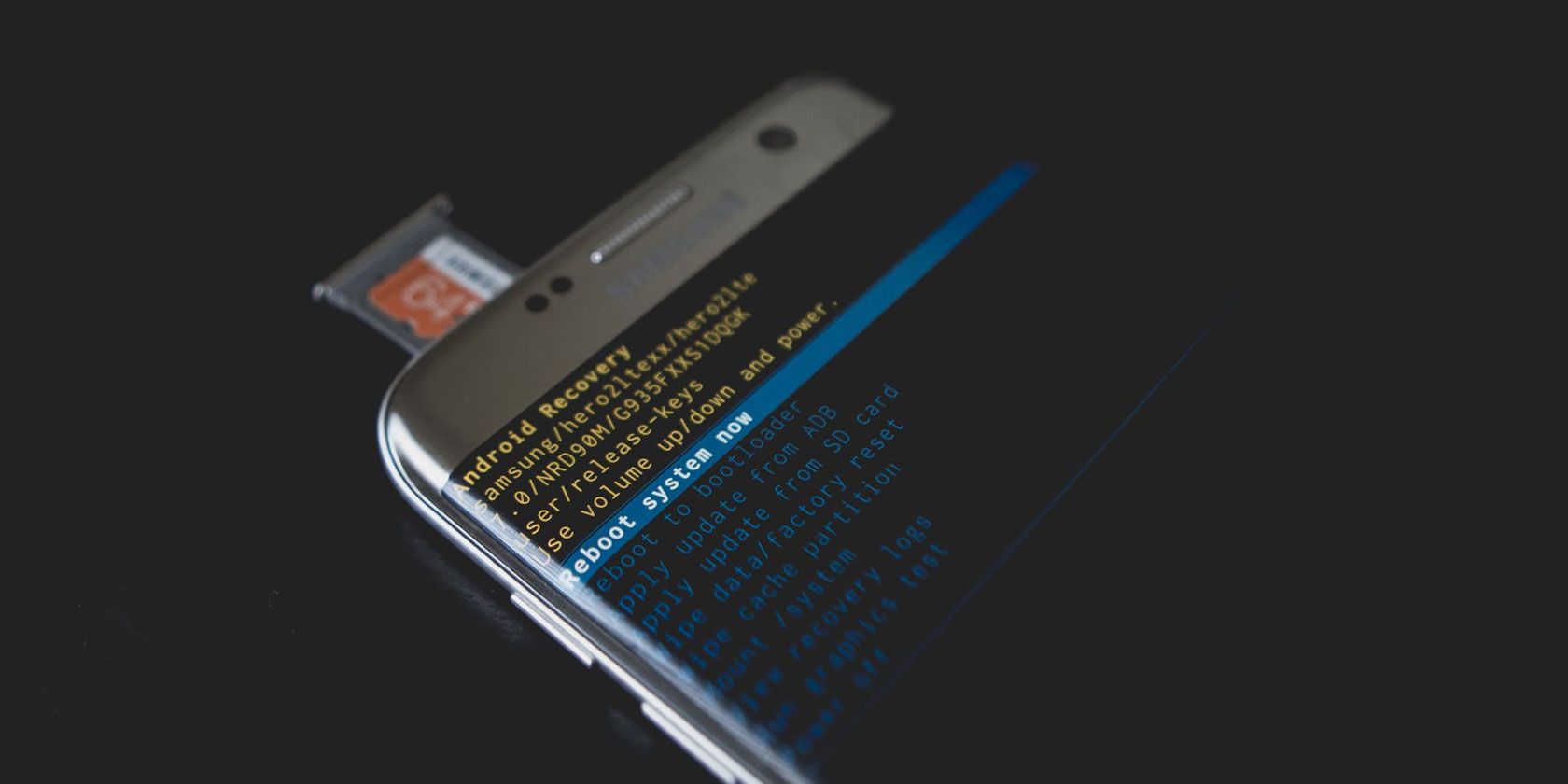
Android SOS: Conquering Common Connectivity Conundrums
Dealing with Android connectivity issues? This guide helps you diagnose and resolve frustrating Wi-Fi, Bluetooth, and mobile data problems, getting you back online in no time.
Hey there, tech-savvy friends! Ever felt that sinking feeling when your Android phone refuses to connect to the internet? Or when your Bluetooth earbuds suddenly decide they're done pairing? We've all been there, staring blankly at that little Wi-Fi icon with an exclamation mark, wondering why our phones are suddenly playing hard to get. It's like your phone is saying, "Nah, I don't feel like connecting today," right when you need it the most. Perhaps you're trying to stream your favorite playlist on your morning commute, only to be met with silence. Or maybe you're trying to video call your family, but all they see is a frozen image of your bewildered face. It's frustrating, to say the least.
Let's be honest, the modern world runs on connectivity. From ordering that late-night pizza to navigating to a new restaurant, our smartphones are our lifelines. So, when that lifeline gets tangled, panic can set in. You start frantically toggling Wi-Fi on and off, restarting your phone repeatedly (as ifthatmagically fixes everything – sometimes it does, let's be real!), and muttering under your breath about planned obsolescence. We've all done it. And while sometimes a simple reboot does the trick, more often than not, you're left scratching your head, wondering what's actually going on.
Think about it: you're at a crucial business meeting, and your presentation needs to be shared wirelessly. Your Android device simply refuses to connect to the meeting room's Wi-Fi. The presenter is looking at you, and you can feel beads of sweat forming on your forehead. Or imagine you're on a road trip, relying on your phone's GPS to guide you. Suddenly, your mobile data cuts out in the middle of nowhere, leaving you stranded with nothing but a paper map (which you haven't used since 1998) and a growing sense of dread. These aren't just inconveniences; they can be real problems.
But fear not, fellow Android users! This guide is your comprehensive toolkit for tackling those pesky connectivity gremlins. We're going to dive deep into the most common Android connectivity issues, from Wi-Fi woes to Bluetooth blunders and mobile data mysteries. We'll break down the jargon, offer practical solutions, and arm you with the knowledge to troubleshoot like a pro. Think of it as your survival guide to the digital wilderness. We'll help you understand why these problems occur in the first place, so you can prevent them from happening again. We will also explore some advanced tips and tricks that even seasoned Android users might not know.
We'll cover everything from the basics, like checking your router and ensuring Airplane Mode isn't accidentally enabled, to more advanced techniques like clearing your cache partition and updating your network settings. We'll also explore the role of your SIM card in mobile data connectivity and how to troubleshoot issues related to it. And because we know how much you love your Bluetooth headphones (or your car's Bluetooth system), we'll dedicate a section to resolving common Bluetooth pairing and connectivity problems.
So, are you ready to ditch the frustration and become the master of your Android's connectivity destiny? Let's embark on this troubleshooting adventure together! Prepare to unlock the secrets of seamless connectivity and say goodbye to those dreaded moments of digital disconnection. What if the solution to your connectivity problems is simpler than you think? Let's find out! Get ready to unlock your inner tech wizard!
Understanding Android Connectivity Issues
Android phones connect to the world in various ways: Wi-Fi, Bluetooth, and mobile data. Each of these connections has its own set of potential problems. Let's break down the common issues. First, let's talk about Wi-Fiproblems. Sometimes, it's as simple as being out of range of the router. Other times, the issue is more complex, involving router settings, IP address conflicts, or even interference from other devices.Bluetoothissues often involve pairing problems, connection drops, or incompatibility between devices. And when it comes tomobile data, network congestion, SIM card problems, or incorrect APN settings can all lead to connectivity woes.
Common Wi-Fi Problems and Solutions
Wi-Fi is the backbone of internet connectivity at home or in the office. When it fails, frustration ensues. One frequent culprit is a weak signal. If you're far from the router, the signal degrades, resulting in slow speeds or a complete disconnection. Try moving closer to the router to see if that improves the situation. Another common issue is incorrect password entry. Double-check that you're typing the correct password, paying attention to capitalization and special characters. Routers occasionally have glitches. Restarting your router and modem can often resolve these temporary problems. Simply unplug them, wait for about 30 seconds, and plug them back in.
Tackling Bluetooth Connection Challenges
Bluetooth is great for connecting wireless headphones, speakers, and other accessories. However, Bluetooth connections can be notoriously finicky. One common problem is pairing issues. Ensure that both devices are in pairing mode and that you've selected the correct device from the list. Another issue is interference. Bluetooth signals can be disrupted by other electronic devices, such as microwaves or other Bluetooth devices. Try moving away from potential sources of interference. Remember to occasionally clear the Bluetooth cache on your phone. Go to Settings > Apps > Show System Apps > Bluetooth > Storage > Clear Cache. This can help resolve conflicts with previously paired devices. Sometimes, the problem is just outdated software.
Resolving Mobile Data Connectivity Problems
Mobile data is essential when you're on the go. A common cause of mobile data issues is being in an area with poor network coverage. Move to a location with better signal strength. If that doesn't work, check your data usage settings. You might have accidentally exceeded your data limit, or data roaming might be disabled. Go to Settings > Connections > Data Usage and verify these settings. Another culprit could be incorrect APN settings. These settings tell your phone how to connect to your mobile carrier's network. You can usually find the correct APN settings on your carrier's website or by contacting customer support. They can guide you through the process of manually entering the correct APN information.
Android Troubleshooting: Wi-Fi Specific Solutions
Wi-Fi connectivity is a cornerstone of modern smartphone usage. When your Android device struggles to connect to Wi-Fi, it can disrupt everything from browsing the web to streaming videos. Let's dive into some specific solutions to common Wi-Fi issues. One simple fix is to toggle Wi-Fi on and off on your device. This can sometimes reset the connection and resolve minor glitches. Just swipe down from the top of your screen to access the quick settings panel and tap the Wi-Fi icon.
Forgetting and Reconnecting to the Network
Sometimes, your Android device can get "stuck" on a Wi-Fi network due to outdated or corrupted network settings. A good solution is to forget the network and then reconnect to it. Here's how:
Go to Settings > Connections > Wi-Fi.
Tap on the Wi-Fi network you're having trouble with.
Select Forget.Now, scan for available Wi-Fi networks and select the one you just forgot.
Enter the password and connect.
This process forces your device to re-establish a connection with the network, often resolving connectivity issues. It's like giving your phone a fresh start with that particular Wi-Fi network. Remember, this is especially helpful if the Wi-Fi network's settings have changed recently, such as a new password or security protocol.
Checking Your Router and Modem
Your router and modem are the heart of your home network. If your Android device is having trouble connecting to Wi-Fi, the problem might not be with your phone at all, but with your router or modem. Start by restarting your router and modem. Unplug them from the power outlet, wait for about 30 seconds, and then plug them back in. This can often resolve temporary glitches and restore connectivity. Next, ensure that your router's firmware is up to date. Outdated firmware can cause performance issues and security vulnerabilities. Check your router manufacturer's website for instructions on how to update the firmware. Make sure that your router is broadcasting the Wi-Fi network correctly. Log in to your router's settings page (usually through a web browser) and verify that the Wi-Fi network is enabled and that the SSID (network name) is visible.
Diagnosing IP Address Conflicts
An IP address conflict occurs when two devices on the same network are assigned the same IP address. This can prevent your Android device from connecting to the internet. To diagnose an IP address conflict, first check your device's IP address. Go to Settings > Connections > Wi-Fi, tap on the Wi-Fi network you're connected to, and look for the IP address. If your IP address is 169.254.x.x, it indicates that your device wasn't able to obtain a valid IP address from the router, suggesting a potential conflict. To resolve an IP address conflict, try restarting your Android device and your router. This can force your device to request a new IP address from the router. If that doesn't work, you can try assigning a static IP address to your Android device. This involves manually configuring the IP address, gateway, and DNS settings on your device.
Android Troubleshooting: Bluetooth Connection Solutions
Bluetooth is an indispensable technology for connecting your Android device to a myriad of accessories. When you face Bluetooth connectivity issues, it can disrupt your audio experience, prevent file transfers, and hinder other essential functions. Let's troubleshoot some common Bluetooth connection problems. Bluetooth connectivity issues can be frustrating, but they are often easily resolved.
Basic Bluetooth Troubleshooting Steps
Before diving into more advanced solutions, let's cover some basic troubleshooting steps. Start by ensuring that Bluetooth is enabled on both your Android device and the device you're trying to connect to. Swipe down from the top of your screen to access the quick settings panel and tap the Bluetooth icon to toggle it on. Make sure that the device you're trying to connect to is in pairing mode. This usually involves pressing a button or combination of buttons on the device. Restart both your Android device and the Bluetooth device. This can often resolve temporary glitches and restore connectivity.
Clearing Bluetooth Cache and Data
Just like other apps, Bluetooth stores cached data and settings that can sometimes become corrupted. Clearing the Bluetooth cache and data can resolve various connectivity issues. Here's how to do it:
Go to Settings > Apps.
Tap the three dots in the upper right corner and select "Show system apps."
Scroll down and find Bluetooth.Tap on Storage.Tap "Clear Cache" and then "Clear Data."
Keep in mind that clearing Bluetooth data will remove all paired devices, so you'll need to re-pair them after completing this process. However, it can often resolve persistent Bluetooth connectivity problems. This is particularly useful if you've been having trouble connecting to a specific device or if Bluetooth is constantly crashing or disconnecting.
Resolving Pairing Problems
Pairing problems are a common source of frustration with Bluetooth devices. If you're having trouble pairing your Android device with a Bluetooth device, try these steps:
Ensure that the Bluetooth device is compatible with your Android device. Some older Bluetooth devices may not be compatible with newer Android devices.
Move the Bluetooth device closer to your Android device. Bluetooth signals have a limited range, so moving closer can improve the connection.
Remove any obstacles between your Android device and the Bluetooth device. Walls, furniture, and other objects can interfere with Bluetooth signals.
Forget the Bluetooth device on your Android device and then re-pair it. Go to Settings > Connections > Bluetooth, tap the gear icon next to the Bluetooth device, and select Unpair.Then, put the Bluetooth device back into pairing mode and re-pair it with your Android device.
Android Troubleshooting: Mobile Data Solutions
Mobile data is crucial for staying connected when you're away from Wi-Fi. When your Android device struggles to connect to mobile data, it can disrupt your ability to browse the web, use apps, and stay in touch with others. Let's explore some solutions to common mobile data issues. Mobile data connectivity is essential for many Android users, so resolving these problems is a priority.
Checking Mobile Data Settings
The first step in troubleshooting mobile data issues is to check your mobile data settings. Ensure that mobile data is enabled on your device. Swipe down from the top of your screen to access the quick settings panel and tap the Mobile Data icon to toggle it on. Verify that you haven't exceeded your data limit. Many carriers have data limits, and once you exceed them, your data speeds may be throttled or your data access may be completely blocked. Go to Settings > Connections > Data Usage to check your data usage and limits. Make sure that data roaming is enabled if you're traveling internationally. Data roaming allows you to use mobile data on foreign networks. Go to Settings > Connections > Mobile Networks and enable Data Roaming.
Verifying APN Settings
APN (Access Point Name) settings tell your Android device how to connect to your mobile carrier's network. Incorrect APN settings can prevent your device from connecting to mobile data. To verify your APN settings, go to Settings > Connections > Mobile Networks > Access Point Names. You should see a list of APNs for your carrier. If you don't see any APNs, or if the APN settings are incorrect, you'll need to manually enter the correct APN settings. You can usually find the correct APN settings on your carrier's website or by contacting customer support. They can provide you with the necessary information, such as the APN name, APN type, and other settings.
SIM Card Troubleshooting
Your SIM (Subscriber Identity Module) card is what identifies your device on your mobile carrier's network. SIM card problems can prevent your device from connecting to mobile data. Start by restarting your Android device. This can sometimes resolve temporary issues with the SIM card. If that doesn't work, try removing and reinserting the SIM card. Power off your device, remove the SIM card tray, take out the SIM card, and then reinsert it. Make sure the SIM card is properly seated in the tray. Inspect the SIM card for any damage. If the SIM card is bent, cracked, or otherwise damaged, it may need to be replaced. Contact your mobile carrier for a replacement SIM card.
Advanced Android Connectivity Troubleshooting
Sometimes, the standard troubleshooting steps aren't enough to resolve Android connectivity issues. In these cases, you may need to try some more advanced techniques. These techniques involve digging deeper into your device's settings and configuration. While they can be effective, they also carry some risk, so it's important to proceed with caution. Always back up your data before attempting any advanced troubleshooting steps.
Resetting Network Settings
Resetting network settings can be a powerful way to resolve persistent connectivity issues. This process resets all network-related settings on your device, including Wi-Fi passwords, Bluetooth pairings, and mobile data settings. To reset network settings, go to Settings > General Management > Reset > Reset Network Settings. Tap "Reset Settings" to confirm the action. Keep in mind that this will remove all saved Wi-Fi passwords and Bluetooth pairings, so you'll need to re-enter them after completing this process. However, it can often resolve underlying network configuration problems that are causing connectivity issues.
Checking for Software Updates
Outdated software can sometimes cause connectivity problems. Android updates often include bug fixes and performance improvements that can resolve connectivity issues. To check for software updates, go to Settings > Software Update > Download and Install. Your device will check for available updates. If an update is available, download and install it. Make sure your device is connected to Wi-Fi and has sufficient battery life before starting the update process.
Performing a Factory Reset
As a last resort, you can perform a factory reset on your Android device. This will erase all data and settings on your device and restore it to its original factory state. Before performing a factory reset, make sure to back up all your important data, such as contacts, photos, and videos. To perform a factory reset, go to Settings > General Management > Reset > Factory Data Reset. Tap "Reset" to confirm the action. Keep in mind that this will erase all data on your device, so only use this as a last resort.
Preventing Future Android Connectivity Issues
Prevention is always better than cure. After resolving your Android connectivity issues, it's important to take steps to prevent them from happening again in the future. Simple habits can significantly reduce the likelihood of encountering these problems.
Keeping Your Device Updated
Regularly updating your Android device is crucial for maintaining optimal performance and preventing connectivity issues. Software updates often include bug fixes and security patches that can address known connectivity problems. To ensure you receive timely updates, enable automatic software updates in your device's settings. This will allow your device to automatically download and install updates when they become available.
Regularly Restarting Your Device
Restarting your Android device regularly can help prevent connectivity issues. Restarting your device clears temporary files and resets various system processes, which can improve overall performance and stability. Aim to restart your device at least once a week. You can also schedule automatic restarts using third-party apps.
Managing App Permissions
Granting excessive permissions to apps can sometimes lead to connectivity issues. Some apps may request unnecessary access to your device's network connections, which can interfere with other apps and services. Review your app permissions regularly and revoke any permissions that seem unnecessary. Go to Settings > Apps, select an app, and tap "Permissions" to review and manage its permissions.
Conclusion: Mastering Your Android Connection
In essence, tackling Android connectivity challenges involves a blend of understanding common issues, employing specific solutions, and adopting preventative measures. From simple Wi-Fi troubleshooting to advanced mobile data diagnostics, the tools and techniques discussed empower to regain control over device's connectivity. By staying informed and proactive, maintaining a stable and reliable connection is within reach.
The ability to troubleshoot connectivity issues effectively saves both time and frustration. It allows to fully leverage the capabilities of device, whether for work, communication, or entertainment. Remember to prioritize security, keep software updated, and manage app permissions to minimize potential disruptions.
Now armed with this comprehensive guide, confidently approach any Android connectivity problem. Experiment with the suggested solutions, adapt them to situation, and don't hesitate to seek further assistance from manufacturer or online communities. Remember, the power to restore connection lies within reach.
Take action today by implementing the strategies discussed in this article. Regularly check your network settings, update your software, and manage your app permissions. By doing so, you'll significantly reduce the likelihood of encountering connectivity issues in the future.
So, are you ready to conquer those connectivity conundrums and enjoy a seamless Android experience? Now go forth and connect! What steps will you take today to improve your Android device's connectivity?

Post a Comment for "Android Troubleshooting: Solving Common Connectivity Issues"
Post a Comment