Android Battery Optimization: Tips for Saving Power
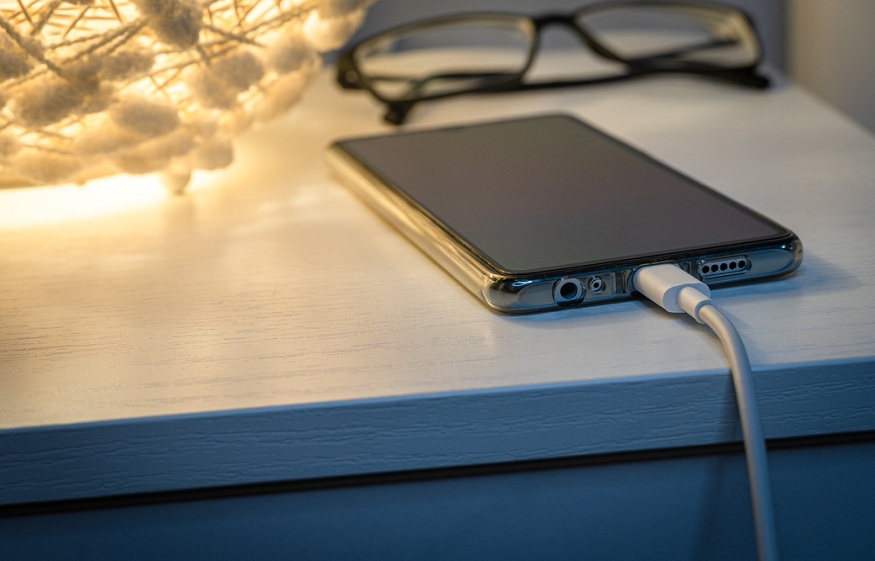
Supercharge Your Phone: Android Battery Optimization Tips for Saving Power
Hey there, tech-savvy friends! Ever felt that sinking feeling when your phone battery dips into the red zonewaybefore lunchtime? You’re not alone. We’ve all been there, frantically searching for an outlet, limiting our app usage, and silently cursing battery drain. This article will arm you with the ultimate Android battery optimization tips to save power and keep your device running longer. Let's dive in and transform your battery life from dreadful to dependable!
Understanding Android Battery Optimization: Tips for Saving Power
Isn't it ironic? We carry these powerful little computers in our pockets, capable of doingamazingthings, yet their kryptonite is battery life. It feels like a cruel joke. The truth is, our phones are constantly juggling countless tasks, from background processes to location services, all while displaying vibrant visuals on our screens. This constant activity puts a serious strain on the battery, leading to that dreaded low-battery notification. The good news? There are tons of tricks you can use to mitigate this, from simple tweaks to more advanced strategies. Android battery optimization doesn't have to be a dark art; it can be a set of easy-to-follow practices that drastically improve your device's stamina. This article breaks it all down in an easy to understand manner. Let’s move on and delve deeper into the world of Android battery optimization.
Identifying Battery Hogs: Finding the Culprits
Before we jump into solutions, we need to identify therealbattery offenders. Think of it like detective work; you've got to gather the evidence to solve the case. Luckily, Android makes it fairly easy to pinpoint the apps and processes consuming the most power. Here's how:
Checking Battery Usage Stats
Head over to your phone's settings, then tap on "Battery" (the exact wording might vary slightly depending on your Android version and manufacturer, but it's usually easy to find). This screen will display a breakdown of your battery usage, showing which apps and system processes are consuming the most power. This information iscrucial.
Understanding App Battery Consumption
Pay close attention to the apps listed. You might be surprised to see that some seemingly innocent apps are actually major battery drainers. For example, a social media app constantly checking for updates in the background or a game with intense graphics can quickly deplete your battery. Understanding which apps are the biggest culprits is the first step toward implementing effective Android battery optimization techniques.
Recognizing Background Activity
It's not just the apps you actively use that drain your battery. Many apps run processes in the background, even when you're not actively using them. These background activities can include syncing data, checking for updates, and sending notifications. These are sometimes necessary, but often these processes drain the battery without offering any useful benefit. Identifying these hidden battery drains is key to optimizing your battery life.
Simple Tweaks for Instant Savings
Now that we've identified the potential battery hogs, let's move on to some simple tweaks that can make abigdifference in your device's battery life. These are the low-hanging fruit of Android battery optimization – easy to implement and surprisingly effective.
Adjusting Screen Brightness
Your screen is one of the biggest battery consumers on your phone. Reducing screen brightness, even by a small amount, can significantly extend your battery life. Avoid setting your brightness to the maximum level unless absolutely necessary.
Enabling Adaptive Brightness
Most Android phones have an "Adaptive Brightness" (or "Auto-Brightness") feature. This feature automatically adjusts the screen brightness based on the ambient light. Enabling adaptive brightness allows the display to automatically adjust to the optimal brightness for each setting, helping to reduce strain on your eyes and battery.
Shortening Screen Timeout
The "Screen Timeout" setting determines how long your screen stays on after you stop interacting with it. Setting a shorter screen timeout (e.g., 30 seconds or 1 minute) can prevent your screen from staying on unnecessarily, draining your battery. This small adjustment can add up to noticeable savings over time.
Disabling Unnecessary Notifications
Notifications can be distractingandbattery-draining. Every time your phone receives a notification, the screen lights up, and your phone performs background tasks to retrieve the notification data. Disabling notifications for apps that you don't need to be constantly alerted about can save a surprising amount of battery.
Turning Off Location Services When Not in Use
Location services, while useful for maps and location-based apps, can also be a major battery drain. Many apps constantly track your location in the background, even when you're not actively using them. Turning off location services when you don't need them can significantly improve your battery life. Alternatively, set apps to only access your location while the app is in use.
Advanced Android Battery Optimization: Digging Deeper
For those who want to take their battery optimization efforts to thenextlevel, there are some more advanced techniques you can employ. These tips require a bit more effort, but the rewards can be well worth it.
Managing Background App Activity
Android allows you to control how apps behave in the background. You can restrict background app activity for apps that you don't need running constantly. This can prevent apps from draining your battery when you're not actively using them. The specific steps for managing background app activity may vary depending on your Android version and manufacturer.
Using Battery Saver Mode
Android has a built-in "Battery Saver" mode that can significantly extend your battery life when you're running low. Battery Saver mode typically reduces CPU performance, limits background app activity, and dims the screen to conserve power. It's a great option when you need to squeeze every last drop of juice out of your battery.
Force Stopping Apps
If an app is misbehaving and draining your battery excessively, you can try force-stopping it. Force-stopping an app completely shuts it down, preventing it from running any background processes. However, be aware that force-stopping an app may cause it to lose unsaved data or function improperly until you relaunch it.
Clearing App Cache and Data
Over time, apps can accumulate a lot of cached data and temporary files. This cached data can sometimes become corrupted or inefficient, leading to increased battery drain. Clearing an app's cache and data can sometimes resolve these issues and improve battery life.
Optimizing App Settings
Many apps have their own settings that can affect battery life. Take some time to explore the settings of your most used apps and look for options to optimize battery usage. For example, you might be able to disable automatic syncing, reduce image quality, or turn off unnecessary features.
App-Specific Android Battery Optimization: Tips for Saving Power
Certain types of apps are notorious for being battery hogs. Let's take a look at some specific app categories and how to optimize their battery usage.
Social Media Apps
Social media apps areinfamousfor their battery drain. They're constantly checking for updates, sending notifications, and running background processes. To optimize social media app battery usage:
Reduce the frequency of notifications.
Disable automatic video playback.
Limit background data usage.
Consider using the mobile website instead of the app.
Gaming Apps
Gaming apps, especially those with intense graphics, can quickly drain your battery. To optimize gaming app battery usage:
Lower the graphics settings.
Reduce the frame rate.
Play in shorter sessions.
Close other apps while gaming.
Streaming Apps
Streaming apps like Netflix and You Tube can also be battery intensive. To optimize streaming app battery usage:
Download content for offline viewing.
Reduce the video quality.
Use headphones instead of the speaker.
Email Apps
Email apps are necessary, but they can also drain your battery if they're constantly syncing in the background. To optimize email app battery usage:
Reduce the frequency of sync checks.
Disable push notifications.
Manually sync your email when needed.
Hardware Considerations: Extending Battery Life
Software tweaks aren't the only way to improve battery life. Your phone's hardware also plays a role.
Airplane Mode
When you're in an area with poor cell reception, your phone worksextrahard to maintain a connection. This can quickly drain your battery. Turning on Airplane Mode disables cellular connectivity, Wi-Fi, and Bluetooth, which can significantly extend your battery life when you don't need these features.
Wi-Fi and Bluetooth
Keeping Wi-Fi and Bluetooth enabled when you're not using them can also drain your battery. Your phone is constantly scanning for available networks and devices, which consumes power. Turn off Wi-Fi and Bluetooth when you don't need them.
Battery Health
Over time, your phone's battery will naturally degrade. The older your battery gets, the less charge it will hold. If you've had your phone for a long time and your battery life is significantly worse than it used to be, it might be time to consider replacing the battery or getting a new phone.
Battery Management Tools and Apps
While Android offers built-in battery management features, there are also third-party apps that can help you optimize your battery life. However, becautiouswhen using these apps. Some of them can be ineffective or even harmful, so it's important to choose reputable apps from trusted developers.
Choosing Battery Saver Apps Carefully
Look for apps with good reviews and a proven track record. Avoid apps that promise unrealistic battery savings or require excessive permissions. Many of the apps offer dubious features and can even harm your privacy.
Using Built-In Tools When Possible
Whenever possible, rely on Android's built-in battery management features instead of third-party apps. These features are designed to work seamlessly with your phone's operating system and are less likely to cause problems.
Debunking Battery Myths: Separating Fact from Fiction
There are many myths and misconceptions surrounding battery optimization. Let's debunk some of the most common ones.
Myth: You Need to Fully Charge Your Battery Every Time
This used to be true for older battery technologies, but it'snottrue for modern lithium-ion batteries. It's actually better to keep your battery between 20% and 80% charge.
Myth: Closing Apps Saves Battery
Closing apps manually doesn't always save battery. In some cases, it can actually drain more battery because your phone has to reload the app from scratch when you open it again. Android is designed to manage apps efficiently in the background.
Myth: Fast Charging Damages Your Battery
Fast chargingcangenerate more heat, which can degrade your battery over time. However, most modern phones have built-in safety mechanisms to prevent overheating. Using the charger that came with your phone is usually the safest option.
Conclusion: Android Battery Optimization - Tips for Saving Power
So there you have it, friends! A comprehensive guide to Android battery optimization: tips for saving power. Optimizing your Android battery life is an ongoing process. Experiment with different techniques, monitor your battery usage, and adjust your settings as needed. By following these tips, you can significantly extend your device's battery life and get more out of your phone. Remember, small changes can make abigdifference. Implement these tips today and enjoy a longer-lasting battery!
Remember to regularly check your battery usage stats, adjust your settings, and be mindful of your app usage. And share these tips with your friends! Let's help everyone get the most out of their Android devices.
Now it's time to put these Android battery optimization tips into action! Start by identifying the biggest battery hogs on your phone and then implement some of the simple tweaks we discussed. You'll be amazed at how much longer your battery lasts.
What are your favorite battery-saving tips? Share them in the comments below!

Post a Comment for "Android Battery Optimization: Tips for Saving Power"
Post a Comment