Android Update Problems: Troubleshooting Common Issues
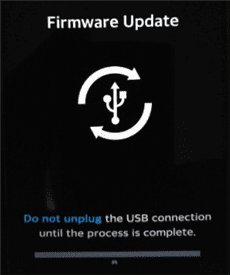
Android Update Problems: Conquering the Update Chaos
Android updates, those little bundles of joy that promise new features and improved performance, can sometimes turn into a real headache.
Hey there, Android enthusiasts! Let's be honest, that little notification popping up on your phone promising a shiny new Android update often brings a mix of excitement andtrepidation. We've all been there, right? The promise of faster speeds, cool new emojis, and enhanced security features isenticing. But lurking beneath the surface is the potential for things to go horribly, hilariously wrong. Your phone suddenly freezing mid-Instagram scroll? Apps crashing more often than a demolition derby? Battery life plummeting faster than your stock portfolio after a bad tip? Yeah, we'veallexperienced the Android update blues.
Think about it: you're ready to settle in for a relaxing evening of binge-watching your favorite show, when suddenly your phone demands your attention. "Software Update Available!" it proclaims. Reluctantly, you tap "Install," picturing all the glorious improvements to come. Thirty minutes later, your phone is stuck in a boot loop, the screen displaying nothing but the Android logo like some kind of mocking deity. Or perhaps, after the update, your favorite app is no longer compatible, leaving you feeling like you've traveled back in time to the pre-app era.Frustrating, isn't it?
The truth is, Android updates, while generally beneficial, can be a bit of a gamble. They're like that blind date your friend sets you up with – it could be amazing, or it could be a complete disaster. And sometimes, even if the update itself goes smoothly, you might find that it introduces new quirks and issues you never anticipated. The new notification shade isugly, the battery drains way faster than before, or your widgets are no longer working correctly. It's like solving one problem only to create three more.
But fear not, fellow Android users! This article is your survival guide to navigating the treacherous waters of Android updates. We're going to dive deep into the most common Android update problems, explore the reasons why they happen, and, most importantly, equip you with theknowledgeandtoolsto troubleshoot them like a pro. We'll cover everything from preparing your device for an update to diagnosing and resolving issues that arise afterward. So, buckle up, grab your favorite beverage, and get ready to conquer the update chaos! Are you ready to transform from an Android update victim into an Android updatevictor? Let's get started!
Understanding Common Android Update Problems
Android updates aren't always smooth sailing. Recognizing the common issues is the first step toward resolving them. This section covers a variety of update problems, from installation failures to post-update performance issues.
Installation Failures and Errors
One of the most frustrating experiences is when an update fails to install properly. Several factors can cause installation failures. It could be due to insufficient storage space, a corrupted download file, or interrupted download progress. Check if you have enough storage space available on your device; Android updates require a significant amount of free space to download and install. A corrupted download file can also prevent successful installation, usually due to an unstable internet connection during the download process. Interrupted download progress may leave your device in an unstable state. Ensure you have a stable Wi-Fi connection and avoid using your device while the update is downloading. Sometimes, simply restarting your device before attempting the update again can resolve underlying software glitches that are preventing the installation.Persistentinstallation failures may indicate more serious issues, such as hardware incompatibility or firmware corruption.
Post-Update Performance Issues
After successfully installing an update, many users experience performance issues, such as sluggishness, app crashes, and battery drain. These problems can arise from compatibility issues between the updated operating system and existing apps or from background processes consuming excessive resources. It is important to note that some degree of performance degradation is normal immediately after an update, as the system optimizes new components and processes. However,severeorpersistentperformance issues should be addressed. Closing unused apps, clearing cache and data for problematic apps, and restarting your device can help resolve post-update performance issues. If problems persist, consider performing a factory reset,afterbacking up your data.
Compatibility Issues with Apps
Android updates can sometimes break compatibility with existing apps, causing them to crash or malfunction. This usually happens when app developers fail to update their apps to be compatible with the latest Android version. When an update is pushed, it is common to see many apps suddenly begin to crash. Always check the app store for updates to the apps you use regularly. If there are no updates, contacting the app developer directly may be necessary to report the compatibility issues and request a fix. In some cases, rolling back to a previous version of the app might temporarily resolve the problem until the developers release an updated version. This can often be achieved by finding the previous version's APK online. Remember to be cautious when downloading files from unknown sources.
Battery Drain After Update
One of the mostcomplainedabout issues after an Android update is the rapid depletion of the battery. Updates often introduce new features and optimizations, which can sometimes lead to increased background activity. Identify battery-draining apps by checking the battery usage statistics in your device settings. You can then take steps to optimize battery life, such as adjusting screen brightness, disabling background app refresh, and enabling battery-saving mode. If a particular app is consuming an excessive amount of battery, consider uninstalling it or finding an alternative. Clearing cache and data for apps can also help resolve battery drain issues. If nothing else helps, a factory reset can sometimes resolve underlying system-level issues causing the battery drain.
Network Connectivity Problems
Android updates can sometimes interfere with network connectivity, leading to Wi-Fi or mobile data problems. This can manifest as inability to connect to networks, slow internet speeds, or frequent disconnections. First, restart your device and your router. Next, try resetting your network settings. You can usually find this option in your device settings under "General management" or a similar category. Confirm that your Wi-Fi password is correct. Additionally, check if there are any software updates available for your router. If the problem persists, try forgetting the Wi-Fi network and re-adding it, or consider resetting your APN settings to the default configuration.
Prepping Your Device for a Smooth Update
Preparation is key to a smooth Android update process. Taking a few simple steps before you hit that "Install" button can significantly reduce the chances of encountering problems.
Back Up Your Data
Backing up your data iscrucialbefore undertaking any major software update. Android updates can sometimes go wrong, leading to data loss. Back up your photos, videos, contacts, messages, and other important data. There are several ways to back up your data. You can use cloud storage services like Google Drive or Dropbox, or you can connect your device to a computer and manually copy files. Another option is to use a dedicated backup app, such as Titanium Backup or Helium. Consider backing up your device settings and app data as well, if possible.Regularbackups are generally a good practice, not just before updates.
Ensure Sufficient Storage Space
Android updates require a significant amount of storage space to download and install. Ensure that you have enough free space available on your device before starting the update process. Delete unnecessary files, such as old photos, videos, and apps that you no longer use. Consider moving large files to an external storage device, such as an SD card, if your device supports it. Clear the cache and data for apps that consume a lot of storage space. You can find storage usage information in your device settings under "Storage". Aim to have at least a few gigabytes of free space available before starting the update. This ensures that the update file can be downloaded and installed without any issues.
Maintain a Stable Internet Connection
Astableinternet connection is essential for a successful Android update. A disrupted connection can lead to corrupted download files, which can prevent the update from installing correctly. Use a reliable Wi-Fi network for the update process. Avoid using public Wi-Fi networks, as they can be less secure and more prone to disruptions. If you're using mobile data, ensure you have a strong and stable signal. Avoid moving around while the update is downloading and installing. If the download process is interrupted, your device may attempt to resume the download automatically. However, if the download fails repeatedly, you may need to restart your device or clear the cache for the Google Play Store or system update service.
Charge Your Battery
It is crucial to charge your device to at least 50% before starting an Android update. Updates can take a long time to install, and a low battery can cause the process to be interrupted, potentially leading to serious problems. Plug your device into a charger and let it charge until it reaches at least 50%. Preferably, keep it plugged in throughout the entire update process. If your device runs out of battery during the update, it may become bricked, requiring a factory reset or even professional repair.Preventativemaintenance of your battery life helps ensure your updates continue smoothly.
Troubleshooting Common Android Update Issues
Even with the best preparation, things can still go wrong during or after an Android update. Here's how to troubleshoot some of the most common issues.
Force Restart Your Device
Aforce restartcan often resolve minor software glitches that may be preventing the update from installing or causing performance issues after the update. The process for performing a force restart varies depending on the device model. Typically, it involves pressing and holding the power button and volume down button simultaneously for several seconds until the device restarts. Check your device manufacturer's website or user manual for specific instructions on how to perform a force restart. This action clears the device's memory and restarts the operating system, which can help resolve temporary software conflicts.Regularrestarts are good practice for maintaining your device.
Clear Cache Partition
The cache partition stores temporary data that apps and the operating system use to speed up performance. Sometimes, corrupted or outdated cache data can cause problems after an Android update. Clearing the cache partition can resolve these issues. The process for clearing the cache partition involves booting your device into recovery mode. This is typically done by pressing a combination of buttons while the device is powering on, such as the power button, volume up button, and home button. Once in recovery mode, use the volume buttons to navigate to the "Wipe cache partition" option and press the power button to select it.Important*: beabsolutelycertain you are only clearing the cache partition and nothing else.
Check App Compatibility and Updates
After an Android update, some apps may become incompatible or may experience performance issues. Check the Google Play Store for updates to your apps. App developers often release updates to fix compatibility issues with new Android versions. If an app is still causing problems after updating, try clearing its cache and data. You can do this in your device settings under "Apps" or "Application Manager". If the problem persists, consider uninstalling the app and reinstalling it. If the app is still incompatible, consider contacting the app developer to report the issue or finding an alternative app. Always be aware of the apps you are loading on your phone.
Reset Network Settings
Network connectivity issues after an Android update can sometimes be resolved by resetting your network settings. This will reset your Wi-Fi, Bluetooth, and mobile data settings to their default configurations. You can find this option in your device settings under "General Management" or "Reset". Keep in mind that resetting your network settings will erase your saved Wi-Fi passwords and Bluetooth pairings, so you will need to re-enter them. After resetting your network settings, restart your device and try connecting to your Wi-Fi network or mobile data again. If the problem persists, try updating your device's network drivers or contacting your network provider.
Factory Reset as a Last Resort
If all other troubleshooting steps fail, a factory reset may be necessary. A factory reset will erase all data from your device and restore it to its original factory settings. This shouldonlybe considered as alast resort, as it will result in data loss. Before performing a factory reset, make sure to back up all of your important data. You can initiate a factory reset in your device settings under "General Management" or "Reset". Follow the on-screen instructions to complete the process. After the factory reset, you will need to set up your device again from scratch. Be sure to restore your data from the backup you created earlier.
Preventing Future Android Update Issues
The best way to deal with Android update problems is to prevent them from happening in the first place. Here are some tips for ensuring a smoother update experience in the future.
Keep Your Apps Updated Regularly
Outdated apps can cause compatibility issues after an Android update. Keeping your apps updated regularly ensures that they are compatible with the latest Android version. Enable automatic app updates in the Google Play Store settings. This will ensure that your apps are always up to date without you having to manually check for updates. Periodically, manually check for updates, as some app updates may require manual intervention. Keeping your apps up to date is aproactivestep.
Monitor Your Device's Health
Regularly monitoring your device's health can help identify potential issues before they become major problems. Keep an eye on your device's storage space, battery life, and performance. If you notice any unusual behavior, such as sluggishness, app crashes, or excessive battery drain, take steps to address the issue promptly. Use device maintenance apps to optimize your device's performance and clear unnecessary files.Maintainingyour device is an important part of owning a smartphone.
Research Before Updating
Before installing an Android update, take some time to research it. Check online forums, social media, and tech websites for reports of any known issues with the update. Be aware of any potential problems and take steps to mitigate them. Consider waiting a few days or weeks after the update is released before installing it. This will give other users time to discover and report any issues, which can help you avoid encountering them yourself.Preparationis key before applying an update.
Stay Informed About Android Updates
Stay informed about upcoming Android updates and their potential impact on your device. Follow tech blogs, news websites, and social media accounts that cover Android updates. Be aware of any new features, changes, and potential issues associated with the updates. This knowledge will help you make informed decisions about when and how to update your device. Remember, information ispowerwhen it comes to updates.
Consider Custom ROMs (Advanced Users)
For advanced users, custom ROMs can offer greater control over the Android operating system and update process. Custom ROMs are modified versions of Android that are developed by independent developers. They often offer enhanced features, performance improvements, and greater customization options. However, installing a custom ROM can be risky and may void your device's warranty. Ensure you back up your device before installing a custom ROM. Consider using a reputable custom ROM with a large and active community.
Android updates, while intended to improve your device, can sometimes bring unexpected challenges. By understanding the common problems, preparing your device, troubleshooting issues, and taking preventive measures, you can significantly reduce the chances of encountering problems and ensure a smoother update experience. You now have all of the knowledge necessary to conquer those pesky update problems. So go ahead, and confidently update your Android device.
Now that you are armed with the knowledge to tackle Android update issues, go forth and conquer the digital world. Remember to back up your data and proceed with caution! Stay tech-savvy, my friends!

Post a Comment for "Android Update Problems: Troubleshooting Common Issues"
Post a Comment