Android Data Recovery: Recovering Deleted Photos & Files
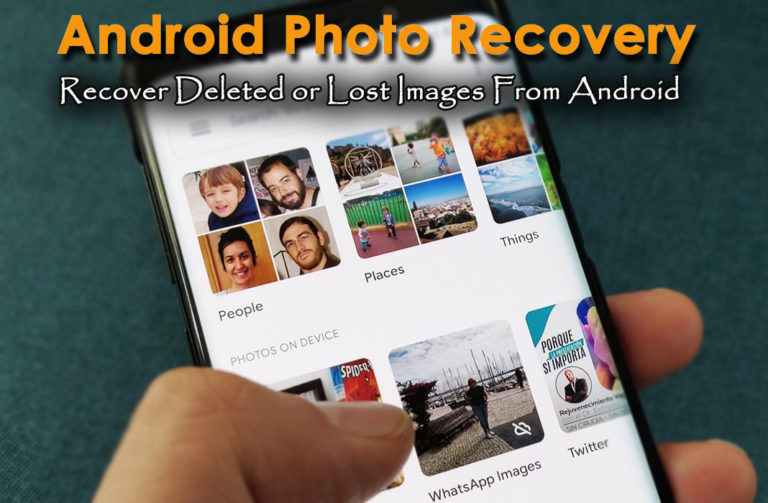
Android Data Recovery: The Ultimate Guide to Retrieving Your Lost Photos and Files
Oops! Did you just accidentally delete thatabsolutelyperfectpicture of your dog wearing that tiny hat? Or maybe thatsuper importantdocument you needed for work vanished into thin air? Don't panic! Data loss on Android devices happens to the best of us, and thankfully, it's often recoverable. This guide is your lifeline when digital disaster strikes, offering a comprehensive walkthrough on Android data recovery and getting those precious photos and files back where they belong. Let's dive in before those "deleted" files are truly gone forever!
Understanding Android Data Recovery: Recovering Deleted Photos & Files
Ever wonder where deleted filesactuallygo? Unlike throwing something in the trash can, deleting on Android doesn’t immediately erase the data. Instead, it marks the space occupied by the file as available for new data. Think of it like re-labeling a parking spot as empty.The car (your file) is still technically there until a new car (new data) parks in its place. This is why quick action iscrucial! The longer you wait, the higher the chance that your deleted files will be overwritten andpermanentlylost.
So, what are your options? We'll explore various methods, from checking your cloud backups to using specialized data recovery software. But before we do, it's important to understand the factors that affect data recovery success. The type of storage (internal vs. external), the age of the deleted files, and whether your device is rooted all play a role. Don’t worry if these terms sound foreign; we'll break it all down step-by-step. The most important thing to remember is thathoperemains! Ready to become a data recovery pro? Keep reading!
Common Scenarios for Android Data Loss:Recovering Deleted Photos & Files
Let's be honest, we've all been there. Whether it's a clumsy swipe or a software glitch, data loss can strike at any time. Understanding thecommonculpritscan help you be more prepared and prevent future mishaps. Here are a few familiar scenarios: Accidental Deletion: This is the classic blunder. You're cleaning up your gallery, accidentally tap "delete" on that irreplaceable vacation photo, andbam! Gone. Formatting Errors: Sometimes, your SD card or internal storage might get corrupted, prompting you to format it. While this can fix the problem, it also wipes out all your data. Software Updates Gone Wrong: Occasionally, software updates can go awry, leading to data loss. Always back up your devicebeforeinitiating any major updates! Malware Infections: Nasty malware can wreak havoc on your system, deleting or corrupting your files. Factory Resets: Performing a factory reset erases everything on your device, restoring it to its original state. Beabsolutely sureyou have a backup before taking this step! Physical Damage:Dropping your phone in water or damaging the screen can also lead to data loss, especially if the internal storage is affected.
Recognizing these scenarios allows you to be proactive. Regular backups, cautious app downloads, and careful handling of your device can significantly reduce the risk of data loss.
Initial Checks: The First Line of Defense in Android Data Recovery
Before you start downloading fancy data recovery software, let's explore somesimplechecksthat might just save the day. You'd be surprised how often the solution is right under your nose.
Check Your Cloud Storage:Many Android users automatically back up their photos and videos to services like Google Photos, Google Drive, or Dropbox.Immediatelycheck these platforms! Your files might already be safe and sound. Recycle Bin/Trash Folder: Some file managers have a built-in recycle bin or trash folder, similar to your computer. Deleted files might be temporarily stored here before being permanently erased. Manufacturer's Cloud Services: Some phone manufacturers, like Samsung, offer their own cloud backup services. Check if you've enabled this feature on your device. SD Card Check: If the missing files were stored on an SD card, remove the card and try accessing it on a computer using a card reader. The card might be corrupted, but accessing it on a different device can sometimes recover the data. Recently Deleted Folder:Many gallery apps have a "Recently Deleted" or "Trash" folder where deleted photos and videos are stored for a limited time (usually 30 days).
These initial checks are quick, easy, and can often provide afastresolutionto your data recovery woes. Always start here before moving on to more complex methods.
Cloud Backup Solutions:Your Safety Net for Android Data Recovery
Cloud backups are like having adigitalsafety netfor your precious data. They automatically save your files to a remote server, ensuring that you can recover them even if your device is lost, damaged, or formatted. Let's explore some popular cloud backup options: Google Photos: This is afantasticoption for backing up your photos and videos. It often comes pre-installed on Android devices and offers generous free storage. Make sure you've enabled automatic backups in the Google Photos settings. Google Drive: Google Drive allows you to back up various types of files, including documents, spreadsheets, and PDFs. You can also use it to back up your phone's settings and app data. Dropbox: Dropbox is another popular cloud storage service that offers file synchronization and backup capabilities. It's a great option for backing up important documents and other files. Microsoft One Drive: If you're heavily invested in the Microsoft ecosystem, One Drive is a solid choice. It integrates seamlessly with Microsoft Office apps and offers ample storage. Samsung Cloud (for Samsung Users):Samsung devices often come with Samsung Cloud, which allows you to back up your device settings, contacts, messages, and other data.
Why Cloud Backups are Essential
Automatic Backup:Set it and forget it! Cloud backups automatically save your data in the background, so you don't have to worry about manual backups. Accessibility: Access your files from anywhere with an internet connection. Disaster Recovery:Even if your phone is completely destroyed, your data is safe in the cloud.
If you're not already using cloud backups,nowis the time to start. It's thebestwayto protect your data from unexpected loss.
Data Recovery Software:Digging Deeper for Android Data Recovery
When the initial checks and cloud backups fail, it's time to bring out thebigguns: data recovery software. These powerful tools scan your device's storage for deleted files and attempt to recover them. However, it's important to choose the right software and use itcorrectlyto maximize your chances of success.
Popular Data Recovery Software Options
Ease US Mobi Saver for Android: This software is known for itsuser-friendly interfaceand ability to recover various file types, including photos, videos, contacts, and messages. Dr.Fone - Data Recovery (Android): Dr.Fone is acomprehensive datarecoverysuite that offers a wide range of features, including data recovery, screen unlock, and system repair. i Mobie Phone Rescue for Android: Phone Rescue is anotherpowerfuldata recoverytool that can recover data from both rooted and unrooted Android devices. Tenorshare Ult Data for Android: Ult Data boasts ahigh successrateand supports the recovery of a variety of file types, including Whats App messages and call history.
Important Considerations when Choosing Data Recovery Software
Compatibility:Make sure the software is compatible with your Android device and operating system. Root Access: Some data recovery software requires root access to your device, which can void your warranty. Free vs. Paid: Many data recovery tools offer a free trial or limited version. Consider upgrading to the paid version for full functionality. Reviews and Ratings: Read reviews and ratings from other users to get an idea of the software's effectiveness and reliability.
How to Use Data Recovery Software (General Steps)
1.Download and Install: Download and install the data recovery software on your computer.
2.Connect Your Device: Connect your Android device to your computer using a USB cable.
3.Enable USB Debugging: Enable USB debugging on your Android device (usually found in the Developer Options settings).
4.Scan Your Device: Launch the data recovery software and select your device for scanning.
5.Preview and Recover: Preview the recovered files and select the ones you want to save.
Remember*: Data recovery software is not a guaranteed solution. The success rate depends on various factors, including the age of the deleted files and whether they have been overwritten.
Preventing Future Data Loss: Proactive Measures for Android Data Security
While data recovery is helpful, thebestapproachis to prevent data loss in the first place. Taking proactive measures can save you a lot of headaches and ensure that your precious files remain safe.
Essential Data Loss Prevention Tips
Regular Backups:Implement aconsistentbackup strategy. Use cloud backups, manual backups to your computer, or a combination of both. Use a Strong Password/PIN: Protect your device with astrong password, PIN, or biometric authentication (fingerprint or face recognition). Enable Find My Device: Enable the "Find My Device" feature in your Google account. This will allow you to locate, lock, or wipe your device remotely if it's lost or stolen. Be Careful with App Permissions: Pay attention to the permissions that apps request. Only grant permissions that arenecessaryfor the app to function. Install a Reliable Antivirus App: Protect your device from malware by installing areputable antivirusapp. Keep Your Software Updated: Install software updates promptly. These updates often include security patches that can protect your device from vulnerabilities. Handle Your Device with Care: Avoid exposing your device to extreme temperatures, moisture, or physical damage.
By following these tips, you can significantly reduce the risk of data loss and keep your Android device safe and secure.
Rooting and Data Recovery: A Double-Edged Sword in Android Data Recovery
Rooting your Android device gives yousuper-useraccessto the operating system, allowing you to customize your device and install advanced apps. However, it also comes with risks, including the potential to void your warranty and brick your device. From a data recovery perspective, rooting can be adouble-edged sword.
Benefits of Rooting for Data Recovery
Deeper Scan: Root access allows data recovery software to perform adeeper scanof your device's storage, potentially recovering files that would otherwise be inaccessible. Access to System Files:Root access allows you to access and modify system files, which can be helpful in certain data recovery scenarios.
Risks of Rooting for Data Recovery
Voiding Your Warranty: Rooting your device typically voids your warranty. Bricking Your Device: If done incorrectly, rooting can brick your device, rendering it unusable. Security Risks: Root access can make your device more vulnerable to malware and security exploits. Potential for Data Overwrite: Incorrect rooting procedures can potentially overwrite data, making recovery more difficult.
Recommendation
Unless you'reextremelycomfortablewith the technical aspects of rooting and understand the risks involved, it's generally not recommended to root your device solely for data recovery purposes. There are manynon-rootdata recovery options available that can be effective.
Professional Data Recovery Services:When to Call in the Experts for Android Data Recovery
Sometimes, despite your best efforts, data recovery can be too complex or challenging to handle on your own. In these situations, it might be time tocallin theexperts: professional data recovery services.
When to Consider Professional Data Recovery
Physical Damage: If your device has sufferedsignificant physicaldamage(e.g., water damage, broken screen, damaged internal components), professional data recovery is often the best option. Complex Data Loss Scenarios: If you've experienced a complex data loss scenario (e.g., firmware corruption, file system errors, partition loss), professional data recovery services have the expertise and tools to handle it. Unsuccessful DIY Attempts: If you've tried various DIY data recovery methods without success, it's time to stop and seek professional help before you potentially cause further damage. Data Sensitivity: If the data you're trying to recover ishighlysensitiveor confidential, you might prefer to entrust the task to a professional data recovery service that adheres to strict security protocols.
Choosing a Professional Data Recovery Service
Reputation and Experience:Look for a data recovery service with asolid reputationandextensiveexperiencein Android data recovery. Success Rate: Inquire about the service's success rate for similar data loss scenarios. Data Security: Ensure that the service has robust data security protocols in place to protect the confidentiality of your data. Cost: Get aclearunderstandingof the service's pricing structure and any potential additional costs.
Important Note
Professional data recovery services can beexpensive, so it's important to weigh the cost against the value of the data you're trying to recover.
Beyond Photos and Files:Recovering Other Types of Data in Android Data Recovery
While photos and files are the most commonly sought-after data during recovery, Android devices store a wealth of other valuable information. Let's explore how to recover some of theselessobviousdata types.
Contacts:Losing your contacts can be amajorinconvenience. Check your Google account and cloud backups to see if your contacts are synced. Data recovery software can also sometimes recover deleted contacts. Text Messages (SMS): Text messages can containimportantinformation, such as appointment reminders, confirmations, and personal conversations. Some data recovery software can recover deleted text messages. Call History: Recovering your call history can be useful for tracking down missed calls or identifying unknown numbers. Data recovery software may be able to recover deleted call logs. Whats App Messages: Whats App is a popular messaging app, and losing your chat history can be frustrating. Check your Whats App backups to see if your messages are backed up. Some data recovery software can also recover deleted Whats App messages. App Data: App data can include saved game progress, settings, and other important information. Some data recovery software can recover app data, but this is often more complex than recovering simple files.
Remember*: The success of recovering these other data types depends on various factors, including the age of the deleted data and whether it has been overwritten.
Android Data Recovery: Recovering Deleted Photos & Files - What You Need to Know!
Losing data on your Android device can be astressfulexperience, but it doesn't have to be apermanent*one. By understanding the principles of Android data recovery, employing the right tools and techniques, and taking proactive measures to prevent future data loss, you can significantly increase your chances of retrieving your precious photos, files, and other important data. We've covered everything from simple checks to professional services, empowering you to take control of your data recovery journey. Remember to actquicklywhen data loss occurs, explore your cloud backups first, consider data recovery software, and don't hesitate to seek professional help when needed.
What willyoudo to better protect your datatoday?

Post a Comment for "Android Data Recovery: Recovering Deleted Photos & Files"
Post a Comment