Android Battery Drain: Troubleshooting and Solutions
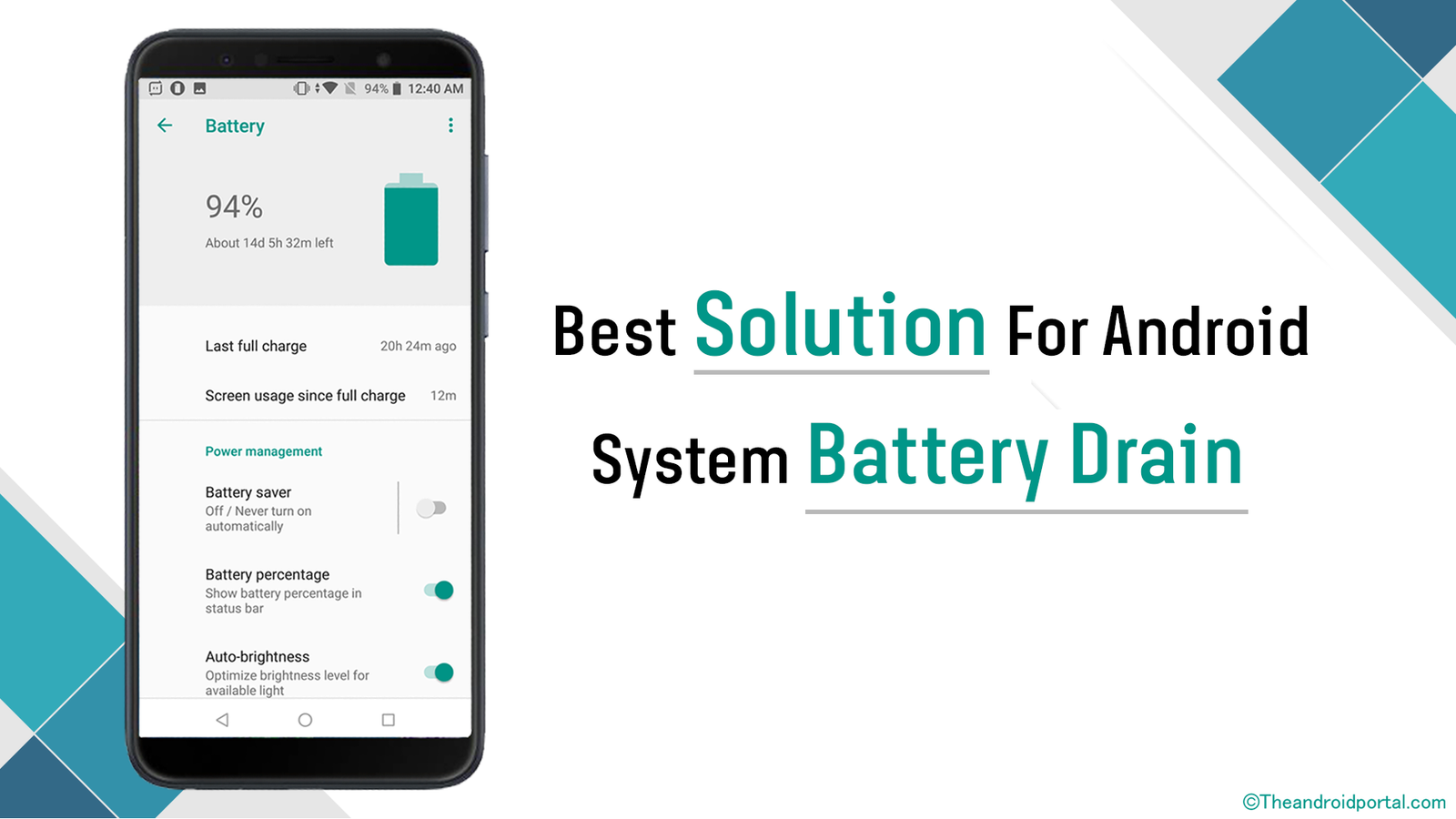
Android Battery Drain: Conquer the Power Hog and Reclaim Your Charge!
Okay, friends, let's talk about something wealldeal with: the dreaded Android battery drain. You know the feeling, right? You unplug your phone in the morning, feeling all charged up and ready to conquer the day. Then, BAM! By lunchtime, that little battery icon is already flashing red, mocking you with its impending doom. It's like your phone is secretly powered by a tiny hamster on a wheel, and that hamster is takingwaytoo many coffee breaks. We've all been there, frantically closing apps, dimming the screen until you can barely see, and praying for a power outlet.
Is your Android battery draining faster than your patience? Learn insider tips and tricks to diagnose and resolve the frustrating issue of rapid battery depletion, optimize settings, and extend your phone's battery life for a more productive and connected day.
But why does this happen? Why is your beloved Android device suddenly transforming into a power-hungry monster? Well, there are alotof reasons, and that’s what we’re here to unravel. It could be anything from rogue apps secretly mining cryptocurrency in the background (okay, maybe notminingcryptocurrency, but you get the idea) to outdated software, or even just your own heavy usage. Think about it: streaming music, playing games, endless scrolling through social media... your phone is workinghard.
Sometimes, it's obvious. That new game you downloaded that's so addictive? Yeah, probably a culprit. Other times, it's a sneaky little setting you accidentally toggled or an app you haven't opened in months that's still chugging away in the background. It's a mystery worthy of Sherlock Holmes, but don't worry, you don't need a deerstalker and magnifying glass to solve it.
The good news is that youcanfight back! Youcanreclaim control over your battery life and say goodbye to the anxiety of constantly searching for a charger. This isn’t about becoming a tech wizard; it’s about understanding a few simple tricks and tweaks that can make ahugedifference. We’re going to walk you through the common causes of Android battery drain, provide easy-to-follow troubleshooting steps, and equip you with solutions to optimize your phone's performance and extend its battery life.
Imagine a world where your phone lasts all day, where you can binge-watch your favorite shows without fear, and where you no longer have to carry around a portable charger like a digital security blanket. Sounds pretty good, right? So, keep reading, friends, because we’re about to unlock the secrets to a longer-lasting Android battery. Are you ready to finally ditch that low-battery stress and become the master of your phone’s power? Let's dive in!
Understanding Android Battery Drain: A Deep Dive
Android battery drain. Just the words are enough to make any smartphone user shudder. But before we jump into solutions, it's important to understandwhyit's happening in the first place. It’s not just about the battery getting old (although that certainly plays a role sometimes!). It’s about a complex interplay of hardware, software, and your own usage habits. Think of your phone like a car: driving uphill in rush hour burns way more gas than cruising downhill on the open road. The same principle applies to your phone's battery.
The Usual Suspects: Identifying the Culprits
So, who are the main culprits behind Android battery drain? Let's take a look at some of the most common offenders: Screen Brightness: This is a big one. The brighter your screen, the more power it consumes. Think of it like a lightbulb: the brighter the bulb, the more electricity it uses. Keeping your screen brightness cranked up to the max is a guaranteed way to drain your battery quickly. Apps Running in the Background: Many apps continue to run in the background even when you're not actively using them. They might be checking for updates, syncing data, or sending notifications. These background processes consume battery power without you even realizing it. It's like leaving the engine running in your car while you're parked. Location Services: Apps that constantly track your location, like navigation apps or social media platforms, can be major battery drainers. Every time your phone pings the GPS satellites to determine your location, it uses a significant amount of power. Wi-Fi and Bluetooth: Keeping Wi-Fi and Bluetooth enabled when you're not actively using them can also drain your battery. Your phone is constantly searching for available networks and devices, which consumes power. Outdated Software: Software updates often include battery optimization improvements. Running an outdated version of Android or your apps can lead to inefficient power usage. Defective Battery: Sometimes, the issue is simply a failing battery. Batteries degrade over time and with repeated charging cycles. If your battery is significantly older, it may no longer hold a charge as well as it used to. Push Notifications:Every notification that lights up your screen and makes a sound requires power. A constant barrage of notifications can quickly drain your battery.
Understanding App Battery Usage: A Key to Solving the Puzzle
One of the best ways to identify the cause of Android battery drain is to check your phone's battery usage statistics. Most Android devices provide a detailed breakdown of which apps are consuming the most power. Think of it like your phone keeping a detailed energy bill, showing you exactly where your power is going.
To access your battery usage statistics, typically you can go toSettings > Battery > Battery Usage. Here, you'll see a list of apps and their corresponding battery consumption percentages. Pay close attention to apps that are consuming a disproportionately large amount of battery, especially if you don't use them very often. This is a major clue to track battery draining apps.
Once you identify the power-hungry apps, you can take steps to limit their battery usage, such as restricting background activity, disabling notifications, or even uninstalling them altogether if you don't need them.
By understanding these underlying causes of Android battery drain, you're one step closer to taking control of your phone's power and extending its battery life.
Android Battery Drain Troubleshooting: Step-by-Step Guide
Alright, now that we've identified the usual suspects, let's get down to the nitty-gritty of troubleshooting. This is where we put on our detective hats and systematically investigate the source of the problem. Don't worry; it's not as complicated as it sounds. We'll walk you through it step-by-step. Think of it as a guided tour through your phone's settings, designed to uncover hidden battery drains.
Step 1: Analyze Battery Usage Stats
As we mentioned before, your battery usage stats are your best friend in this investigation. Head back toSettings > Battery > Battery Usage and carefully examine the list of apps.
Identify Power Hogs: Are there any apps consuming a significantly higher percentage of battery than you would expect? Note these down. Check Background Activity: Tap on each app to see details about its battery usage. Pay attention to how much battery the app is using while running in the background. This is often a sign that the app is not properly optimized. Look for Unexpected Activity:Are there apps that you rarely use showing up on the list with high battery usage? This could indicate that the app is malfunctioning or has been compromised.
Step 2: Taming the Power-Hungry Apps
Once you've identified the problem apps, it's time to take action! Here are a few strategies you can use: Restrict Background Activity: In your app settings (usually found under Settings > Apps > [App Name] > Battery), you can restrict the app's background activity. This will prevent the app from running in the background and consuming battery power when you're not actively using it. Force Stop the App: If an app is misbehaving and consuming excessive battery, you can try force stopping it. This will temporarily shut down the app and prevent it from running. You can usually find the "Force Stop" option in the app's settings. However, keep in mind that the app may restart automatically. Disable Notifications: Excessive notifications can contribute to battery drain. Disable notifications for apps that you don't need to receive alerts from. You can usually manage notifications in the app's settings or in your phone's notification settings. Uninstall the App:If you don't use an app very often, or if it's consistently causing battery drain, the best solution might be to simply uninstall it. You can always reinstall it later if you need it.
Step 3: Optimizing System Settings for Battery Life
Beyond individual apps, your phone's system settings also play a significant role in battery consumption. Here are some settings you can tweak to improve battery life: Adjust Screen Brightness: Lowering your screen brightness is one of the most effective ways to save battery. Consider using adaptive brightness, which automatically adjusts the screen brightness based on your surroundings. Shorten Screen Timeout: The screen timeout setting determines how long your screen stays on after you stop using it. Shortening the timeout can help prevent your screen from unnecessarily draining battery. Disable Location Services: Turn off location services for apps that don't need to track your location. You can also switch to "battery saving" mode for location services, which uses less accurate location data to conserve power. Turn Off Wi-Fi and Bluetooth: Disable Wi-Fi and Bluetooth when you're not actively using them. Your phone is constantly searching for available networks and devices, which consumes power. Enable Battery Saver Mode: Most Android devices have a built-in battery saver mode that automatically reduces performance and limits background activity to extend battery life. Update Your Software: Make sure your phone's operating system and apps are up to date. Software updates often include battery optimization improvements.
Step 4: Advanced Troubleshooting Techniques
If you've tried the above steps and you're still experiencing significant battery drain, here are a few more advanced techniques you can try: Check for Malware: Malware can sometimes cause excessive battery drain. Run a scan with a reputable antivirus app to check for any malicious software. Factory Reset: As a last resort, you can try performing a factory reset on your phone. This will erase all of your data and settings, so make sure to back up your important information first. A factory reset can sometimes resolve software issues that are causing battery drain. Battery Calibration:Although less common these days, some users find that calibrating the battery can help improve accuracy of the battery percentage displayed. This usually involves fully charging the phone and then completely draining it before recharging.
By following these step-by-step troubleshooting tips, you can identify the cause of your Android battery drain and take steps to fix it. Remember to be patient and systematic in your approach. Good luck!
Android Battery Drain Solutions: Long-Term Strategies
Okay, you've identified the immediate culprits and put out the fires. But what about the long game? How can youprevent Android battery drain from becoming a recurring problem? Think of it like this: you've patched up the holes in your roof, but now you need to weatherproof the whole house. These are some long-term strategies that will help you keep your battery healthy and happy for months to come.
Maintaining Good Battery Habits
Like any other technology, taking care of your battery can extend its life. Here are some practical tips to maintain battery longevity: Avoid Extreme Temperatures: Exposing your phone to extreme temperatures (both hot and cold) can damage the battery. Avoid leaving your phone in direct sunlight or in a freezing car. Use the Right Charger: Always use the charger that came with your phone or a certified charger from a reputable brand. Using a cheap or incompatible charger can damage the battery. Charge Strategically: It's generally best to avoid fully charging or fully discharging your battery. Instead, try to keep your battery level between 20% and 80%. Partial charging cycles are better for the battery than full cycles. Avoid Overnight Charging: While modern phones have mechanisms to prevent overcharging, leaving your phone plugged in all night can still generate heat, which can degrade the battery over time.
App Management Best Practices
Beyond restricting background activity, there are other ways to manage your apps to minimize their impact on battery life: Regularly Review Installed Apps: Take some time every few weeks to review the apps installed on your phone. Are there any apps that you no longer use? Uninstall them to free up storage space and prevent them from consuming battery in the background. Choose Lite Versions of Apps: Many popular apps offer "lite" versions that are designed to use less storage space and consume less battery. Consider switching to the lite version of an app if you don't need all of the features of the full version. Be Mindful of App Permissions: Pay attention to the permissions that apps request. Only grant permissions that are necessary for the app to function properly. For example, an app that doesn't need access to your location shouldn't be granted location permission. Keep Apps Updated: App updates often include bug fixes and performance improvements that can help reduce battery drain. Make sure to keep your apps updated to the latest versions.
Utilizing Android's Built-In Battery Optimization Features
Android has a number of built-in features designed to optimize battery life. Make sure you're taking advantage of these features: Adaptive Battery: This feature learns how you use your phone and automatically limits battery usage for apps that you don't use frequently. You can find Adaptive Battery in your phone's battery settings. Battery Saver Mode: As we mentioned before, Battery Saver Mode reduces performance and limits background activity to extend battery life. Use this mode when you know you'll be away from a charger for an extended period. Dark Mode:Using dark mode can save battery, especially on phones with OLED screens. Dark mode reduces the amount of power needed to illuminate the screen.
When to Consider Battery Replacement
Despite your best efforts, batteries degrade over time. If your battery is significantly older (over 2 years) and you're experiencing consistently poor battery life, it may be time to consider a battery replacement.
Professional Replacement: It's generally recommended to have your battery replaced by a professional technician. This will ensure that the battery is replaced safely and correctly. DIY Replacement: If you're comfortable working with electronics, you can attempt to replace the battery yourself. However, be aware that this can be risky and may void your phone's warranty.
By implementing these long-term strategies, you can significantly improve your Android battery life and prevent future battery drain issues. Remember, it's all about being proactive and mindful of your usage habits. Keep your battery happy, and it will keep you connected!
Conclusion: Empowering You to Conquer Android Battery Drain
So, there you have it, friends! We've journeyed through the murky waters of Android battery drain, identified the common culprits, armed ourselves with troubleshooting techniques, and explored long-term strategies for battery health. From rogue apps to screen brightness, we've uncovered the secrets to reclaiming control of your phone's power.
In short, remember these key takeaways: analyze your battery usage stats to identify power-hungry apps, tame those appsby restricting background activity and disabling notifications, optimize your system settingsby adjusting screen brightness and disabling unnecessary features, and practice good battery habits*by avoiding extreme temperatures and using the right charger.
But knowledge is only power if youuseit. Don't just read this article and forget about it. Take action! Go to your phone's battery settingsright nowand start implementing these tips. Even making a few small changes can make abigdifference in your battery life.
We encourage you to take control of your device by following the suggestions we have offered. Do you have any extra tips or tricks for dealing with Android Battery Drain that we have not yet covered?

Post a Comment for "Android Battery Drain: Troubleshooting and Solutions"
Post a Comment